
Password managers already saved us from terrible password habits. Now 1Password tackles a sneakier threat that slipped through the cracks.
The company just rolled out a protection layer that catches phishing attempts most users never see coming. It’s simple but clever. And it solves a real problem that existed for years.
Manual Password Entry Creates Hidden Risk
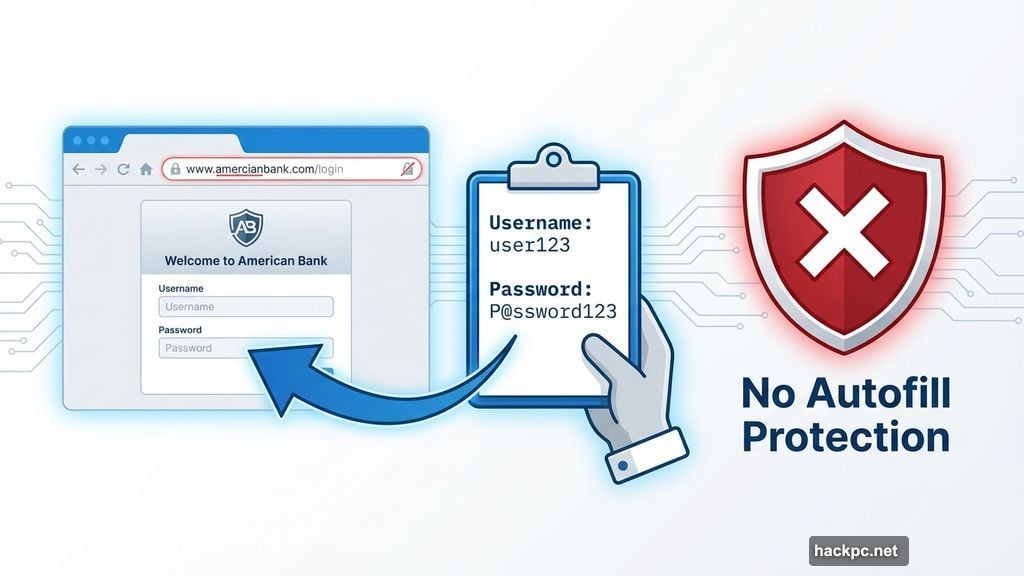
1Password blocks autofill on suspicious sites. That’s standard protection. But what happens when you manually copy and paste credentials?
Turns out, nothing stopped you before. That’s the gap phishers exploited.
Think about typical login behavior. You visit what looks like your bank’s site. The URL seems right at a glance. So you copy your password from 1Password and paste it into the form. Done.
Except the site was fake. And you just handed over your credentials. The autofill blocker never kicked in because you did the work manually.
Pop-Up Warning Breaks the Attack Pattern
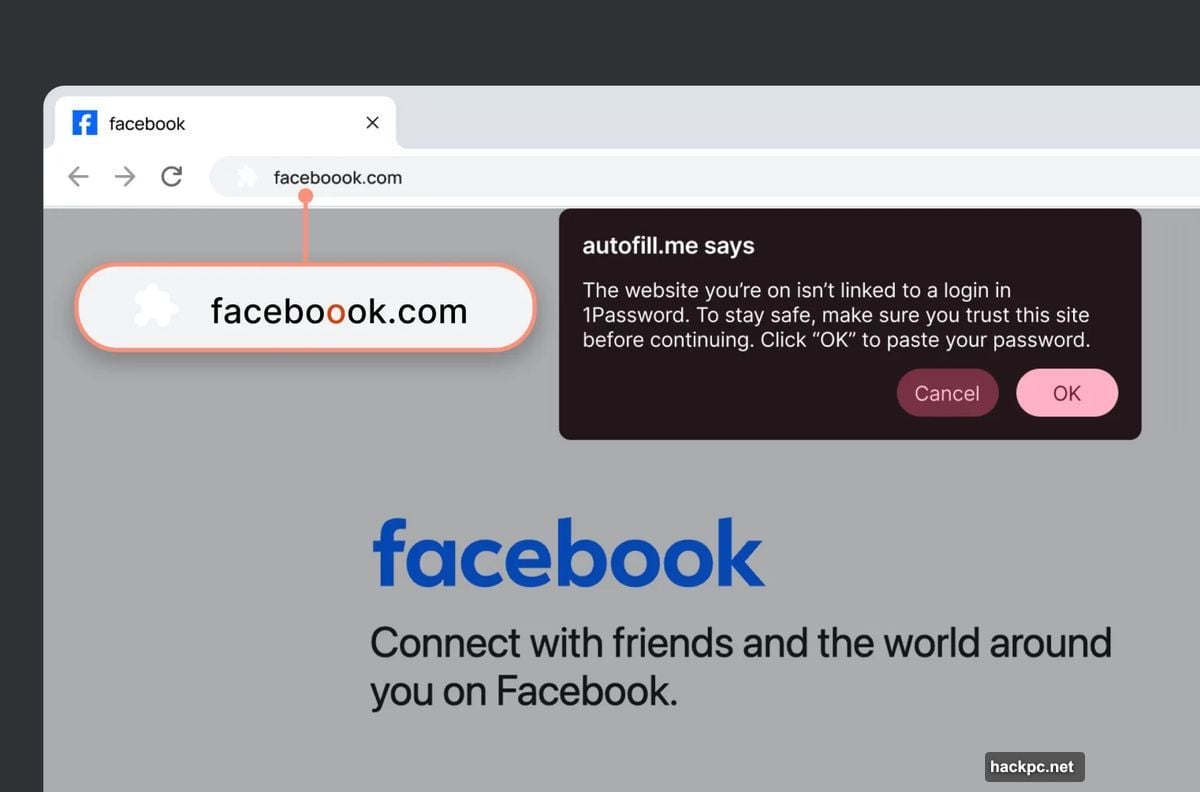
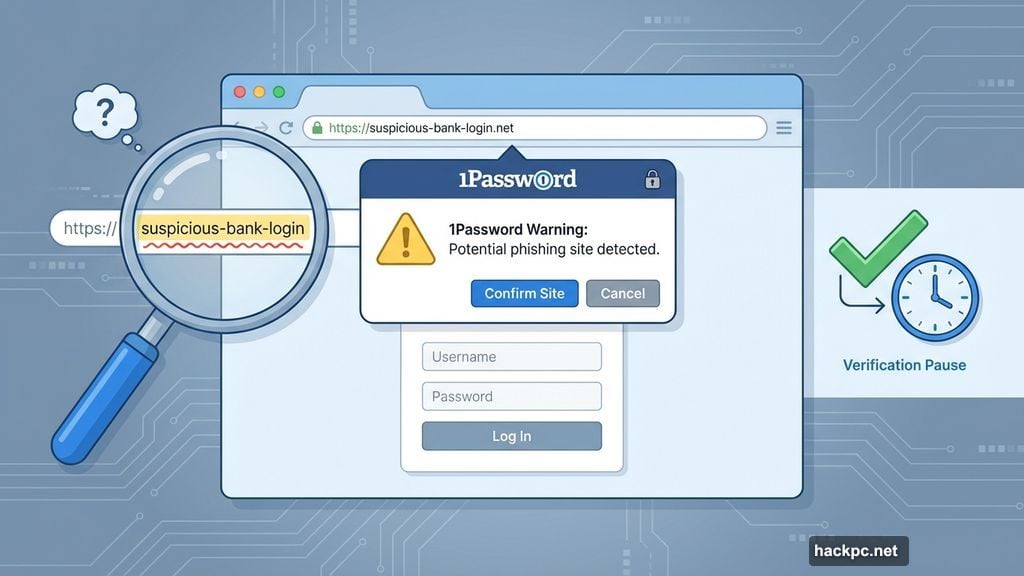
The new feature adds a verification step when you paste credentials on unlinked sites. A pop-up appears asking you to confirm the site’s legitimacy.
That brief interruption forces a crucial moment of awareness. Instead of automatically completing the login, you pause. You look closer at the URL. You check if something feels off.
Most phishing attacks rely on speed and distraction. Users move fast and miss warning signs. This feature deliberately slows you down at the exact moment you’re most vulnerable.
1Password describes it as a “brief interruption.” But that understates the value. Those few seconds can mean the difference between protecting your account and compromising it.
How It Actually Works
The protection activates when you paste login details on any site not already saved in your 1Password vault. The pop-up message appears immediately, before the form accepts your credentials.
You get two clear options. Confirm the site is legitimate and proceed. Or cancel and investigate further.
The system doesn’t block legitimate sites. It just adds verification when you’re entering credentials somewhere new or unexpected. That makes sense because legitimate sites you haven’t saved yet deserve the same careful treatment.
Plus, the feature works alongside existing autofill blocking. So you get layered protection whether you use autofill or manual entry.
Activation Takes Seconds
The feature is available now in 1Password’s browser extension settings. You need to manually enable it, which seems like an odd choice.
Most security features should default to “on” with an option to disable. But 1Password made this opt-in instead. Maybe they’re testing user adoption first. Or avoiding support tickets from confused users who encounter the pop-up unexpectedly.
Either way, turning it on takes just a few clicks. Open your browser extension settings. Find the new phishing protection option. Toggle it on. That’s it.
The feature works across all major browsers that support 1Password’s extension. Chrome, Firefox, Safari, Edge, and Brave all get the protection once enabled.
Why This Matters Beyond 1Password Users
This addresses a broader problem with password manager security models. Most managers focused exclusively on autofill protection. That made sense when autofill was the primary usage pattern.
But user behavior evolved. People learned to copy-paste credentials for various reasons. Maybe autofill didn’t work correctly. Maybe they wanted more control over the login process. Or maybe they were using a device where autofill wasn’t available.
Whatever the reason, that behavior created a vulnerability. And phishers noticed. They crafted attacks specifically targeting manual credential entry.
1Password’s solution sets a new standard other password managers should follow. Bitwarden, LastPass, Dashlane, and others all have the same gap. Users who manually paste credentials on fake sites get zero warning.
Now there’s proof this protection can work without disrupting legitimate use. Other managers have no excuse not to implement similar features.
The Phishing Arms Race Continues
Phishing attacks keep evolving. Every new protection spawns new attack methods designed to bypass it.
Autofill blocking forced phishers to create more convincing fake sites. Sites that looked identical to legitimate ones, down to the URL structure. Some even used internationalized domain names to create URLs that appeared letter-perfect.
This new protection will force another evolution. Phishers might create pre-populated forms that don’t require pasting. Or they’ll develop social engineering tactics that convince users to override the warning.
But that’s fine. Security isn’t about perfect protection. It’s about raising the cost and complexity of attacks until they’re no longer worth attempting.
Each new protection layer makes phishing harder. Fewer users fall for attacks. Attackers need more sophisticated techniques. Eventually, the effort required exceeds the potential payoff for most targets.
Simple Protection That Actually Works
No security feature is foolproof. Determined attackers always find workarounds. But this feature does something valuable.
It creates friction at the exact moment users are most vulnerable. That’s smart design. Not flashy. Not revolutionary. Just effective protection against a real threat.
If you use 1Password, enable this now. It takes seconds and adds meaningful security. If you use another password manager, ask them when they’re implementing similar protection.
Because phishing isn’t going away. And any tool that makes it harder deserves attention.


Comments (0)