

Free backup software sounds great until disaster strikes. Then you discover whether it actually works.
Aomei Backupper Standard handles the basics surprisingly well for zero dollars. It backs up files, creates system images, and restores your PC after crashes. Plus, it doesn’t lock essential features behind a paywall like most competitors.
But there’s a catch. Creating recovery disks that actually boot requires help from a third-party tool. That’s a problem when you need fast disaster recovery.
What Backupper Standard Actually Includes
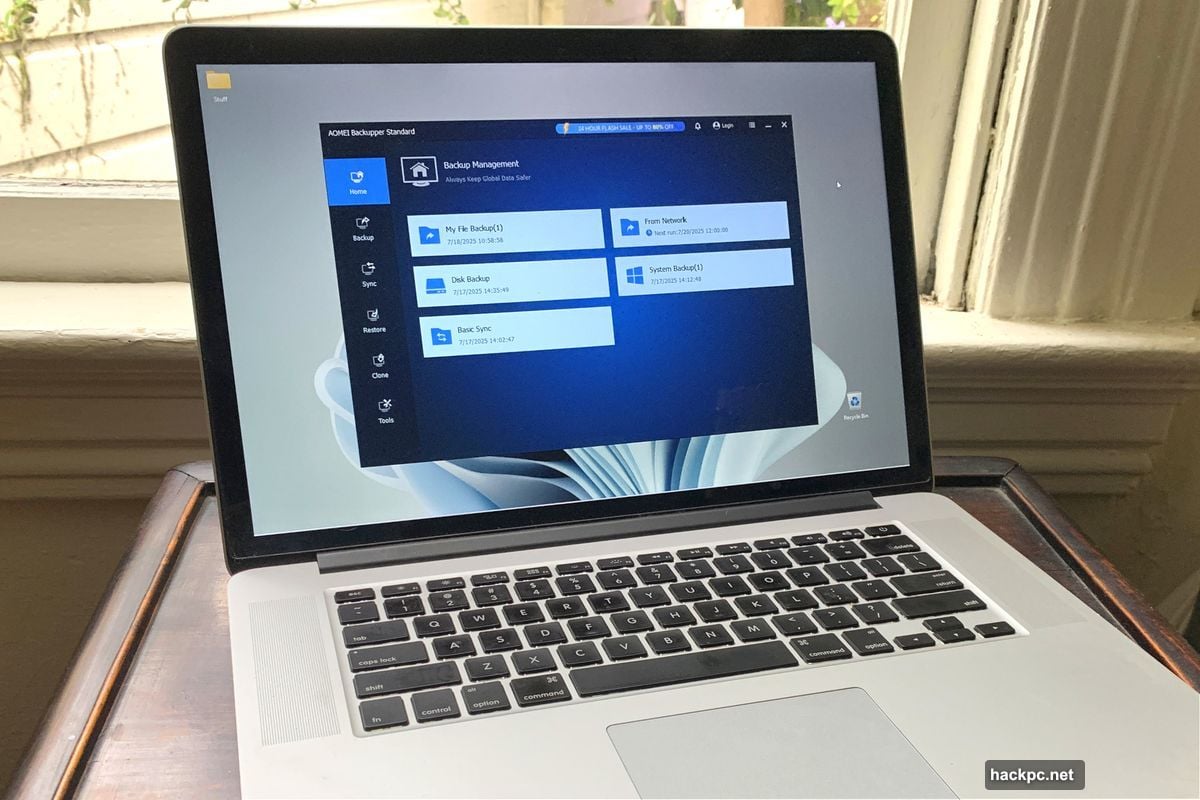
Most free backup tools strip out critical features. Backupper Standard takes a different approach.
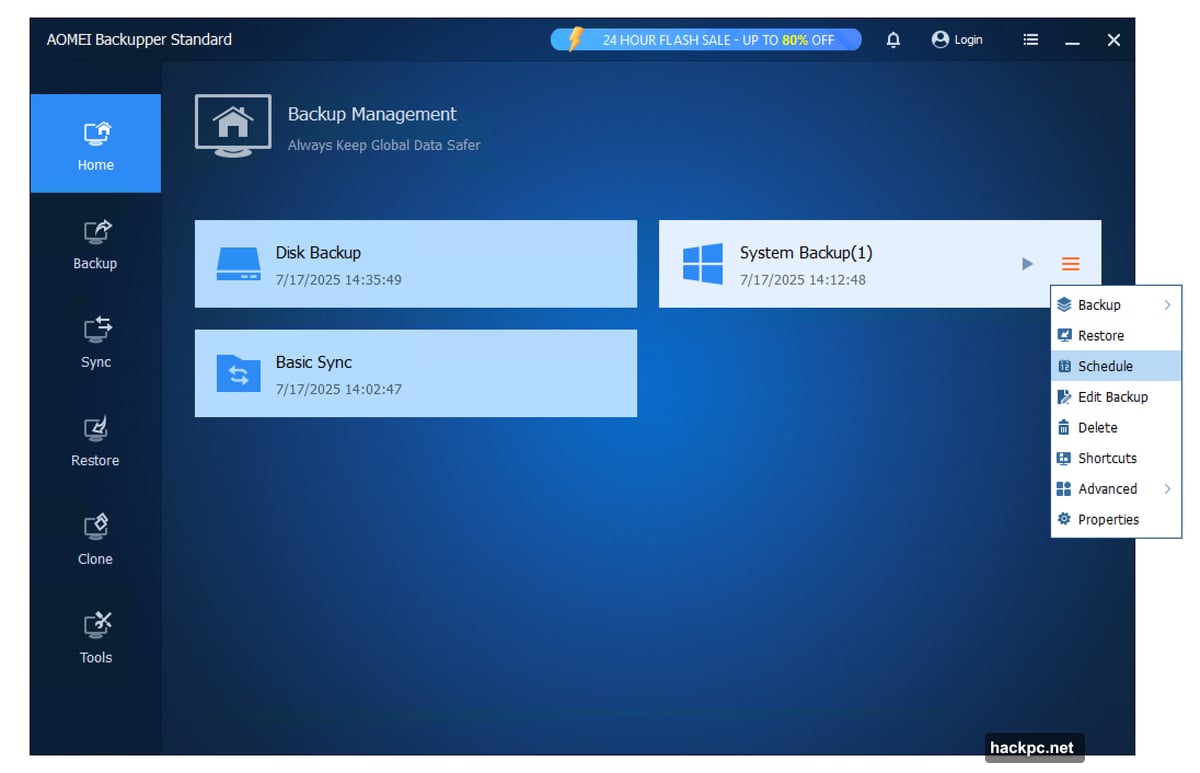
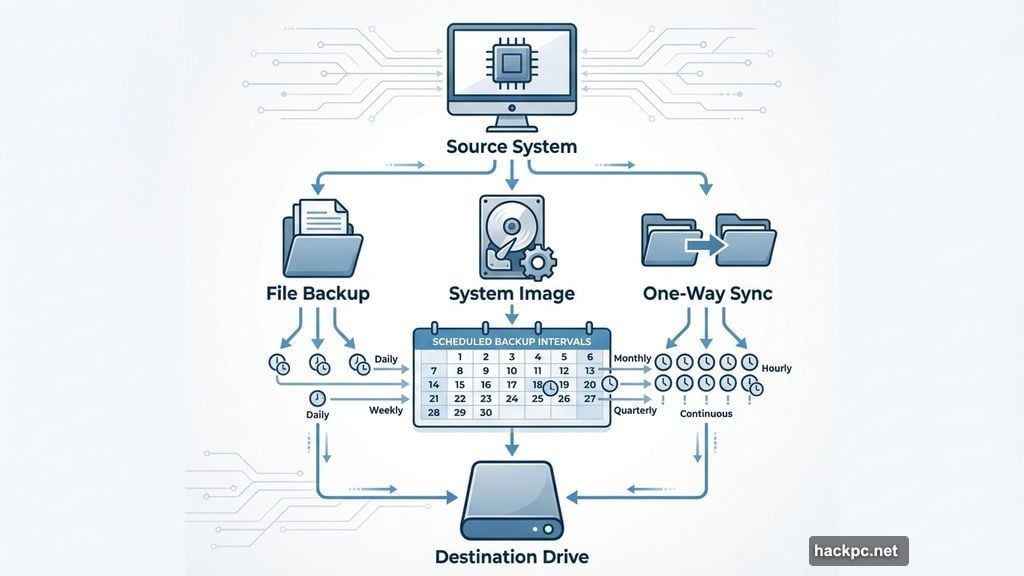
The free version includes file backup, system imaging, and one-way sync. You can schedule all three operations. Incremental and differential backups work properly. So you’re not starting from scratch every time.
Moreover, disaster recovery exists in the free tier. That’s rare. Most competitors charge for full system restores.
However, some Pro features are missing. Two-way sync doesn’t exist. Neither does real-time mirroring. Advanced functions like system cloning and partition management require payment. Still, casual users won’t miss these extras.
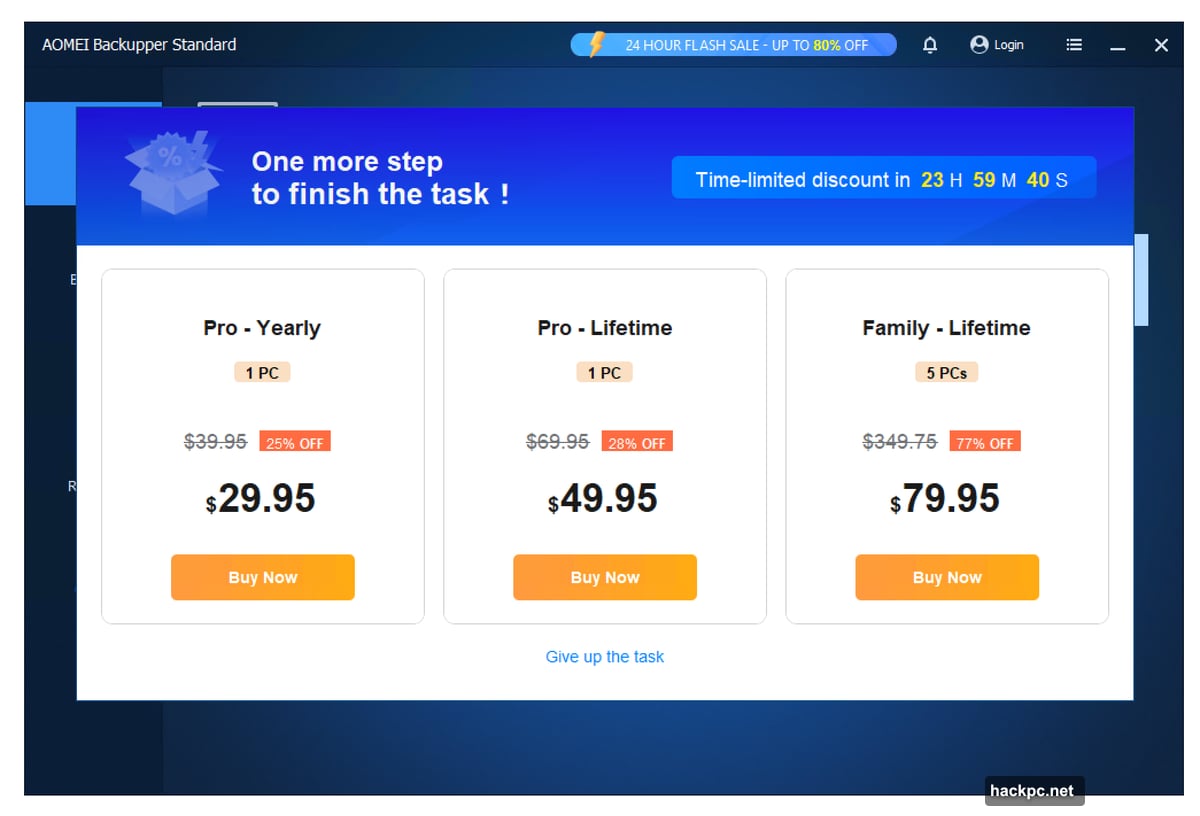
The program shows one banner ad at the top of the window. You’ll see a purchase nag when exiting. That’s the entire cost. No hidden subscriptions or trial periods that expire.
Performance Works Until Boot Disks Enter the Picture
Backupper Standard backed up files and created images without errors. Restore operations finished successfully. Speed wasn’t blazing fast, but it wasn’t frustratingly slow either.
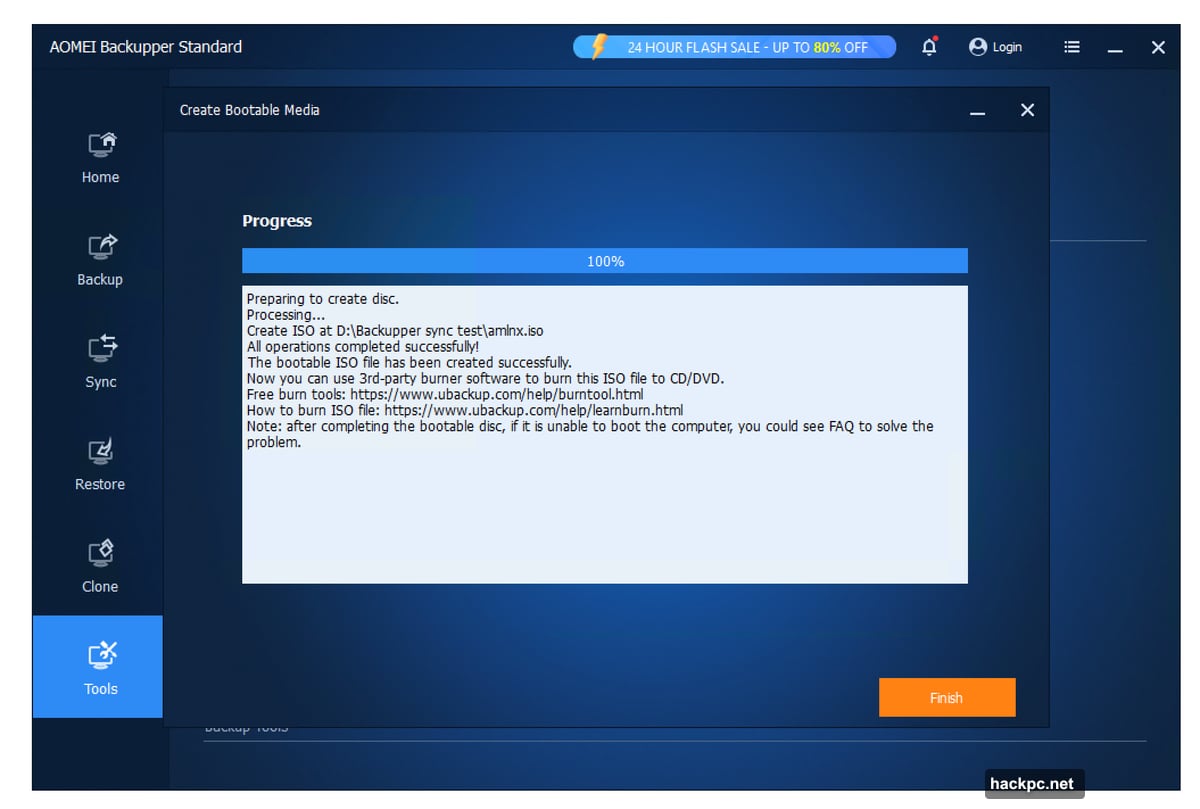
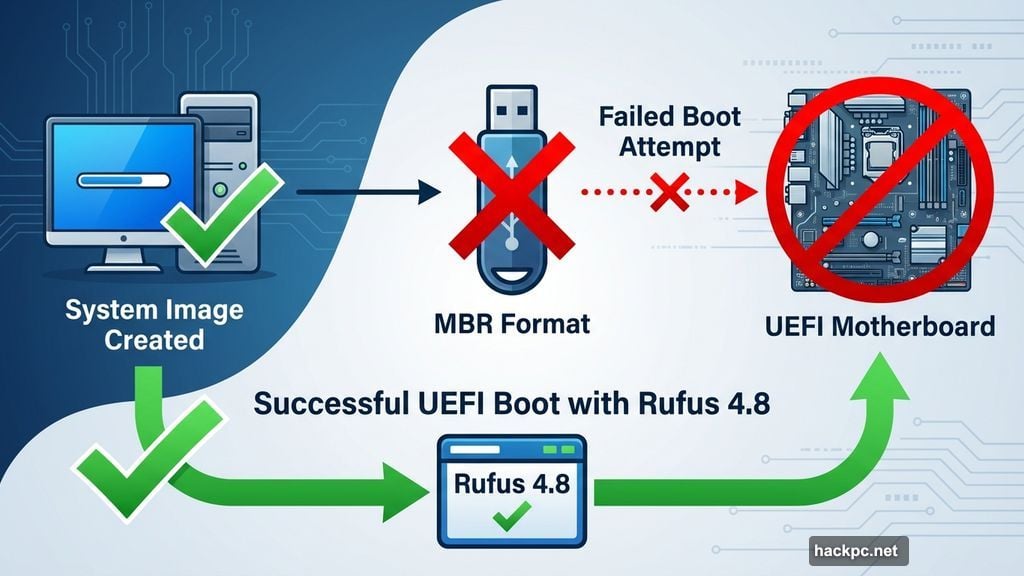
Then came the boot disk problem. The program created Linux and Windows PE ISO files just fine. But USB disks formatted by Backupper wouldn’t boot on UEFI systems. Multiple attempts with different USB drives all failed.
The issue appears to be MBR formatting instead of GPT. Backupper offers no option to change this. So the recovery media it creates won’t boot on modern UEFI computers.
Enter Rufus 4.8, a free boot disk utility. Using Rufus to create recovery media from Backupper’s ISO files solved the problem. The Windows PE version booted successfully. Linux recovery still refused to work.
This extra step undermines the “free and easy” promise. Yes, Rufus costs nothing. But expecting users to figure this out during an emergency isn’t acceptable. Testing recovery media before you need it becomes mandatory.
Once proper boot media existed, full system recovery worked perfectly. The restored system booted normally with all programs and settings intact.
Small Annoyances Don’t Break Functionality
A few quirks appeared during testing. Creating new folders within Backupper’s destination dialog causes confusion. Rename that folder immediately and the program can’t find it. Back out and try again, then it works.
Network locations require manual IP address entry. Type something like 192.168.1.105, provide credentials, then browse folders normally. Not difficult, just less convenient than browsing network locations directly.
These issues are minor. They slow you down but don’t stop backup operations from completing successfully.
Free Competitors Offer Alternatives
EaseUS Todo Backup also offers a free tier with disaster recovery. It’s actually our top pick for free backup software. Todo’s recovery media creation works without extra utilities.
Macrium Reflect 8 Free provides another solid option. Consider downloading it as backup insurance while testing Backupper’s recovery disks.
Windows includes File History and OneDrive backup. These handle documents and photos adequately. But Windows disaster recovery remains unreliable. That’s why third-party imaging tools matter.
The Free Price Makes Compromises Acceptable
Backupper Standard delivers legitimate value for zero dollars. File backup and system imaging work reliably. Scheduling keeps backups current automatically.
Yes, you’ll need Rufus to create working boot disks. That’s an annoying extra step. But it beats paying $50 annually for basic backup features.
The program lacks advanced sync options and automated backup culling. Power users should consider the Professional version. It offers perpetual licenses instead of forced subscriptions—a rarity these days.
For basic backup needs and disaster recovery, Backupper Standard does the job. Download Rufus before you need it. Test your recovery media thoroughly. Then you’re covered when disaster strikes.
Just remember: free backup software means nothing if you can’t restore your system when it crashes.




Comments (0)