
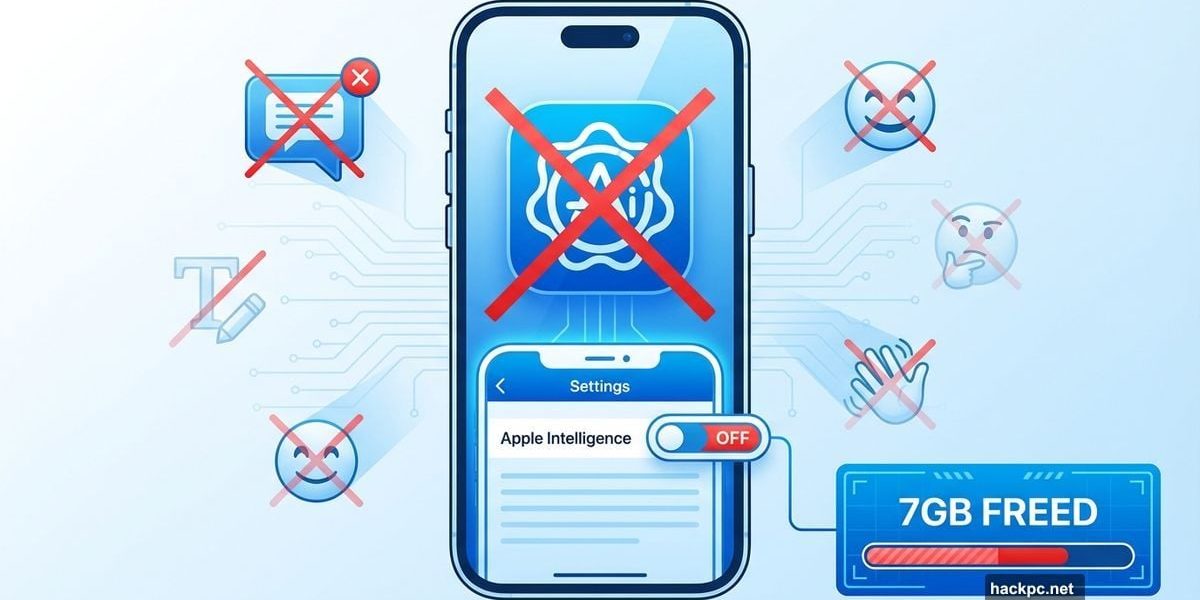
Apple Intelligence dropped into millions of iPhones last year. Not everyone cheered.
Some users discovered AI summaries mangling their notifications. Others watched 7GB of storage vanish for features they never asked for. Plus, recent surveys show most people simply don’t want AI cluttering their devices.
Good news: You can nuke the entire system in about 30 seconds. Or disable specific annoyances while keeping useful tools. Here’s exactly how to reclaim your iPhone from Apple’s AI experiment.
Why People Are Bailing on Apple Intelligence
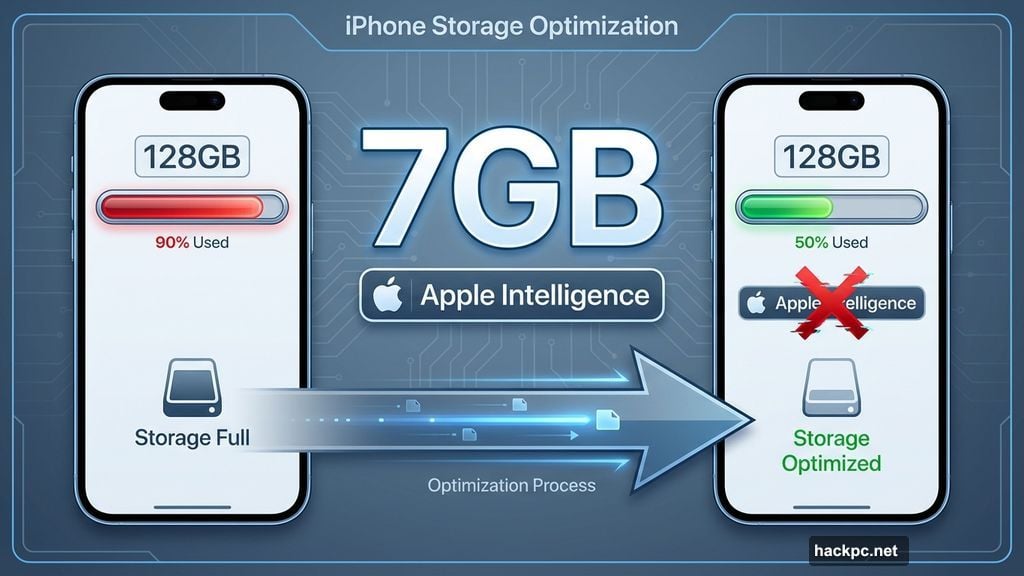
Storage consumption hits hard. Apple Intelligence gobbles up to 7GB of your device’s internal space. That’s brutal if you’re running close to capacity already.
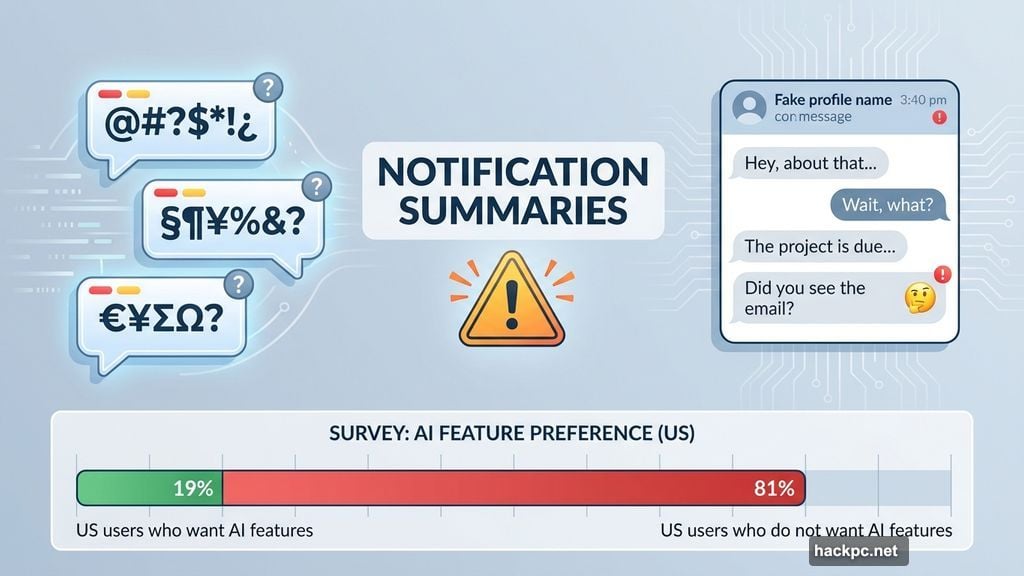
But storage isn’t the only complaint. CNET’s recent survey found just 19% of US smartphone owners upgrade specifically for AI features. Meanwhile, ZDNET reported that 8% would consider paying extra for AI capabilities.
Those numbers tell a story. Most people don’t want this stuff. Yet Apple shipped it as the default experience on every compatible iPhone.
Moreover, the features themselves frustrate users. Notification summaries occasionally produce wildly inaccurate results. Message previews sometimes hilariously misinterpret conversations. So even when Apple Intelligence works, it doesn’t always help.
Storage Impact: The Hidden Cost
Apple Intelligence doesn’t advertise its storage footprint during setup. You discover it later when you wonder why your iPhone keeps complaining about low space.
Check your current usage by navigating to Settings > General > iPhone Storage > iOS. The system breaks down exactly how much space Apple Intelligence consumes. My test iPhone showed 5.89GB allocated to AI features.
Here’s something Apple won’t tell you upfront. Even after disabling Apple Intelligence, that storage initially stays allocated. However, iOS will reclaim it automatically when your device needs space for other files. I confirmed this by filling my iPhone to capacity. The system dropped Apple Intelligence storage from 5.89GB to 2.87GB without my intervention.
Still, that’s storage you can’t use for photos, apps, or other content while Apple Intelligence sits dormant. For devices with 128GB or less, that matters.
Disable Apple Intelligence Completely
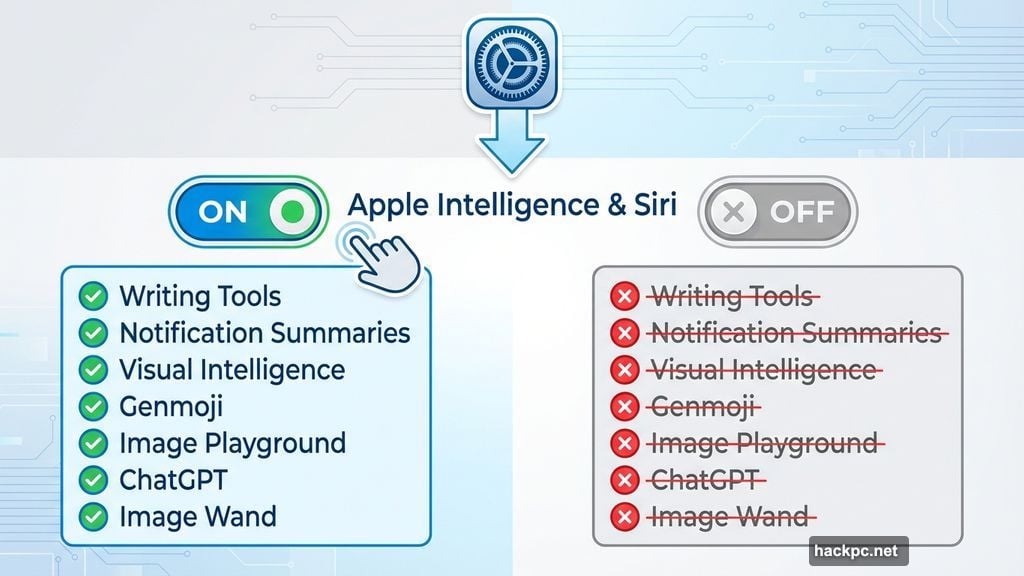
The nuclear option takes about 30 seconds. Open Settings and tap Apple Intelligence & Siri. Then flip the Apple Intelligence toggle off. Confirm your choice when the dialog appears.
This single action kills everything:
- Writing tools across all apps
- Notification summaries
- Visual Intelligence
- Genmoji creation
- Image Playground functionality
- ChatGPT integration with Siri
- Image Wand in Notes
Interestingly, the Clean Up tool in Photos survives this purge. Apple apparently considers it separate from the main Apple Intelligence system. That’s actually useful since Clean Up legitimately helps with photo editing.
One warning: Earlier iOS 18 versions automatically re-enabled Apple Intelligence after updates, even if you’d turned it off. Apple fixed this behavior in iOS 18.4. Now your preference sticks through updates.
Surgical Strikes: Disable Specific Features
Maybe you find Writing Tools helpful but hate notification summaries. You can disable individual features without nuking the entire system.
Message summaries, for example, live in Settings > Apps > Messages. Just toggle Summarize Messages off. Those inaccurate notification previews disappear while other Apple Intelligence features keep working.
Unfortunately, Writing Tools can’t be disabled selectively. They appear whenever you select text in any app. The only way to remove Writing Tools is disabling Apple Intelligence system-wide.
Nearly every app includes an Apple Intelligence & Siri section in Settings. But don’t get confused by the “Learn from this App” toggle you’ll find there. That controls whether Apple Intelligence monitors your app usage for suggestions. It doesn’t affect actual AI features.
Screen Time Restrictions: The Power User Approach
Screen Time settings offer another control layer. This approach works especially well if you share devices with family members or want granular control.
Navigate to Settings > Screen Time > Content & Privacy Restrictions. Enable Content & Privacy Restrictions if it’s not already on. Then tap Intelligence & Siri.
You’ll find three specific toggles:
- Image Creation (Image Playground and Genmoji)
- Writing Tools
- ChatGPT Extension
This method lets you block ChatGPT integration while keeping Writing Tools active. Or disable Image Playground while preserving notification summaries. Mix and match based on what actually helps versus what annoys you.
Screen Time restrictions also persist across iOS updates more reliably than some other settings. Plus, they integrate with Family Sharing if you manage multiple devices.
Apple Intelligence Compatibility Reality Check
Not every iPhone runs Apple Intelligence. The feature requires serious hardware muscle. Compatible devices include:
- iPhone 17 series (all models)
- iPhone 16 series (all models)
- iPhone 15 Pro and Pro Max
- M-series iPads and Macs
- Latest iPad mini
Older devices can’t run Apple Intelligence even if you wanted them to. The on-device processing demands too much from previous-generation chips.
So if you’re using an iPhone 14 or earlier, congratulations. You’re automatically opted out. Apple won’t let you opt in even if you change your mind later.
When Apple Intelligence Actually Helps
Some features deserve credit. Photo cleanup legitimately removes unwanted objects from pictures without destroying image quality. Notification summaries work well for apps that generate lots of alerts.
Writing Tools occasionally help with proofreading, though the rewrites often sound robotic. Visual Intelligence shows promise for identifying objects through your camera, even if it’s not consistently reliable yet.
The problem isn’t that Apple Intelligence never helps. It’s that Apple ships it as mandatory on compatible devices, whether you want it or not. Then the features consume storage, occasionally malfunction, and distract from your actual workflow.
The Testing Guinea Pig Problem
Here’s what really bothers many users. Apple Intelligence remains a work in progress. Features improve with each iOS update, but that means early adopters essentially beta test for Apple.
Developer and public betas exist for exactly this purpose. Yet Apple shipped Apple Intelligence as the default experience for everyone with a compatible iPhone. That decision forced mainstream users into the testing process whether they volunteered or not.
Some people enjoy trying new technology and don’t mind occasional hiccups. Others just want their iPhone to work reliably without AI surprises. Both preferences are valid.
Make Your Choice and Move On
Apple Intelligence isn’t going anywhere. Future iOS versions will expand the feature set, add more capabilities, and integrate deeper into the operating system.
But you don’t have to participate in that evolution. Disable what annoys you. Keep what helps. Or nuke the entire system if you prefer. Your iPhone, your rules.
The settings won’t hide from you or reset without permission anymore. So make your choice once, then forget about it and use your phone the way you want.




Comments (0)