
Your phone knows everything. Bank passwords. Private photos. Work emails. Medical records.
One successful cyberattack can expose all of it. Yet most people treat phone security as an afterthought. They use weak PINs, ignore updates, and download sketchy apps without thinking twice.
That stops today. Let’s cover the specific steps that actually protect your device from viruses, phishing, and data theft.
Update Your Phone Right Now
Software updates aren’t just about new features. They patch security holes that hackers actively exploit.
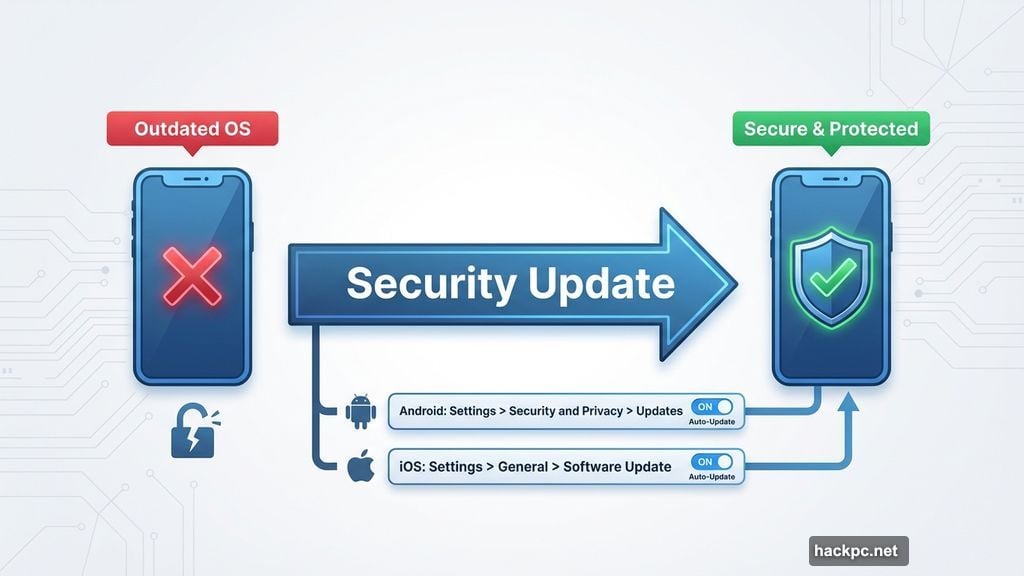
Android and iOS release major updates periodically, with smaller security patches throughout the year. Most phones get update support for two to five years. After that, you’re running vulnerable software.
For Android users: Most devices auto-update by default. But it’s worth checking. Navigate to Settings > Security and Privacy > Updates. This shows when your last update installed and whether auto-updates are enabled. If not, flip that switch immediately.
For iPhone users: You need to manually enable auto-updates. Go to Settings > General > Software Update > Automatic Update. Then choose automatic installation for full automation, or automatic downloading if you want control over when updates install.
I recommend full automation for most people. However, if your phone stores critical business data, automatic downloading gives you time to back up before major system changes.
Skip Third-Party Antivirus Unless You Need Specialized Protection
Here’s the truth most antivirus companies won’t tell you. Built-in protection works fine for average users.
Android uses Google Play Protect to scan apps for malware. Some manufacturers like Samsung add extra security layers. iOS relies on sandboxing, which isolates apps from your core system, plus Apple’s strict app review process blocks most threats before they reach your device.
These protections handle normal browsing, app usage, and email checking without additional software.
So when do you need third-party antivirus? Three scenarios stand out:
Your phone stores sensitive business or financial data beyond personal use. You regularly visit risky websites or download files from unfamiliar sources. Multiple people use your device, increasing exposure to varied security practices.
If any of these apply, consider apps from Bitdefender or Norton. Both offer clean interfaces that don’t require security expertise to navigate.
Master Phishing Detection Before It Masters You
Phishing attacks trick you into sharing passwords, installing malware, or clicking malicious links. They’re sophisticated, constantly evolving, and frighteningly effective.
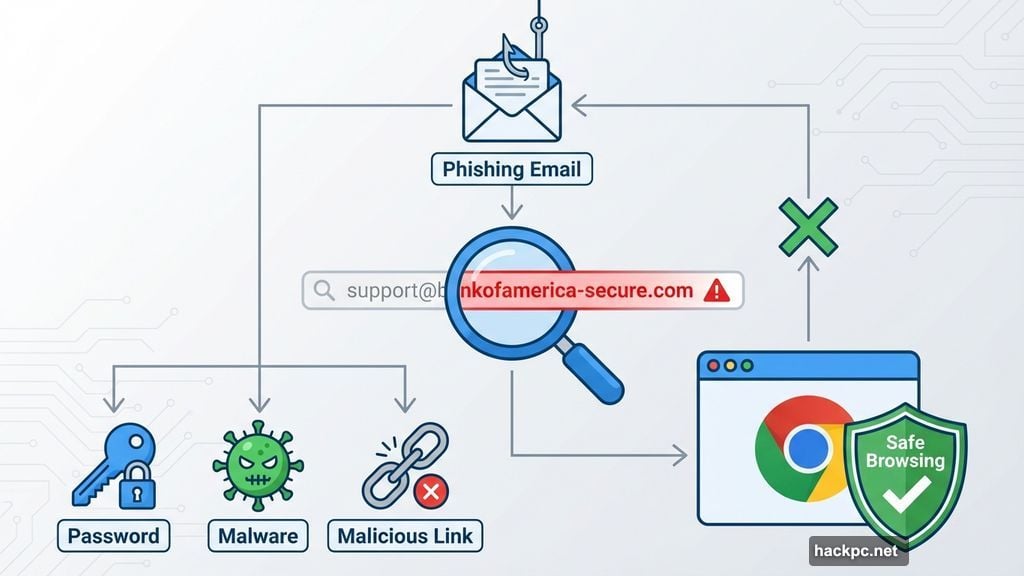
Android users can enable Safe Browsing in Chrome to block known phishing sites. But technology alone won’t save you. You need to recognize the patterns yourself.
Check email addresses carefully. Scammers use addresses that look almost right. “[email protected]” instead of “[email protected]”. One extra character can mean the difference between legitimate and dangerous.
Hover over links before clicking. On your phone, press and hold any link until a preview appears. Read the actual URL. Does it match the company the message claims to represent?
Question urgent language. Scammers create artificial time pressure. “Account suspended! Click now!” Real companies rarely demand immediate action through unsolicited messages.
Generic greetings signal trouble. Your bank knows your name. If a message says “Dear Customer” or “Dear Sir/Madam”, it’s probably fake.
Scrutinize attachments. Check file previews before downloading anything. Legitimate companies rarely send unexpected attachments.
Look for spelling errors. One typo happens. Multiple errors suggest a scam written by someone trying to evade automated filters.
Contact companies directly. When in doubt, call or message the company using official contact information from their website. Never use contact details from suspicious messages.
Some antivirus providers now offer anti-scam tools that scan incoming messages and flag suspicious content. Bitdefender and McAfee both provide AI assistants you can forward questionable messages to for analysis. These tools help, but they’re not perfect. Your judgment remains your best defense.
Download Files Only From Sources You Trust
Malware hides in files designed to look legitimate. Every download carries some risk, so develop strict habits around what you allow onto your device.
Verify URLs match official websites. Before downloading anything, confirm you’re on the actual company site, not a lookalike domain. Scammers register domains that differ by one letter from legitimate sites.
Look for https:// in URLs. The “s” signals SSL encryption, which protects data traveling between your device and that website. It’s not a perfect security indicator, but its absence is a red flag.
Research companies before buying. Google “(company name) scam” before purchasing or downloading software. You’ll quickly find if others reported malware, spyware, or other issues.
These steps take thirty seconds but can save you from devastating infections.
Stick With Apps That Have Proven Track Records
Both the iOS App Store and Google Play Store screen apps for malware. But bad apps occasionally slip through these security checks.
Before installing any app, verify three things:
The developer has a legitimate online presence beyond the app store listing. You should find an official website, social media accounts, and evidence they’re a real company or established developer.
Reviews show the app works as advertised without damaging device performance. Pay attention to recent reviews, not just the overall rating. An app’s quality can decline over time.
The app supports your current OS version and receives regular updates. Apps abandoned by developers won’t get security patches when vulnerabilities emerge.
You can learn most of this from the app store itself. But for important apps, especially ones handling sensitive data, do additional searches for “(app name) virus” or “(developer name) scam”. Better safe than sorry.
Lock Your Phone With Actually Secure Settings
All your precautions mean nothing if someone steals your unlocked phone or guesses your PIN in three tries.
Set your phone to auto-lock after brief inactivity. Then choose a PIN that meets these standards:
Hard to guess. Avoid birth years, phone numbers, addresses, or anything connected to public information about you.
Unique. Don’t reuse PINs from your bank account or other services. If someone cracks this PIN, they shouldn’t automatically access everything you own.
More than four digits. Six to eight digit PINs resist brute force attacks far better than four digits. The extra digits make a massive difference.
Biometric locking through fingerprints or facial recognition offers convenience and decent security. But these systems have limitations worth understanding.
Researchers at New York University created a neural network that cracked fingerprint authentication 20% of the time. That’s a significant vulnerability. Plus, you can’t change your fingerprints if they’re compromised. Stolen biometric data creates permanent risk.
Weigh these concerns against the convenience factor before enabling biometric locks. For many people, a strong PIN offers better long-term security.
Back Up Everything Important
Despite your best efforts, sophisticated malware sometimes breaks through. Ransomware can lock your files. Certain viruses corrupt data beyond recovery.
Cloud backups protect you from these scenarios. Services like iCloud, Google Drive, and Dropbox automatically sync your important files. If your phone gets infected, you can restore everything from backup.
For extremely sensitive data, consider local backups to an external hard drive not connected to the internet. This creates an air gap that malware can’t cross remotely.
The specific backup strategy matters less than having one at all. Test your backups occasionally to confirm they actually work. Many people discover backup failures only after disaster strikes.
Your Phone Security Checklist
Security isn’t a one-time setup. It requires ongoing attention.
Enable automatic updates right now if you haven’t already. Check your app permissions monthly and revoke access for apps that don’t need it. Review your installed apps quarterly and delete anything you no longer use. Run antivirus scans weekly if you use third-party security software.
These habits take minimal time but dramatically reduce your attack surface. Plus, catching problems early prevents the major headaches that come from serious infections.
Your phone contains too much of your life to leave unprotected. The steps above aren’t optional nice-to-haves. They’re essential practices for anyone who values their privacy, data, and digital security.
Start with updates and work through the rest of this list. Your future self will thank you when these precautions stop the attack that would have devastated someone less prepared.




Comments (0)