
McAfee sticks around like an unwanted houseguest. You thought it was gone, but there it is again, begging for renewal money.
Most people struggle to fully remove this software. It buries itself deep in your system. Plus, standard uninstall methods often leave behind pieces that keep firing off annoying pop-ups.
Let’s fix that. Here’s how to completely delete McAfee from Windows and Mac, including the stubborn bits that hide.
Why Standard Uninstall Methods Fail
Windows includes built-in removal tools. They work fine for most programs. But McAfee? Not so much.
The software installs multiple components across your system. When you click “uninstall” through Windows Settings, it removes the main program. However, leftover files and registry entries remain active in the background.
That’s why you still see McAfee alerts weeks after supposedly deleting it. The core program is gone, but fragments keep running. These remnants slow your computer and spam you with subscription reminders.
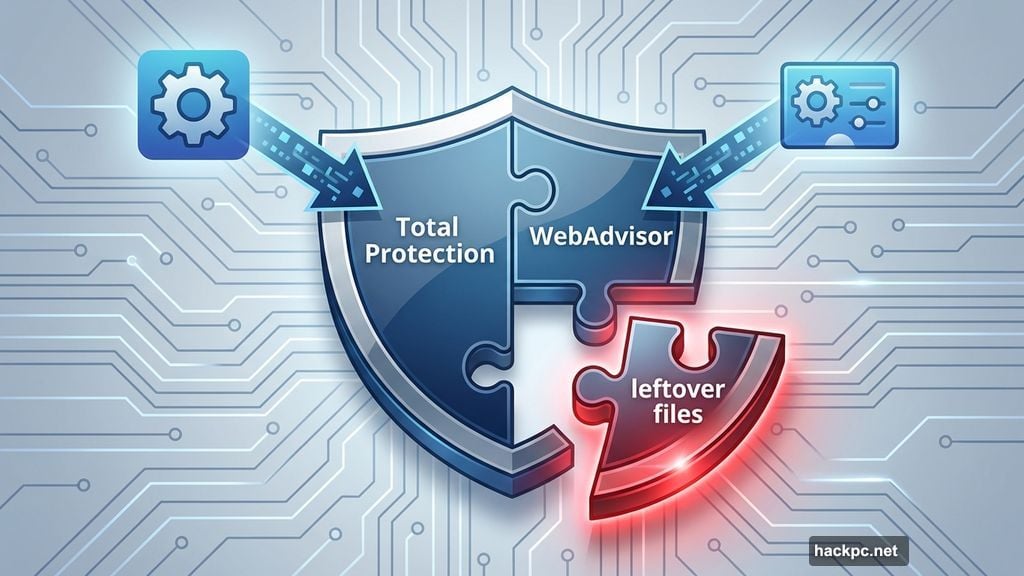
Moreover, McAfee includes WebAdvisor as a separate component. Most people forget to uninstall it. So even after removing McAfee Total Protection, WebAdvisor continues launching browser warnings and alerts.
Remove McAfee Through Windows Settings
Start with the easiest method. This works for Windows 10 and Windows 11.
Open your Settings app. Navigate to Apps, then click Installed Apps. If you’re on an older Windows version, look for Apps & Features instead.
Scroll through your program list until you find McAfee Total Protection. Click the three dots next to it, then select Uninstall. The system will walk you through removal steps.
Here’s the critical part. When prompted, check every box about removing related files and settings. Don’t skip these options. They help clear out more leftover pieces.
After finishing, search for WebAdvisor by McAfee in the same list. Repeat the uninstall process. This browser extension operates independently from the main antivirus program.
Alternative: Use Control Panel Method
The Control Panel offers another removal path. Sometimes it catches programs that don’t appear in Settings.
Press Windows + R on your keyboard. This opens the Run dialog box. Type appwiz.cpl and hit Enter.
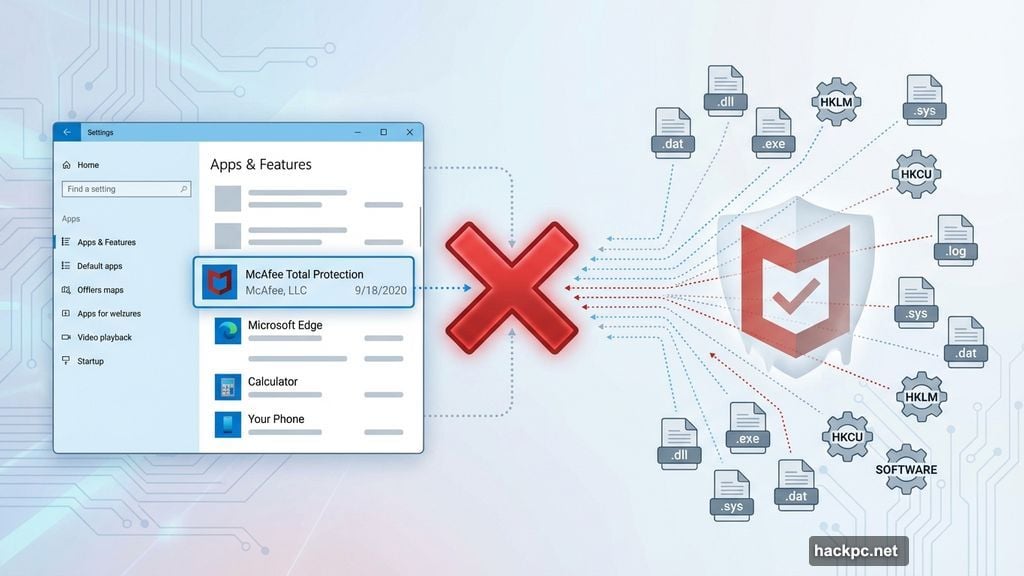
A window pops up showing all installed programs. Find McAfee Total Protection in this list. Right-click it and choose Uninstall.
Follow the wizard that appears. Again, select every option to remove associated files when given the choice. Don’t rush through these steps.
Check for WebAdvisor in the same program list. Uninstall it separately if present.
McAfee’s Nuclear Option: MCPR Tool
Standard methods didn’t work? Time for the heavy artillery.
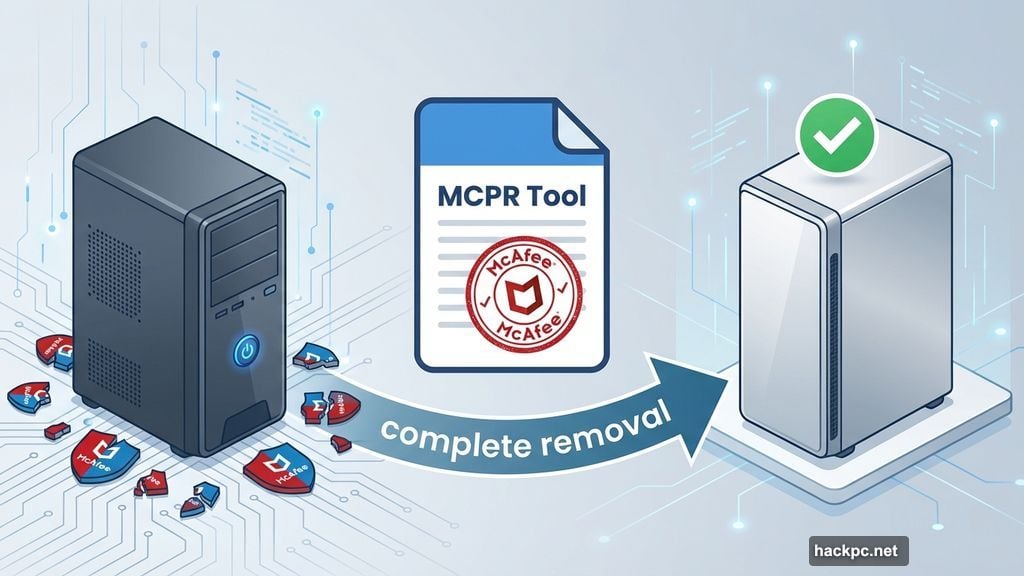
McAfee provides an official removal tool called MCPR. It’s free and specifically designed to delete every trace of their software. This tool succeeds where Windows’ built-in methods fail.
Visit McAfee’s support page and download the latest MCPR version. The file usually lands in your Downloads folder.
Right-click the downloaded file. Select “Run as Administrator” from the menu. Windows will likely show a security warning. Click Yes to continue.
The tool launches with a simple interface. Click Next, then Agree to accept the license terms. Nothing complicated here.
Now comes a CAPTCHA screen. It displays random characters you must type exactly as shown. This prevents accidental deletions. Enter the characters carefully, then click Next.
The removal process starts automatically. It takes 3-5 minutes on most systems. You’ll see progress updates as MCPR searches for and deletes McAfee components.
When finished, a “Removal Complete” message appears. Click Restart to complete the process. Your computer needs to reboot for all changes to take effect.
Removing McAfee from Mac Computers
Mac uninstallation follows a different process. Apple’s operating system handles software removal differently than Windows.
Open Finder and navigate to your Applications folder. Look for an app called “McAfee Total Protection Uninstaller.” Double-click it to launch the removal tool.
MacOS will ask for your administrator password. Type it in when prompted. This grants the uninstaller permission to delete system-level files.
The tool runs automatically and removes the main McAfee application. But we’re not finished yet.
McAfee leaves behind scattered files even after the official uninstall. These fragments hide in system folders. You need to manually hunt them down.
In Finder, click Go in the top menu bar. Select “Go to Folder” from the dropdown. A text box appears where you can enter folder paths.
Visit each of these locations one by one:
- ~/Library/Application Support/
- /Library/Application Support/
- ~/Library/LaunchAgents/
- /Library/LaunchAgents/
- ~/Library/Preferences/
In each folder, search for anything containing “McAfee” in the filename. Delete those files. But don’t delete the folders themselves – only the McAfee-related contents.
After clearing all these locations, right-click your Trash icon in the dock. Select “Empty Trash” to permanently delete everything.
Should You Even Remove McAfee?
Probably, yes. Most people don’t need it anymore.
Modern operating systems include solid built-in protection. Windows 10 and 11 come with Windows Security, which quietly blocks threats without constant pop-ups. MacOS includes Gatekeeper and XProtect that catch common malware.
These built-in tools update automatically and run in the background. They don’t bug you for subscription renewals. Plus, they consume fewer system resources than third-party antivirus software.
Some people still prefer dedicated antivirus programs. Fair enough. But McAfee specifically has a reputation for being resource-hungry and aggressive with renewal reminders.
If you’re concerned about removing McAfee entirely, consider just disabling it temporarily first. Test whether your system runs better without it before fully committing to removal.
How McAfee Appeared on Your Computer
You didn’t install it yourself. At least, not intentionally.
McAfee comes preinstalled on most new laptops from Dell, HP, Lenovo and other major brands. PC manufacturers bundle it as a trial version through deals with McAfee. This generates revenue for computer makers.
Sometimes McAfee sneaks in through other software installations. Remember those “recommended extras” you clicked through during program setup? That’s how additional software gets installed without your explicit knowledge.
Free software downloads often bundle unwanted programs. Always choose “Custom Installation” instead of “Express” when installing anything. This lets you uncheck boxes for add-on software you don’t want.
What to Install After Removing McAfee
Don’t leave your computer completely unprotected. Replace McAfee with something better.
For most Windows users, built-in Windows Security provides adequate protection. It’s free, updates automatically and doesn’t slow your system. Just make sure it’s enabled after removing McAfee.
Mac users already have decent built-in protection through MacOS security features. If you stick to trusted apps and avoid sketchy websites, you’re probably fine.
Still want dedicated antivirus software? Several solid alternatives exist.
Norton offers comprehensive protection with extras like password management and scam detection. Bitdefender consistently scores high in third-party security tests and runs efficiently in the background.
AVG and Malwarebytes are also reliable options. Check out reviews comparing these programs to find what fits your needs.
Whatever you choose, install it right after removing McAfee. Then run a full system scan to check for any existing threats. Also, keep your operating system updated – those security patches matter more than most people realize.
The Real Problem With Security Software
Most antivirus programs overstay their welcome. They start as helpful protection, then transform into annoying marketing machines.
McAfee exemplifies this problem. The software works fine initially. But eventually, renewal pop-ups dominate your screen. Every system scan triggers upgrade prompts. Constant notifications interrupt your work.
That’s why so many people desperately want it gone. Not because it fails at security, but because it becomes more annoying than helpful.
The irony? Your operating system probably protects you just fine without third-party software. Most people never experience serious malware infections. Basic security practices – avoiding suspicious links, keeping software updated, using strong passwords – prevent most threats.
So if you’re removing McAfee, don’t feel guilty. You’re not putting yourself at serious risk. You’re just reclaiming control of your own computer.




Comments (0)