
Forgetting how to set up out-of-office messages is frustrating. You’re about to leave. Your inbox is exploding. And you can’t remember where Microsoft buried that setting.
Been there. Done that. Too many times.
Here’s the dead-simple process that works every time. No hunting through menus. No second-guessing yourself. Just seven quick steps and you’re done.
Open Your Account Settings First
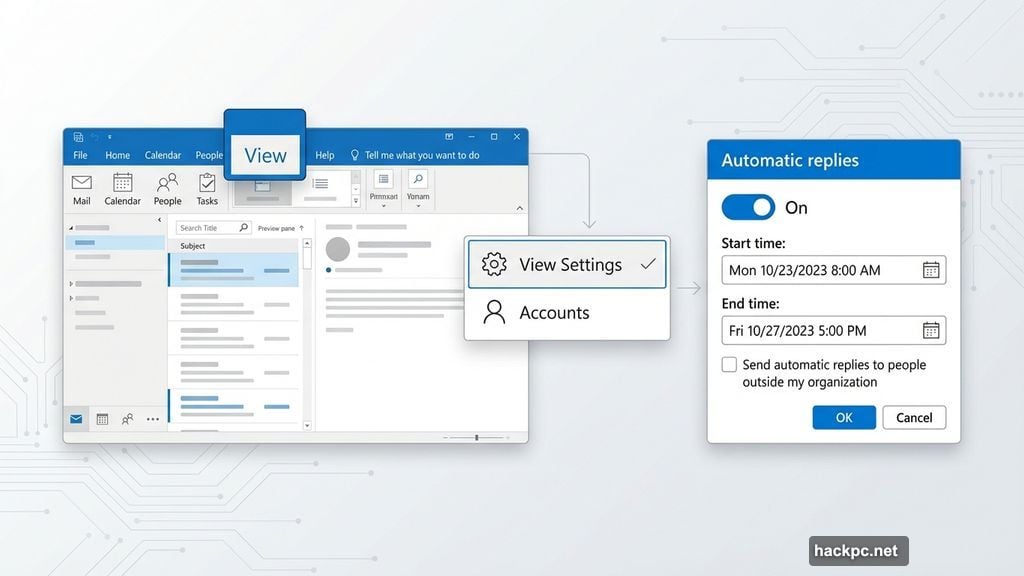
Start by clicking the View tab in Outlook. Then select View Settings from the menu.
Next, navigate to Accounts and click Automatic replies. This opens the control panel where you’ll configure everything.
So far, pretty straightforward. But here’s where people often get confused about the timing options.
Configure Your Away Period
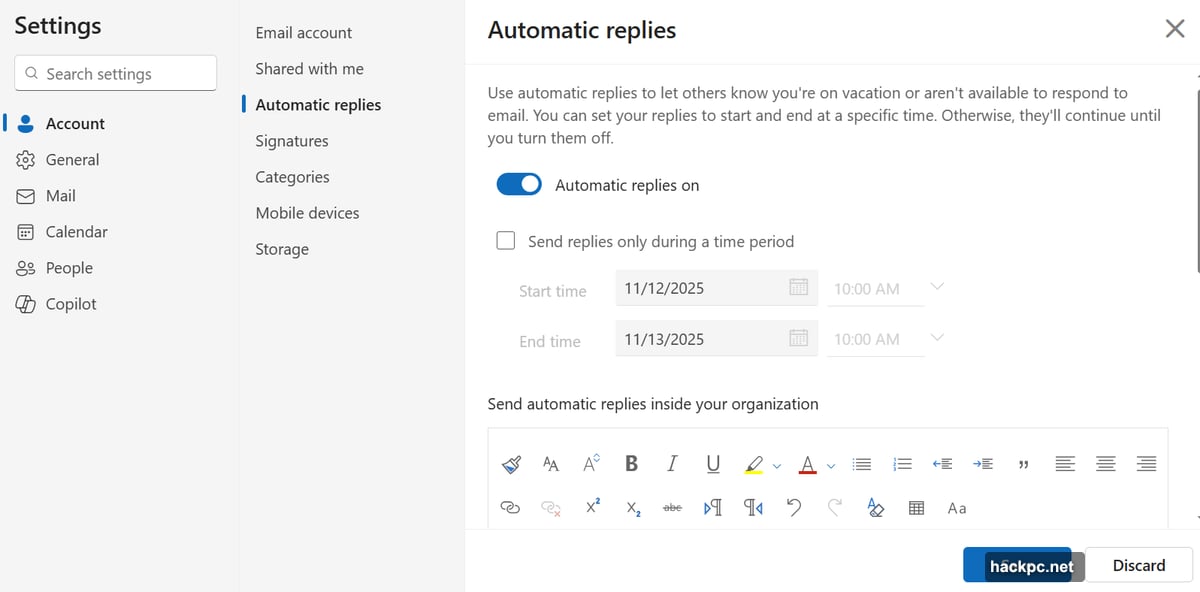
Toggle on Turn on automatic replies at the top of the screen. This activates the feature.
Now select Send replies only during a time period. This prevents your auto-reply from running forever after you return.
Enter your start and end dates plus times. Be specific. Set your return time for late morning, not midnight. That way you won’t send auto-replies when you’re already back at your desk.
Plus, this saves you from manually disabling the feature when you return. Outlook handles it automatically.
Write Your Internal Message
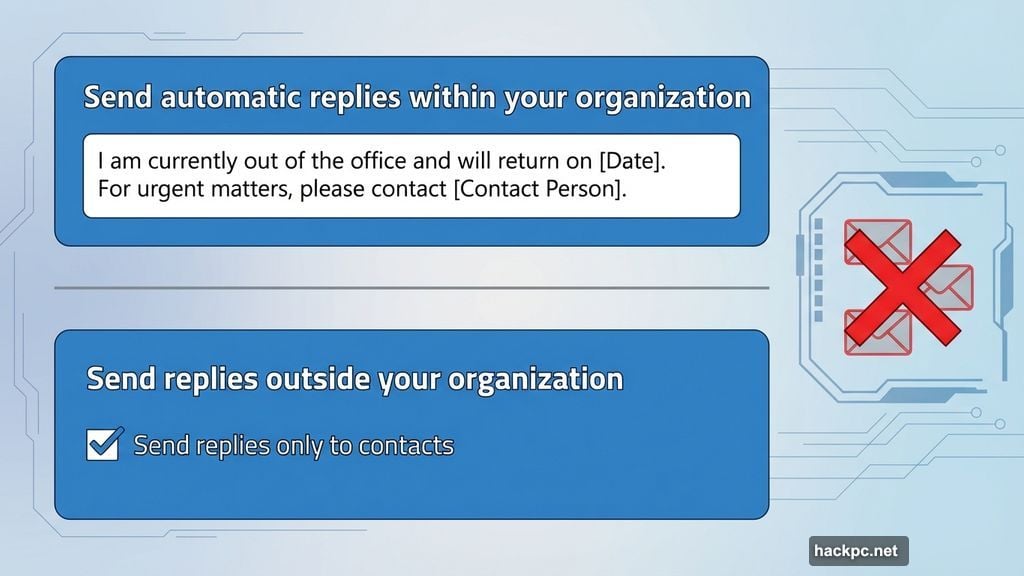
Under Send automatic replies within your organization, type your message for coworkers. Keep it brief but informative.
Include when you’ll return. Mention who to contact for urgent matters. Skip the life story about your vacation plans.
Most people overthink this part. Your colleagues just need the basics: you’re gone, you’re back on X date, contact Y person if urgent.
However, external contacts need slightly different information. That’s next.
Handle External Contacts Carefully
Click Send replies outside your organization to enable replies for people outside your company. Then write a separate message for that audience.
Here’s the critical part: This setting replies to EVERY external email. That includes spam, newsletters, and random promotional garbage.
So check the box labeled Send replies only to contacts. This restricts auto-replies to people in your contacts list. That’s way smarter than responding to every bot and spammer on the internet.
Otherwise, you’re announcing your absence to potential phishing attacks and letting spammers know your email is active. Bad move.
Three Common Mistakes to Avoid
First mistake: Forgetting to set an end date. Your auto-reply keeps running weeks after you return. Embarrassing.
Second mistake: Using identical messages for internal and external contacts. Coworkers need different details than clients or vendors.
Third mistake: Over-explaining your absence. Nobody needs your entire itinerary. They just need to know you’re unavailable and when you’ll be back.
Therefore, keep messages short. Set clear dates. Write audience-appropriate content.
Test Before You Leave
Send yourself a test email from another account before you walk out the door. Verify the auto-reply actually works.
Check the timing. Confirm the message sounds professional. Make sure you didn’t accidentally promise to respond to emails while you’re supposedly unavailable.
Indeed, testing catches mistakes before they become problems. Takes 30 seconds. Saves potential headaches.
The Real Productivity Win
Auto-replies do more than inform people you’re gone. They manage expectations. People know not to wait for your response. They contact the backup person instead.
Plus, you return to fewer “just checking in” emails. Your contacts already know why you didn’t respond. That’s less inbox cleanup when you’re back.
Set it up right once. Then you can actually disconnect without worrying about your inbox. That’s the point of being out of office.




Comments (0)