

Windows still doesn’t make backup easy. Microsoft bundles a patchwork of tools that range from useful to completely broken.
File History works fine for documents. Restore Points save your sanity during bad updates. But the Recovery Drive and System Repair Disc? They fail when you need them most. So reliable disaster recovery still requires third-party software.
Let’s cut through the noise and find backup tools that actually protect your data when things go wrong.
Why Windows Native Backup Falls Short
Microsoft’s built-in options create a confusing mess. You get File History for documents, System Image Backup from Windows 7, Restore Points for system recovery, and cloud sync through OneDrive. None of these tools talk to each other. Plus, the System Repair Disc consistently fails during real emergencies.
This fragmented approach means you’re juggling multiple backup methods with no unified recovery strategy. That’s why most IT professionals skip Windows tools entirely. Instead, they rely on dedicated backup software that handles everything in one place.
Third-party solutions offer imaging, file backup, disaster recovery, and cloud storage support. More importantly, they work when your system crashes. That’s the difference between losing everything and being back online in an hour.
EaseUS Todo Backup Takes the Crown
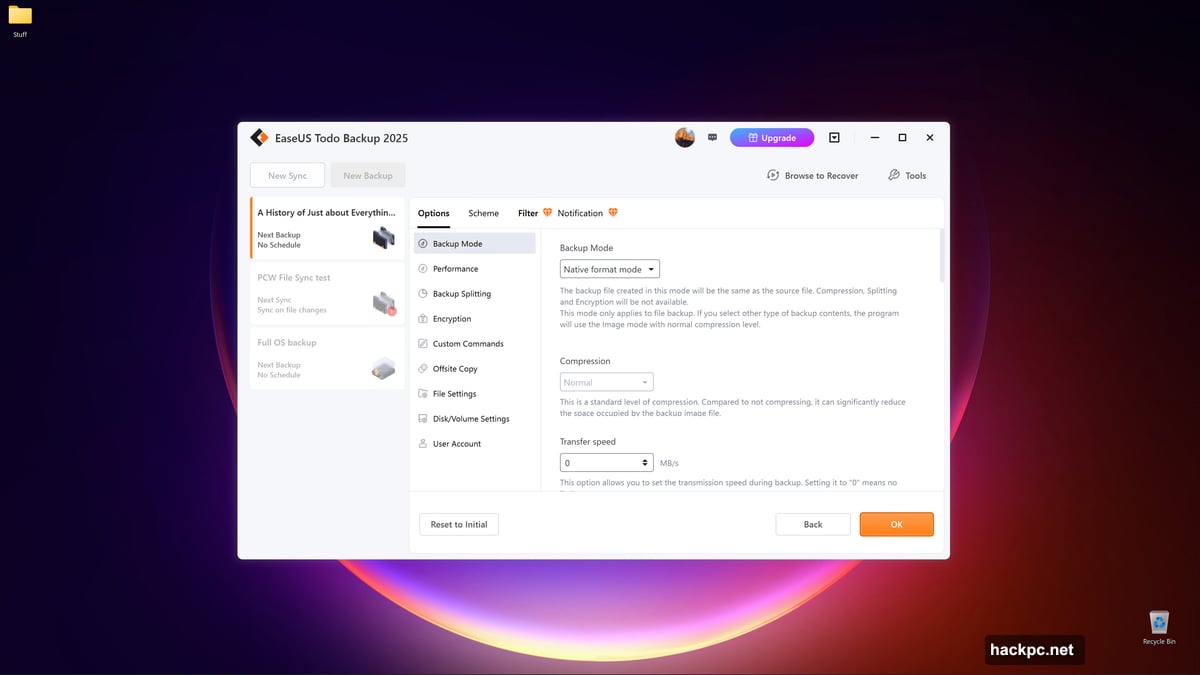
EaseUS Todo Backup 2025 nails what backup software should do. It handles drive imaging, file backup, folder sync, and disaster recovery without forcing you into subscriptions.
The interface makes sense immediately. You see your backup options front and center. No hunting through menus or deciphering technical jargon. Plus, the program creates reliable boot media that actually works when Windows won’t start.

Real-time backup monitors your files continuously. So changes get captured as they happen. You also get scheduled backups, network storage support, and compression options. All for a one-time payment of $40.
However, EaseUS’s cloud storage requires a subscription. But you can skip that and back up to your own NAS, external drive, or third-party cloud service. That flexibility beats being locked into one vendor’s ecosystem.
Minor quirks pop up occasionally during file sync operations. Nothing fatal. Just small oddities that don’t affect the actual backup. For $40 with no recurring fees, those hiccups are easy to overlook.
Acronis Adds Malware Protection
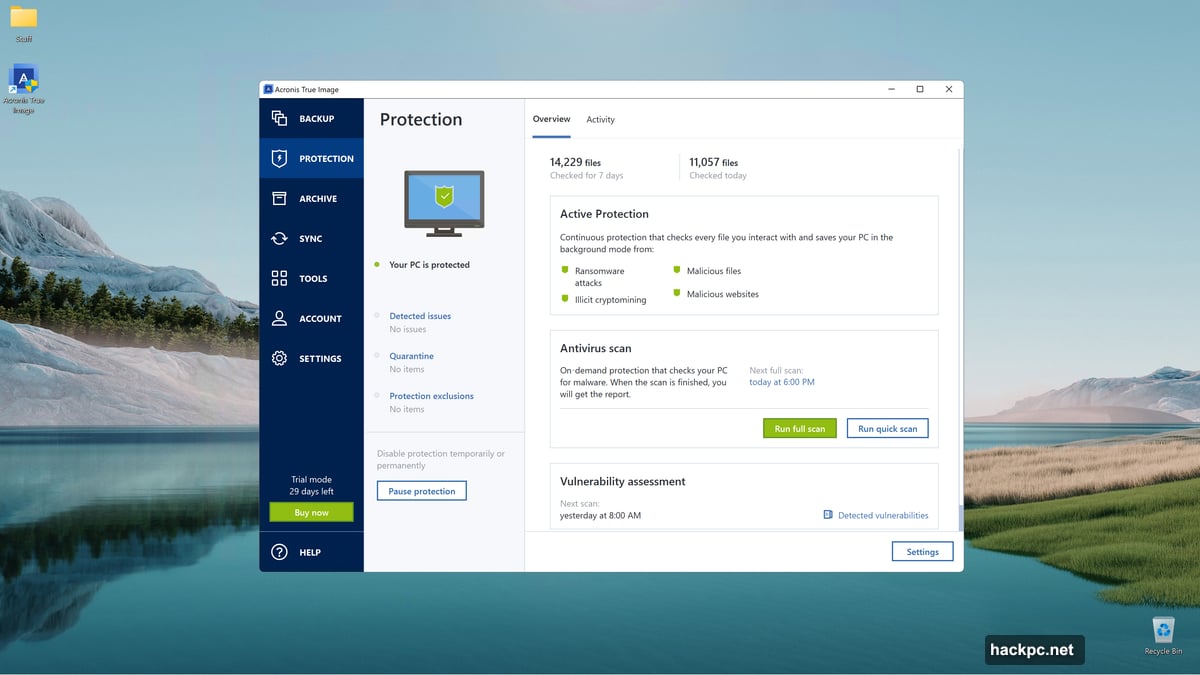
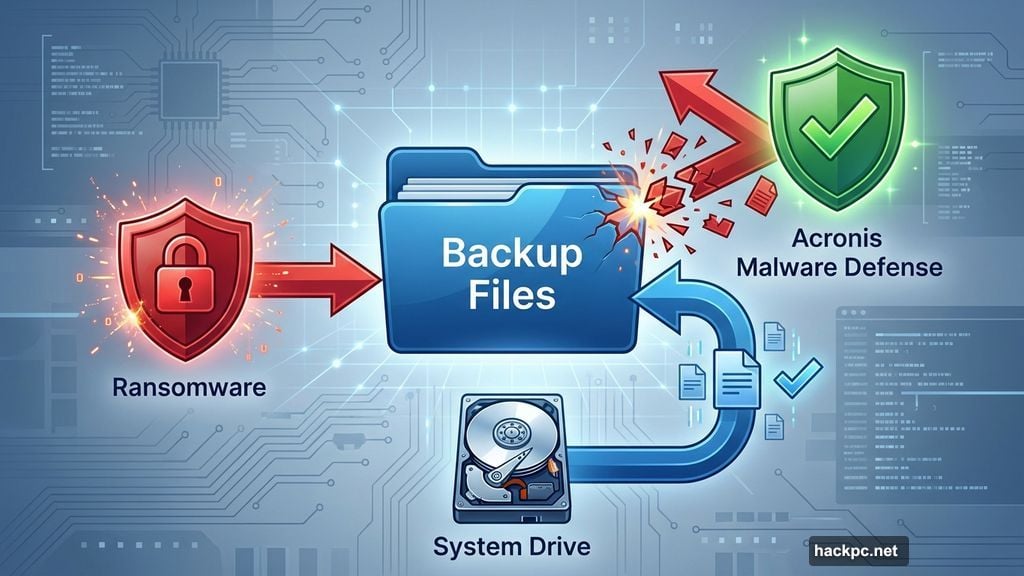
Acronis True Image bundles backup with active malware defense. This matters more than it sounds. Ransomware specifically targets backup files. So having protection baked into your backup tool creates a second line of defense.
The software catches threats in real time while creating backups. That means your backup files stay clean even if malware hits your system. You also get drive imaging, file backup, and 250GB of cloud storage.
But Acronis now requires a subscription. The Essentials plan starts at $50 per year. That’s reasonable for combined backup and antivirus protection. Still, it’s another recurring cost in your budget.
The program also runs multiple background processes constantly. That’s necessary for real-time protection but creates a heavier system footprint than simple backup software. If your PC already struggles with performance, this might not be the best choice.
Integration between backup and security features works seamlessly though. You don’t manage separate programs or worry about conflicts. Everything operates through one interface. That simplicity justifies the subscription cost for many users.
Free Backup That Doesn’t Suck
EaseUS offers a free version of Todo Backup that covers essential backup needs. You get drive imaging, file backup, and one-way sync. Plus, disaster recovery with boot media creation.

Most free backup tools skip disaster recovery entirely. They’ll save your files but leave you stranded if Windows crashes. EaseUS Free includes the boot media tools from the paid version. So you can restore your system even when it won’t start.
The catch? You’ll see occasional upgrade prompts and ads. No access to cloud storage either unless you opt for a trial. But those limitations are minor compared to the functionality you get for free.
Continuous backup mode works in the free version too. That’s unusual for freeware. Your important files get backed up constantly throughout the day. No waiting for scheduled backups to run.
A few non-fatal errors occasionally pop up during file operations. These don’t corrupt your backups or cause data loss. Just minor interface glitches that don’t affect reliability.
Business-Grade Protection for Power Users
Arcserve ShadowProtect SPX targets businesses but works exceptionally well on single PCs. It delivers continuous data protection with timeline views of your backups. Plus, instant restores to physical or virtual drives.
The software backs up constantly in the background. You pick any point in time from the timeline to restore. That granular control beats traditional scheduled backups when you need to recover a file from two hours ago.
Virtual hard drive support stands out here. You can mount backup images as drives and browse them like normal folders. No full restore required just to grab one file. That saves massive amounts of time.
However, the price reflects its business focus. Desktop licenses start at $100. Small businesses managing multiple computers get better value. For home users, EaseUS or Acronis make more financial sense unless you specifically need virtual drive features.
The login process feels overcomplicated for a single-user setup too. It’s designed for IT departments managing multiple machines. That enterprise focus shows in the interface complexity.
Smart Backup Strategies That Work
Backing up to a single external drive isn’t enough. You need multiple copies in different locations. So create one local backup on an external drive and one remote backup in the cloud or on a network share.
Schedule full backups weekly and incremental backups daily. Full backups capture everything. Incremental backups only save what changed since the last backup. This balance keeps storage requirements reasonable while maintaining comprehensive protection.
Test your backups regularly by actually restoring files. Most people assume their backups work until disaster strikes. Then they discover corrupted backup files or incompatible restore media. Run a test restore every few months to verify everything functions correctly.
Keep multiple versions of important files. Versioning lets you restore older copies if you accidentally save over something important or if ransomware encrypts your files before you notice. Most backup software retains several versions automatically.
Don’t rely solely on cloud sync services like Dropbox or OneDrive. These sync changes across devices. If ransomware encrypts your files, that encryption syncs too. True backup software creates immutable snapshots that malware can’t touch.
Cloud Storage Versus Real Backup
Dropbox, Google Drive, and OneDrive are sync services, not backup tools. They copy files to the cloud but also sync changes everywhere. Delete a file on your PC and it vanishes from the cloud too.
Real backup creates point-in-time snapshots that don’t change. You can restore files from last week, last month, or last year. Sync services don’t work that way unless you enable versioning features.
Some backup programs integrate with third-party cloud storage directly. Others require you to use cloud storage managers that integrate services into File Explorer. Either way, you get the convenience of cloud backup with proper point-in-time recovery.
Backup software that includes its own cloud storage usually offers better integration and faster uploads. But that locks you into one vendor. Software supporting third-party cloud storage gives you flexibility to switch providers or use storage you already pay for.
Upload speeds to cloud storage are typically slow. That makes cloud backup better for archival purposes than daily disaster recovery. Keep a local backup on an external drive for fast restores. Use cloud backup as your offsite safety net.
Image Backup Versus File Backup
Image backups capture every sector on your drive, including hidden partitions and system files. This creates a complete snapshot you can restore in one operation. Your system comes back exactly as it was: OS, programs, settings, everything.
File backups only save data files you specify. Operating systems and programs aren’t included unless you explicitly select them. That’s faster and uses less storage. But recovery takes longer since you must reinstall Windows and all your applications.
Most people need both. Create weekly image backups of your system drive for disaster recovery. Run daily file backups of your important documents, photos, and work files. This combination provides fast recovery for catastrophic failures plus quick file restores for accidental deletions.
Image backups require more storage space since they capture everything. But modern compression reduces image sizes significantly. A 256GB system drive might compress to 100GB or less depending on how much space is actually used.
The real advantage of imaging becomes obvious during a complete system failure. Restoring from an image takes an hour. Reinstalling Windows, drivers, programs, and reconfiguring everything takes days.
Backup Software Selection Criteria
Speed matters less than reliability for backup software. Most backups run overnight or in the background. But when you need to restore data, you want software that actually works.
Boot media creation is essential. If Windows won’t start, you need alternate ways to boot your PC and access your backups. Quality backup software includes tools to create bootable USB drives or DVDs.

Scheduling capabilities let you automate backups so you don’t forget. Set it once and the software handles backups while you sleep or work. Real-time or continuous backup options work well for rapidly changing files.
Network support expands your options significantly. Backing up to a NAS, another PC, or remote location creates the offsite copy you need for protection against physical disasters like fire or theft.
User interface design matters more than you’d think. Complex interfaces lead to mistakes in backup configuration. Simple, clear interfaces help you set up proper backups correctly the first time.
The Subscription Trap
Backup software increasingly forces users into subscription models. Perpetual licenses are disappearing. That turns a one-time $50 purchase into $50 every year forever.
Subscriptions make financial sense for vendors. They guarantee recurring revenue. But they cost users more over time. A $50 annual subscription costs $500 over ten years versus a one-time $100 perpetual license.
Some subscriptions bundle cloud storage which justifies the recurring cost. Others simply monetize basic backup features that used to cost a one-time fee. Read the fine print carefully.
EaseUS still offers perpetual licenses alongside subscriptions. That flexibility respects different user preferences. If you don’t need cloud storage, the perpetual license saves money long-term.
Subscription fatigue is real. Between streaming services, productivity software, and now backup tools, monthly fees add up fast. Choose backup solutions that match your actual needs rather than paying for features you won’t use.
Testing Your Disaster Recovery
Most people never test their backups until they desperately need them. That’s when they discover their restore media doesn’t work or backup files are corrupted.
Schedule a test restore every quarter. Actually boot from your recovery media. Restore a full system image to a spare drive. Verify all your files are accessible and programs work correctly. This proves your backup strategy actually works.
Recovery media fails more often than you’d expect. USB drives go bad. DVD drives become incompatible with newer systems. Test your boot media while you still have time to recreate it.
Practice restoring individual files too. You shouldn’t need to restore your entire system just to recover one accidentally deleted document. Know how to browse your backups and extract specific files quickly.
Document your restore process. Write down the steps while testing. That documentation becomes invaluable when you’re stressed and dealing with actual data loss. You won’t have to figure it out under pressure.
Getting Started Today
Start with a simple backup strategy and expand from there. First, back up your essential personal files: photos, documents, work files. Use free backup software like EaseUS Todo Backup Free.
Add system imaging once file backup is running smoothly. Create a full image of your system drive weekly. This protects against complete system failures and makes Windows updates less scary.
Set up automated scheduling immediately. Manual backups fail because people forget. Automated backups run whether you remember them or not. That consistency prevents data loss.
Test your backups within the first week. Don’t wait months to discover your backup strategy has problems. Early testing lets you fix issues while they’re minor inconveniences rather than catastrophes.
Your backup strategy needs to fit your actual usage patterns. If you work on files constantly, real-time backup makes sense. If your files change rarely, weekly scheduled backups work fine. Match the tool to your needs, not marketing hype.




Comments (0)