
You’re juggling coffee, luggage, and your laptop at the airport. Plus, you need to check your email before boarding. So you hop on the public Wi-Fi without thinking twice.
Then it hits you later. Your VPN never turned on. Now you’re wondering what got exposed during that quick browsing session.
Most VPN apps can auto-connect when you join public Wi-Fi networks. But nobody actually sets this up because the option is buried in settings. Let’s fix that problem right now.
Public Wi-Fi Isn’t a Death Trap, But VPNs Still Help
VPN marketing loves to scare you about public Wi-Fi dangers. In reality, most modern websites use HTTPS encryption anyway. So your passwords and credit card numbers stay protected even without a VPN.
However, a VPN still adds meaningful privacy on public networks. Network administrators can’t see which websites you visit. Your internet provider can’t track your browsing patterns. And certain attack methods become much harder to pull off.
Think of it as an extra privacy layer. Not essential for survival, but helpful for peace of mind.
What Auto-Connect Actually Does for You
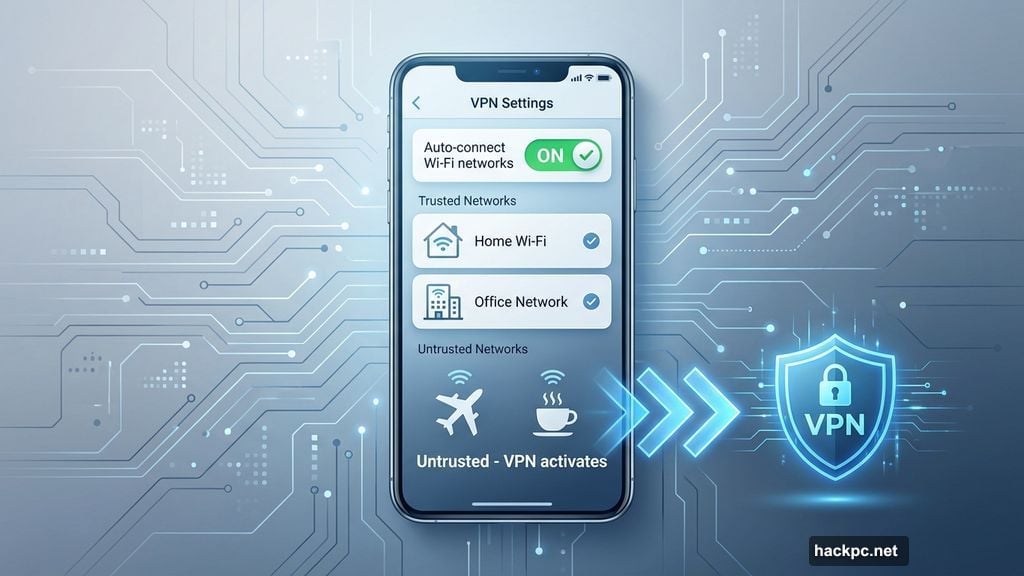
Auto-connect detects when you join a Wi-Fi network. Then it checks whether that network is on your trusted list. If not, your VPN activates automatically within seconds.
The smart part? You mark your home Wi-Fi and office network as trusted. Everything else triggers auto-connect. So coffee shop networks, hotel Wi-Fi, and airport hotspots all get VPN protection without you lifting a finger.
NordVPN, Surfshark, and ExpressVPN all support this feature. Many others do too. But the setup process varies by provider, which is why most people never enable it.
Setting Up NordVPN’s Auto-Connect Feature
NordVPN makes this relatively straightforward. Open the app and tap your profile icon in the corner.
Go to Settings, then find Auto-connect. You’ll see options for Wi-Fi networks, mobile networks, or both. Toggle on “Wi-Fi networks” to activate protection on public hotspots.
By default, NordVPN connects to the fastest available server. But you can change this. Tap “Fastest server” and pick a specific country if you prefer consistent connection locations.
The crucial step comes next. Find “Trusted networks” in the same menu. Add your home Wi-Fi name to this list. Now NordVPN won’t auto-connect when you’re safely at home, but will activate everywhere else.
Mac users see slightly different options. Instead of network-specific choices, you’ll toggle “When using untrusted network.” Everything else works identically.
Surfshark Offers the Most Consistent Experience
Surfshark handles auto-connect the same way across all devices. That’s rare in the VPN world, where iOS and Android often get different features.
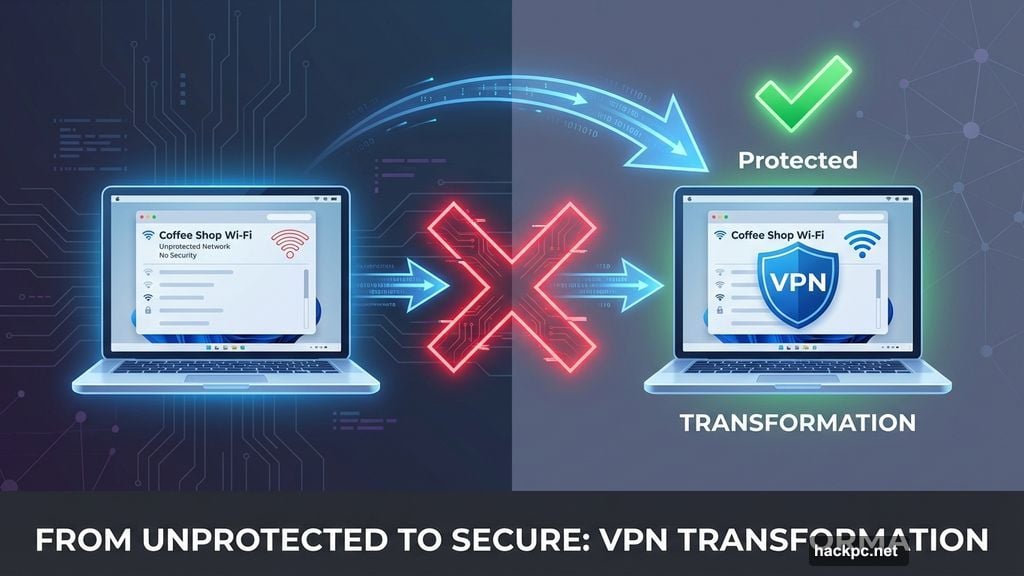
Open Surfshark’s settings and find VPN settings. Toggle on Auto-connect, then immediately go to Trusted networks. Add your current Wi-Fi so Surfshark knows to skip it.
The coolest part? Surfshark lets you choose from multiple connection types. Pick the fastest location, nearest country, a static IP, or even their MultiHop servers for extra privacy layers.
This flexibility beats most competitors. NordVPN gives you location choices too, but Surfshark’s interface makes the options clearer and easier to configure.
Proton VPN Takes a Different Approach
Proton VPN doesn’t do Wi-Fi-specific auto-connect. Instead, they offer an always-on VPN that stays active 24/7 regardless of which network you’re using.
On iPhone, open Proton’s app and go to Settings. Scroll down to “Always-on VPN” and flip the toggle. Done.
Mac and Windows users follow similar steps. Head to General settings, select Auto startup, and enable Auto-connect.
Android works differently. Proton makes you use your device’s system settings instead of handling everything in-app. Open your phone’s VPN settings, tap the gear icon next to Proton VPN, and enable Always-on VPN there.
This method gives you constant protection. But it also means your VPN runs on trusted home networks where you might not need it. That can slow down your connection unnecessarily.
Android’s Built-In Always-On VPN Protection
Android includes system-level VPN controls that work with any VPN provider. Open your device settings and find “Network & internet.”
Tap VPN, locate your provider in the list, and tap the gear icon. You’ll see two important toggles: “Always-on VPN” and “Block connections without VPN.”
Turn both on for maximum protection. The first keeps your VPN active constantly. The second acts as a kill switch, blocking internet access if your VPN disconnects. So you never accidentally browse unprotected.
The downside? These settings don’t let you exclude trusted networks. Your VPN stays on everywhere, including at home where you probably don’t need it.
iOS Requires Shortcuts for Network-Specific Auto-Connect
Apple doesn’t build Wi-Fi-triggered VPN automation into iOS. Instead, you’ll use the Shortcuts app to create custom automations.
Open Shortcuts and create a new automation. Set the trigger to “Wi-Fi” and choose “When disconnecting from” your home network. Then add an action to connect to your VPN provider.
This workaround gets messy fast. You need separate automations for each trusted network. Plus, Shortcuts automations sometimes fail silently, leaving you unprotected without realizing it.
Most people find this too complicated. That’s why iOS users benefit most from VPN apps with built-in auto-connect features, even though those also have limitations on Apple’s platform.
The Trusted Networks Trick Most People Miss
Every VPN handles trusted networks slightly differently. But the concept stays the same: You tell your VPN which networks are safe, and it auto-connects everywhere else.
Home Wi-Fi obviously goes on the trusted list. Your office network probably should too. Some people also add their mobile carrier, though that’s optional.
Here’s the catch. No VPN can actually detect what counts as “public Wi-Fi.” Coffee shop networks don’t announce themselves as untrusted. So VPNs flip the logic: They protect you on any network you haven’t explicitly marked as safe.
This means forgetting to add a new trusted network leads to unnecessary VPN connections. Not a huge problem, but it can drain your battery or slow down your connection when you don’t need protection.
VPNs Don’t Solve Every Security Problem
Auto-connecting your VPN on public Wi-Fi adds privacy. But it’s not a complete security solution.
VPNs hide your browsing from network administrators and your ISP. However, Google, Facebook, and your bank still see everything you do while logged into their services. You’re using your real credentials, so the VPN can’t anonymize you there.
Also, VPNs don’t block trackers, cookies, or browser fingerprinting. Some providers like NordVPN bundle ad blockers, but that’s separate from the core VPN protection.
Think of a VPN as one tool in your security toolkit. Pair it with antivirus software for malware protection. Add a password manager for strong, unique logins. Consider end-to-end encrypted email for sensitive communications.
No single tool handles everything. Building layered protection matters more than relying on any one service.
Auto-Connect Battery Impact Varies by Provider
Keeping your VPN ready to auto-connect does consume extra battery. But the impact depends on how your VPN app monitors network changes.
NordVPN and Surfshark use relatively efficient detection methods. Most users report minimal battery drain from auto-connect features. The actual VPN connection uses more power than the monitoring.
Proton VPN’s always-on approach impacts battery more noticeably since the VPN stays active everywhere. You’re encrypting all traffic constantly, even on trusted networks where you don’t need protection.
Android’s system-level always-on VPN also drains battery faster than app-based auto-connect. The operating system maintains the VPN tunnel continuously, which requires more resources than checking network status periodically.
Balance convenience against battery life based on your daily routine. Frequent travelers benefit most from auto-connect despite the minor power cost.
Auto-connecting your VPN on public Wi-Fi removes one more thing from your mental checklist. Set it up once, then forget about it. Your VPN handles protection automatically while you focus on actually getting work done.
Just remember this adds privacy, not complete security. Pair your VPN with other tools for comprehensive protection. And don’t let auto-connect lull you into risky behavior on public networks.




Comments (0)