
Your smart home keeps growing. More cameras. More locks. More apps. Plus, every single device needs a password.
That’s where things get messy. You’ve got your Wi-Fi password, router login, camera app credentials, and smart lock codes. Maybe you scribbled some down. Perhaps you reused the same password everywhere. Both approaches are security nightmares waiting to happen.
Password managers solve this chaos. They store every login securely, generate bulletproof passwords automatically, and sync across all your devices. Best part? You only remember one master password instead of dozens.
Why Your Smart Home Is a Hacking Target
Smart home devices create multiple attack surfaces. Hackers love them.
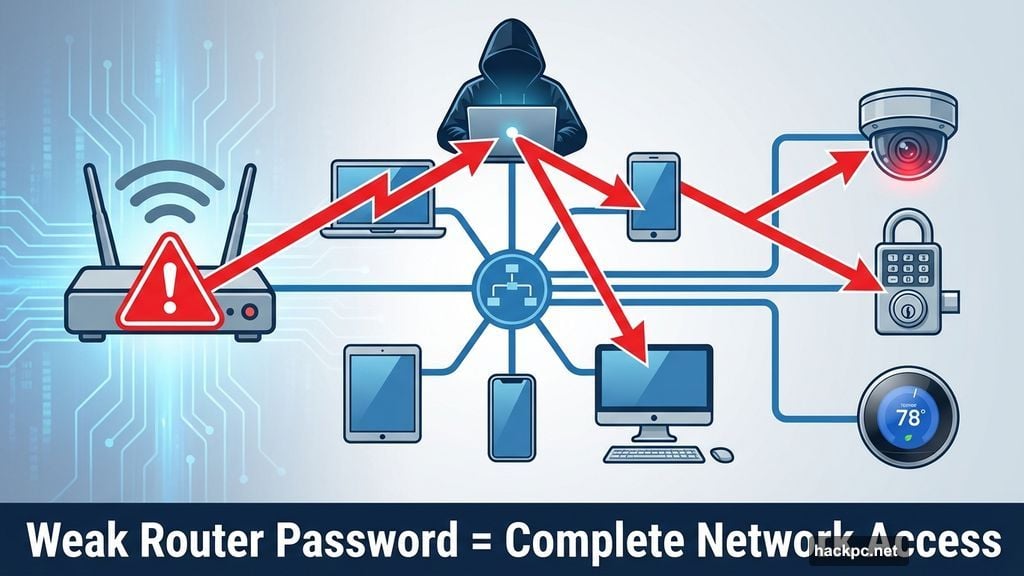
Your Wi-Fi router sits at the center of everything. A weak router password gives attackers complete access to your network. From there, they can reach cameras, locks, thermostats, and anything else connected.
Security cameras pose another risk. Many people never change default passwords. So hackers simply look up factory credentials online and walk right into your video feeds. Even if you changed the password, writing it on a sticky note defeats the purpose.
Smart locks are worse. These devices literally control physical access to your home. Yet many users pick simple four-digit codes or reuse passwords from other accounts. One data breach at an unrelated service could expose your front door code.
Here’s the pattern. Most smart home breaches happen because people can’t remember complex passwords for every device. So they choose weak ones or reuse the same credentials everywhere. Password managers break this cycle.
How Password Managers Actually Work
Think of a password manager as a digital vault. Everything sensitive goes inside. One master key unlocks it all.
The software stores hundreds of different logins. When you visit a website or open an app, it autofills your credentials instantly. No typing required. Most password managers use biometric authentication too. A fingerprint or face scan replaces your master password for quick access.
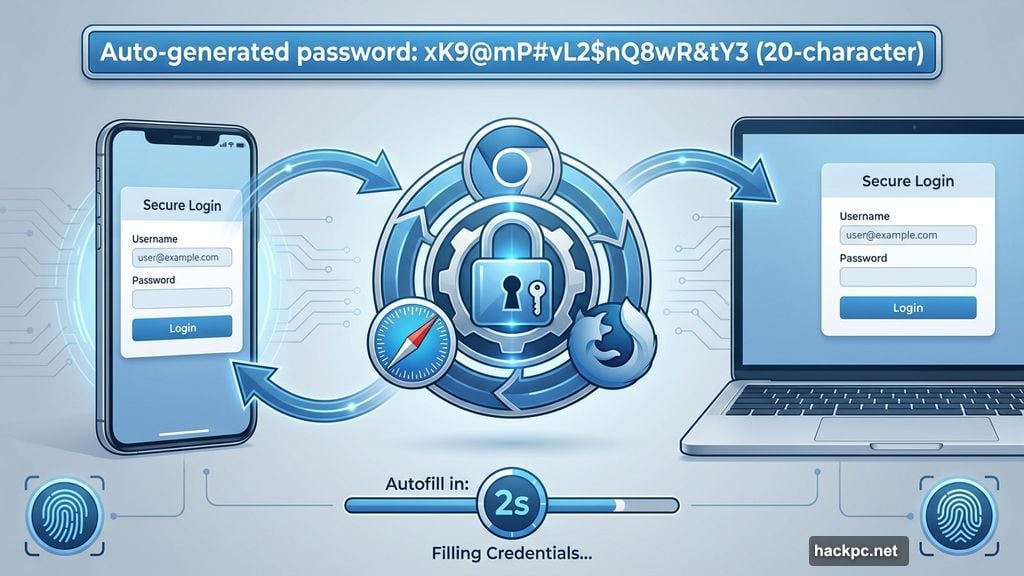
Browser extensions make this seamless. Install the extension in Chrome, Safari, or Firefox. Now the password manager recognizes login pages automatically. Click once to fill in your credentials. The whole process takes two seconds.
Everything syncs across devices. Save a password on your phone, and it appears on your laptop immediately. You can log into smart home apps from anywhere with the same stored credentials.
Password managers also generate strong passwords on demand. Creating a new account? The software suggests a random 20-character password with numbers, symbols, and mixed case letters. You never even see it. The manager remembers everything while you remember nothing except that master key.
Smart Home Setup Gets Way Easier
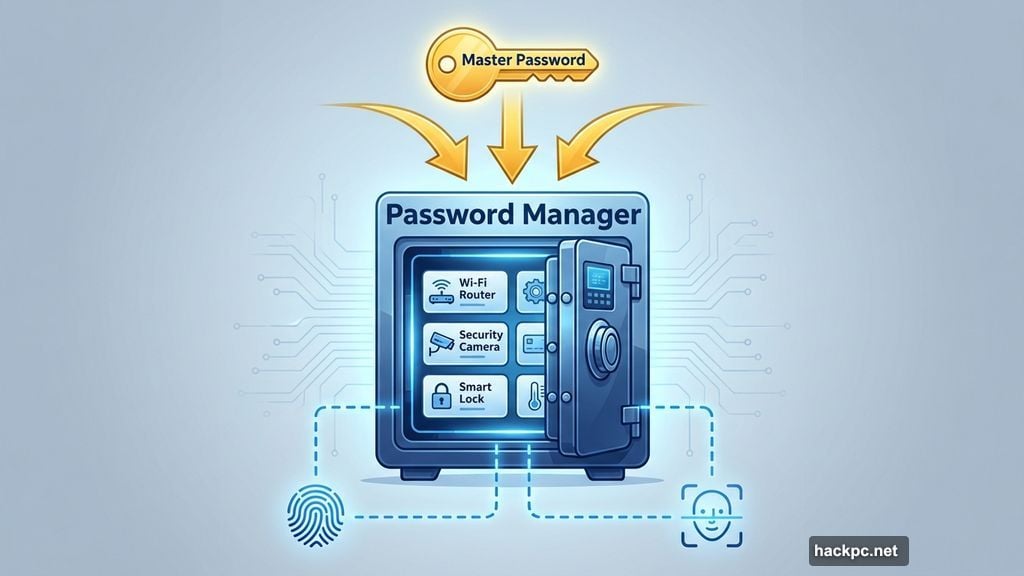
Setting up each new smart device means juggling passwords. The router password. The manufacturer’s app password. Maybe a separate password for voice assistant integration.
Without a password manager, you’re scrambling. Where did you write down the Wi-Fi credentials? Which email did you use for that account? Did you already create a login for this brand?
Password managers eliminate the guesswork. Open the app when setting up a new camera. It autofills your Wi-Fi password instantly. The device connects without you typing anything. Then generate a strong password for the camera app itself. Save it immediately.
The software tracks everything automatically. You can organize passwords into folders like “Smart Home,” “Security Devices,” or “Home Network.” Finding credentials later takes seconds instead of hunting through notebooks or old emails.
Two-factor authentication codes work the same way. Many password managers store these directly. When logging in requires a six-digit code, the app provides it alongside your password. No separate authenticator app needed.
Beyond Passwords: What Else Gets Protected
Password managers hold more than website logins. They’re perfect for storing smart home essentials.
Keypad codes for smart locks go in the vault. Alarm system PINs. Safe combinations. Even notes about where you hid the spare key. Everything sensitive lives in one encrypted space.
You can scan important documents too. Home insurance policies. Security camera warranty information. Router purchase receipts. Upload PDFs or photos directly into the password manager. Now everything’s accessible from any device.
Many managers include secure note sections. Write down your router’s model number and firmware version. Record which smart devices use which accounts. Document your home network setup for troubleshooting later.
Some apps let you share specific passwords safely. Your partner needs the garage door keypad code? Share it through the password manager instead of texting it. The recipient gets secure access without the password traveling through unencrypted channels.
Emergency access matters too. Paid password managers often include this feature. Designate a trusted contact who can access your vault if something happens to you. They can’t just log in anytime. The system notifies you first and enforces a waiting period unless you approve immediately.
Spotting Weak Passwords You’re Already Using
Here’s something useful about password managers. They audit your existing security automatically.
Import all your current passwords into the app. It analyzes each one and flags problems. Weak passwords get marked immediately. Reused credentials across multiple sites trigger warnings. Even passwords you haven’t updated in years show up as security risks.
This feature matters tremendously for smart home security. That Wi-Fi password you set up five years ago? Probably too short by modern standards. The camera app login you share with three other accounts? Dangerously vulnerable if any of those services gets breached.
The password manager shows you exactly what needs fixing. Replace weak passwords with auto-generated strong ones. Update reused credentials so each account has unique protection. Tackle old passwords that haven’t changed since 2019.
You don’t need to fix everything at once. Prioritize high-value targets first. Your router, main security system, and smart locks deserve the strongest passwords. Less critical devices can wait until later.
The software makes updates simple. Click the flagged password. Hit “generate new password.” Copy the result and paste it into your router settings or app. Save the change. Done. The password manager now stores the much stronger version.
Free vs Paid: What’s Actually Worth It
Basic password managers cost nothing. Browser-built options in Safari and Chrome work fine for simple needs. Free standalone apps like NordPass or KeePass offer more features without subscription fees.
Paid versions run about $2-3 monthly. That unlocks advanced capabilities most people genuinely benefit from.
Emergency access makes the subscription worthwhile alone. Trusted contacts can reach your passwords if needed. Plus you get secure password sharing instead of risky text messages containing credentials.
Multiple identities help too. Create separate profiles for work and home. Keep smart home passwords completely separate from your job accounts. Switch between them instantly without logging out.
Premium password managers often include dark web monitoring. If your email appears in a data breach, you get alerted immediately. You can change affected passwords before hackers exploit stolen credentials.
Storage limits matter for some users. Free versions typically cap how many passwords you can save. That works fine for twenty or thirty logins. But smart homes alone can generate fifty passwords easily once you count every device, app, and service. Paid accounts remove these limits entirely.
The security itself doesn’t really differ between free and paid. Both encrypt your data properly. Both use strong master password requirements. The paid features simply add convenience and extra protection layers around the basic password storage.
Top Password Managers for Smart Homes
Several password managers excel at home security use cases.
Bitwarden offers robust free and paid tiers. The free version handles unlimited passwords across unlimited devices. Paid upgrades add advanced two-factor authentication and priority customer support. Plus Bitwarden’s open-source code means security researchers can verify its protection methods.
1Password charges around $3 monthly but delivers excellent value. The interface feels intuitive even for non-technical users. Watchtower alerts warn you about compromised passwords, weak credentials, and unsupported websites. Families can share passwords securely through shared vaults. Travel mode temporarily hides sensitive data when crossing borders.
Dashlane costs slightly more but includes built-in VPN service. That adds another security layer when accessing smart home devices remotely. The password health dashboard shows your security score and highlights exactly what needs improvement. Automatic password changing works with hundreds of popular websites.
NordPass comes from the company behind NordVPN. Their free tier offers unlimited password storage with biometric authentication. Paid versions add encrypted file attachments and emergency access. The data breach scanner checks if your emails appeared in known leaks.
ExpressVPN recently launched Keys, their own password manager. It bundles nicely if you already use their VPN service. However, the password manager itself remains relatively new with fewer features than established competitors.
Avoid LastPass these days. Multiple security incidents damaged their reputation. Better options exist without that baggage.
Switching Managers Doesn’t Lose Your Data
Worried about getting locked into one password manager? Don’t be.
Every major password manager supports secure data export. Find the export option in settings. Download a CSV file containing all your passwords. This file format works universally across different password management apps.
Import that CSV into your new password manager. Everything transfers over in minutes. Logins, notes, secure files—the whole vault moves with you.
Some managers offer direct migration tools too. 1Password can import directly from LastPass without manual CSV steps. Bitwarden supports imports from dozens of competing services. Check your new manager’s documentation for specific transfer instructions.
After confirming everything transferred successfully, delete your old account. Most services include an account deletion option. Follow their process to permanently remove your passwords from their servers.
The company should provide detailed deletion steps. If not, contact support. You want confirmation that all your data gets wiped from their systems. Some services enforce waiting periods before final deletion. Others require additional verification steps. Complete whatever they ask.
Changing password managers feels like a hassle. But the actual process takes maybe thirty minutes. That’s worthwhile if you’re moving to a more secure or feature-rich option.
Making the Switch This Year
Smart homes aren’t getting simpler. More devices means more passwords, more accounts, and more security risks.
Start with a password manager now. Pick a reputable option that fits your budget. Import your existing passwords and watch the security audit flag problems.
Fix the critical stuff first. Your router. Your cameras. Your smart locks. Generate strong passwords for each. Let the manager remember everything while you remember nothing except that master key.
Your smart home security depends on password strength. A password manager makes strong security effortless instead of impossible. That’s worth far more than a couple bucks per month.




Comments (0)