

Your Gmail inbox is bursting. Messages pile up. Storage warnings appear. But you don’t want to delete years of correspondence or pay for Google One.
There’s a better option. You can archive everything to a second free Gmail account and reclaim that precious 15GB. No deletions required. No subscription fees. Just a clean slate for 2026.
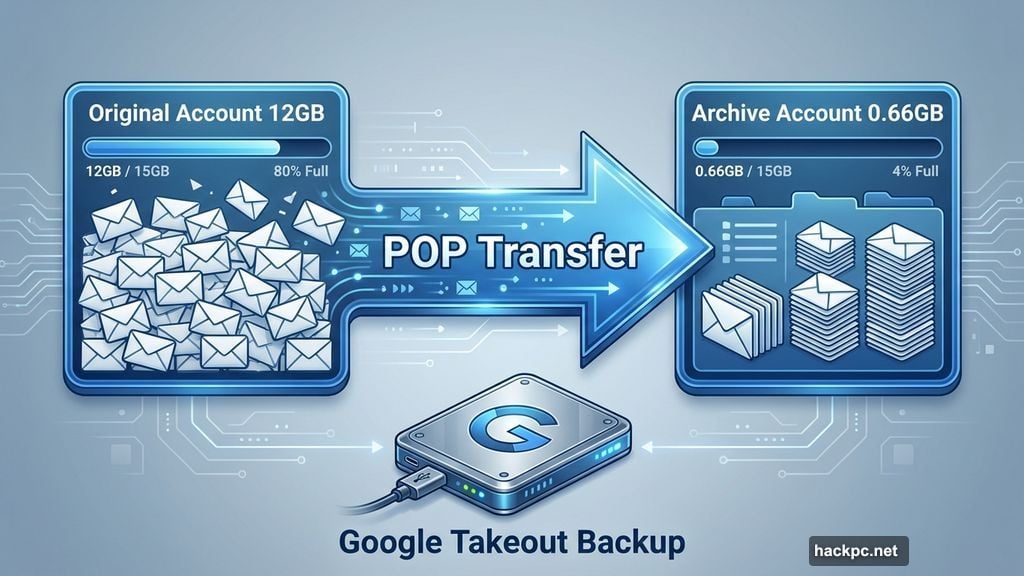
I tested this method myself. My account dropped from 12GB to 0.66GB in about two days. Everything moved safely to an archive account. Plus, the whole process took maybe 20 minutes of active work.
Why Gmail Storage Fills So Fast
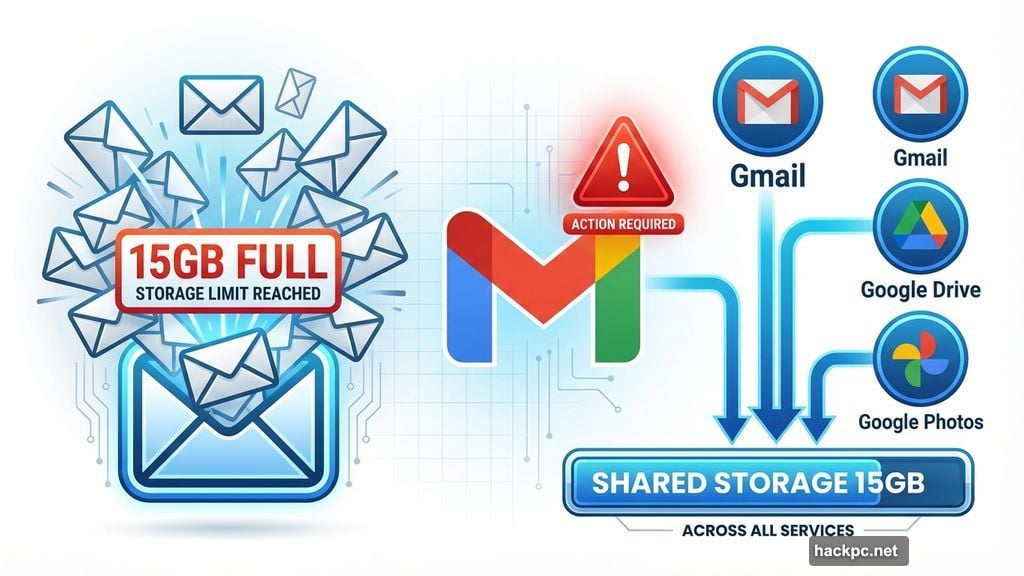
Google gives you 15GB free. Sounds generous. But that storage covers three services at once.
Your Gmail messages count against it. So do Google Drive files. Plus every photo in Google Photos. Between large email attachments and automatic photo backups, that 15GB disappears quickly.
Here’s what happens when you hit the limit. Gmail stops accepting new messages entirely. You can’t send. You can’t receive. Your account becomes effectively useless until you free up space.
Most people then face an unpleasant choice. Pay $20 yearly for 100GB through Google One. Or spend hours deleting old emails one by one. Neither option feels great.
The Archive Account Strategy Works Better
Creating a second Gmail account solves this problem elegantly. Google doesn’t limit how many free accounts you own. So you can dedicate one purely to storage.
Think of it like moving old files to an external hard drive. Your active account stays clean. Your archived messages remain accessible. And you don’t pay a cent for the extra space.
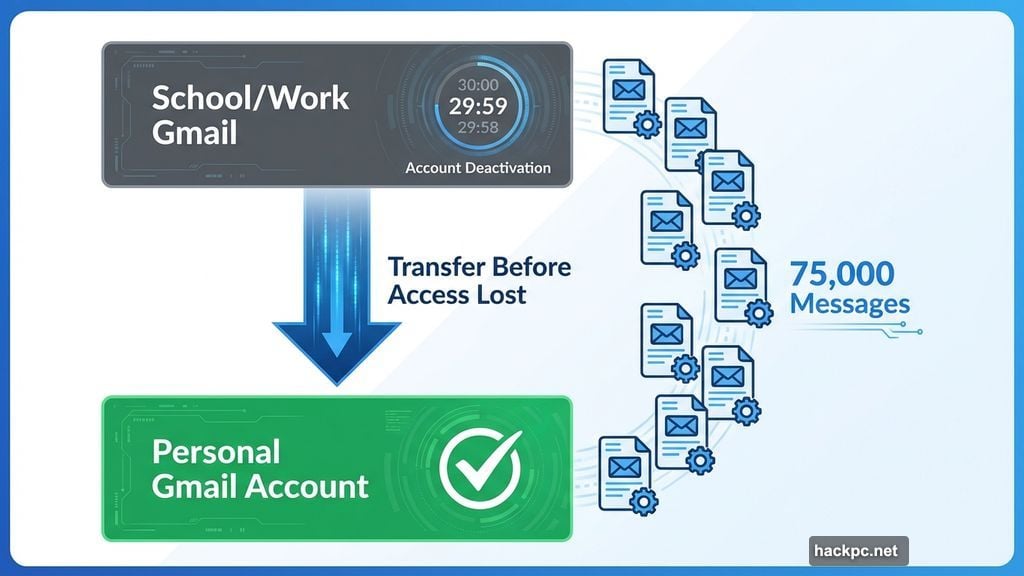
This strategy also helps if you’re losing access to a school or work Gmail. Universities and employers typically deactivate accounts when you leave. But you can transfer those messages to a personal account before that happens.
The transfer process uses Gmail’s built-in POP (Post Office Protocol) features. Nothing sketchy. No third-party tools required. Just standard Google functionality most people never explore.
Back Up Everything First
Before transferring anything, create a local backup. This seems obvious but many people skip it. Don’t be that person.
Google Takeout handles backups automatically. Visit the Google Takeout page while logged into your account. Select your Gmail data. Then download the archive.
My test account held about 75,000 messages. Google Takeout generated the backup in roughly two hours. Your mileage will vary based on message count and attachment sizes.
Store that backup somewhere safe. An external hard drive works well. Cloud storage outside Google works too. You can delete it later if everything transfers smoothly. But having that safety net prevents potential disasters.
Enable POP on Your Original Account
Now the actual transfer begins. First, you need to enable POP access on your current Gmail account.
Log into your original account. Click the gear icon in the top right corner. Select “See all settings” from the dropdown menu.
Navigate to the “Forwarding and POP/IMAP” tab. You’ll see several options for POP download. Select “Enable POP for all mail.”
Here’s the crucial choice. Under “When messages are accessed with POP,” select “delete Gmail’s copy.” This ensures messages disappear from your original account after transfer. That’s how you reclaim the storage space.
Click “Save Changes” at the bottom. Your original account is now ready to send messages elsewhere.
Create and Configure Your Archive Account
Next, set up your brand new Gmail account. Pick any name you want. This becomes your permanent message archive.
Log into this fresh account. Click the gear icon again. Select “See all settings” like before.
Go to the “Accounts and Import” tab this time. Look for “Check mail from other accounts.” Click “Add a mail account” next to it.
A popup window appears. Enter your original Gmail address. Click “Next.”
Select “Import emails from my other account (POP3).” Click “Next” again.
Now enter your original account’s password. But here’s where things get tricky. Your regular password probably won’t work.
The App Password Requirement
I tested this process twice. Both times, Gmail rejected my standard password. Turns out you need something called an app password instead.
App passwords are 16-digit codes Google generates for less secure connections. They work exactly like your regular password but expire when you delete them.
Visit the Google app passwords page. Create a new password. Name it something obvious like “Email Transfer.” Click “Create.”
Google displays your 16-digit code exactly once. Write it down immediately. You can’t retrieve it later.
Return to your archive account setup. Use this app password instead of your regular one. The transfer should now proceed.
Select port 995. Check these three boxes: “Always use a secure connection (SSL) when retrieving mail,” “Label incoming messages,” and “Archive incoming messages (Skip the Inbox).”
Click “Add Account.” Your Gmail accounts are now linked.
Wait for the Transfer to Complete
Messages start transferring automatically. But don’t expect instant results. This takes time.
My 75,000 messages needed two full days to transfer completely. Smaller inboxes move faster. Larger ones take longer. Just let it run in the background.
You can check progress periodically. Log into your archive account. Watch as messages gradually appear in labeled folders. They’ll arrive in chronological order starting with your oldest mail.
Meanwhile, your original account moves transferred messages to Trash. This happens automatically based on those POP settings we configured earlier.
Empty the Trash Manually
Here’s an annoying quirk. Gmail doesn’t automatically empty your Trash folder. So those transferred messages still consume storage until you delete them permanently.
Log into your original account. Open the Trash folder. Select all messages. Then delete them permanently.
This step took about an hour for my 75,000 messages. Gmail processes large deletions slowly. Be patient. Don’t close the browser window until everything disappears.
After emptying Trash, check your storage usage. My test account dropped from 12GB to 0.66GB. Only 0.06GB came from Gmail after the transfer. The rest was Drive and Photos.
What Doesn’t Transfer
Two message categories won’t move to your archive account. Drafts and Spam stay behind.
You’ll need to handle Drafts manually. Save important ones somewhere. Delete or send the rest. There’s no automated solution for draft messages.
Spam automatically deletes after 30 days anyway. So you can just ignore it. Or go through your Spam folder manually if you’re thorough. Most people skip this step entirely.
Stop the Automatic Sync
After everything transfers, disable the connection between accounts. Otherwise, new messages in your original account will keep copying to your archive.
Log into your archive account. Go to Settings and select “See all settings.” Navigate to “Accounts and Import.”
Find your original account listed under “Check mail from other accounts.” Click “delete” next to it. Confirm the deletion when prompted.
If you created an app password, delete that too. Visit the app passwords page. Click the trash icon next to your transfer password. This maintains security on both accounts.
Your Archive Account Needs Occasional Use
Google deletes inactive accounts after two years. So don’t completely forget about your archive.
You don’t need to use it regularly. Just log in once every 18 months or so. Open a few messages. Maybe send a test email to yourself. Any activity resets the inactivity timer.
Set a calendar reminder if you’re forgetful. Label it “Check Gmail archive account.” Schedule it for January every two years. That keeps everything safe long-term.
When This Strategy Makes Sense
This transfer method works brilliantly for certain situations. If you’re losing access to a school or work account, it preserves everything. If your personal Gmail hit the storage limit, it frees space instantly.
But it’s probably overkill if you only need to clear a few hundred megabytes. Just delete large attachments or old promotional emails in that case. The transfer process takes effort even though it’s mostly automated.
Consider this approach your nuclear option. When nothing else works. When you’ve accumulated years of messages you can’t bear to delete. When paying for storage feels wrong.
The beauty is simplicity. Two free accounts. Standard Gmail features. A couple days of patience. That’s all you need to reclaim your inbox and start 2026 with breathing room.
Your original account becomes usable again. Your old messages stay accessible forever. And you didn’t sacrifice a single email to make it happen.




Comments (0)