
Windows 11 isn’t terrible. But Microsoft packed it with features nobody asked for.
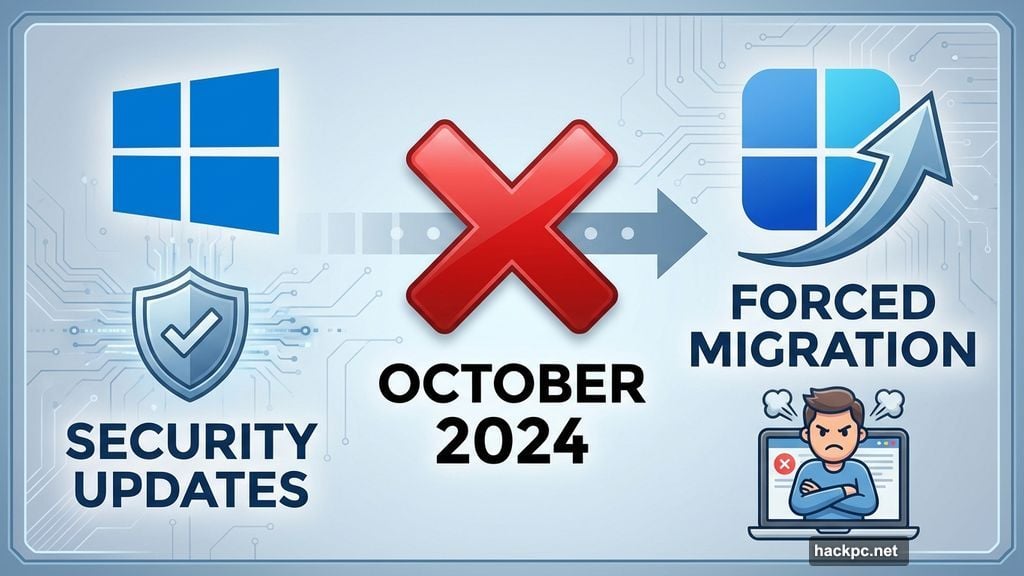
The company pushed hard for upgrades after killing Windows 10 security updates in October 2024. So millions switched over. Then the complaints started rolling in. Shorter battery life, intrusive AI features, and a cluttered interface frustrated users who just wanted their computers to work.
Good news? You can fix most of these problems in minutes. Here’s how to strip out the annoying parts and make Windows 11 actually pleasant to use.
Kill Copilot Before It Multiplies
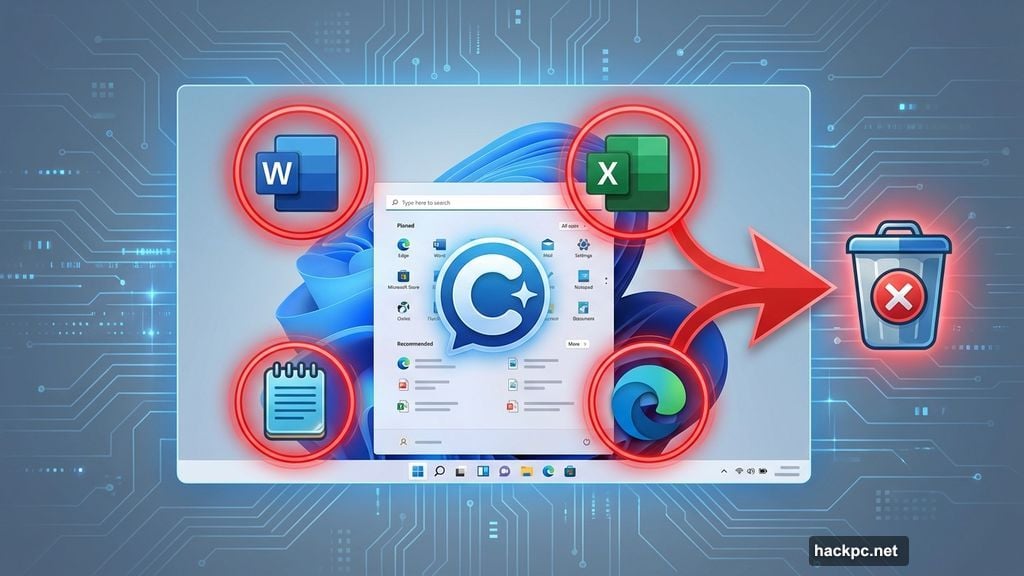
Microsoft’s AI assistant invaded everything. Word, Excel, Notepad, Edge—Copilot shows up everywhere now.
Maybe you use it. Most people don’t. Plus, it consumes resources in the background whether you want it or not.
Getting rid of it takes seconds. Search for “Copilot” from the Start menu. When it appears, don’t click to open it. Instead, right-click the app and select Uninstall. Done.
The AI features disappear completely. Your system runs leaner without the constant background processing.
Dump OneDrive Without Regrets
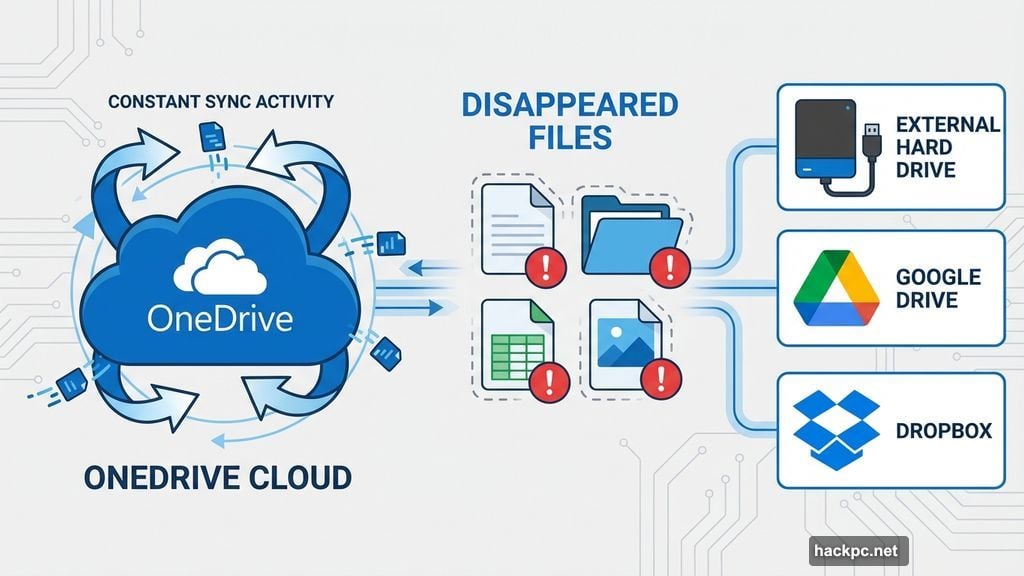
OneDrive seemed like a good idea. Cloud storage built right into Windows sounds convenient.
But users report constant syncing issues. Files disappear. Sharing breaks randomly. And Microsoft gets access to everything you store there.
Before uninstalling, back up important files somewhere else. An external drive works. So does Google Drive or Dropbox if you prefer different cloud providers.
Then search for OneDrive from the Start menu. Right-click it and select Uninstall. Your computer stops uploading files automatically. Your storage stays private.
Stop Microsoft’s Endless Recommendations
Windows 11 loves suggesting apps you don’t need. The Start menu fills with tips, shortcuts, and promoted software.
Turn it off completely. Go to Settings > Personalization > Start. Find “Show recommendations for tips, shortcuts, new apps, and more.” Toggle it off.
Your Start menu clears up immediately. No more clutter. Just the apps you actually use.
Reclaim Your Start Menu
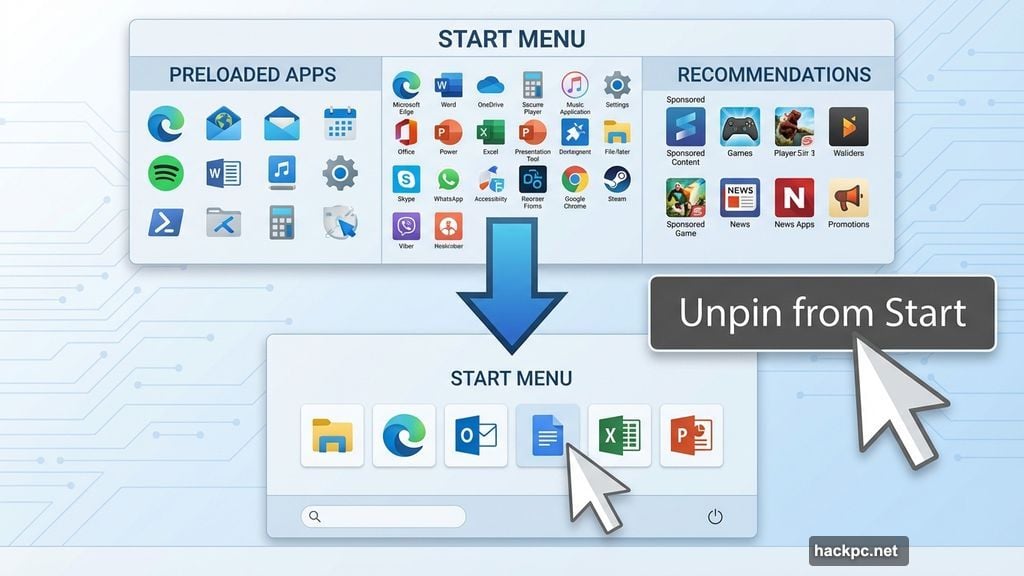
Microsoft preloaded the Start menu with dozens of apps. Most of them sit unused forever.
Click the Start menu icon at the bottom of your screen. You’ll see a grid of Pinned apps. Right-click any app you don’t use. Select “Unpin from Start.”
Clear out everything unnecessary. Then rebuild with apps you actually want. Click Start again and select “All apps” at the top right. Find apps you use daily. Right-click them and choose “Pin to Start.”
Now your Start menu contains only useful shortcuts. No wasted space on software you never open.
Fix Your Taskbar While You’re At It
The taskbar at the bottom of your screen should hold your most-used apps. Instead, it probably has whatever Microsoft decided to put there.
Click the Start menu. Select “All apps” at the top right. Browse through your installed software. When you find something you use constantly, right-click it. Select “More” and then “Pin to taskbar.”
Remove apps you don’t need the same way. Right-click any taskbar icon and select “Unpin from taskbar.”
Build your taskbar around your workflow. Not Microsoft’s assumptions about what you need.
Disable the Edge Feed Nobody Wants
Open Edge and you see tiles everywhere. News headlines, sponsored ads, AI-generated suggestions. The feed learns your habits and shows more of whatever you click.
But maybe you don’t want any of it. Click the plus sign at the top of Edge to open a new tab. Then click the Settings gear icon at the top right.
Scroll down slightly. Find “Show widgets” and “Show feed.” Toggle both to Off.
Next time you open a new Edge tab, you’ll see just a clean screen with a nature photo. No distractions. No algorithm feeding you content.
Cut Out Notification Spam
Websites love sending notifications. You visit a site once, click a button without thinking, and suddenly you’re getting alerts constantly.
Search for “Notifications” in the Windows search bar. Open the Notifications menu. At the top, you can toggle off all notifications system-wide.
Or scroll down to customize individual apps and websites. Toggle off notifications from anything that bugs you. Keep them on for apps you actually want alerts from.
Your focus improves dramatically when notification badges stop popping up every few minutes.
Turn Off Useless Startup Apps
Windows launches certain apps automatically when you boot up. Some are essential, like Defender antivirus. Others just slow down your startup and waste resources.
Teams, OneDrive, and various update checkers all try to launch at startup. Most people don’t need them running constantly.
Search for “Task Manager” from the Start menu. Click “Startup apps” in the left column. You’ll see every app that launches automatically, plus its startup impact—high, low, or not measured.
Disable anything non-essential. Right-click apps you don’t need immediately and select “Disable.” Your computer boots faster. Performance improves because fewer background processes compete for resources.
Windows 11 Works Better When You Strip It Down
Microsoft loaded Windows 11 with features designed to keep you in their ecosystem. Copilot pushes their AI. OneDrive locks you into their cloud. Edge feeds keep you scrolling.
But you don’t need any of it. A clean Windows 11 installation runs faster and feels less intrusive. You control what launches, what stays in your taskbar, and what sends you notifications.
These eight fixes take maybe 15 minutes total. But the difference is huge. Your computer becomes a tool again instead of a platform for Microsoft’s services.
Make the changes. Your future self will thank you when Windows 11 actually stays out of your way.




Comments (0)