

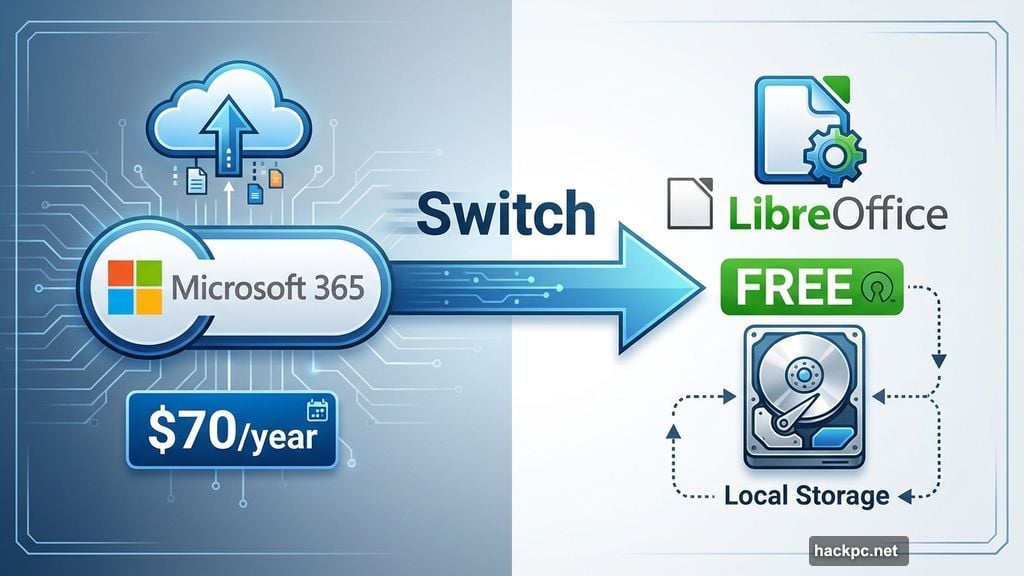
My household cut Microsoft 365 last year. Not because of AI assistants or privacy concerns. We just wanted to stop paying $70 annually for apps we barely used.
So we switched to LibreOffice. It’s completely free, works offline, and handles everything we need. Plus, no Microsoft Copilot popping up every five minutes.
Here’s what actually happened after months of using this open-source alternative.
LibreOffice Mirrors Microsoft 365’s Core Apps
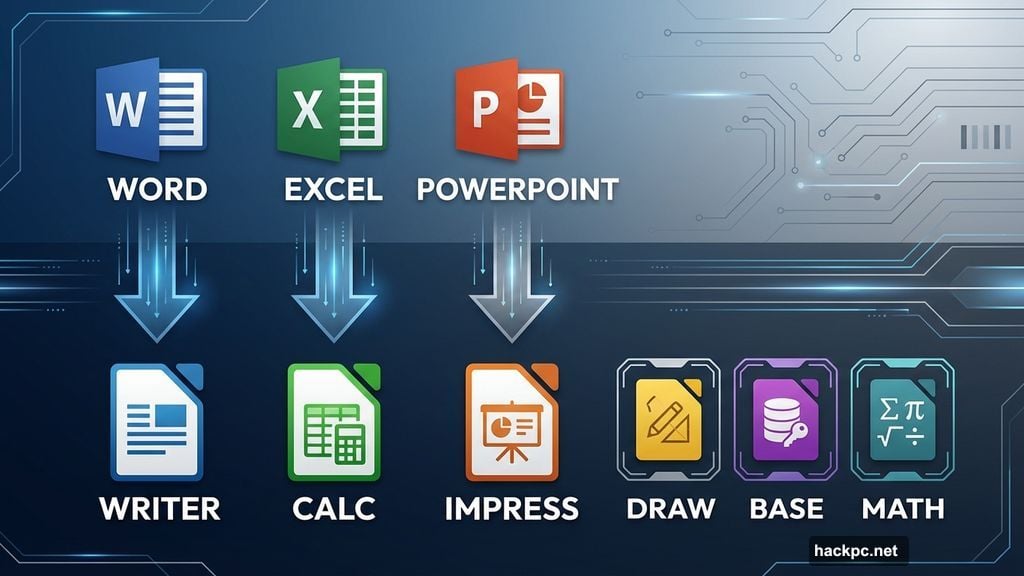
LibreOffice includes six programs that match Microsoft’s lineup. Writer replaces Word. Calc handles spreadsheets like Excel. Impress creates presentations instead of PowerPoint.
The suite also includes Draw for diagrams, Base for database templates, and Math for creating formulas. So you’re not losing functionality by switching.
But there’s one key difference. Everything runs locally on your computer. No cloud sync. No automatic backups. Your files live on your hard drive.
It Works on Most Computers You Already Own
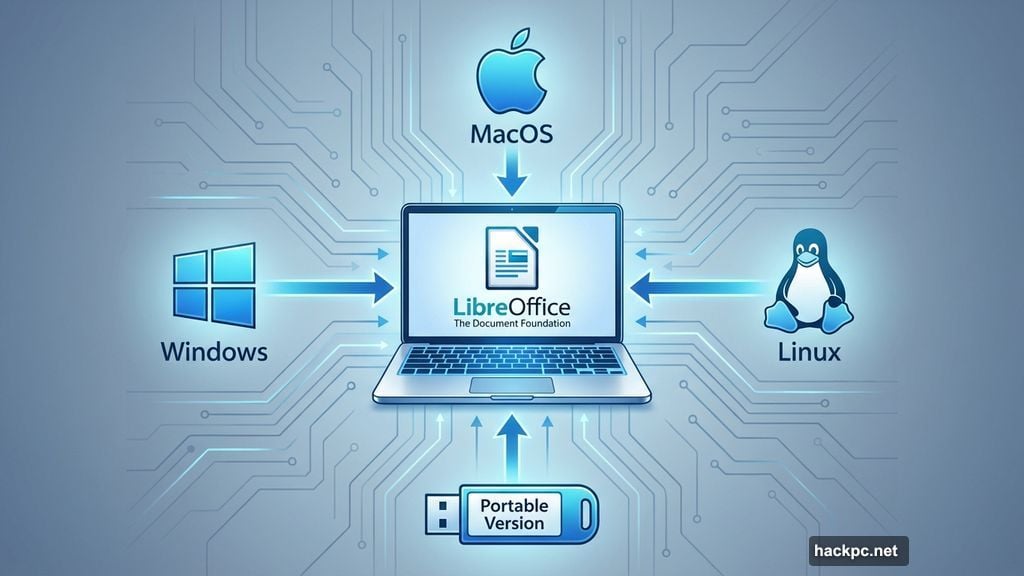
LibreOffice runs on Windows, MacOS, and Linux devices. That MacBook? Covered. Your Surface laptop? Works fine. Even older machines handle it without issues.
There’s also a portable version you can load onto a flash drive. Plug it into any computer and run LibreOffice without installing anything. That’s handy for working between multiple devices.
However, mobile support is basically nonexistent. Android has a read-only app with “experimental” editing features. That’s it. So if you need mobile document editing, this isn’t your solution.
Privacy Benefits Actually Matter Here
LibreOffice doesn’t collect user data. The organization behind it says they don’t track how you interact with documents or create user profiles. Your work stays private.
Microsoft 365 collects both required and optional data. That includes hardware specs, software details, and sometimes your IP address. Not exactly sensitive information, but more than LibreOffice gathers.
Plus, LibreOffice stores everything locally. You can password-protect files or encrypt them with GNU Privacy Guard keys. So even if someone steals your laptop, your documents stay locked down.
For basic privacy peace of mind, LibreOffice beats cloud-based alternatives hands down.
File Compatibility Works Better Than Expected
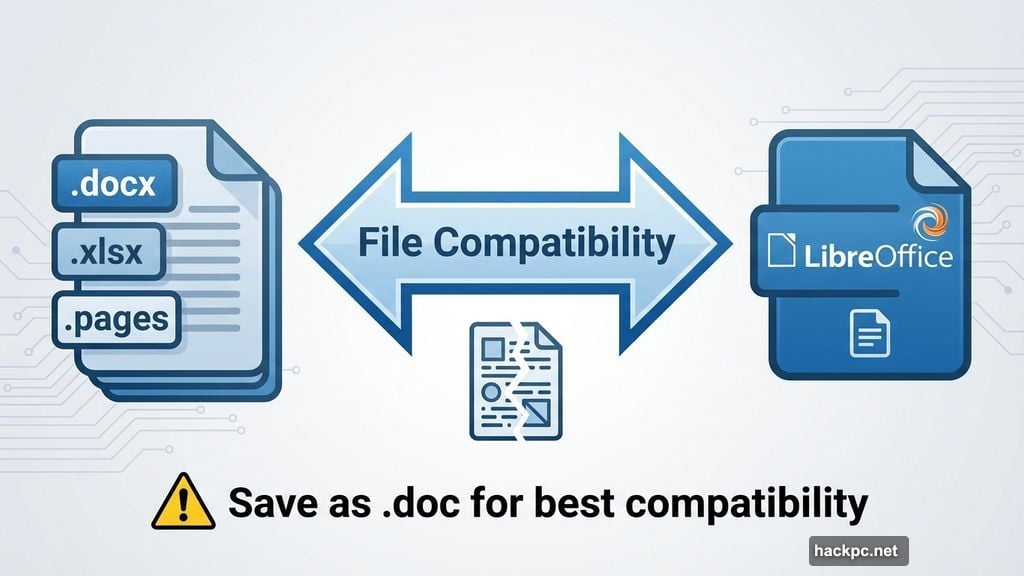
LibreOffice opens Microsoft Word, Excel, and Apple Pages files without problems. I’ve tested dozens of documents and only hit snags with multicolored fonts occasionally.
One Reddit user reported issues when exchanging complex documents multiple times between LibreOffice and Microsoft 365. Formatting can break if you convert files back and forth repeatedly.
The fix? Save files in common formats like .doc instead of .docx. That maintains compatibility across different office suites. Or just stick with one program for important documents.
Since I only use LibreOffice for personal budgeting and writing, compatibility hasn’t been an issue. But if you’re sharing work documents frequently, test your workflow first.
Customization Goes Deep With Extensions
LibreOffice’s Extension Center offers hundreds of free plugins. Need MLA format templates? There’s an extension. Want additional language spellcheckers? Available.
Someone even built a Snake game extension. Because apparently some people want video games inside their spreadsheets.
This customization lets you tailor LibreOffice to your exact needs. Microsoft 365 has add-ins too, but many cost extra. Everything in LibreOffice’s Extension Center is free.
The Interface Takes Adjustment
LibreOffice Writer’s interface felt cluttered at first. Icons for footnotes, shapes, and formatting options surrounded my blank document like a frame. It was overwhelming.
Then I realized Microsoft Word hides those same options under tabs like Insert and Layout. LibreOffice just displays everything at once. After a few days, I stopped noticing the busy interface.
Google Docs feels cleaner by comparison. Its minimalist design works great for simple documents. But if you need advanced features, LibreOffice’s upfront approach actually saves clicks.
So yes, there’s a learning curve. Not a steep one, though. Maybe a week of adjustment.
No Cloud Sync Means Extra Steps
LibreOffice doesn’t offer native cloud integration. Want to work on a document across multiple devices? You’ll need workarounds.
You could save files to Dropbox or Google Drive manually. Or email documents to yourself. Or use a flash drive. All those options work, but they require extra steps.
Microsoft 365 and Google Docs sync automatically across devices. That convenience matters if you frequently switch between your laptop and desktop.
For me, it’s not a dealbreaker. I work on one computer. But if you need seamless device switching, LibreOffice’s lack of cloud support becomes annoying fast.
Customer Support Doesn’t Really Exist
The Document Foundation provides zero individual technical support. If something breaks, you’re filing bug reports or searching community forums.
Microsoft 365 users can contact customer support directly. That’s helpful when you’re stuck on a deadline and something goes wrong.
Honestly, I haven’t needed support yet. LibreOffice is stable and straightforward. But knowing help isn’t available feels risky for critical work documents.
The Math Works for Simple Users
Microsoft 365 Personal costs $70 annually. Microsoft 365 Family runs $100 per year. LibreOffice costs nothing.
For my household, that’s $70 in annual savings. We used Microsoft Word maybe twice per month for basic documents. Paying $6 monthly for that didn’t make sense.
However, if you collaborate frequently with colleagues, need mobile editing, or want automatic cloud backups, Microsoft 365’s cost might be justified. The convenience features do add value.
But for solo users doing basic document work? LibreOffice delivers everything necessary without the subscription fee.
Real Users Split on LibreOffice
Reddit discussions show mixed opinions. Some users find LibreOffice equals Microsoft Word in functionality. They praise its customization options and open-source nature.
Others complain about formatting inconsistencies when sharing files with Microsoft 365 users. The lack of real-time collaboration frustrates teams working remotely.
Mobile app limitations also come up frequently. People want to edit documents on their phones and tablets. LibreOffice’s experimental Android app doesn’t cut it.
So community sentiment depends heavily on use case. Simple document editing? People love it. Complex collaboration workflows? Not so much.
My Honest Take After Months of Use
LibreOffice works perfectly for my needs. I budget in Calc and write drafts in Writer. Both programs handle those tasks without issues.
The $70 annual savings matters more to me than cloud sync or mobile apps. Plus, I appreciate keeping my documents private and local.
But I wouldn’t recommend LibreOffice for everyone. If you’re working with teams that use Microsoft 365, the file compatibility headaches might outweigh cost savings. If you edit documents on your phone regularly, the lack of mobile support kills this option.
LibreOffice excels for solo users doing straightforward document work. It struggles for collaborative teams needing seamless device switching.
Try it yourself before committing. It’s free, after all. Worst case, you uninstall it and return to Microsoft 365. Best case, you save money on software you barely needed.




Comments (0)