
Password managers keep your logins safe. But what happens when you copy and paste credentials into a fake website by accident?
1Password just launched a feature that tackles this exact problem. The new phishing protection warns you before you paste login credentials into suspicious sites. It’s a smart move considering 89% of Americans have faced phishing attempts, according to 1Password‘s own survey data.
Let me break down how this works and why it matters for your online security.
The Phishing Problem Keeps Getting Worse
Scammers are everywhere now. Email, texts, social media, phone calls—they’re hitting every channel to steal your data.
Plus, AI makes this problem scarier. Bad actors use artificial intelligence to create convincing fake messages at scale. That urgent “tax issue” email might look perfectly legitimate until you check the sender address closely.
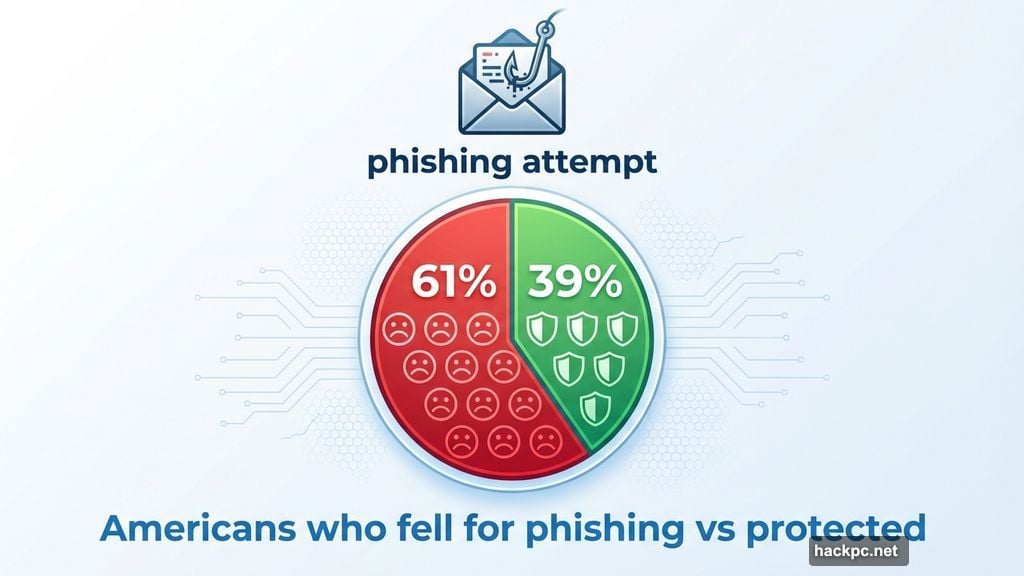
1Password’s survey found something alarming. 61% of Americans who experienced phishing attempts actually fell for them. That’s not because people are careless. These scams have gotten incredibly sophisticated.
Moreover, 62% of Americans report receiving suspected AI-powered scams. The technology that helps us also helps criminals. That’s the uncomfortable reality we’re dealing with in 2025.
How 1Password’s Phishing Protection Actually Works
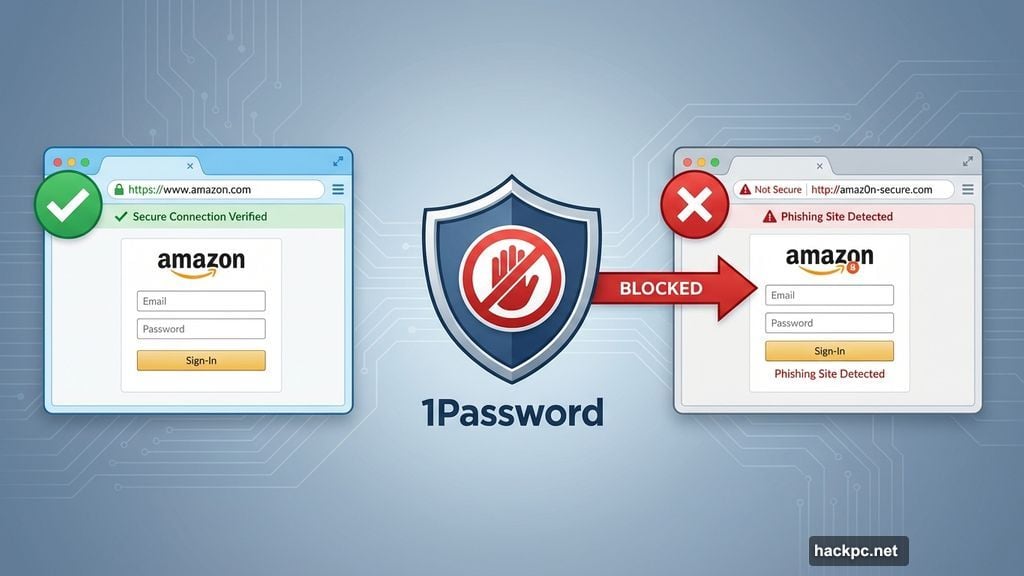
Here’s the clever part. 1Password already refuses to autofill credentials when the URL doesn’t match your saved login info.
But people often copy and paste their passwords manually in those situations. That’s where the risk sneaks in. You might paste your Amazon password into a site that just looks like Amazon but isn’t.
Now, 1Password’s browser extension displays a pop-up warning when you try to paste credentials on unrecognized sites. The message says: “This website you’re on isn’t linked to a login in 1Password. Make sure you trust this site before continuing.”
Simple. Effective. Forces you to pause before potentially handing credentials to scammers.
Setting Up Phishing Protection Takes 30 Seconds
Want this feature enabled? Here’s what to do.
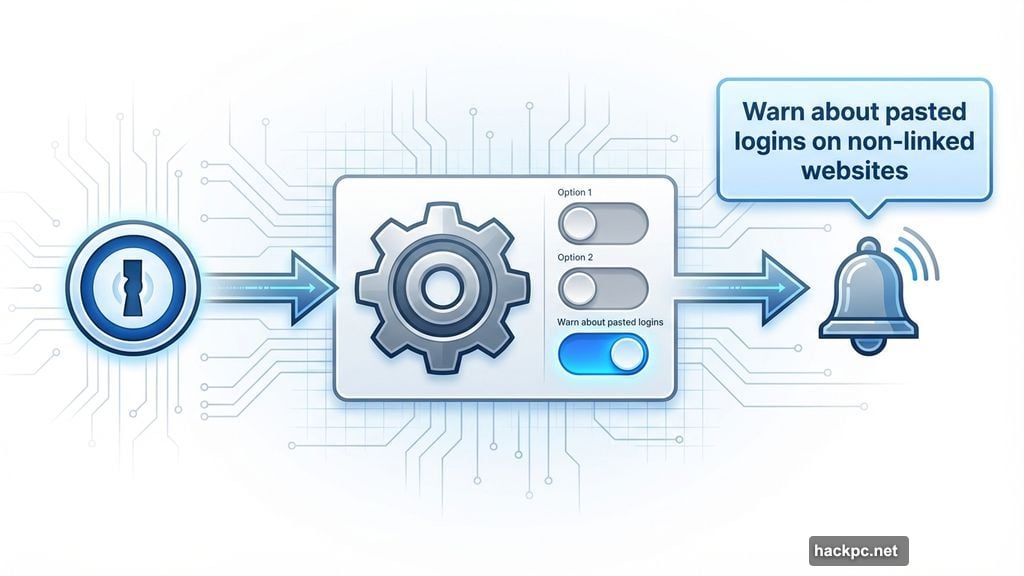
Open the 1Password browser extension. Navigate to Settings, then Notifications. Toggle on “Warn about pasted logins on non-linked websites.” Done.
From that moment forward, you’ll get warnings whenever you try pasting passwords into sites that don’t match your saved login URLs. It’s an extra safety net that requires almost no effort to activate.
This Isn’t Perfect But It’s Pretty Smart
Let’s be honest about limitations. Sometimes legitimate sites don’t match saved URLs. Streaming apps are notorious for this. Their sign-in pages often use different domains than the main site.
So you’ll occasionally see warnings for perfectly safe websites. That’s mildly annoying. But it beats accidentally giving your Netflix password to criminals.
Think of it like a smoke detector. False alarms happen. But you still want the detector working because real fires are devastating.
The key insight here is that phishing protection can’t be fully automated. Scammers create new fake websites faster than security companies can blacklist them. By the time a scam URL gets flagged and blocked, hundreds of people might have already fallen victim.
That’s why 1Password’s approach makes sense. Instead of trying to maintain an impossible-to-update list of every phishing site, it just warns you whenever something seems off. You make the final call.
What to Look For When That Warning Appears
So 1Password warns you about a suspicious site. Now what? Check for these red flags.
First, examine the URL closely. Scammers use sneaky tricks like replacing the letter “l” with the number “1”. PayPal becomes Paypa1. Amazon becomes Arnazon. These tiny changes are easy to miss when you’re moving fast.
Second, look at the site’s images. Fake websites often use low-resolution logos and product photos. Legitimate companies invest in high-quality graphics. Blurry images suggest something’s wrong.
Third, check for spelling errors. Real companies proofread their content. Scam sites frequently contain typos and grammatical mistakes.
Finally, review payment options. If a site only accepts bank transfers or cryptocurrency, that’s suspicious. Legitimate retailers offer multiple payment methods including credit cards.
Cybersecurity Needs Multiple Layers Now
1Password’s phishing protection is excellent. But it’s not enough by itself. Your security strategy needs several components working together.
You need antivirus software to block malware. A VPN to encrypt your internet traffic. A password manager to secure your credentials. And increasingly, you need passkeys instead of passwords when possible.
Plus, you need to stay alert. Technology helps, but human awareness remains crucial. That’s frustrating because we’re already juggling too many things. But it’s the reality of digital life in 2025.
The Human Element Remains the Weakest Link
Here’s what bothers security experts. You can build incredibly strong systems with encryption, firewalls, and authentication. But if someone tricks a user into handing over their password, all those protections become worthless.
That’s why phishing works. It’s often easier to fool people than to crack code. Scammers exploit trust, urgency, and distraction. They send fake invoices, fake shipping notifications, fake security alerts. Anything that might make you click without thinking.
1Password’s new feature addresses this by adding friction at the critical moment. Right when you’re about to paste that password, you get stopped. That pause might save you from a costly mistake.
Why I Keep Using 1Password Despite Alternatives
Full disclosure: I rely on 1Password daily. Without it, I’d constantly be resetting passwords because I can’t remember 200+ unique logins.
But plenty of password managers exist. Bitwarden, Dashlane, LastPass, NordPass—you’ve got options. So why do I stick with 1Password?
The company consistently adds genuinely useful security features. Watchtower alerts me to breached passwords. Travel Mode hides sensitive vaults when crossing borders. Now phishing protection warns me about suspicious paste attempts.
It’s not just about storing passwords anymore. It’s about actively defending against evolving threats. That proactive approach matters in 2025’s threat landscape.
AI-Powered Scams Are Only Getting Started
Remember when phishing emails were obviously fake? Broken English, weird formatting, suspicious sender addresses. Those days are gone.
AI language models help scammers craft perfectly written messages. They research targets on social media to personalize attacks. They generate fake websites that look professional. They even clone voices for phone scams.
This isn’t science fiction. It’s happening now. And it’s going to get worse before it gets better. That’s why defensive tools like 1Password’s phishing protection become essential rather than optional.
The Takeaway for Regular Users
You don’t need to become a cybersecurity expert. But you do need basic protections in place. Use a password manager. Enable two-factor authentication everywhere possible. Think before clicking links in emails or texts.
And now, if you use 1Password, turn on phishing protection. It takes 30 seconds and might save you from a nightmare scenario where scammers drain your accounts.
The threat landscape keeps shifting. Tools that adapt and add protection against new attack vectors are the ones worth using. 1Password continues proving it understands what users need to stay safe online.
Stay skeptical out there. When something feels off, it probably is.




Comments (0)