
Your front door is on Google Maps right now. So is your driveway, yard, and probably that embarrassing garden gnome collection.
Anyone can pull up your address and see exactly what your property looks like. That’s convenient for pizza delivery drivers. But it also means complete strangers can scope out your home from their couch. If that bothers you, you’re not alone.
Good news? Google lets you blur your home on Street View. Better news? It takes about three minutes. Let’s walk through it.
You’ll Need a Computer for This
The blur feature doesn’t work in the Google Maps mobile app. Technically, you can access it through your phone’s web browser. But the interface is clunky and frustrating.
So grab your laptop or desktop. Trust me on this one.
Find Your Home First
Head to maps.google.com and type your address in the search bar. Hit enter.
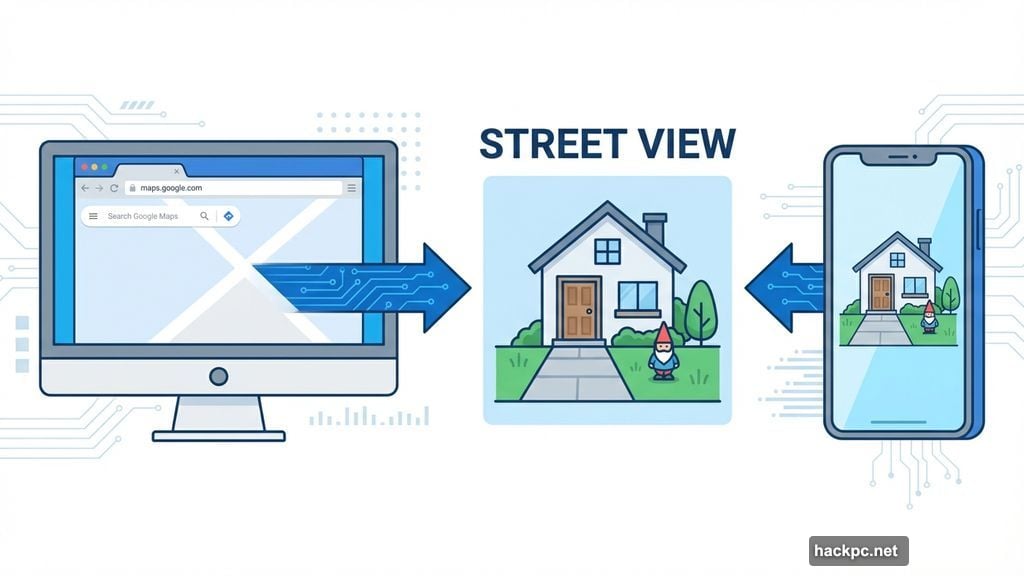
You’ll see a photo of your property appear on the left side of the page. Click that photo. This opens Street View, showing what anyone else sees when they search your address.
Take a good look. Notice any details you’d rather keep private? Maybe your kids’ toys in the yard? Your car in the driveway? Now you can do something about it.
Report a Problem
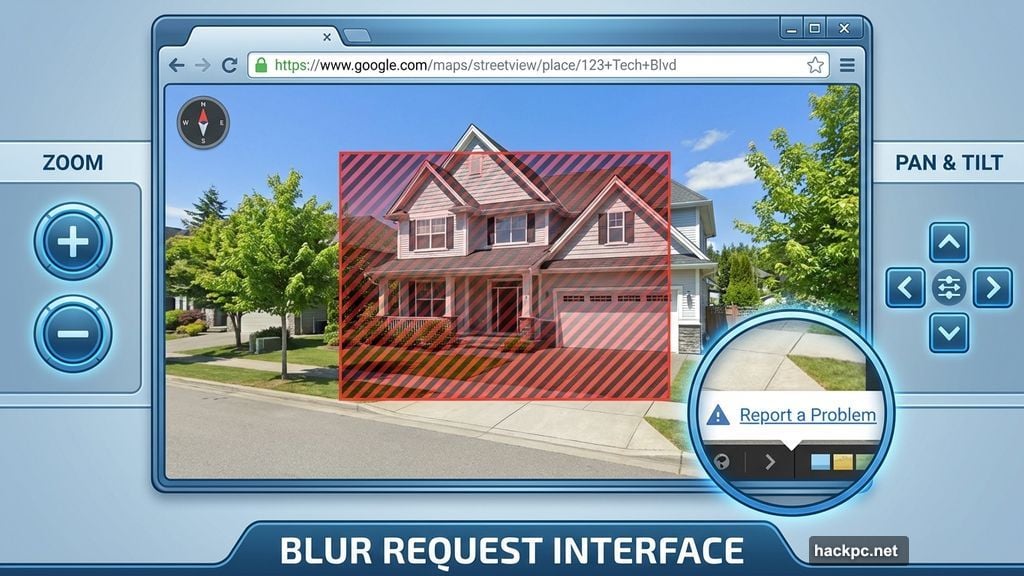
Look at the bottom-right corner of the Street View image. See that tiny “Report a Problem” link? Yeah, Google didn’t make it easy to find.
Click it anyway.
This opens a new page where you control what gets blurred. You’ll see your property inside a red and black box. Everything in that box can be blurred permanently.
Use your mouse to adjust the view. The plus and minus buttons zoom in and out. Position the box so it covers everything you want hidden. Your entire house. Your car. Whatever makes you uncomfortable.
Just remember this part matters. Once Google blurs something, it stays blurred forever. No do-overs.
Tell Google What to Blur
Below the image, you’ll see four options:
- A face
- Your home
- Car/license plate
- A different object
Pick whichever applies. If your Street View image is crowded with multiple things, Google needs to know which specific item you want blurred.
Be thorough here. If there’s a car in your driveway plus your house, mention both. The more detail you provide, the faster Google processes your request.
Next, enter your email address. This part’s required. Then verify the captcha if prompted. Finally, click Submit.
Now You Wait
Google sends a confirmation email right away. That’s just acknowledgment they received your request. It doesn’t mean they’ve approved it yet.
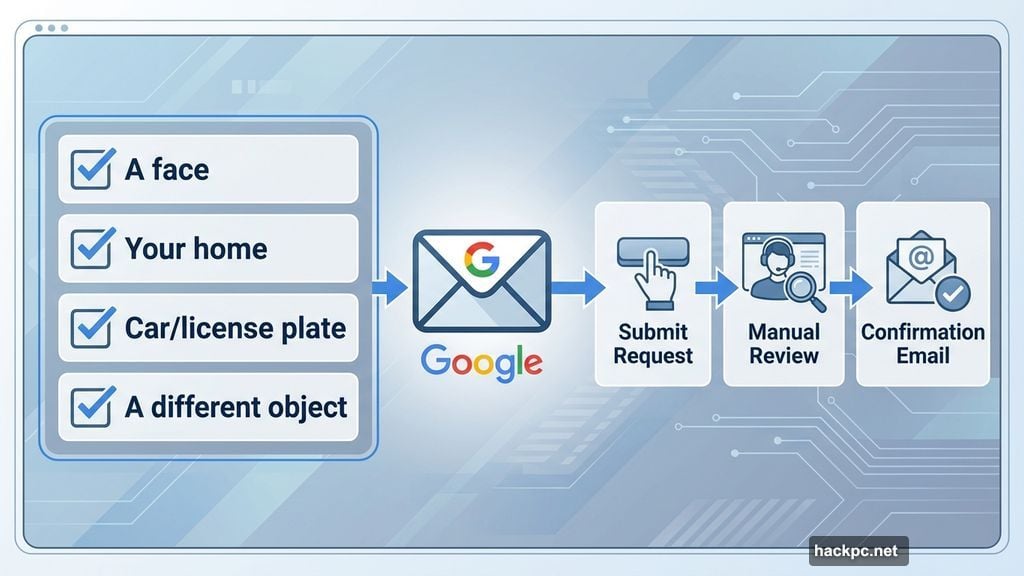
The company reviews each blur request manually. They might send follow-up emails asking for more information. How long does this take? Google won’t say. Some people report hearing back in days. Others wait weeks.
Check your email regularly. And maybe check your spam folder too.
Why This Actually Matters
Look, Street View serves a purpose. It helps people find businesses. It lets you preview parking situations. For that stuff, it’s genuinely useful.
But your home isn’t a business. You didn’t consent to having your property photographed and displayed online. Yet there it sits, available to anyone with internet access.
Identity thieves can case your property remotely. Stalkers can study your routine. Even casual creeps can satisfy their curiosity without ever driving by.
Maybe that sounds paranoid. Or maybe it’s just recognizing that privacy has real value. Either way, you deserve control over what strangers see of your personal space.
Google gives you that control. You just have to use it.




Comments (0)