
Your laptop shouldn’t need a coffee break before it’s ready to work. But here you are, staring at a loading screen while your phone’s Instagram feed loads faster than your desktop.
The culprit? Startup bloat. Windows 11 launches dozens of apps the moment you sign in. Most of them just sit there, hogging memory and CPU cycles you’ll never get back.
Good news: You can fix this in under five minutes without spending a cent on RAM upgrades.
The Real Problem With Startup Apps
Every app that launches at startup steals resources. Your antivirus, cloud sync tools, gaming launchers, chat apps—they all want priority access to your system.
Sure, some apps need to start automatically. Security software should run from the moment you boot up. But does Xbox really need to launch when you’re trying to answer emails? Probably not.
Microsoft’s own data shows apps with “high impact” consume over one second of CPU time during startup. Plus, they chew through more than 3MB of disk operations. Multiply that by a dozen apps and you’ve got a sluggish mess.
The solution isn’t buying more hardware. It’s telling Windows which apps actually deserve startup privileges.
Task Manager: Your First Line of Defense
Task Manager gives you the clearest picture of what’s killing your boot time. Here’s how to use it.
Right-click the Start button at the bottom left of your screen. Select Task Manager from the menu. Or just search for “Task Manager” in the search bar—either works.
Click the hamburger menu (those three stacked lines) at the top left. Then select “Startup apps” from the menu that appears.
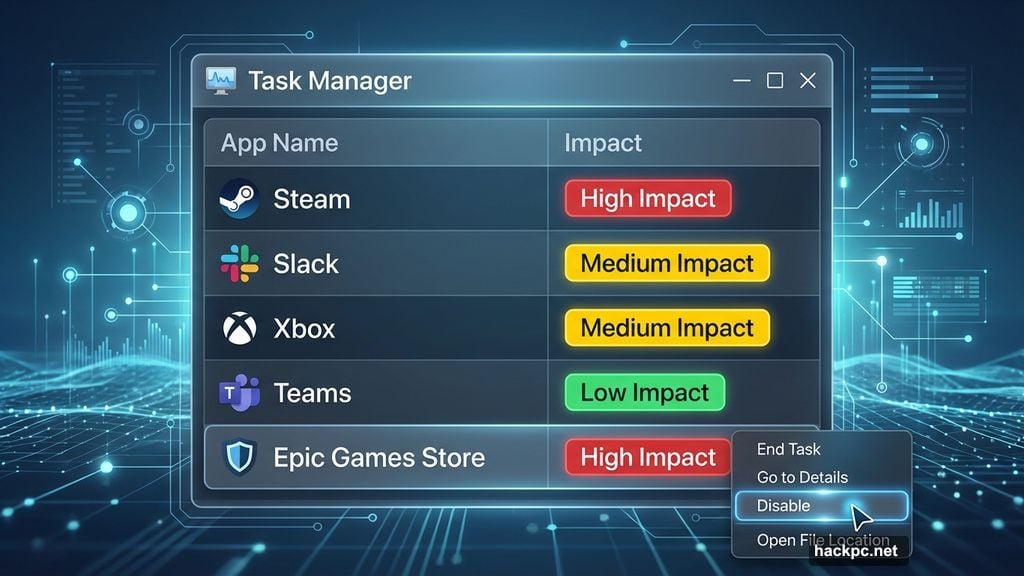
You’ll see every app configured to launch at startup. More importantly, you’ll see each app’s “startup impact” rating on the far right side.
This impact rating tells the whole story. High impact apps slow your boot time significantly. Medium and low impact apps still add delay. Apps marked “none” or “not measured” typically don’t cause problems.
Right-click any app in this list to enable or disable it. Disabled apps won’t launch automatically anymore. But they’re still installed—you can open them manually whenever you need them.
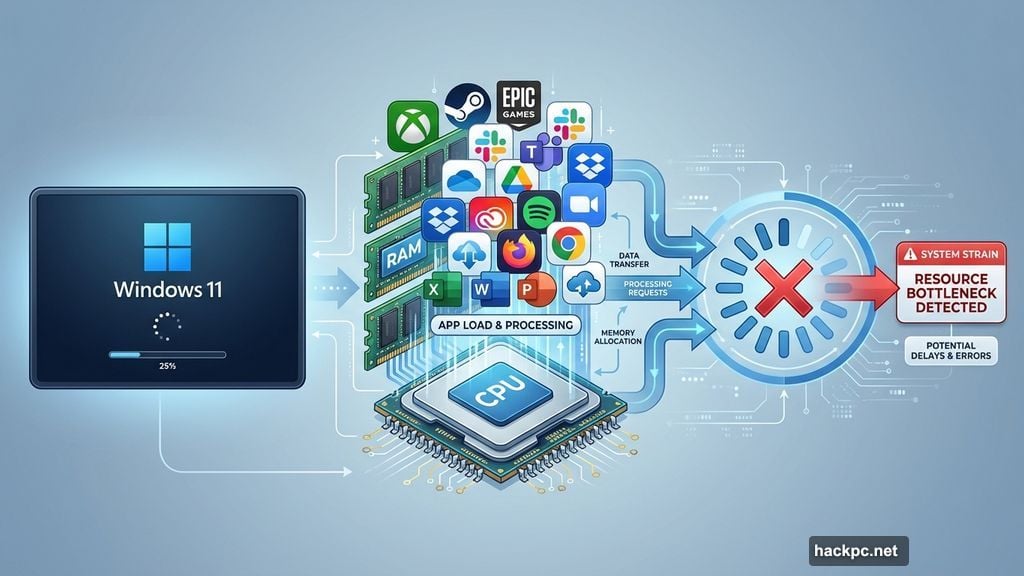
Focus on disabling high-impact apps you don’t use daily. Chat apps like Slack or Microsoft Teams are common offenders. Gaming launchers like Steam or Epic Games Store rarely need instant startup access. Cloud storage sync tools can wait 30 seconds to start syncing.
Settings App: The Friendlier Alternative
Task Manager works great, but Windows Settings offers a cleaner interface for the same job.
Right-click the Start button again. This time, select “Settings” from the menu. You can also search for “Settings” in the search bar.
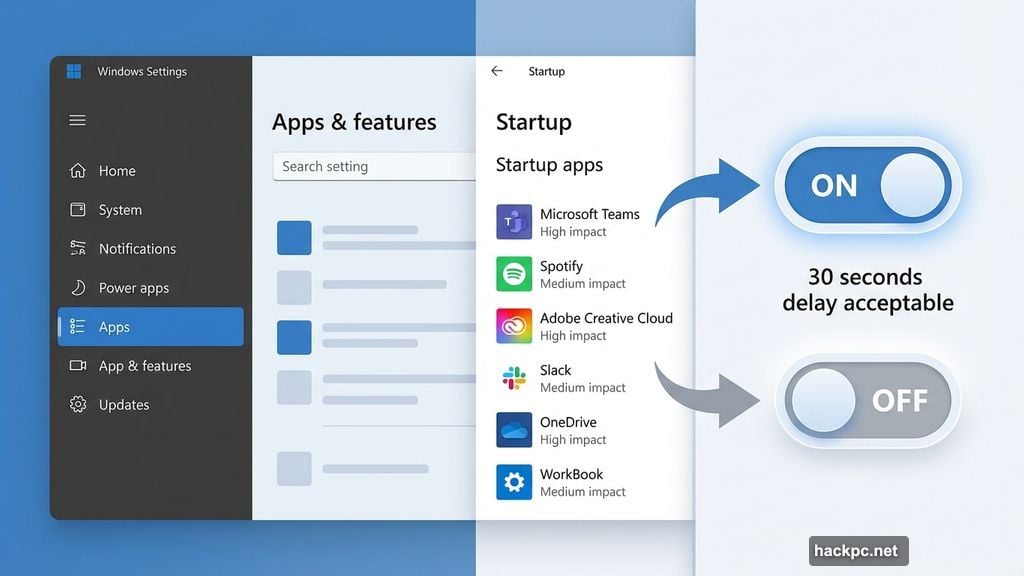
Click “Apps” in the left menu. Then click “Startup” in the main panel.
You’ll see the same apps as Task Manager, but with simple toggle switches. Flip the switch to off for any app you want to disable at startup.
Settings also shows startup impact, though not as prominently as Task Manager. Look for apps marked “high impact” first—those give you the biggest speed boost when disabled.
Here’s a weird quirk: Sometimes you’ll see “We couldn’t find this app” instead of an app name. This happens when an app sits on a removable drive, a network location, or a path that no longer exists. It might also mean you uninstalled the app but its startup entry remains.
Click the icon next to the toggle to get more details about these mystery apps. If the app is truly gone, the entry won’t hurt anything—but it won’t help either.
File Explorer: The Hidden Startup Folder
Some apps bypass both Task Manager and Settings entirely. They hide in Windows’ startup folders instead.
This method takes a few more steps, but it catches apps the other methods miss.
First, right-click the Start button and select “Run.” When the dialog box appears, type shell:appsfolder and hit Enter.
File Explorer opens, showing every app installed on your PC. Keep this window open—you’ll need it in a moment.
Right-click Start again. Select Run again. This time, type shell:startup and hit Enter. or shell:common startup
A second File Explorer window opens. This one shows apps that launch automatically when you sign in.
Now here’s the trick: Drag apps from the first window into the second window to add them to startup. Delete shortcuts from the second window to remove apps from startup.
Most people won’t need this method often. But if an app keeps launching at startup despite being disabled everywhere else, check these folders.
Which Apps Should Actually Stay Enabled?
Not all startup apps deserve the axe. Some legitimately need to run from the moment you boot up.
Keep your antivirus running at startup. Windows Defender, Norton, McAfee—whatever security software you use should launch immediately. Malware doesn’t wait for you to manually start protection.
System utilities and drivers should stay enabled too. Graphics card control panels, audio managers, trackpad software—these handle hardware that needs constant management.
Everything else? Question it ruthlessly.
Microsoft Teams doesn’t need to launch unless you’re constantly in meetings. Xbox can wait until you actually want to game. Cloud storage sync tools can start syncing 30 seconds after boot—your files aren’t going anywhere.
Copilot, Windows’ AI assistant, loves launching at startup. Unless you’re using it constantly, disable it. Same goes for OneDrive if you’re not actively syncing files to Microsoft’s cloud.
Not sure what an app does? Right-click it and select “Search online.” Five seconds of Googling beats accidentally disabling something critical.
The worst that happens if you disable the wrong app? Your PC boots up without it. If something breaks, just re-enable the app. Both Task Manager and Settings make this equally easy.
Third-Party Tools for Power Users
Windows’ built-in tools handle 90% of startup management needs. But power users might want more control.
Microsoft’s own Autoruns shows everything that launches at startup—not just apps, but browser extensions, scheduled tasks, and drivers too. It’s free and surprisingly powerful for a Microsoft tool.
Other options include Startup Delayer, which staggers app launches to reduce initial boot load. WhatInStartup provides detailed information about each startup entry. StartupLite automatically suggests apps to disable based on your usage patterns.
Most people don’t need these tools. But if you’re the type who enjoys optimizing every system setting, they’re worth exploring.
The Real Impact of Startup Bloat
Disabling unnecessary startup apps doesn’t just speed up boot time. It frees up RAM and CPU cycles for the entire time your PC runs.
Apps launching at startup often stay running in the background. They consume memory even when you’re not actively using them. Discord sitting in your system tray, Steam checking for game updates, backup software scanning for changed files—all of this happens whether you notice it or not.
Cut out five high-impact startup apps and you might reclaim 500MB to 1GB of RAM. On a system with 8GB total, that’s a meaningful difference. On a laptop with 4GB (yes, they still exist), it’s the difference between usable and frustrating.
Your battery life improves too. Apps running in the background drain power even when idle. Fewer startup apps means fewer background processes means better battery efficiency.
This Works on Older Windows Too
These methods work on Windows 10 and even older versions, though Microsoft desperately wants everyone on Windows 11.
The Task Manager approach works identically in Windows 10. Settings might look slightly different, but the functionality is the same.
Windows 7 and 8 users can access startup apps through MSConfig instead. Press Win+R, type “msconfig,” and look for the Startup tab.
But honestly, if you’re still running Windows 7, startup apps are probably the least of your security concerns.
Just Start Disabling Things
You don’t need to research every app before touching it. Start with obvious culprits like chat apps, gaming launchers, and software you rarely open.
Disable an app. Reboot. See if anything breaks. If not, you just made your PC faster. If something stops working, re-enable the app and move on.
Windows won’t explode if you disable the wrong thing. The worst case scenario is an app doesn’t work until you manually launch it. That’s it.
So stop waiting for your computer to catch up with you. Kill those startup apps. Your future self will thank you every single morning.




Comments (0)