

Excel feels clunky when you’re clicking through menus for every task. Trust me, I’ve been there.
But shortcuts change everything. Once you learn these 18 commands, you’ll move through spreadsheets like a pro. No more hunting through ribbons or right-clicking endlessly.
Let’s jump straight into the shortcuts that matter most.
Navigation Shortcuts That Speed Up Everything
Moving around large spreadsheets eats up time. These shortcuts fix that problem fast.
Ctrl + Home takes you straight to the top left of your dataset. No scrolling required. Plus, it works regardless of where you are in the spreadsheet.
Ctrl + End does the opposite. It jumps to the bottom right corner instantly. So you can check the last entry without scrolling through hundreds of rows.
Ctrl + Arrow keys let you jump from one side of your table to the other. Press Ctrl + Right Arrow to zoom to the rightmost column with data. Works in all four directions.

Here’s the kicker. Add Shift to that combo and you select everything along the way. Ctrl + Shift + Arrow keys highlights entire sections as you jump. Perfect for quick selections.
Selection Shortcuts for Faster Data Manipulation
Selecting data efficiently matters more than most people think. These shortcuts make it effortless.
Ctrl + A selects your entire dataset when you click inside it. One keystroke instead of dragging across hundreds of cells. Simple but powerful.
Ctrl + Space grabs the entire column when you’re clicked inside it. Meanwhile, Shift + Space selects the whole row. Both shortcuts save countless clicks.
Need to work with specific ranges? Ctrl + Shift + Arrow keys highlight everything from your current position to the edge of your data in any direction.
Table Management Shortcuts Every User Needs
Managing tables becomes a breeze with these commands. Plus, they eliminate repetitive menu navigation.
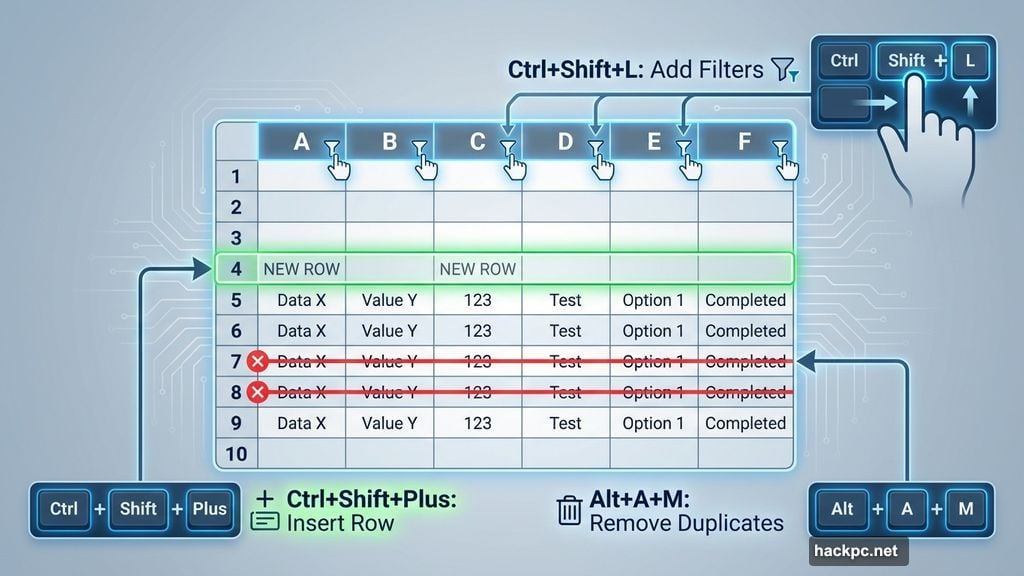
Ctrl + Shift + L adds filters to your headers instantly. No more clicking through the Data menu. Just one shortcut and your filters appear.
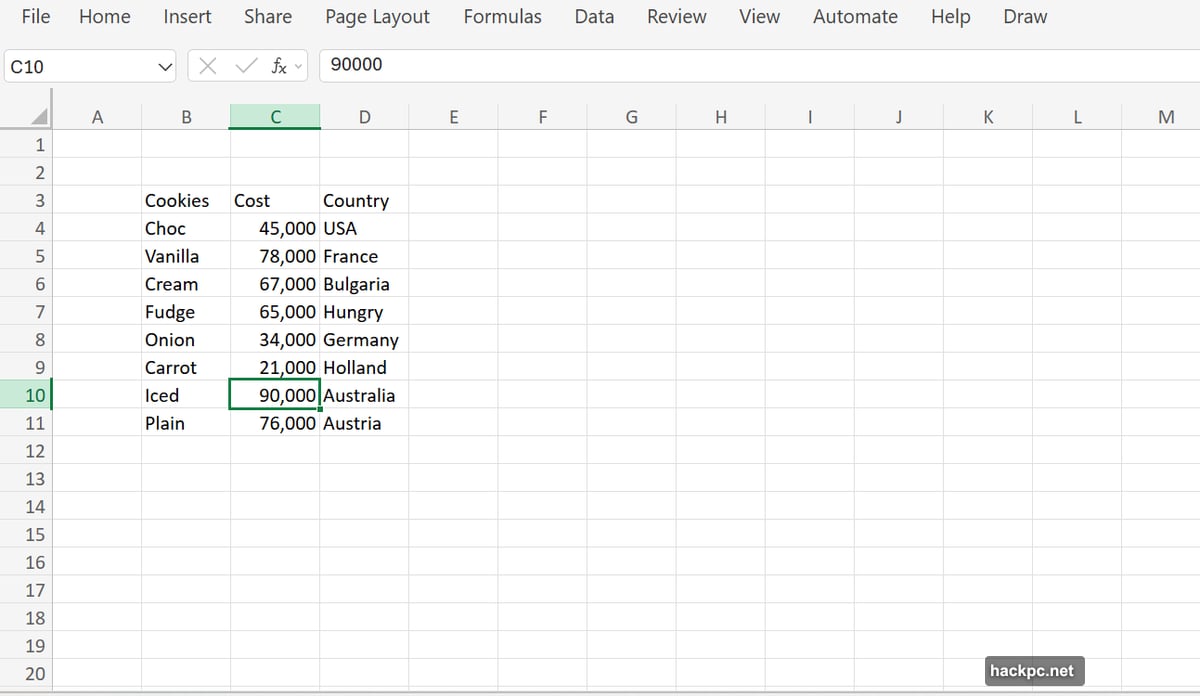
Ctrl + Shift + Plus sign inserts a new row when you have a row selected. Conversely, Ctrl + Minus sign deletes the selected row. Both work in seconds.
Alt + A + M automatically removes duplicate rows from your table. Click inside your dataset first, then hit this combo. Excel finds and eliminates duplicates without manual checking.
Hide and Reveal Data Like a Pro
Sometimes you need to hide columns or rows temporarily. These shortcuts make that quick and reversible.
Ctrl + 0 hides the selected column. Ctrl + 9 hides the selected row. Both commands work instantly without opening menus.
Need to reveal hidden data? Alt + ; shows you exactly where hidden rows and columns exist. Then double-click those thin lines to expand them back to normal.
This approach beats hunting through Format menus. Hidden data becomes visible in seconds instead of minutes.
Instant Calculations and Charts

Excel’s power comes from quick analysis. These shortcuts deliver results immediately.
Alt + = autosums all rows and columns when you select a table. Excel calculates totals for everything at once. No manual formula entry needed.
Fn + F11 converts your selected data into a chart in its own sheet. One keystroke creates a visualization from raw numbers. So you can present insights faster.
Time-Saving Date and Time Shortcuts
Tracking when data was entered matters for many spreadsheets. These shortcuts eliminate typing dates manually.
Ctrl + ; inserts today’s date in the current cell. Ctrl + Shift + ; inserts the current time. Both commands use your system clock automatically.
These shortcuts work great for timestamping entries. Plus, they ensure consistency across your spreadsheet without manual typing errors.
Why These Shortcuts Actually Matter
Shortcuts aren’t just about showing off. They genuinely transform how you work in Excel.
Think about it. Every menu click takes 2-3 seconds. Every right-click adds another second. Over a workday, those seconds compound into minutes or hours wasted on navigation.
Moreover, shortcuts reduce mental friction. Your hands stay on the keyboard. Your focus stays on the data. That continuous workflow beats constant context switching between mouse and keyboard.
Practice Until They Become Automatic
Learning shortcuts feels awkward at first. Your muscle memory fights the change. But that discomfort fades quickly with practice.
Start by using just 3-4 shortcuts daily. Focus on the ones most relevant to your work. Navigation shortcuts? Selection commands? Pick what matters and drill them.
Within a week, those movements become automatic. Then add a few more shortcuts. Gradually, you’ll build a complete toolkit without overwhelming yourself.
The payoff? You’ll move through Excel with the speed and confidence of a power user. Spreadsheets that once took hours now take minutes. That’s time saved for actual analysis instead of mechanical navigation.
So bookmark these shortcuts. Keep them visible while you work. Then practice them relentlessly until they’re second nature. Your future self will thank you for the efficiency gains.




Comments (0)