
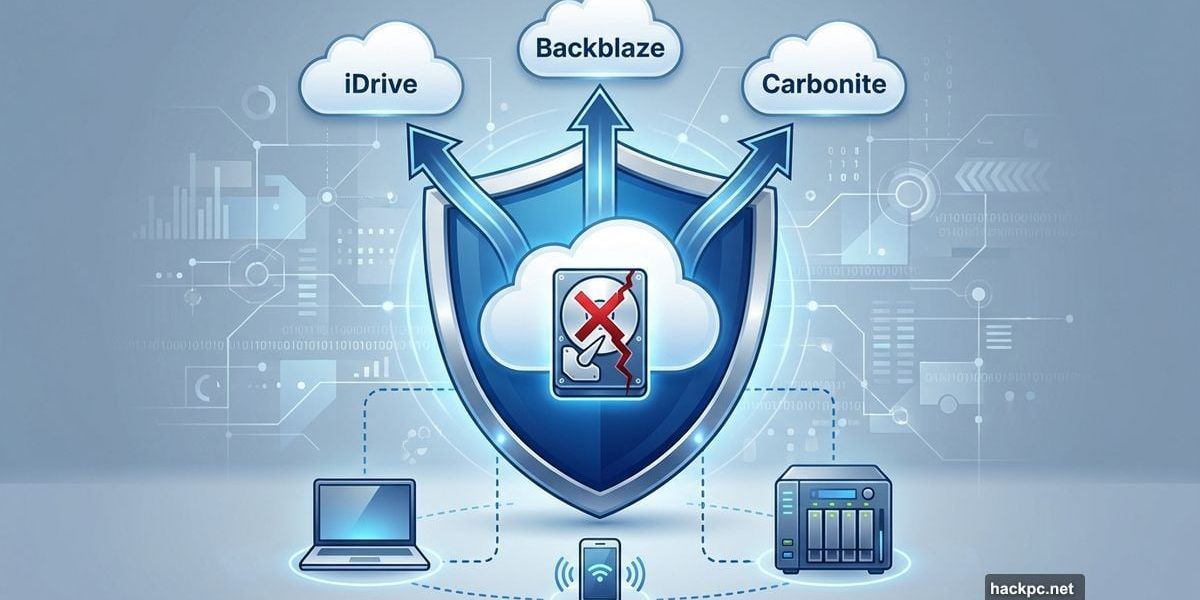
Your hard drive will fail. Not might. Will.
Mechanical failures kill drives every day. Ransomware locks files instantly. House fires don’t care about your photo collection. Yet most people skip cloud backup until disaster strikes.
That’s a costly mistake. Local backup helps for quick restores. But fire, theft, or malware can wipe both your computer and local drives simultaneously. Cloud backup solves that problem by keeping copies offsite where physical disasters can’t reach them.
The challenge? Picking the right service from dozens of options. Some offer unlimited storage but terrible speeds. Others provide rock-solid reliability but charge per gigabyte. And confusingly, popular names like Google Drive and Dropbox don’t actually function as true backup services.
Let’s cut through the noise and find what actually protects your data.
Why Google Drive Isn’t Backup
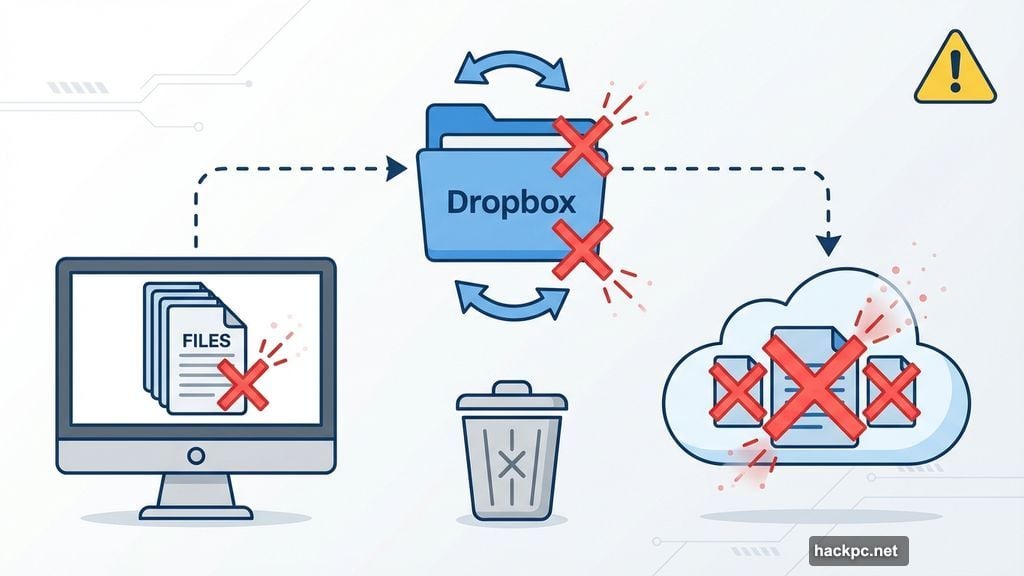
Most people think Dropbox, OneDrive, and Google Drive provide backup. They’re wrong.
Those services sync files. That’s fundamentally different from backup. With sync, deleting a file on your computer deletes it everywhere. Ransomware encrypting your local files? Those encrypted versions sync to the cloud immediately, overwriting your good copies.
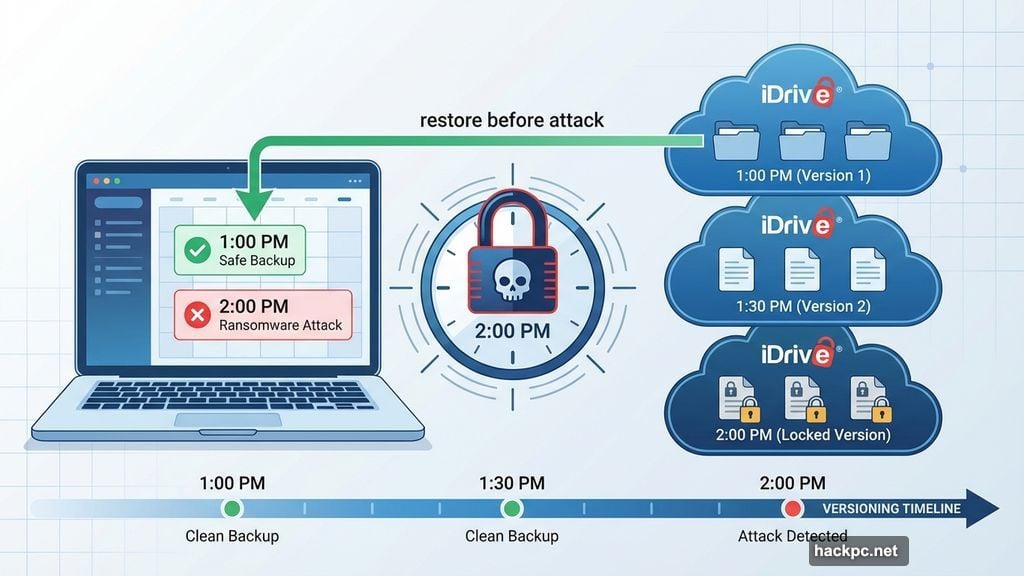
Real backup uses versioning. Old files stick around even after you delete or modify them. So if ransomware strikes at 2pm, you can restore files from 1pm before the attack.
Plus, cloud storage services typically lack desktop backup clients. You manually drag files into a folder. True backup services scan your entire computer automatically and upload everything you specify on a schedule you control.
The difference matters. Sync helps access files across devices. Backup protects against data loss. You actually need both for complete protection.
iDrive Covers All The Bases
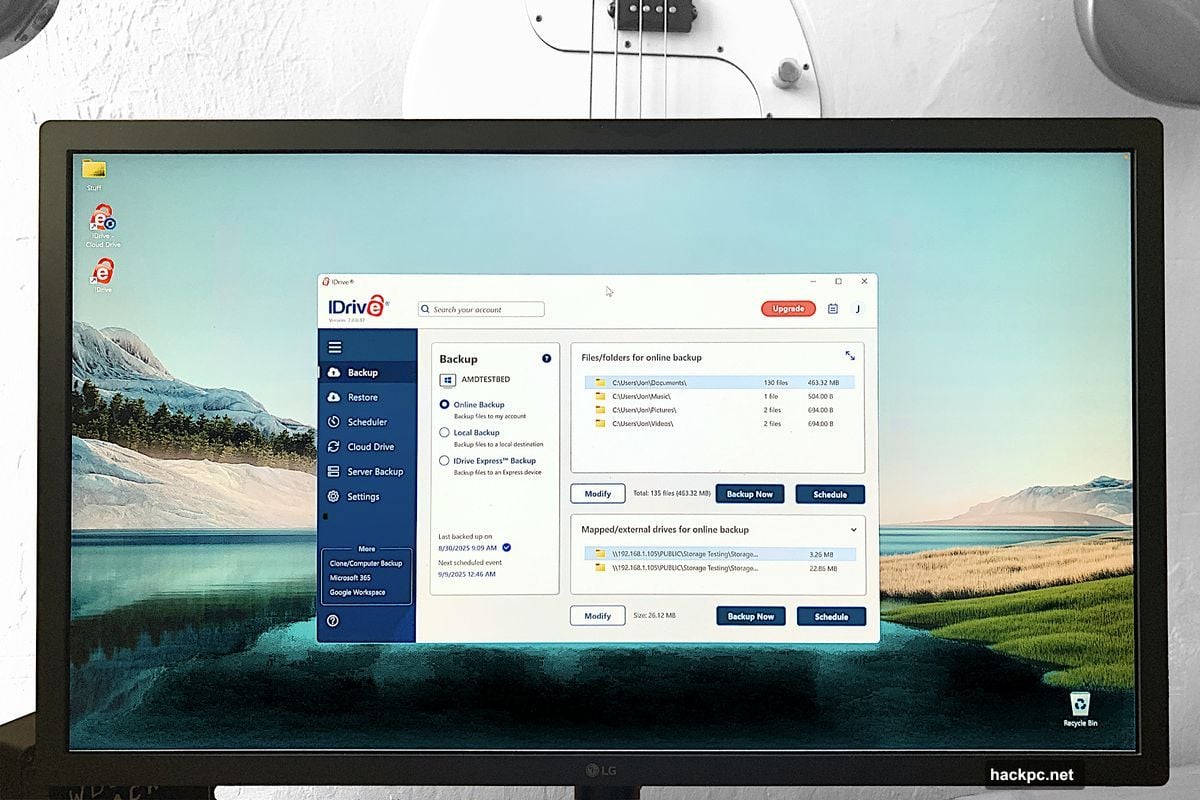
iDrive remains the most comprehensive backup service around. The company somehow packed nearly every feature users might want into one affordable package.
Start with basics. iDrive backs up Windows, Mac, Linux, iOS, and Android devices. One account covers multiple computers and phones. That’s huge for families or anyone juggling several devices.
But iDrive goes further. The service backs up Office 365 and Google Workspace documents. It handles NAS devices. There’s even basic disk imaging for disaster recovery.
Want local backup too? iDrive supports that. The same client software can back up to an external drive while simultaneously uploading to the cloud. And the service includes separate storage space for syncing files across devices when you need that functionality.
Performance holds up well. Upload speeds depend heavily on your internet connection, but iDrive’s servers handle traffic efficiently. Plus, the company ships a physical drive for initial backup if you have terabytes to upload and don’t want to wait weeks.
Pricing starts at $69.95 yearly for 5TB on the Personal plan. That first-year rate jumps to $99.50 annually after. Still reasonable compared to buying equivalent storage elsewhere. Larger plans offer 10TB, 20TB, 50TB, and 100TB for users drowning in data.
The one weakness? Image backup could be more robust. It works, but feels tacked on rather than fully integrated. For most users backing up files rather than entire systems, that limitation won’t matter.
Livedrive Handles Unlimited Storage Right
Unlimited storage sounds too good to be true. Usually it is. Companies either throttle speeds, restrict file types, or hide asterisks in the fine print.
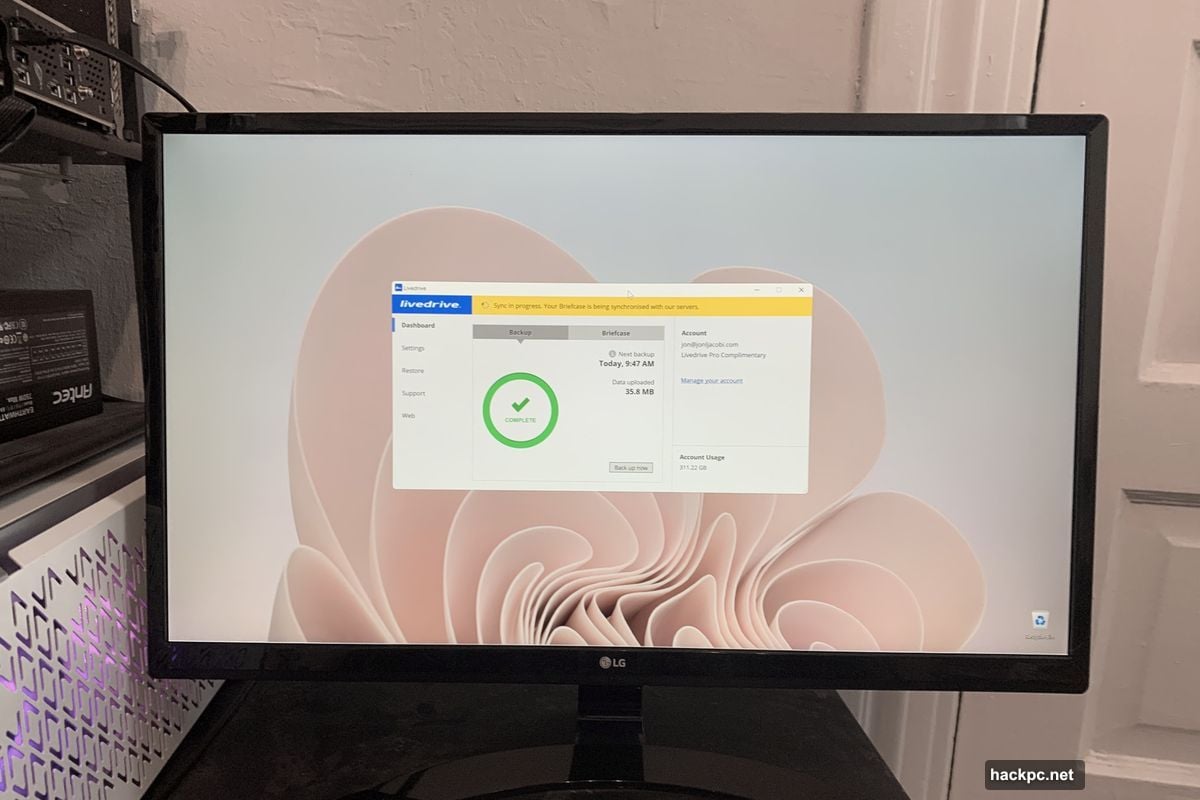
Livedrive offers genuinely unlimited backup without those tricks. The service doesn’t cap storage. It doesn’t slow transfers for heavy users. Upload as much as your internet connection allows.
Better yet, Livedrive feels polished. Setup takes minutes. The interface makes sense immediately. Everything just works without weird glitches or confusing options.
In testing, upload speeds consistently hit 5-10MBps from San Francisco to Livedrive’s UK servers. That’s faster than some services with data centers across the street. Apparently, good infrastructure matters more than geography.
The Pro Suite adds file syncing and online editing. Think Dropbox features alongside true backup. One interface handles both jobs, which beats juggling separate services.
Pricing runs about $124 yearly for one PC or $284 for five machines with the Pro tier. Not the cheapest option, but unlimited storage justifies the cost for anyone with massive photo libraries, video collections, or work archives.
Livedrive’s main competitor, Backblaze, also offers unlimited storage. But Backblaze only backs up one computer per account. Livedrive’s multi-device support and elegant software push it ahead for most users.
Internxt Drive Offers Lifetime Deals
Annual subscriptions drain budgets over time. Pay $100 yearly for ten years? That’s $1,000 gone. Lifetime plans flip that equation.
Internxt Drive sells lifetime storage. Pay once, backup forever. No recurring charges. No price hikes. Just permanent cloud storage.
The lifetime deals actually make sense financially. Internxt charges $300 for 1TB, $450 for 3TB, or $600 for 5TB as one-time purchases. Compare that to annual plans from competitors and the break-even point arrives in just a few years.
Naturally, “lifetime” assumes Internxt stays in business. That’s always a risk with smaller companies. But the service has operated reliably for years, and lifetime licenses transfer between users if needed.
Beyond pricing, Internxt emphasizes security. All data gets encrypted before leaving your computer. The company uses zero-knowledge encryption, meaning Internxt employees can’t access your files even if they wanted to.
There’s one catch. Internxt uses mirroring rather than true versioning. Deleted files disappear after the retention period expires. Old versions of documents don’t stick around forever. The company promises versioning eventually, but it’s missing now.
For users prioritizing affordability and security over advanced features, Internxt’s lifetime plans are tough to beat. Just understand the backup limitations before committing.
Arq Consolidates Multiple Storage Services
Most people already pay for cloud storage somewhere. Maybe Amazon for photos. Google for documents. Dropbox for work files.
Arq 7 Backup leverages existing storage rather than adding another subscription. The software backs up to Amazon S3, Google Cloud, OneDrive, Dropbox, Backblaze B2, pCloud, and numerous other services.
Got 2TB sitting unused in OneDrive? Point Arq at it. Already paying for Google storage? Use that. Arq even supports SFTP and S3-compatible services for maximum flexibility.
The interface makes managing multiple backup jobs surprisingly easy. Each job specifies source folders, destination service, schedule, and retention settings. Arq handles the rest automatically.
This approach saves money if you’re already paying for storage elsewhere. Instead of subscribing to a dedicated backup service, you use capacity you’ve already purchased. Plus, diversifying across multiple services reduces risk of any single provider having issues.
Arq itself costs $49 as standalone software with a perpetual license. If you want Arq’s own storage instead, plans start at $60 yearly for 1TB covering five users.
The downside? Arq only does backup. No disk imaging. No sync features. No file sharing. It’s purely a backup tool that happens to support many destinations.
For technically-inclined users comfortable managing their own cloud accounts, Arq delivers impressive flexibility at fair prices. Less technical users might prefer all-in-one services like iDrive.
Icedrive Proves Free Backup Exists
Free cloud backup services usually disappoint. Either they cap storage at laughable amounts, lack essential features, or bombard users with ads and upsell attempts.
Icedrive bucks that trend with a genuinely useful free tier. The service provides 10GB storage at no cost. That’s twice what most competitors offer for free.
More importantly, free accounts get full sync functionality. Many services cripple free tiers by disabling key features. Icedrive doesn’t. The free version works identically to paid plans, just with less storage.
The interface looks modern and clean. Setup requires minimal effort. There’s a virtual drive option that mounts cloud storage as a local disk. Everything feels polished rather than bargain-basement.
Of course, 10GB won’t satisfy power users. But for backing up documents, tax records, or irreplaceable photos, it’s plenty. And you can upgrade later if needs grow.
Paid tiers offer strong value. Icedrive charges $29 yearly for 2TB in the first year (then $99 after). That beats many competitors on price. Higher tiers provide 4TB and 6TB options.
One caveat: those introductory rates only last one year. Prices jump significantly upon renewal. Still competitive, but the initial discount can create sticker shock later.
For users wanting legitimate cloud backup without spending money, Icedrive delivers more than expected.
Backup Software That Includes Cloud Storage
The lines between local backup software and cloud services keep blurring. Several backup programs now include cloud storage options or integrate with popular services.
EaseUS Todo Backup offers both local and cloud backup in one package. The free version provides 1TB of cloud space, which is remarkably generous. Paid tiers add features like disk imaging and advanced scheduling.
Acronis True Image takes a kitchen-sink approach. Beyond backup, it includes antivirus and malware protection. Cloud storage comes bundled with subscriptions. The software handles local, cloud, and even mobile device backup from one interface.
MSP360 Managed Backup targets users managing multiple computers. The service backs up locally and to the cloud with support for disaster recovery. Particularly useful for small businesses or IT consultants supporting several clients.
These hybrid solutions appeal to users who want complete control. They combine the speed of local backup with the safety of offsite cloud copies. Usually they cost more than cloud-only services, but provide more features.
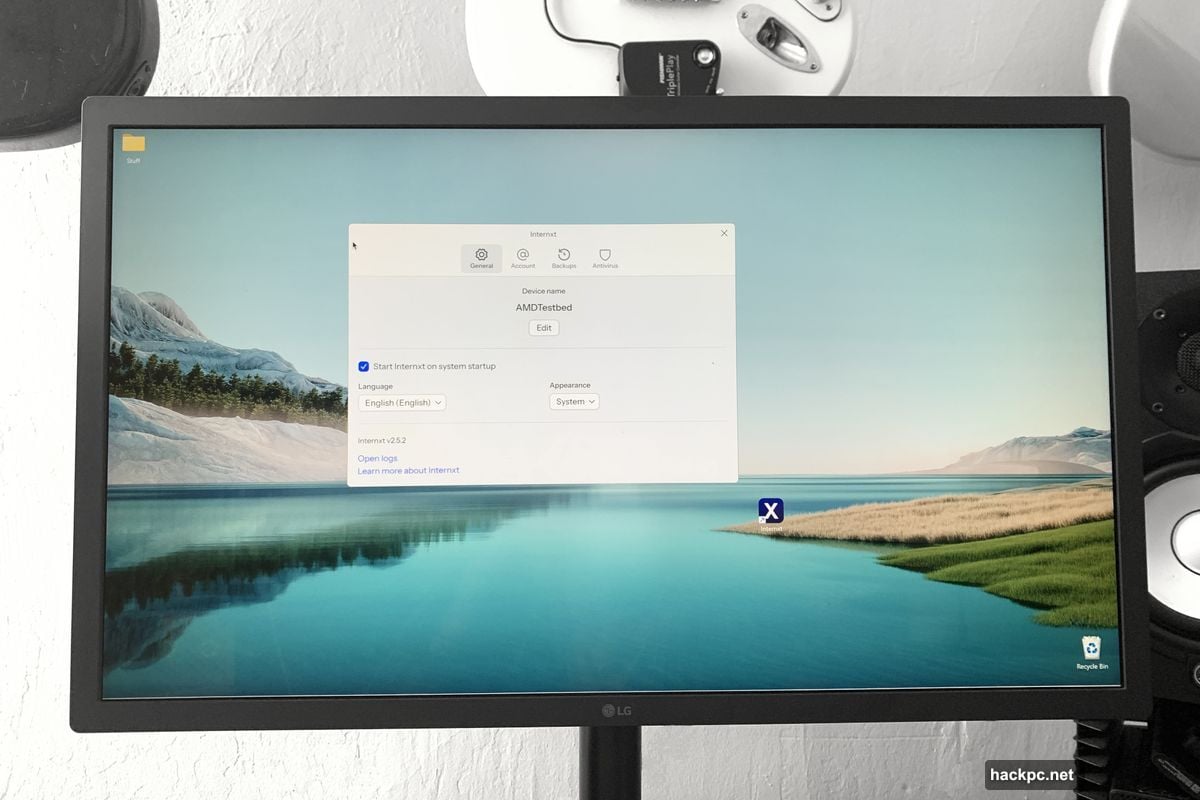
The catch? Complexity. All-in-one backup programs pack in options that overwhelm casual users. Setup takes longer. Understanding retention policies, encryption settings, and scheduling requires technical knowledge.
For experienced users comfortable with backup concepts, hybrid software offers maximum flexibility. Everyone else should probably stick with dedicated cloud backup services that handle complexity behind the scenes.
Speed And Bandwidth Realities
Upload speed matters more than most users realize. Backing up 500GB of photos over a 10Mbps connection takes days, not hours.
Your internet upload speed is the bottleneck. Most home broadband provides fast downloads but slow uploads. That 1Gbps fiber? Probably 50-100Mbps upload at best. Cable internet often maxes out at 10-20Mbps upload.
Check your actual speeds before committing to a service. Several bandwidth testing sites show upload rates. Then calculate backup time based on your data volume. A 1TB initial backup at 10Mbps upload takes roughly 11 days of continuous transfer.
Some services offer physical drive shipping for initial backups. You load data onto a hard drive, mail it to the company, and they upload it directly to your account. This bypasses the internet bottleneck entirely for that first large backup. Later incremental backups happen online and stay small.
After initial upload, ongoing backups only transfer changed files. That’s usually minimal daily data unless you’re editing videos or working with enormous files. A few hundred megabytes daily uploads quickly even on modest connections.
Location impacts speed too. Services with data centers near you generally perform better. But good infrastructure can offset distance. Livedrive’s UK servers deliver great speeds to US users because the company invested in quality network equipment.
Don’t assume the fastest backup service will stay fast. Upload speeds vary by time of day, network congestion, and dozens of other factors outside your control. Reliability matters more than peak performance.
Encryption And Privacy Concerns
Cloud backup means trusting a company with your private data. That trust isn’t always warranted.
Most services encrypt data during transfer and while stored on their servers. That stops casual snooping and protects against data breaches. But the service provider holds the encryption keys, meaning employees could theoretically access your files.
Zero-knowledge encryption fixes this. You set your own encryption key. Files get encrypted on your computer before uploading. The service never sees your key or unencrypted data.
Internxt uses zero-knowledge encryption by default. So do several others. The tradeoff? Lose your encryption key and your data is permanently gone. Nobody can recover it, including the backup service. That’s secure, but risky if you’re forgetful.
Read privacy policies carefully. Some free services reserve rights to scan files for copyright violations or targeted advertising. Others promise never to access data under any circumstances.
Geographic location matters too. Services based in the EU follow GDPR regulations requiring strict data protection. US-based services operate under different rules. Depending on your privacy concerns and data types, this might influence your choice.
For most users backing up family photos and documents, standard encryption from reputable services suffices. If you’re protecting truly sensitive information, spring for zero-knowledge encryption and accept the key management responsibility.
How Much Storage Do You Actually Need
People consistently overestimate storage needs. The average user backs up far less data than they think.
Documents, photos, and videos comprise most backup jobs. A massive photo library of 50,000 images runs about 200-300GB. That’s an enormous collection built over years. Most people have far less.
Documents occupy tiny space. Even power users rarely accumulate more than 10-20GB of word processing files, spreadsheets, and PDFs over their lifetime.
Video eats space quickly. But unless you’re editing professionally or hoarding every video you’ve ever shot, you probably have under 100GB.
Add it up. The typical home user needs 100-500GB for comprehensive backup. Heavy users might hit 1-2TB. True data hoarders with massive media collections can exceed that, but they’re outliers.
This means modest storage plans work for most people. The 2TB tier offered by many services provides comfortable headroom for years of accumulation. Don’t overpay for storage you’ll never use.
One exception: if you’re backing up multiple family members’ devices to one account, storage needs multiply. iDrive and similar services that support multiple devices on one account need larger plans.
Start conservatively. Most services let you upgrade easily if you run low on space. Downgrading is harder and sometimes impossible mid-contract.
Should You Still Keep Local Backups
Cloud backup isn’t enough by itself. You need local backup too.
Cloud restore takes hours or days for large amounts of data. Download speeds vary, but retrieving 500GB over even fast broadband takes time. If your computer dies and you need to work immediately, waiting for cloud restore is painful.
Local backup restores in minutes. An external drive connected via USB delivers data far faster than any internet connection. For quick recovery of accidentally deleted files or getting back to work after hardware failure, nothing beats local storage.
The backup rule of three exists for good reason: one primary copy, one local backup, one offsite backup. Each protects against different threats.
Your primary data sits on your computer. Fast access, always available, but vulnerable to hardware failure and theft.
Local backup on an external drive guards against mechanical failure and user error. Restore quickly when things go wrong.
Cloud backup protects against disasters, theft, and malware that could wipe both your computer and local drive. If your house burns down, cloud backup saves you.
All three together provide comprehensive protection. Cloud backup alone leaves you scrambling during simple hard drive failures. Local backup alone leaves you devastated by house fires or ransomware.
Budget for both. A 4TB external drive costs $100 and lasts years. Cloud backup runs $50-150 yearly depending on storage needs. Combined, they’re cheaper than losing irreplaceable data.
What I Actually Use
After testing dozens of backup services, I keep coming back to two setups depending on needs.
For comprehensive protection, iDrive wins. Multiple devices backed up from one account. Local and cloud backup together. Reasonable price for substantial storage. The software occasionally acts quirky, but reliability matters more than polish.
For pure value, Internxt’s lifetime deals are hard to beat. $300 once for permanent 1TB storage eliminates ongoing costs. The mirroring limitation bugs me, but for most users it’s fine. Just understand what you’re getting.
I also maintain local backup with a simple external drive. Acronis True Image handles that, though plenty of free options exist. The combination of cloud and local backup has saved me multiple times over the years.
Your needs might differ. Unlimited storage from Livedrive makes sense for massive media libraries. Arq’s flexibility appeals to users with existing cloud accounts. Icedrive’s free tier works perfectly for minimal data.
The worst choice is making no choice at all. Skipping backup because it seems complicated or expensive is gambling with irreplaceable data. Pick any service and start backing up today. You’ll thank yourself when disaster inevitably strikes.




Comments (0)