
The browser wars are back, and this time they’re personal.
AI companies like OpenAI and Perplexity are building their own browsers. Startups are rethinking what a browser should even look like. And Google, sitting on top of the market with Chrome, is finally feeling the pressure to move faster.
So this week, Chrome shipped three new features that make everyday browsing genuinely more practical. None of them involve AI. All of them solve real problems.
Split View Lets You Stop Tab-Juggling
How many times have you copied text from one tab, switched to another, pasted it, then switched back to check something you missed? That loop is exhausting.

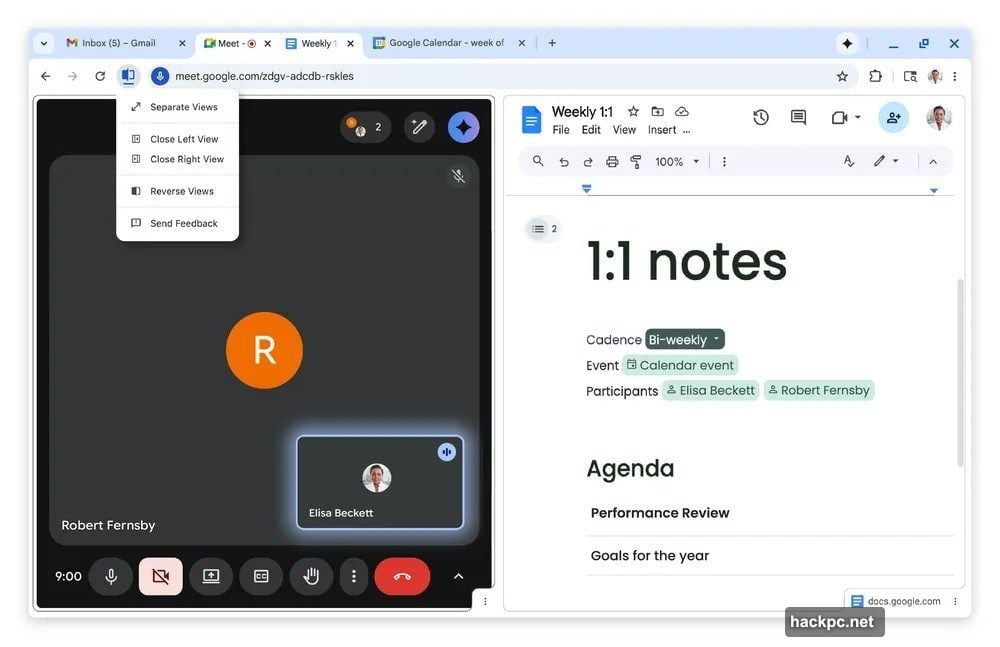
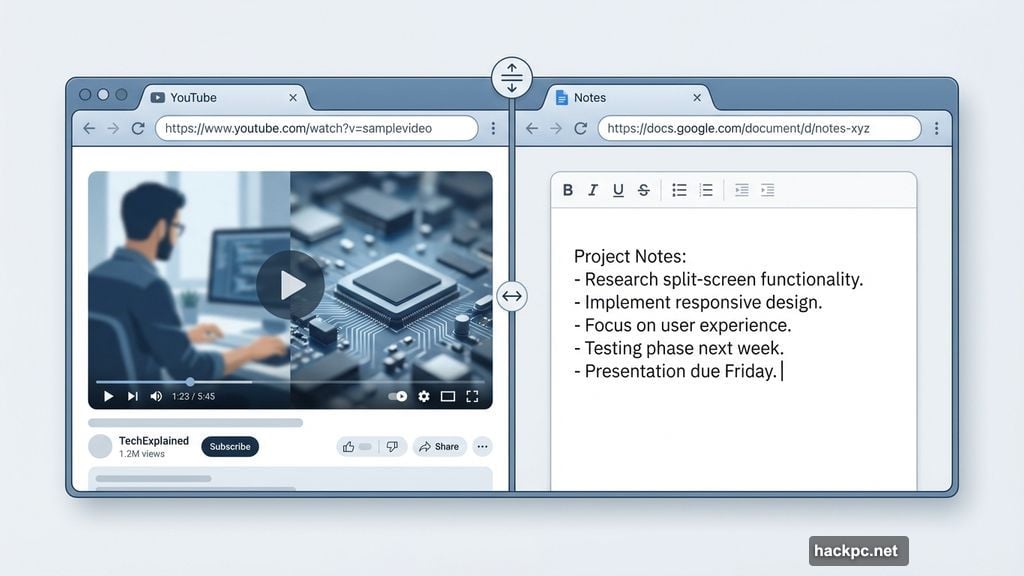
Split View fixes it. The feature puts two web pages side by side inside the same browser window, no external monitor tricks required. You can watch a video on one side while taking notes on the other. Or cross-reference two documents without constantly toggling back and forth.
Using it is pretty intuitive. Drag a tab to the left or right edge of your browser window, and the pages snap into place automatically. You can also right-click any link and choose “Open Link in Split View.” When you’re done, a right-click gets you back to normal.
It’s a small workflow change that adds up fast across a workday.
PDF Annotations Finally Land in Chrome
This one has been a long time coming.
Until now, doing anything useful with a PDF in Chrome meant downloading it, opening it in a separate app, making your edits, and saving it back. That’s a lot of steps for what should be a simple task.
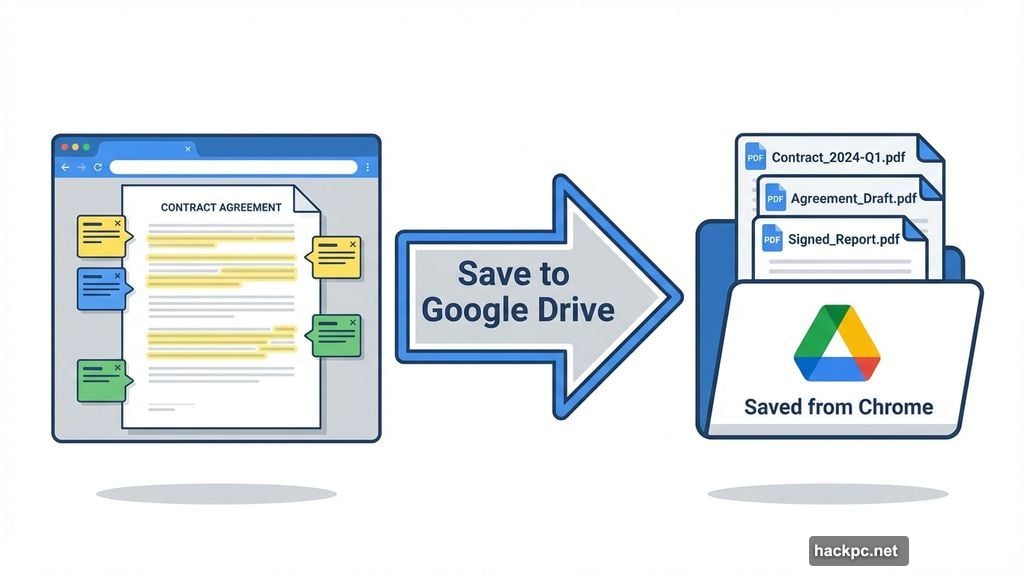
The new PDF annotations feature lets you highlight text, add notes, fill out forms, and even sign documents directly inside the browser. No downloads necessary. No switching apps.
For anyone who regularly deals with contracts, reports, or digital paperwork, this is a genuinely useful addition. Basic PDF editing has been standard in other applications for years. Chrome catching up here removes a real daily friction point.
Save to Google Drive Keeps Files Where You Can Find Them
Here’s a scenario that happens constantly. You find a PDF, download it, and three days later you have no idea where it went. It’s buried somewhere in your Downloads folder with a useless filename.
The new Save to Google Drive feature sidesteps that entirely. Instead of saving a PDF to your computer, you can send it straight to your Google Drive account. Chrome automatically puts it in a folder called “Saved from Chrome,” so you always know exactly where to look.
It’s a small organizational win, but for heavy Drive users, the convenience is real. Fewer downloads means less clutter, and having everything in one searchable place matters when you’re managing a lot of documents.
The Bigger Picture: Chrome Feels Competitive Pressure
These three features didn’t appear in a vacuum. Google has been watching the browser space heat up and responding with unusual urgency.
Gemini, Google’s AI assistant, was already added to Chrome in direct response to competition from OpenAI and Perplexity. Both companies are exploring what they call “agentic browsers,” which handle tasks more autonomously rather than just displaying web pages.
And coming soon? Vertical tabs. Arc, the browser from The Browser Company, made vertical tab organization one of its signature features. Arc’s successor, the AI browser Dia, carries it forward. Now Chrome is testing the same idea. Tech-savvy users can already enable it through an experimental flag in Chrome’s settings.
Google’s message here is clear. Staying the biggest browser means giving people fewer reasons to leave. Each feature that Chrome adds makes the case that you don’t need to go looking elsewhere.
Whether that’s enough to hold off genuinely innovative competitors is still an open question. But for now, Chrome just got meaningfully better at the things people do every single day. Split views, cleaner PDF workflows, and smarter file saving might not sound flashy. They don’t need to be. They just need to work well, consistently, for millions of people who have better things to do than switch browsers.
That might be exactly the point.




Comments (0)