

Premium PDF software costs real money. But cheap alternatives keep popping up promising the same features for half the price.
So I spent three months testing every major PDF editor to answer one question: Can budget options actually replace Adobe Acrobat Pro? Turns out the answer is more nuanced than most reviews admit.
Here’s what really matters when picking a PDF editor in 2025.
Adobe Acrobat Pro Remains the Benchmark
Adobe Acrobat Pro still dominates for good reason. Its feature set goes deeper than any competitor can match.
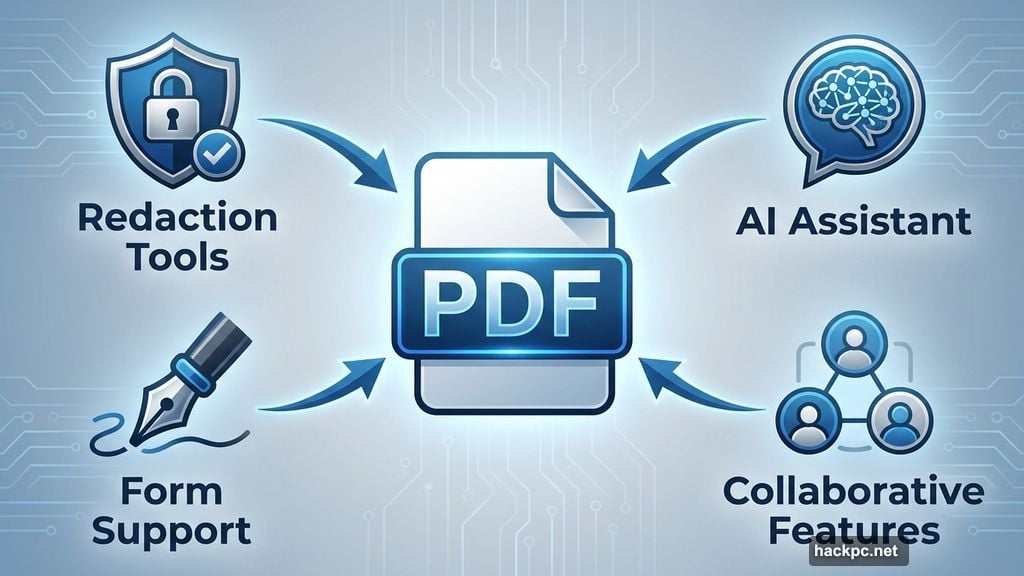
Need to redact sensitive information? Acrobat’s tools black out content permanently. Want AI assistance summarizing documents? The AI Assistant actually works. Plus, collaborative features streamline getting signatures and filling forms across teams.
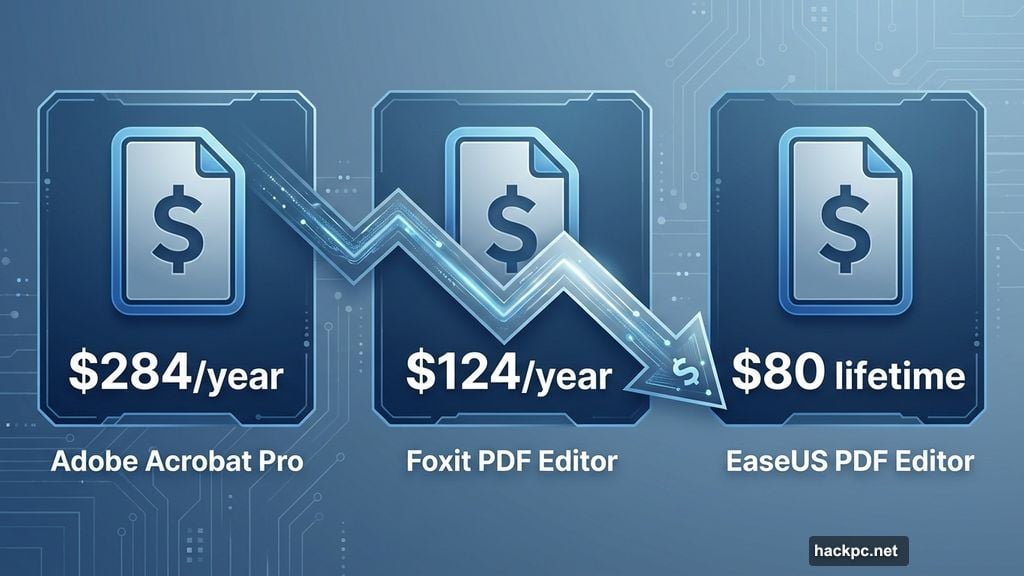
But here’s the catch. Acrobat costs $284 annually. That’s steep for freelancers or small businesses editing PDFs occasionally.
Moreover, its interface can overwhelm new users. So many nested menus and options that finding basic tools takes patience. For power users managing complex documents daily, that complexity pays off. For casual editors, it’s overkill.
Still, Acrobat sets the standard everyone else chases. So expect alternatives to mimic its feature list while cutting corners somewhere.
Foxit PDF Editor Challenges Adobe’s Dominance
Foxit PDF Editor comes closest to matching Acrobat’s capabilities. It packs content editing, markup features, form support, and security tools into a familiar ribbon interface.
The Plus plan adds AI integration through ChatGPT. Ask questions about your document and get helpful responses. Need to redact information? The AI-assisted Smart redaction identifies sensitive data automatically.
Plus, Foxit costs $124 annually for individuals. That’s 56% less than Acrobat while delivering 90% of the functionality most people need.
However, businesses face steeper pricing. The Editor+ plan runs $160 per year and includes eSign capabilities plus expanded cloud storage. Still cheaper than Acrobat, but the gap narrows for enterprise users.
One limitation worth noting: Foxit’s ChatGPT integration requires internet connectivity. So offline editing means losing AI assistance when you might need it most.
EaseUS PDF Editor Delivers Value for Casual Users
Budget-conscious editors should check out EaseUS PDF Editor. It strips away advanced features most people never use while keeping essential tools accessible.
The interface stays simple. Edit text, annotate documents, convert files, and manage pages without hunting through complex menus. Plus, you can try the full version free with watermarks to test if it meets your needs.
Pricing makes EaseUS stand out. Pay $30 monthly, $50 annually, or $80 once for lifetime access. Compare that to Acrobat’s $284 annual subscription or Foxit’s $124 yearly cost.
But savings come with tradeoffs. EaseUS only runs on Windows. Mac users need different options. Moreover, collaboration features lag behind premium editors. So teams working on shared documents might find it limiting.
For solo freelancers editing occasional PDFs though? EaseUS delivers excellent value without unnecessary complexity.
PDF Candy Proves Free Editors Can Surprise You
Most free PDF editors barely function. Watermarks plague your documents. File size limits block real work. Features get locked behind paywalls after trial periods.
PDF Candy breaks that pattern. The free version includes 44 tools—scanning, conversion, OCR functionality, and more. These are features premium editors charge for.
The catch? Free users can only perform one PDF task per hour. Need to edit multiple documents quickly? That limitation becomes frustrating fast.

However, for occasional editing needs, PDF Candy handles most tasks competently. The interface feels disjointed with tools scattered illogically. But once you memorize where things live, editing flows smoothly.
Want unlimited access? Pay $6 monthly or $48 annually. Still cheaper than budget editors while matching their core functionality.
PDF Expert Owns the Mac Ecosystem
Mac users face a choice: use Apple’s built-in Preview app or invest in dedicated software.
Apple Preview handles basic PDF tasks competently. Mark up documents, fill forms, add passwords, and encrypt files all work fine. For casual editing, Preview probably covers your needs.
But power users hit its limitations quickly. Advanced editing, batch processing, and collaboration tools don’t exist. Plus, Preview lacks AI features becoming standard in premium editors.
PDF Expert fills that gap perfectly for Apple users. It syncs across Mac, iPhone, and iPad seamlessly. The interface matches Apple’s design language while packing comprehensive editing and annotation tools.
Recent updates added AI-powered chat assistants that summarize documents, extract key points, and generate hashtags for navigation. These features shine with lengthy contracts or complex reports.
Pricing runs $85 annually or $140 for lifetime Mac-only access. That’s reasonable for an editor integrating smoothly across all your Apple devices.
Business Users Need Different Features Than Freelancers
Most reviews treat all PDF users identically. But editing needs vary dramatically based on workflow.
Freelancers typically need basic editing, form filling, and occasional conversion between formats. Budget editors like EaseUS or free options like PDF Candy handle these tasks fine.
Businesses face different requirements. Multiple team members collaborating on documents require robust permissions and version control. Legal firms need bulletproof redaction. Sales teams want integrated eSign capabilities.
These advanced features justify premium pricing. Acrobat and Foxit deliver business-ready tools that justify their costs for companies. Solo users rarely benefit from these same capabilities.
So before shopping, honestly assess your needs. Don’t pay for features you’ll never touch. But don’t cheap out if business requirements demand advanced functionality.
Online Editors Work for Quick Tasks Only
Browser-based PDF editors promise convenience without downloads. Just upload your file, edit online, and save results.
Reality proves messier. File size limits block larger documents. Page restrictions stop you mid-edit. Many watermark your work unless you pay.
Plus, security concerns multiply when uploading sensitive documents to third-party servers. Who accesses those files? How long do they store them? Most services stay vague about data handling.
For quick markup or simple conversion, online editors suffice. Anything more demanding requires desktop software you control completely.
My Testing Revealed Clear Winners for Different Needs
After three months testing every major editor, patterns emerged clearly.
Power users managing complex documents daily should stick with Adobe Acrobat Pro. Its depth justifies the cost if you use advanced features regularly. The AI Assistant alone saves hours summarizing lengthy contracts.
Budget-conscious professionals get best value from Foxit PDF Editor. It delivers 90% of Acrobat’s capabilities for half the cost. ChatGPT integration proves genuinely useful for document analysis.
Casual editors working occasionally benefit from EaseUS PDF Editor. Simple interface, lifetime pricing option, and all essential tools make it ideal for modest needs.
Mac ecosystem users should grab PDF Expert. Seamless syncing across devices plus AI features make it worth the investment for Apple fans.
Free option seekers can rely on PDF Candy for occasional tasks. Just accept the one-task-per-hour limitation or pay $6 monthly for unlimited access.
The Real Question Nobody Asks
Reviews focus on features and pricing. But the better question is: Do you actually need a PDF editor?
Many users could manage with free PDF readers plus occasional online conversion tools. Editing PDFs shouldn’t be daily work unless your job specifically requires it.
Before spending money, try free options first. Test if they handle your actual workflow. Most people discover basic tools cover 90% of their needs.
Only upgrade when free options genuinely block your work. Don’t buy software for features you might need someday. Purchase for problems you face today.
Choose software that matches your real workflow. Not the workflow you imagine having.




Comments (0)