

Adobe Lightroom Classic has long been the go-to tool for photographers who want serious control over their images. But the 2026 release leans hard into AI, adding features that range from genuinely brilliant to slightly baffling.
So is this update worth your time and money? Let’s walk through what’s new, what works, and where things get a little complicated.
Pricing Plans Worth Knowing
Lightroom Classic is subscription-only. No perpetual license exists, which remains a sticking point for some photographers.
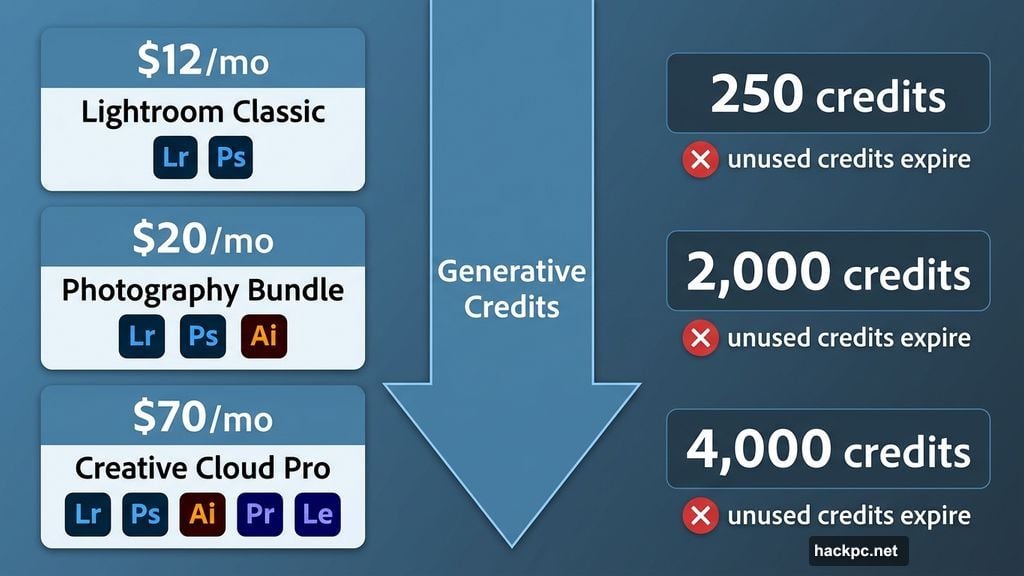
Three tiers are available. The full Creative Cloud Pro bundle costs $70 per month and includes Photoshop, Illustrator, Premiere Pro, After Effects, and more. The Photography bundle runs $20 per month and bundles both versions of Lightroom with Photoshop. Finally, Lightroom and Lightroom Classic together cost just $12 per month.
All plans include Generative Credits for AI features. The cheapest plan gives you 250 credits monthly. The top-tier plan provides 4,000. Here’s the catch though: unused credits don’t roll over. Miss a month of heavy editing and those credits simply vanish.
If AI-powered editing is your thing, Adobe also sells add-on credit packs. Options range from 2,000 extra credits for $10 per month up to 50,000 for $200 per month. That’s a significant extra investment on top of your subscription.
What Lightroom Classic Actually Does
Before diving into what’s new, it helps to understand the foundation. Lightroom Classic does two things really well: organizing your photos and editing them without ever touching the original file.

That non-destructive editing approach is huge. Every change you make stays separate from the source image. So you can experiment freely, go back to square one, and try again without any quality loss.
The interface splits into seven sections. Library is your home base, where imported photos live. You can rotate images, add star ratings, apply keywords, and do light color corrections right there. Develop is where the real editing happens. Color correction, cropping, red-eye removal, lens distortion fixes, object removal, and selective masking all live here.
Beyond editing, Lightroom Classic includes a Map section that plots your shots by location. You can also design photo Books, build Slideshows, prepare images for Print, or upload directly to the Web. It’s a comprehensive toolkit that covers the full photography workflow from import to export.
Assisted Culling Solves a Real Problem
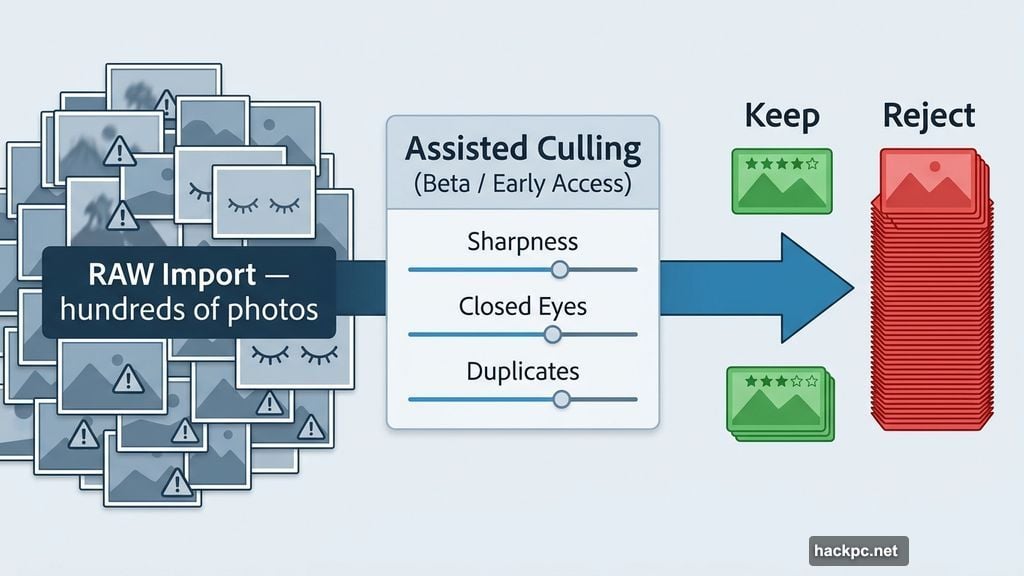
The most exciting new feature is Assisted Culling, currently in Beta (Adobe calls it Early Access). And honestly, it’s AI at its most useful.
Here’s the problem it solves. After a shoot, you might import hundreds of near-identical photos. Blurry shots, closed eyes, misfires, accidental clicks — they all pile up and take ages to sort through manually. Assisted Culling handles that automatically.
A few sliders let you control how aggressively it filters. Choose which issues to look for, hit go, and within seconds the results are ready to review. The filtering works impressively well, catching the problems it promises to find. If the AI makes a wrong call on any shot, you can override it one by one.
Best of all, this feature is completely free. No Generative Credits required. That makes it an easy recommendation for anyone who shoots in volume. Whether you’re a wedding photographer sorting through a thousand frames or a wildlife photographer hunting for that perfect bird-in-flight shot, Assisted Culling saves real time.
Generative AI Gets Mixed Results
Now for the more complicated part. The new Generate using Firefly features bring generative AI directly into the editing workflow, but the results are inconsistent.
The idea makes sense. Not everyone knows Photoshop inside and out. Generative AI can handle complex tasks — colorizing black-and-white photos, removing objects, filling in backgrounds — without requiring advanced skills. In theory, that’s a great democratization of photo editing.
In practice, results vary. When testing the colorization tool on an old family photo, the colors looked natural and believable. But the AI also added a random object to the scene and subtly changed a family member’s face — neither of which was requested. In another test, the AI cleaned up a tray in the background, which technically improved the composition, but again wasn’t asked for.
On the positive side, other tests went smoothly. Ancient family portraits got colorized faithfully without facial alterations. The output resolution maxes out at 2K, which works well for old low-resolution photos but falls short for modern high-res images.
One more frustration worth noting. If you’re unhappy with the AI’s output, you don’t get your Generative Credits back. You pay regardless of whether the result is usable.
Bringing Photos to Life with Video
If you have credits to spend, one feature stands out as genuinely impressive — and a little unsettling. Lightroom Classic can now animate a still photo into a short video clip.
The results are technically remarkable. Seeing a long-gone relative’s portrait brought to motion is powerful, bordering on surreal. Reactions split pretty cleanly. Some people find it magical. Others find it deeply uncomfortable.
Either way, it works. Adobe’s Firefly engine handles the animation with surprising quality, smoothly interpreting facial structure and lighting. Just be prepared that your reaction to the result may differ from everyone else’s in the room.
Lightroom Classic vs Standard Lightroom
The simpler Lightroom (not Classic) includes one feature worth highlighting: Generative Upscale. This AI-powered upscaling tool is built in partnership with Topaz Gigapixel, a name well respected in the image enhancement world.
Unlike the Firefly tools in Classic, Generative Upscale shows you exactly how many credits you’ll need before you commit, plus displays your remaining balance. That transparency is genuinely helpful and is, strangely, missing from Classic’s Firefly implementation.
The downside mirrors the Classic experience. You have no control over the upscaling process. You accept the output as-is, credits spent, no refunds.
Should You Buy Lightroom Classic?
Lightroom Classic remains one of the best image management and editing tools available. The core experience — cataloging, non-destructive editing, multiplatform support, and a clean interface — is excellent. For photographers who want local storage, serious organizational tools, and deep editing control, it’s still the benchmark.
The new AI features add real value in some areas. Assisted Culling is the clear winner. It solves a genuine problem, works reliably, and costs nothing extra. That alone justifies checking out this update.
The Firefly-powered generative tools are a mixed bag. Interesting, sometimes impressive, occasionally frustrating, and always costly. If you’re comfortable burning credits on experimental results, you’ll find plenty to play with. If you prefer predictable, controllable edits, the current AI implementation may feel more like a novelty than a necessity.
The subscription model and the extra cost of Generative Credits remain the biggest barriers. But if you’re already in the Adobe ecosystem, or considering a photography-focused plan, Lightroom Classic at $12 per month still delivers excellent value for the core product alone.




Comments (0)