
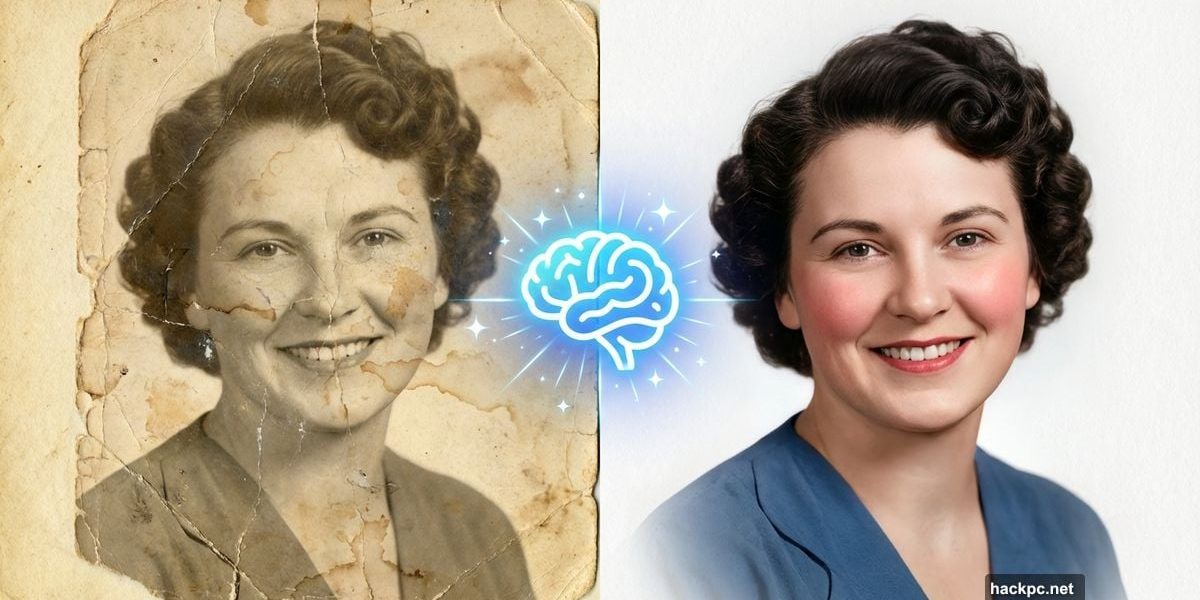
Got a drawer full of faded memories? Those precious family photos sitting in the dark deserve better.
You know the ones. Nana’s 90th birthday. Mom’s first car. Dad with a full head of hair on Christmas morning. They’re special. But they’re also cracked, faded, and frankly, kind of sad to look at.
Restoring old photos used to require real skill. Plus, spending hours fixing cracks in pictures of people you miss deeply? That’s emotionally exhausting. Now generative AI handles the heavy lifting. You just need this guide.
Scan First, Edit Later
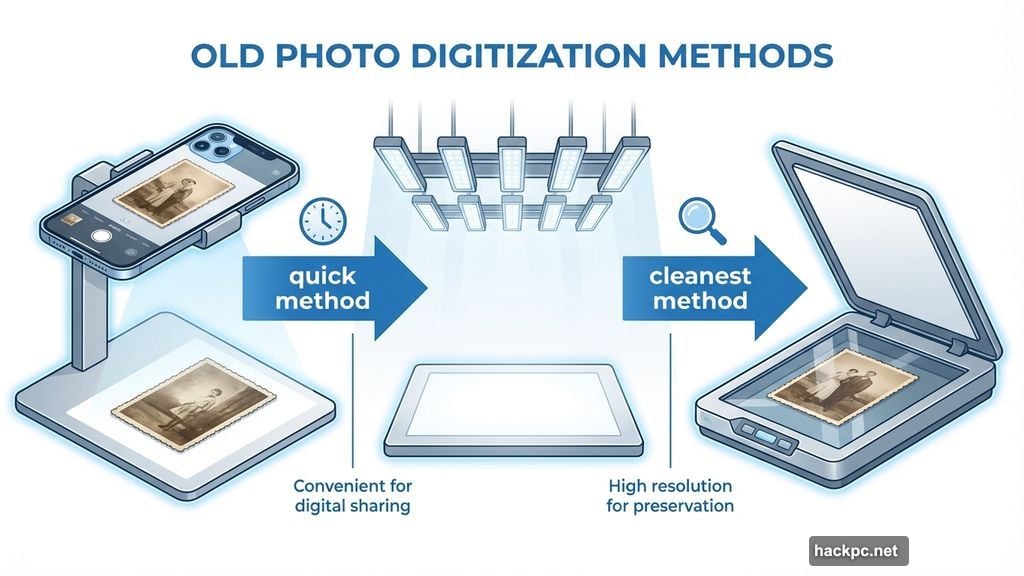
Get those photos digitized properly. The cleanest method? Scan them with a flatbed scanner.
No scanner? No problem. Place photos on the flattest surface you can find. Then snap well-lit pictures with your phone. Just make sure the lighting is even and the phone is steady.
Save all images at the highest resolution possible. You’ll want that detail when AI starts working its magic.
Pick Your AI Tool Carefully
Dozens of AI systems claim they can restore old photos. But not all deliver equal results.
Adobe Firefly stands out for this task. Why? It handles both generation and patching seamlessly. Plus, it integrates with Photoshop if you want to refine results further.
Even basic Photoshop skills unlock more possibilities. Firefly serves as a simple bridge when you’re ready to do more advanced editing.
Other options exist. But Firefly’s combination of power and accessibility makes it ideal for beginners and pros alike.
Fix One Photo at a Time
Start with your most damaged image. I’m working with decades-old photos of my father and grandmother. They’ve survived wet basements and barely-held-together albums.
Dark spots cover everything. Creases run through faces. Water damage blurs entire sections. These images need serious help.
Upload photos individually. Batch processing sounds efficient but yields inconsistent results. Give each image the attention it deserves.
Tell AI Exactly What You Want
Generic prompts produce generic results. Get specific about what needs fixing.
For example, two of my images contain handwritten text. So I specified whether to keep or crop that text. Otherwise, AI makes random decisions.
Here’s what happens when you leave text restoration to the machine alone. Firefly colorized most of this collage, including the text. But it completely missed the bottom right picture, which stayed black and white.
Be direct. “Remove water stains and cracks. Keep original composition. Maintain facial features.” That clarity prevents AI from inventing details that never existed.
Expect Multiple Attempts
AI won’t nail it on the first try. That’s normal.
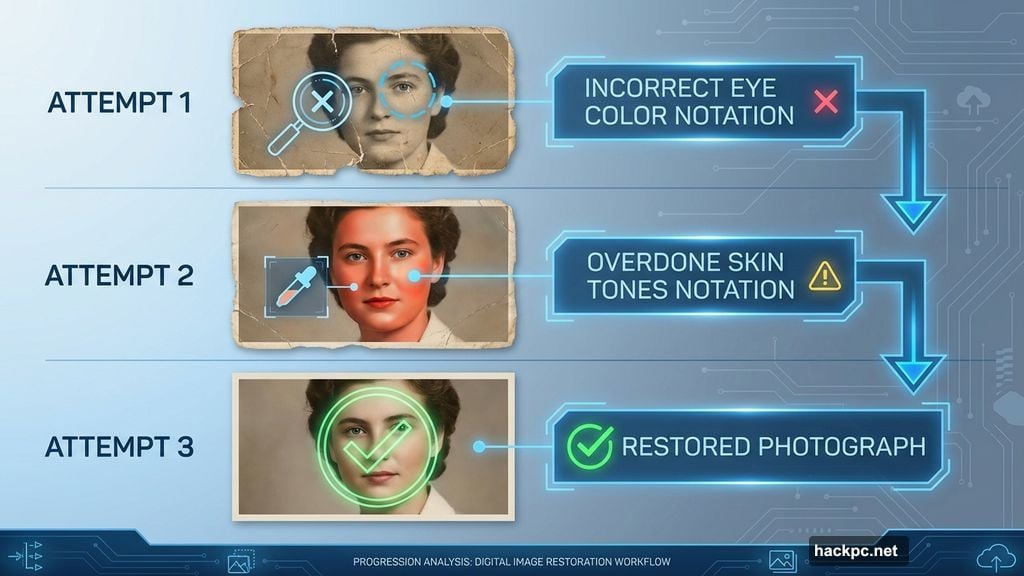
This photo of my grandmother needed three rounds of refinement. The first attempt got her eye color wrong. The second overdid the skin tones. The third finally clicked.
Compare my original torn, marked photo to the final result. Firefire struggled with eye color and tone accuracy in early attempts. But continued prompting eventually produced the image on the right.
Don’t settle for close enough. Keep refining until the restored image matches your memory.
Watch for Unwanted Changes
AI sometimes makes creative decisions you didn’t ask for. Adobe Firefly removed text from this image perfectly. But it also changed the square photo to a circular crop without permission.
I had to rewrite my prompt: “Keep the photo square.” Simple fix, but annoying.
Always review the full image carefully. Check corners, edges, and backgrounds. AI might subtly alter things you want preserved.
Break Complex Fixes Into Steps
Trying to fix everything at once confuses AI. This badly damaged photo proved that lesson.
When I asked Firefly to enhance lighting, remove blemishes, fix scratches, and colorize in one prompt, it generated a completely new image. Wrong faces. Wrong background. Completely useless.
Instead, I split the process into stages. First, I enhanced lighting and removed damage. Then I cropped and rotated the image. Finally, I added color.
The staged approach worked beautifully. Here’s the original versus the AI-restored version. The lighting improved dramatically. Spots vanished. And the colors feel authentic.
Complex restoration takes patience. But the results justify the extra steps.
Color Choices Matter
AI makes educated guesses about original colors. Those guesses aren’t always right.
If you remember specific details, mention them. “Blue dress,” “red car,” “brown eyes.” These details guide AI toward accurate results.
For photos where you don’t remember colors, try multiple versions. Generate three or four options. Then pick the one that feels most authentic.
Nobody will know if Mom’s childhood dress was actually navy instead of royal blue. But you’ll know if skin tones look weird or hair color seems off. Trust your instincts.
Save Everything
Keep your original scans. Never delete them.
AI restoration creates beautiful results. But these are interpretations, not perfect reproductions. You might want to try different approaches later.
Save each iteration too. Sometimes an earlier attempt captures something better than the final version.
Storage is cheap. Memories aren’t. Save everything.
The Emotional Reward
Seeing restored photos feels incredible. Colors pop. Damage disappears. Faces become clear again.
These aren’t just improved images. They’re connections to people and moments that shaped your life. And now they look as vivid as your memories feel.
My restored photos of Dad and Nana now sit in frames instead of drawers. They deserve to be seen. Your family photos deserve the same treatment.
Stop letting precious memories gather dust. Fifteen minutes with AI can bring decades-old photos back to life. The people in those pictures would want to be remembered clearly.
Start with your favorite image tonight. You’ll be amazed at what’s possible.




Comments (0)