
ChatGPT has been around for three years. Yet most people still use it like a fancy Google search.
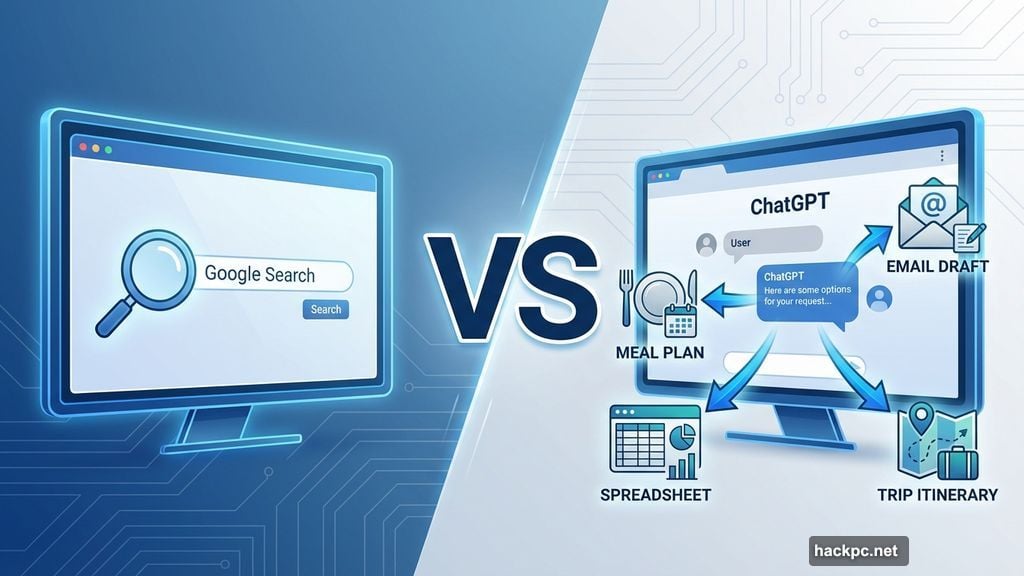
That’s a waste. This tool can do far more than answer trivia questions or settle arguments. It can help you plan trips, build meal plans, draft emails, analyze spreadsheets, and even brainstorm career moves.
The difference between generic responses and genuinely useful results comes down to one thing. How you talk to it.
Think of ChatGPT as a very capable assistant who needs clear instructions. Give it context, and it delivers. Ask vague questions, and you’ll get vague answers.
Here’s everything you need to know to start using ChatGPT effectively today.
What ChatGPT Actually Does
ChatGPT answers questions, summarizes text, writes content, codes, and translates languages. Depending on which version you use, it either browses the internet or draws from information up to its last training date.
But it’s not magic. It’s math. The tool predicts responses based on patterns in data. So it can make mistakes, invent facts, or reflect biases from its training material.
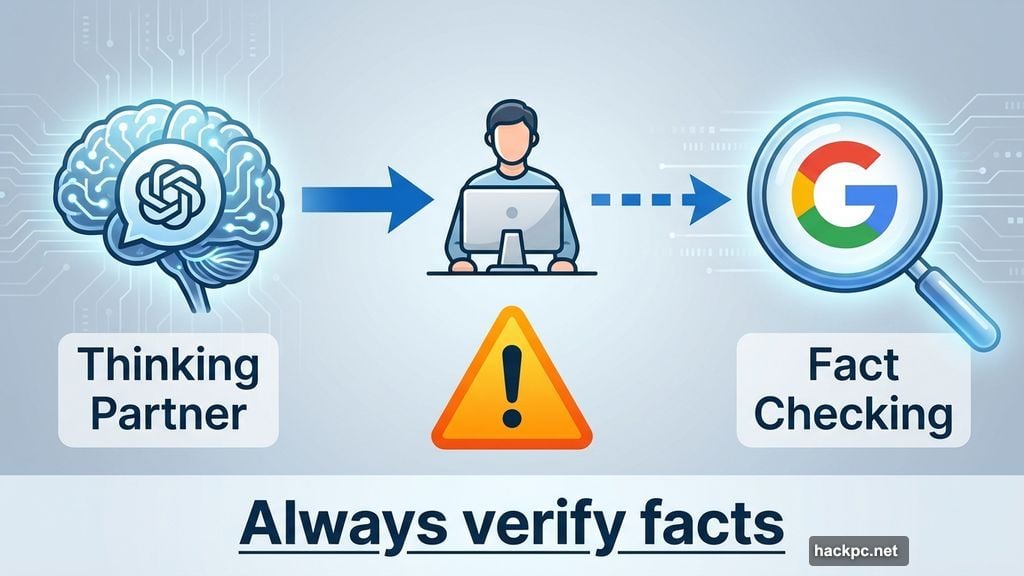
Always fact-check important information. Use ChatGPT alongside Google, not instead of it. Click on sources. Verify claims. Never trust it blindly.
That said, ChatGPT works brilliantly for brainstorming, drafting, and organizing. I’ve used it to write resumes, plan meals from leftover ingredients, negotiate raises, and find deals while shopping online.
The key is knowing what it’s good at and where it falls short.
Getting Started Takes Two Minutes
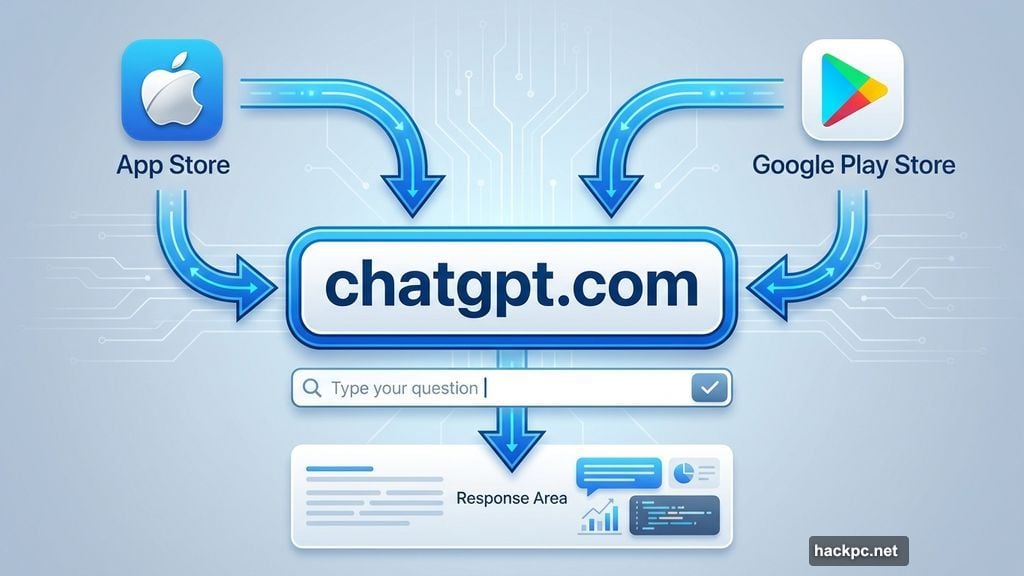
You don’t need an account to try ChatGPT. Just visit chatgpt.com or download the app from Apple’s App Store or Google Play Store.
Open the app or website. Type your question into the box. Hit enter. That’s it.
For voice input or quick personal searches, the mobile app works great. For work tasks or longer projects, the desktop version makes more sense.
Creating an account unlocks more features. ChatGPT remembers your conversation history and lets you customize responses. Plus, you can access trending topics and organize past chats.
To sign up, click the Sign Up button in the top right corner. Choose between the free version or the premium membership at $20 per month. For most people, the free version handles everything they need.
How to Actually Use ChatGPT
There’s no single “right” way to use ChatGPT. The only wrong approach is treating it as your sole source of truth.
Use ChatGPT as a thinking partner, not a replacement for your brain. Cross-reference important information with Google or other sources. Always verify facts, especially for health advice, legal questions, or financial decisions.
The tool works best when you give it a clear job. Are you brainstorming ideas? Summarizing research? Drafting an email? Let ChatGPT know what you’re trying to accomplish.
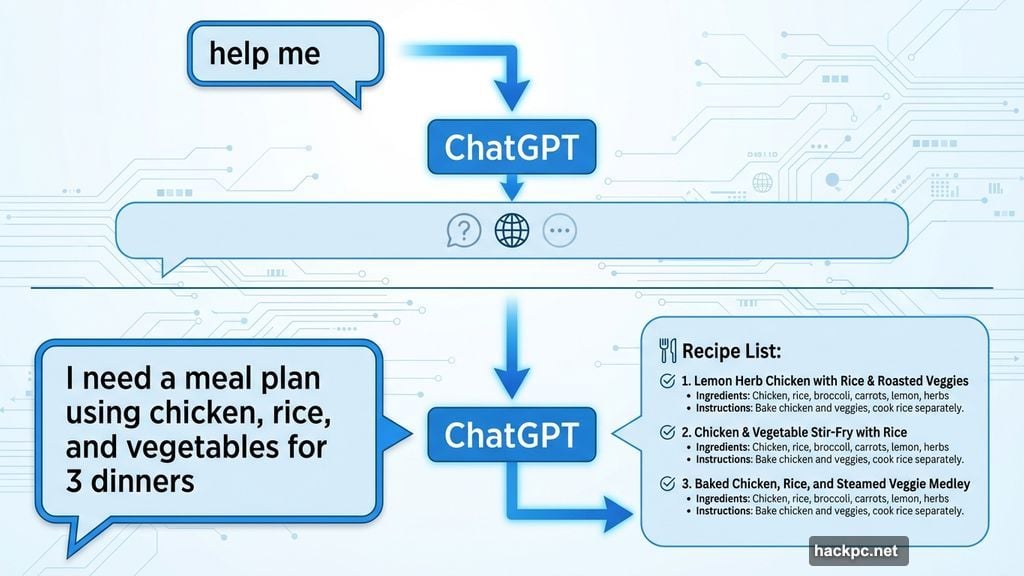
Context matters most. The more specific your prompt, the better the response. Instead of “give me dinner ideas,” try “suggest three quick dinners using chicken, broccoli, and rice that take under 30 minutes.”
See the difference? Specific requests get specific answers.
What You Can Ask ChatGPT
You can ask ChatGPT almost anything. Just never share personal information like credit card numbers, Social Security numbers, or other sensitive data. Data breaches happen, and you don’t want that information floating around.
Beyond that, ChatGPT handles a wide range of tasks. Ask questions, get advice, summarize articles, analyze images, generate code, or brainstorm content ideas.
Your results depend entirely on your prompts. Think of it like talking to a very knowledgeable but literal-minded assistant. Be clear about what you want.
Here are two real examples of how I’ve used ChatGPT.
Example 1: Getting Health Advice
I wanted diet recommendations while preparing for IVF. My first prompt looked like this:
“I’m a 36-year-old woman getting ready to start IVF. I have no fertility issues, but my AMH is on the lower end. Provide a suggested diet to follow in the lead-up to my egg retrieval and transfer.”
ChatGPT gave me a detailed response. But it was generic. So I asked follow-up questions to narrow down the advice. Each question brought me closer to information that actually fit my situation.
That’s the secret. Treat it like a conversation. Start broad, then drill down with specific follow-ups until you get what you need.
Important note: Always double-check health information with a doctor. ChatGPT can suggest ideas, but it’s not a medical professional.
Example 2: Analyzing Business Expenses
Say you’re a small business owner trying to cut costs. You have a spreadsheet of last year’s expenses.
Upload the file to ChatGPT. Then type something like this:
“Help me save money on my expenses. Attached is my expenses list for last year.”
ChatGPT will analyze the data and suggest areas where you can reduce spending. But verify every number it gives you. Double-check calculations and make sure recommendations make sense for your business.
Again, ChatGPT is a tool. Not a replacement for your judgment.
Try the Built-In Prompts
If you’re not sure what to ask, ChatGPT offers automatically generated prompts to help you explore.
Click “Surprise me” and you’ll see suggestions like “make a plan to get a promotion” or “make a plan for a weekend in New York.”
These pre-made prompts show you what ChatGPT can do. Plus, they spark ideas for how to use it in your daily life.
For example, click “Make a plan” and you’ll get options like meal planning, trip planning, or career advice. Pick one, add your details, and watch ChatGPT build a customized plan.
You can even upload a photo of what’s in your fridge and ask for dinner suggestions. Or request restaurant recommendations in a specific city.
It’s flexible. Use it however makes sense for your needs.
The Real Power Is in the Follow-Up
Most people ask ChatGPT one question and accept whatever answer they get. That’s a mistake.
The best results come from treating ChatGPT like a conversation. Ask your first question. Review the response. Then ask follow-up questions to refine the answer.
Say you’re planning a weekend trip. Your first prompt might be:
“Suggest a weekend itinerary for New York City.”
ChatGPT will give you a generic list of tourist spots. But if you follow up with:
“I prefer art galleries and quiet cafes. Skip Times Square and big crowds.”
Now you’ll get a much better itinerary tailored to your interests.
Each follow-up question helps ChatGPT understand what you actually want. Think of it like giving directions to someone who’s helpful but doesn’t know you yet.
What ChatGPT Gets Wrong
ChatGPT makes mistakes. It invents facts, misinterprets questions, and sometimes gives confident answers that are completely wrong.
This happens because ChatGPT predicts what words should come next based on patterns in its training data. It doesn’t “know” anything. It’s guessing, very convincingly.
So never trust ChatGPT without verification. Especially for:
- Medical advice
- Legal questions
- Financial decisions
- Historical facts
- Scientific claims
- Current events
Use ChatGPT to brainstorm, draft, and organize. But always fact-check the important stuff.
Keep Your Data Private
Never input sensitive information into ChatGPT. That includes passwords, credit card numbers, Social Security numbers, or anything personally identifying.
Data breaches happen. Companies get hacked. Even if OpenAI has strong security, there’s always risk when you share private information online.
Treat ChatGPT like a public conversation. Only share what you’d be comfortable posting on social media.
The Bottom Line on Using ChatGPT
ChatGPT is a tool. Like any tool, it’s useful when you know how to use it and dangerous when you don’t.
Give it clear instructions with plenty of context. Treat conversations as back-and-forth dialogues, not one-and-done questions. Always verify important information from other sources.
Use ChatGPT to save time, brainstorm ideas, and organize information. But don’t outsource your critical thinking to it.
The people getting the most value from ChatGPT aren’t the ones asking it to do everything. They’re the ones using it strategically as part of a larger process.
Start small. Try a simple prompt today. See what happens. Then build from there.




Comments (0)