
Your passwords are probably terrible. Don’t feel bad. Most people’s are.
But here’s the thing. Data breaches happen constantly now. Hackers have massive databases full of stolen credentials. Even clever passwords like “P@ssw0rd123!” get cracked in seconds. So unless you’re using unique, random passwords for every account, you’re vulnerable.
Password managers solve this problem. They generate strong passwords, store them securely, and auto-fill them when you need to log in. Plus, the best part? You only need to remember one master password to access everything else.
Free password managers deliver solid protection without costing a dime. And they come in different flavors to match how you work. Let’s find the right one for you.
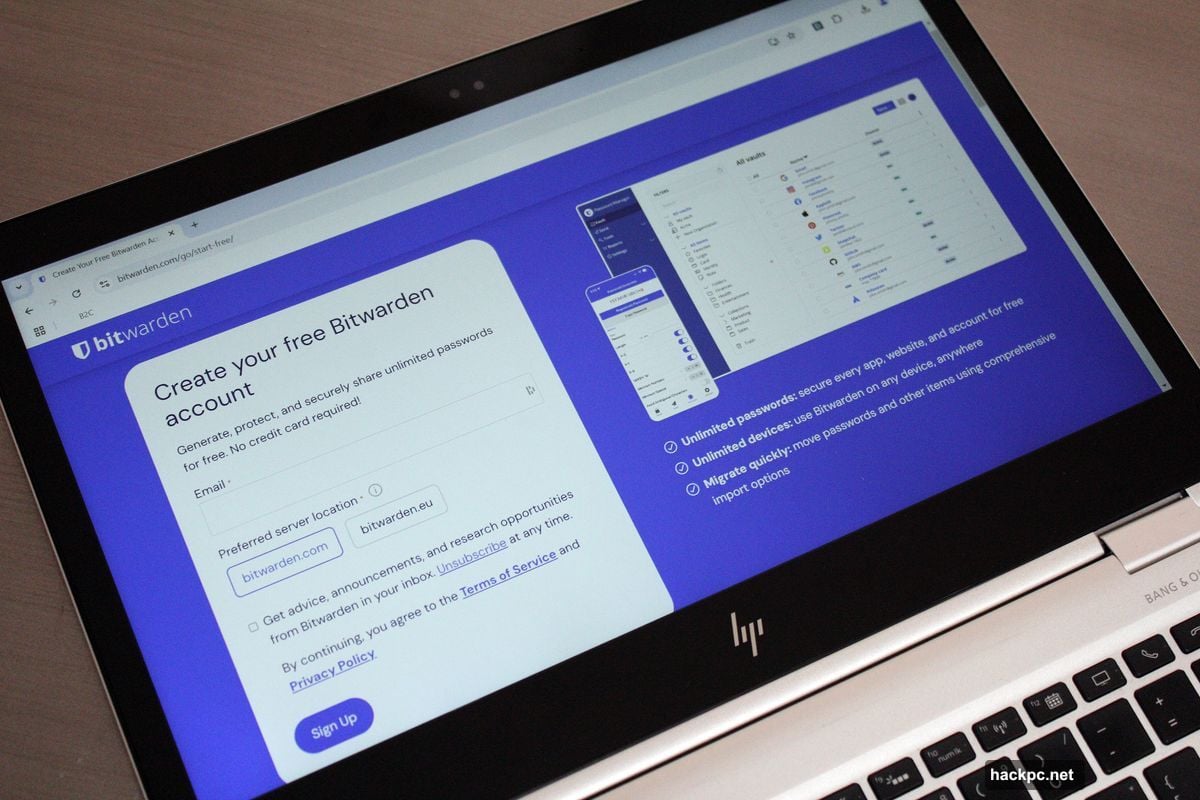
Bitwarden Gives You Everything for Free
Most free password managers limit you hard. Not Bitwarden.
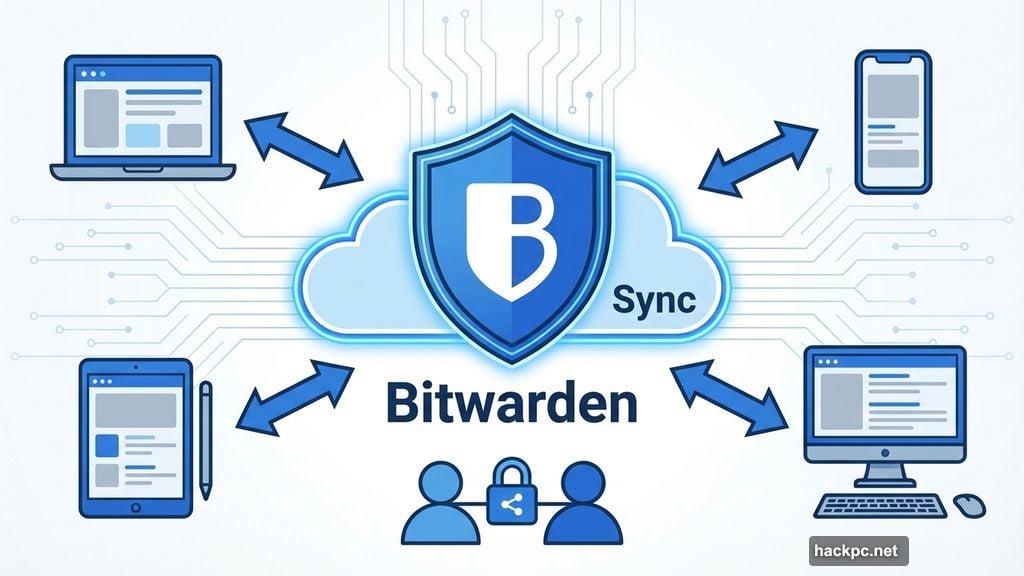
This service lets you sync across unlimited devices. Desktop, laptop, phone, tablet—doesn’t matter. Store as many passwords and passkeys as you want. Enable two-factor authentication to lock down your account. Share passwords with one other person in real time.
That last feature is perfect for couples or roommates. Both people can access shared accounts like Netflix or your WiFi network. No more texting passwords back and forth or keeping them in a shared note.
Bitwarden also generates random usernames and email aliases. That helps you avoid giving your real email address to sketchy websites. Plus, the whole thing is open source. Security researchers can inspect the code for hidden vulnerabilities or backdoors.
Compare that to competitors. Most free plans trap you on one device type. Maybe you get mobile access, but not desktop. Or you can use it on computers but not phones. Bitwarden doesn’t play those games.
The interface recently got a visual upgrade too. It used to look pretty utilitarian. Now it’s sleek and modern while staying easy to navigate.
Need more features later? Premium costs just $10 per year. That’s 70% cheaper than rivals. You’ll get advanced two-factor authentication, password health reports, encrypted file storage, and emergency access for trusted contacts. Family plans run $40 per year for up to six users.
But honestly, the free plan handles most people’s needs. It’s hard to beat unlimited syncing across all your devices for zero dollars.
KeePass Lets You Control Everything
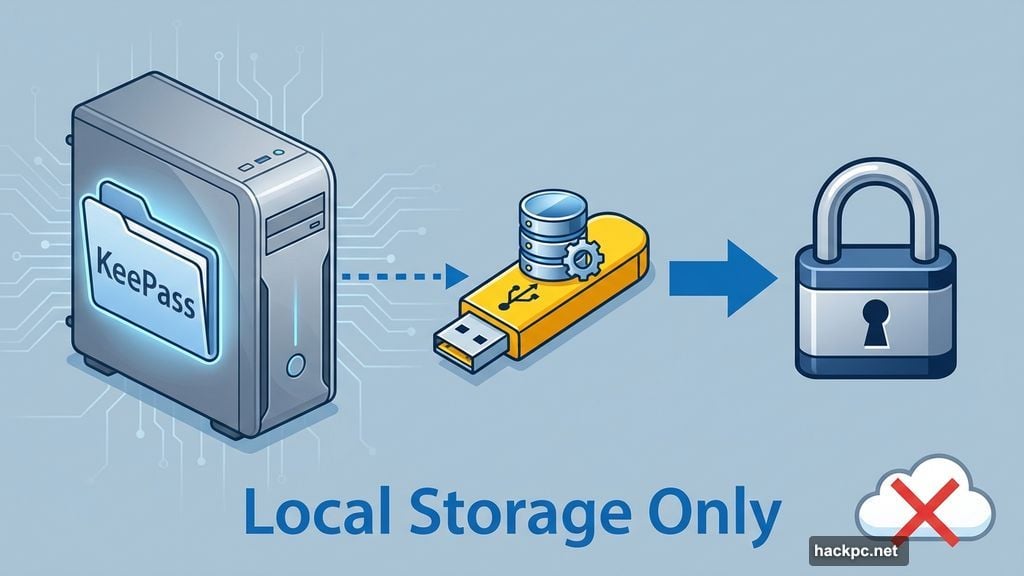
Cloud services make you nervous? KeePass stores passwords locally on your computer instead.
This desktop app gives you complete control. Your encrypted password database sits on your hard drive, not someone else’s server. You decide who accesses it. You choose where to back it up. Nobody else touches your data.
You don’t even need to install KeePass permanently. Run it from a USB stick if you want. Keep your passwords on a thumb drive that goes everywhere with you.
The program is open source. That means security experts can audit the code for problems. Community members can verify there aren’t hidden backdoors or sloppy bugs that compromise security.
Two-factor authentication works through key files. Those augment your master password. You can also lock the database to the Windows account that created it. That adds another security layer.
KeePass works across platforms too. Community developers created versions for MacOS, Linux, Android, and iOS. They also built plugins that add features. Want to check if your passwords appeared in data breaches? There’s a plugin for that.
You can get creative with storage. Put the database file on a home server for remote access. Or upload it to your favorite cloud service if you trust them more than password manager companies. Maybe you’re more comfortable with Google’s security than a dedicated password service.
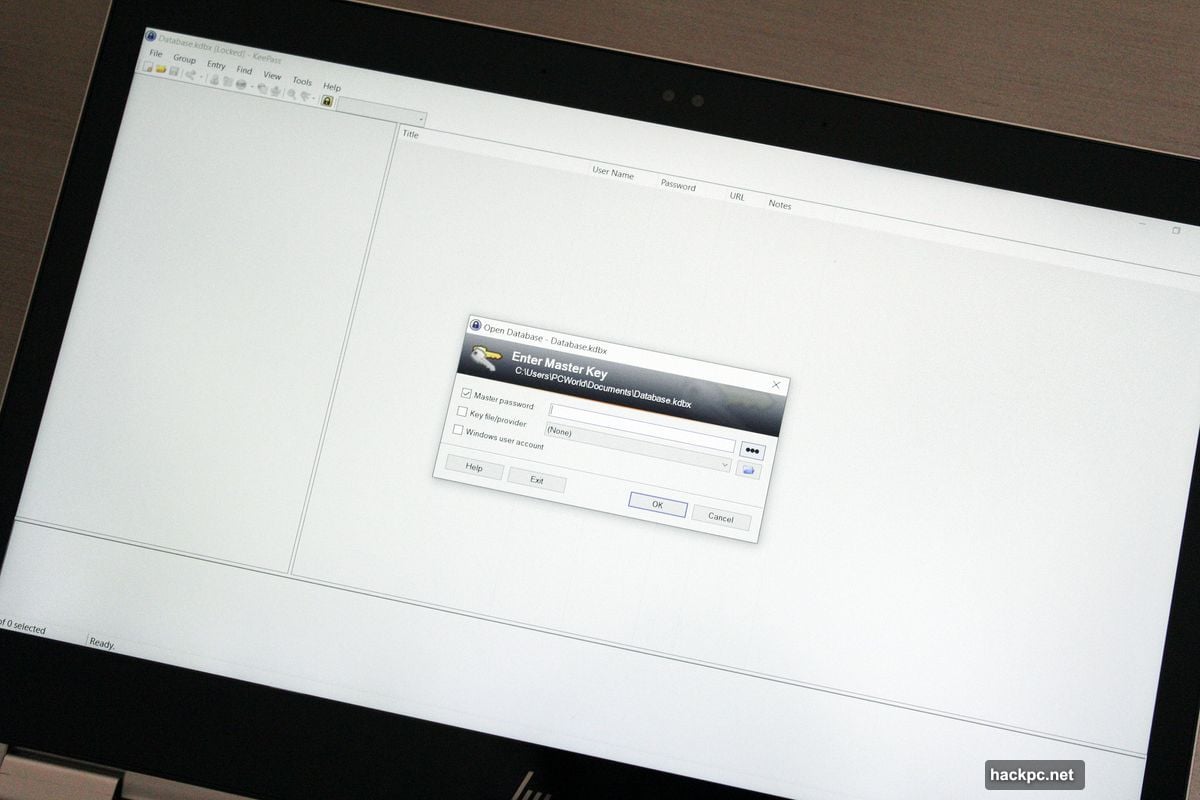
Here’s the catch. KeePass requires technical skills. The interface looks dated. You’ll need to manually set up auto-fill and other conveniences that modern password managers build in. This isn’t a plug-and-play solution.
But for DIY-minded people who want maximum control? KeePass delivers exactly what you need.
KeePassXC Makes Offline Management Simple
Want local password storage without KeePass’s complexity? Try KeePassXC instead.
This streamlined alternative offers a cleaner, more modern interface. It’s way more beginner-friendly while keeping KeePass’s core strengths. You still get full control over your login data. Files still stay on your device by default. The app is still open source and free.
KeePassXC even supports browser extensions now. Though honestly, they’re pretty basic compared to online password managers.
The file format matches KeePass. That means you can easily switch between the two programs if needed. Download KeePassXC for Windows, Linux, or macOS. Keep passwords offline or upload to the cloud—your choice.
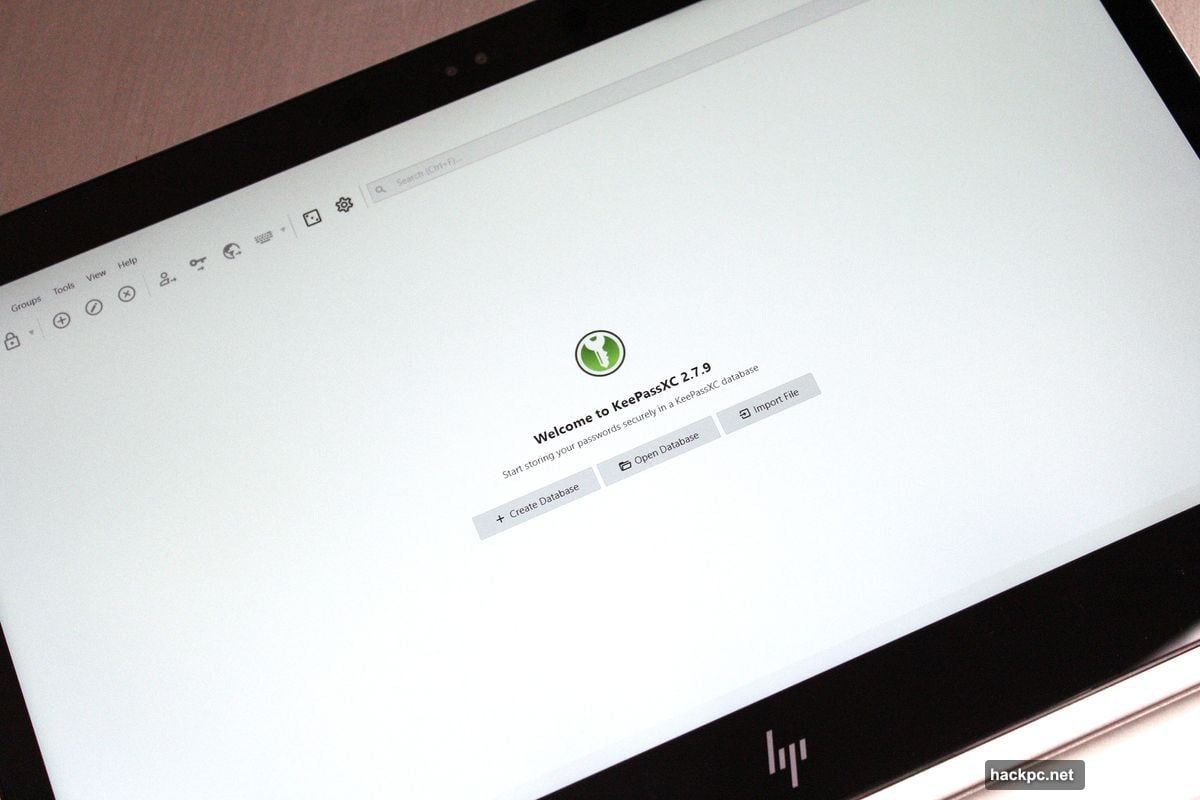
Using it feels straightforward. You can only create one entry type: logins. Each entry gets five fields to fill out. That’s it. You can add two-factor TOTP tokens, attach files, or include custom text fields. But the app doesn’t overwhelm you with options.
Unlike official KeePass, KeePassXC doesn’t support plugins. What you see is what you get. For many people, that’s actually the appeal. No endless configuration tweaking. No decision paralysis about which plugins to install.
You will need to adjust some settings to optimize the experience. Password sharing isn’t enabled out of the box, for example. But the documentation makes setup easy. Most customization takes just a few clicks.
Leaving is simple too. The export option sits right in the menu. No hunting through settings or contacting customer support.
Built-In Browser Options Work in a Pinch
Google, Apple, and Firefox all include basic password management now. They’re not as feature-rich as dedicated services. But they’re dead simple to use.
The best password manager is the one you’ll actually use. Sometimes dedicated apps feel like too much hassle. You have to remember to open them. You need to switch between apps constantly. That friction stops some people from using password managers at all.
Browser-based tools eliminate that friction. They generate strong passwords automatically. They remember them without extra apps. They auto-fill credentials on websites. All built into the browser you already use every day.
Firefox is probably your best browser option. It works across platforms. Mozilla pledges not to sell your data. Plus, exporting passwords to move elsewhere later is straightforward.
Google Password Manager reaches the most people. Gmail and Chrome are everywhere. The service recently added cross-device passkey syncing too. But you’re trading convenience for privacy. Google collects lots of data about you.
Apple’s Passwords app launched earlier this year as a standalone option. It competes directly with Bitwarden and other dedicated managers. But it’s hardest to leave. Apple makes exporting passwords deliberately difficult. Only choose this if you own both Macs and iPhones with no plans to switch.
Microsoft Edge also includes a password manager. Worth considering if you live entirely in the Windows ecosystem.
Here’s the downside. Browser-based managers are less secure than dedicated services. Even with two-factor authentication enabled, they often don’t require reauthentication to view stored passwords. That’s dangerous on shared computers.
You can configure Chrome to use Windows Hello for extra protection. But most people never bother. So if someone gains access to your logged-in device, they can grab all your passwords easily.
Free Plans Have Limits You Should Know
Free password managers protect you way better than reusing passwords. But they’re not perfect.
Paid services offer features that matter for power users. You’ll get password sharing across your whole household. Support for YubiKey and other advanced two-factor authentication methods. Automatic generation of 2FA codes for other websites. Alerts when your passwords show up in data breaches.
Some paid managers include unique features too. 1Password has a “travel vault” that hides sensitive passwords when you’re traveling. That protects you during aggressive airport screening or if your devices get stolen.
Most people don’t need those extras. But if you do, check our list of the best paid password managers to see which ones deliver the best value.
The free options we covered handle basic password security extremely well. Bitwarden works for most people. KeePass and KeePassXC serve the privacy-focused crowd. Built-in browser tools help people who won’t use anything else.
Pick one and start using it today. Your future self will thank you when the next massive data breach hits.



Comments (0)