
Travel planning stresses me out. Between coordinating schedules, finding restaurants, and navigating unfamiliar cities, vacations can feel more exhausting than relaxing.
But I’ve cracked the code. Google Maps transformed from a basic navigation tool into my complete travel companion. These seven features cut through the chaos and actually make exploring new places enjoyable again.
Navigate Airports Without Losing Your Mind
Airport terminals terrify me. Thousands of people rushing in every direction. Confusing signs pointing everywhere. Zero idea where to grab coffee before my flight.
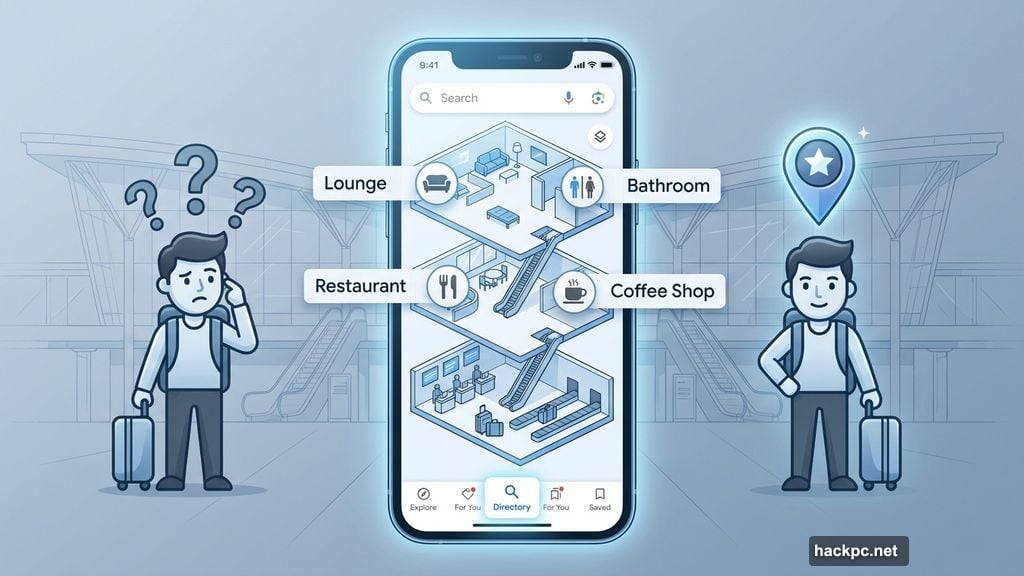
Google Maps fixed this nightmare with its Directory tab. Search for any major airport, mall, or transit station and tap Directory at the bottom. You’ll see every shop, restaurant, lounge, and bathroom mapped out by floor.
Last year at London King’s Cross station, over 67,000 daily travelers packed the terminal. I used Directory to find a coffee shop and grab a quick sausage roll before my Edinburgh train. No wandering. No stress. Just straight to what I needed.
Plus, you get business hours and exact locations. So when you’re sprinting to catch a connection, you know exactly where that sandwich shop sits.
Check Crowd Levels Before You Go
Crowds drain my energy fast. Too many people in one space and I’m ready to bail.
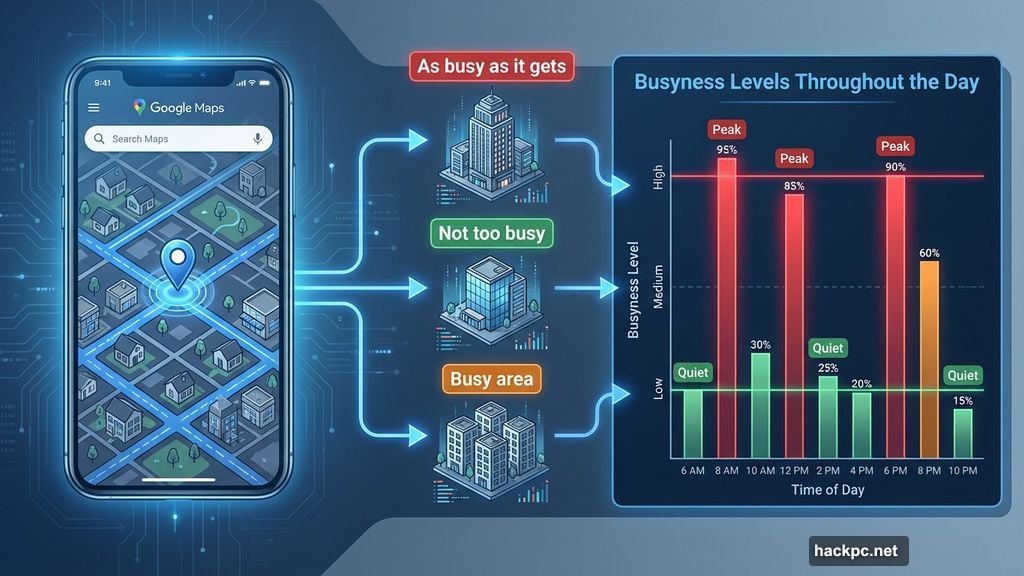
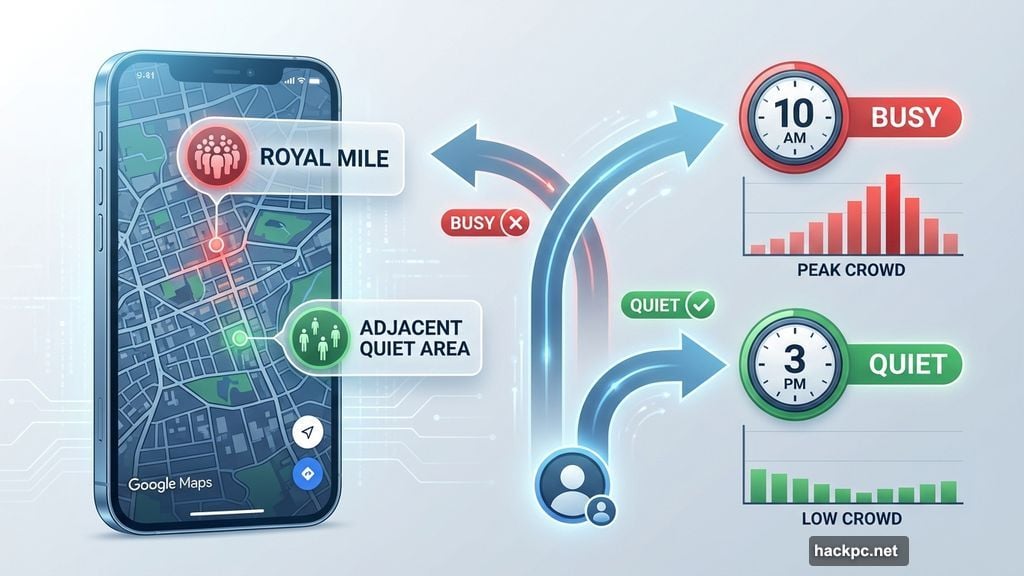
Google Maps shows how busy locations get throughout the day. Search any restaurant, store, or attraction and scroll to the busyness chart. You’ll see when spots are packed versus quiet.
But here’s the better trick. Tap “Busy area” labels on the map to check entire neighborhoods or districts. Instead of individual venues, you see which areas of the city are mobbed at specific times.
This feature saved my Edinburgh trip. I avoided the Royal Mile during peak tourist hours and explored when crowds thinned out. Same sights, way less stress.
Open Google Maps and zoom into any downtown area. The app automatically displays busyness without searching specific places. Labels like “As busy as it gets” or “Not too busy” show up instantly.
Book Restaurant Tables Without Phone Calls
I hate calling restaurants. Awkward conversations. Hold times. Explaining what I want to a tired host.
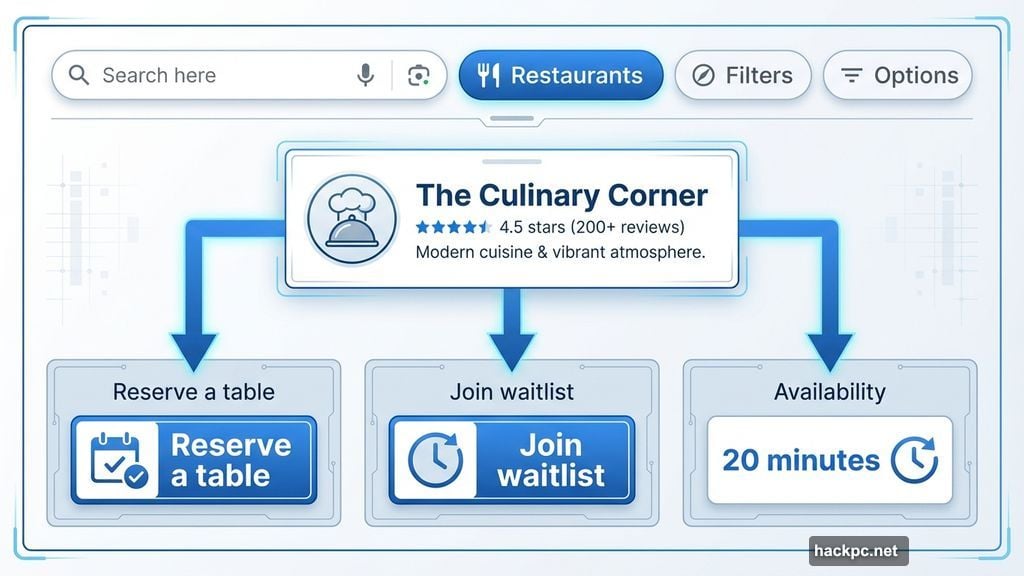
Google Maps handles reservations directly through the app now. Tap the Restaurants button at the top. Browse options. Pick a spot. Then choose to reserve a table or join the waitlist right from the pop-up window.
Not every restaurant offers this yet. But the ones that do make spontaneous dining actually possible. Yesterday I felt hungry while exploring a new neighborhood. Found a Thai place with availability in 20 minutes. Reserved through Maps. Done.
The busyness feature helps here too. I can pick restaurants that aren’t slammed, avoiding hour-long waits even without reservations.
Some spots stay closed for dine-in but offer delivery or outdoor seating. Google Maps shows these options upfront, so you’re not surprised when you arrive.
Download Maps for Offline Navigation
Cell signal vanishes in remote areas. Mountains. Forests. Tiny villages with zero coverage.
Last May, my family hiked through Scottish countryside. Gorgeous green hills. Constant rain. Absolutely no mobile service. Good thing I planned ahead.
Before losing signal, search your destination in Google Maps. Open the menu at the bottom. Swipe to “More” and tap “Download offline map.” Confirm the area and hit Download again.
Google Maps saves that region to your phone. When signal drops, the app automatically switches to your offline map and continues navigation.
Real-time traffic updates won’t work offline. But you’ll still get turn-by-turn directions and see your location on the map. That’s enough to keep you from getting lost in the wilderness.
I’ve used this feature hiking in remote areas and driving through dead zones. Never got stranded once.
Share Live Locations With Travel Companions
My sister and I travel well together. But we have totally different interests.
I’ll spend three hours in an art museum. She’s done after 45 minutes. So we split up, explore separately, then meet back up.
The meetup part always gets messy. “I’m by the bridge” means nothing when there are five bridges nearby. Frantic phone calls trying to describe landmarks you can’t see.
Google Maps location sharing ended this nightmare. Tap your profile icon. Select Location sharing. Choose who to share with and for how long. Hit Share.
Now my sister and I can see exactly where the other person stands. No vague descriptions. No confusion. Just tap their icon and walk directly to them.
This works great for groups too. Everyone shares locations for the day. If someone wanders off, you can find them instantly without the panicked group chat messages.
Create Custom Travel Lists That Actually Help
I love planning trips. TikTok videos saved. Instagram posts bookmarked. Notes app filled with restaurant names and museum addresses.
But constantly copying addresses into Google Maps to check distances between locations wastes massive time. I’d spend hours figuring out if two spots were walkable or needed transit.
Google Maps lists changed everything. Go to the You tab and tap New list. Name it, add an icon, and you’re ready.
When you find a place on the map you want to visit, scroll through tabs and hit Save. Add it to your trip list. Do this for every restaurant, attraction, and shop you researched.
Now all your destinations appear on one map. You can see which places cluster together geographically. Plan your days around neighborhoods instead of criss-crossing the city.
Better yet, share the list with travel companions. They can add their own spots and collaborate on the itinerary. Everyone sees the same map with the same saved locations.
No more screenshots getting lost in your camera roll. Everything lives in one organized, shareable place.
Let Gemini Plan Your Day When You’re Overwhelmed
Sometimes I hit decision fatigue. Too many options. Too much research. I just want someone to tell me what to do.
Gemini integration in Google Maps handles this perfectly. Ask the AI chatbot for suggestions. “Recommend rainy day activities” or “Best family dinner spots” and Gemini curates personalized options.
The recommendations appear as pins on your map. Each suggestion pulls from Google reviews and ratings, so you get decent quality options without the research paralysis.
I used this feature in Amsterdam last month. Asked for “quiet cafes with good WiFi” and got five solid suggestions within walking distance. Picked one, loved it, didn’t waste an hour scrolling through reviews.
This feature works best when you’re specific. Instead of “good restaurants,” ask for “Italian restaurants with outdoor seating under $30 per person.” Gemini narrows down options based on your exact needs.
Bonus: Turn Screenshots Into Organized Lists
My photo gallery holds thousands of screenshots. Pinterest finds. Instagram recommendations. Random TikToks showing cool restaurants.
By the time I’m ready to travel, I have dozens of screenshots buried in camera roll chaos. Finding that specific cafe recommendation from three weeks ago becomes impossible.
Google Maps now scans screenshots for location mentions. The Gemini-powered feature identifies place names in your saved images and displays them on the map automatically.
Activate the feature once in Google Maps settings. From then on, it reviews your screenshots, finds locations, and lets you save them to lists. No more lost recommendations. No more digging through hundreds of photos.
I tested this before my Amsterdam trip. Screenshots from travel influencers turned into a complete restaurant list in under five minutes. Way faster than manually searching each place.
—
Travel planning doesn’t have to feel like a second job. Google Maps packed enough features to handle navigation, reservations, crowd avoidance, and itinerary building all in one app.
I’ve relied on these tools across Europe and the US. They work. They save time. They reduce stress when trips inevitably go sideways.
Download offline maps before you lose signal. Share locations with your group. Let Gemini suggest activities when you’re too tired to decide. Your next trip will feel less chaotic and more enjoyable.




Comments (0)