

Blurry shots? Boring backgrounds? Photobombers ruining your vacation pics? Google Photos now fixes all of that automatically.
The service transformed from a simple backup tool into a full-fledged AI editing suite. Plus, you already have access if you use Gmail or any Google service. Let’s explore what’s possible with these free AI tools.
Free Storage Gets Smart Features
Every Google account includes 15GB of free storage for photos, videos, and screenshots. That space now comes with AI-powered editing capabilities that rival professional software.
You can access these tools two ways. First, through photos.google.com on your computer. Second, via the Google Photos app on your smartphone. Both offer AI features, but mobile gets a few exclusive tricks.
The interface stays simple. Your photos appear chronologically with automatic date and location tags. Click any image to view it full-screen, then tap the edit icon to start transforming it.
Browser Editing Delivers Instant Improvements
The web version offers surprisingly powerful AI editing. Open any photo and click the three-star “Suggestions” icon in the toolbar.
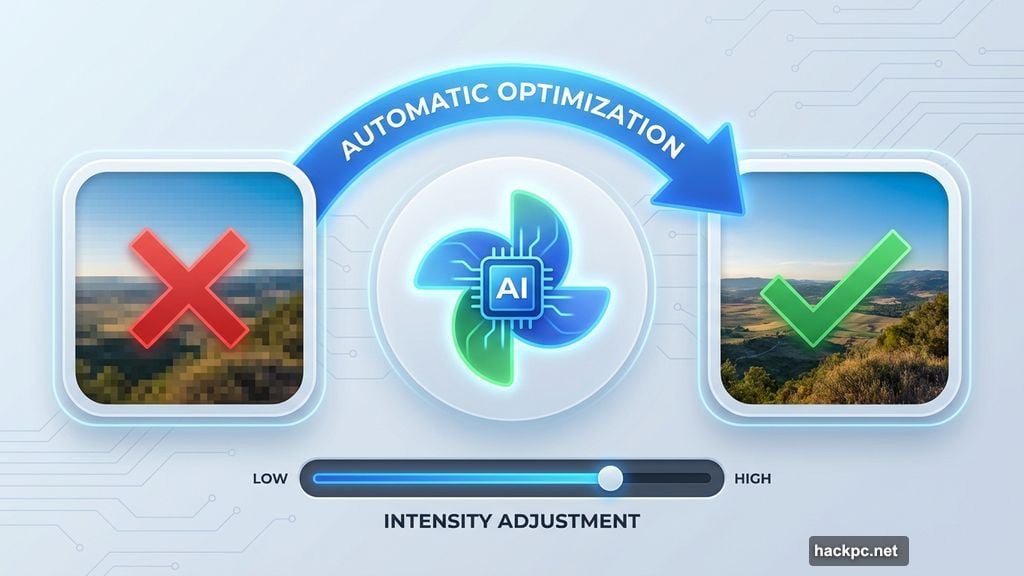
Google Photos analyzes your image and provides presets like “Dynamic,” “Warm,” or “Vivid.” However, the “Optimize” option works best in most cases. The AI examines your photo and applies corrections automatically.
Testing shows optimized images gain noticeably more detail and depth than manual presets. Colors pop without looking oversaturated. Shadows brighten while highlights stay controlled.
Five AI Tools Transform Images
The “Tools” menu reveals five intelligent features. Availability depends on your photo’s subject matter.
Portrait lighting adjusts exposure by digitally moving the light source. Drag the circle marker to change lighting direction. Add multiple light sources for complex effects. A slider controls intensity.
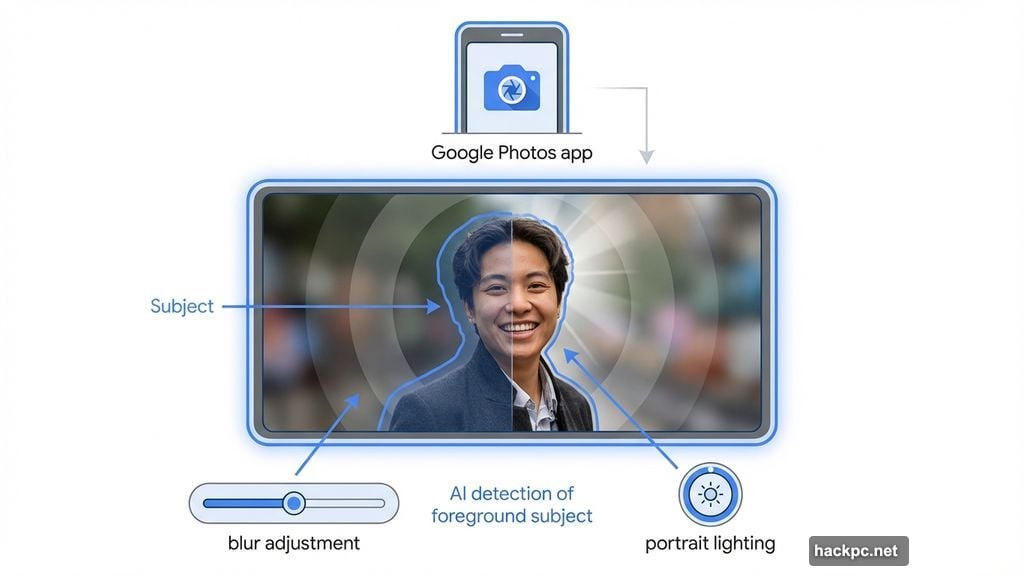
Blur softens backgrounds while keeping your main subject sharp. Google Photos detects the foreground automatically. The slider adjusts how much blur to apply.
Sky offers presets like “Radiant” and “Stormy.” One click changes cloudy days to dramatic sunsets. The intensity slider fine-tunes the effect.
Color focus turns backgrounds grayscale while keeping your subject colorful. This creates a striking effect for portraits and product shots.
Finally, the HDR effect boosts brightness and contrast. Useful for flat-looking images that need more visual impact.
Mobile App Unlocks Extra Features
Smartphones and tablets get additional AI capabilities not available in browsers. Open any photo’s detailed view and scroll to “Tools.”
Available options depend on your device and the photo’s content. Most images offer “Portrait lighting,” “Blur background,” “Sharpen,” “Zoom optimization,” “Magic eraser,” and “Color focus.”
Mobile versions of existing tools work similarly to desktop counterparts. But “Blur background” adds focus range adjustment alongside blur intensity. “Portrait lighting” lets you equalize lighting or add multiple light sources.
Sharpen and Zoom Work Miracles
Two features exclusive to mobile deserve special attention.
“Sharpen” rescues blurry photos caused by motion or depth issues. The slider adjusts sharpness intensity. Results vary by image, but even slight improvements help salvage otherwise unusable shots.
“Zoom optimization” enhances cropped images. Pinch to enlarge any section, and Google Photos automatically sharpens the zoomed area. This works remarkably well for pulling details from distant subjects.
Magic Eraser Removes Unwanted Objects
The Magic Eraser stands out as Google Photos’ most impressive AI feature. It removes people, objects, or blemishes from images.
Select your photo and tap Magic Eraser. Google analyzes the image first. Then mark unwanted areas with your finger.
Two removal options exist. “Erased” fills the gap using surrounding image data. “Hide” changes the area’s color to blend with surroundings. Results depend on image complexity, but simple removals work incredibly well.
Save your changes or repeat the process multiple times. Each attempt sometimes produces better results as the AI learns from your selections.
Advanced Editing Moves Objects Around
Another AI tool lives in the detailed “Edit” menu. Tap the color-changing icon in the bottom left corner.
This feature removes, enlarges, reduces, moves, or copies selected areas. Circle the desired section with your finger, then resize or reposition it using pinch and spread gestures.
Tap the arrow when positioned correctly. Google Photos processes the change and fills any gaps intelligently. Results range from seamless to slightly obvious depending on image complexity.
AI Filters Add Artistic Effects
The same editing menu offers AI-powered filters. Available options depend on your photo’s subject.
“Golden Hour” adds warm, dramatic lighting. “Sky” brightens overcast days and adds extra clouds. “Portrait” blurs backgrounds with various intensity levels.
“Stylized” transforms photos into drawings or paintings. Each application produces different results. Google Photos generates up to four versions per filter, and you can request more variations with one tap.
Results vary dramatically. Some look professionally crafted. Others appear obviously AI-generated. Experimentation helps find what works for each image.
Coming Soon: Generative AI Features
Google announced major AI additions arriving in 2025. These features weren’t available for testing yet, but promise significant capabilities.
“Remix” will turn photos into 3D animations, anime-style images, sketches, or comics. “Video from photo” creates six-second clips from still images with subtle animations or dramatic effects.
“Reimagine” uses text prompts to add new elements. Type “yellow flower meadow” or “stormy sky” and watch AI insert them into existing photos.
“Auto Frame” extends or replaces backgrounds for poorly cropped images. This fixes composition issues after the fact.
Reality Check: Quality Varies
AI editing produces impressive results most of the time. But consistency remains hit-or-miss.
Simple edits like optimizing exposure or removing small objects work reliably. Complex tasks like moving large subjects or adding dramatic effects sometimes create obvious artifacts.
The Magic Eraser struggles with intricate backgrounds. Removing a person standing against a detailed cityscape often leaves noticeable distortions. Solid backgrounds like sky or grass work much better.
Generative filters produce wildly varying quality. One attempt creates stunning artwork. The next looks like a broken photo filter from 2010. Keep generating variations until you find acceptable results.
Storage and Limitations
The 15GB free storage fills quickly with high-resolution photos and videos. Once exceeded, you’ll need a Google One subscription.
Plans start at $1.99 monthly for 100GB. That’s reasonable but adds up over time. Monitor your storage regularly to avoid surprises.
Some advanced AI features require newer smartphones. Older devices might not support all tools. The web version offers more consistent functionality across different computers.
Processing times vary. Simple optimizations happen instantly. Complex AI operations sometimes take 10-30 seconds on mobile data connections. Wi-Fi speeds up processing considerably.
Professional Results Without Professional Skills
Google Photos democratizes photo editing. You don’t need Photoshop expertise or expensive software to fix common image problems.
The AI handles technical details automatically. You just choose effects and adjust intensity sliders. Most edits take seconds rather than minutes of manual work.
However, professional photographers still need dedicated software for precise control. Google Photos prioritizes ease of use over granular adjustments.
For casual users and smartphone photographers, these tools provide impressive results without complexity. Your vacation photos, family portraits, and social media posts all benefit from quick AI enhancements.
The coming generative AI features promise even more creative possibilities. Whether that improves or complicates the experience remains to be seen. For now, Google Photos offers powerful editing that transforms ordinary snapshots into shareable images worth keeping.




Comments (0)