
Gemini is showing up in Gmail, Docs, Drive, Sheets, Slides, and just about every other Google product you use daily. For some people, that’s genuinely helpful. For others, it feels like AI is constantly hovering over your shoulder uninvited.
The good news? Google actually lets you disable most of its AI features. The catch? Turning things off comes with some real trade-offs you should know about before you start flipping switches.
Google Workspace Smart Features Hide a Lot of AI
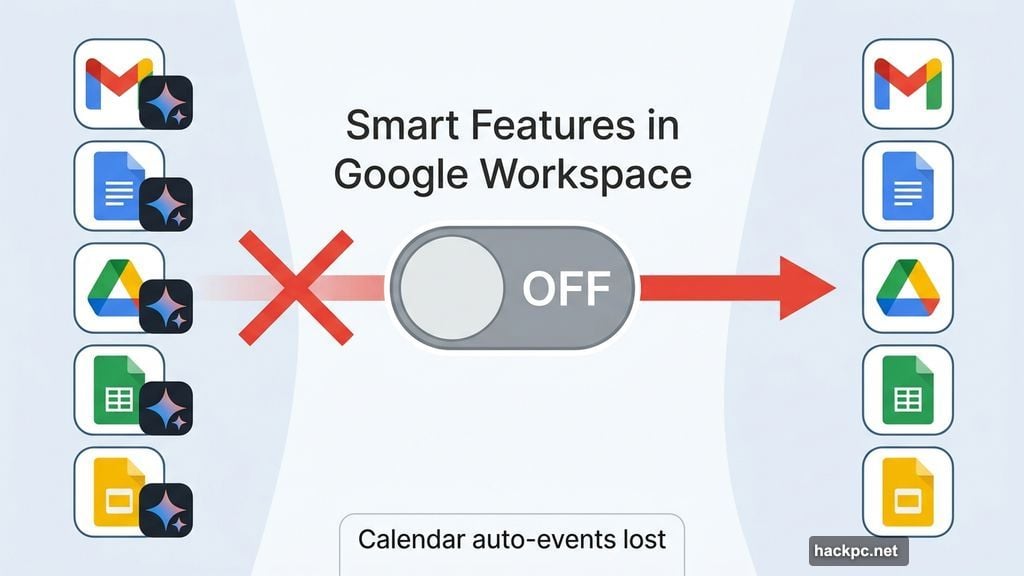
The fastest way to reduce Gemini’s presence across your Google account is to turn off Google Workspace smart features. This one setting change strips AI capabilities from Gmail, Drive, Docs, Sheets, and Slides all at once.
But here’s the part nobody warns you about. Along with Gemini, you’ll also lose features you might genuinely like. Google Calendar won’t automatically pull events from your emails anymore. Personalized search results disappear too, making Google feel noticeably more generic.
Still want to go ahead? Here’s how to do it:
- Sign into your Gmail account
- Click the settings icon, then choose See all settings
- Under the General tab, scroll down to the Google Workspace smart features section
- Click Manage Workspace smart feature settings
- Toggle off both options: Smart features in Google Workspace and Smart features in other Google products
That’s genuinely all it takes. Two toggles, and you’ll notice a significant difference right away. Also worth knowing — Gemini icons will still appear in these apps. Google keeps them visible so you can switch things back on easily, whether intentionally or by accident.
AI Overviews Are a Separate Beast Entirely
So you turned off the Workspace smart features and assumed AI Overviews in Google Search would disappear too. Unfortunately, that’s not how it works.
AI Overviews have their own separate controls, and even those aren’t a complete fix. Still, there are a couple of approaches worth trying.
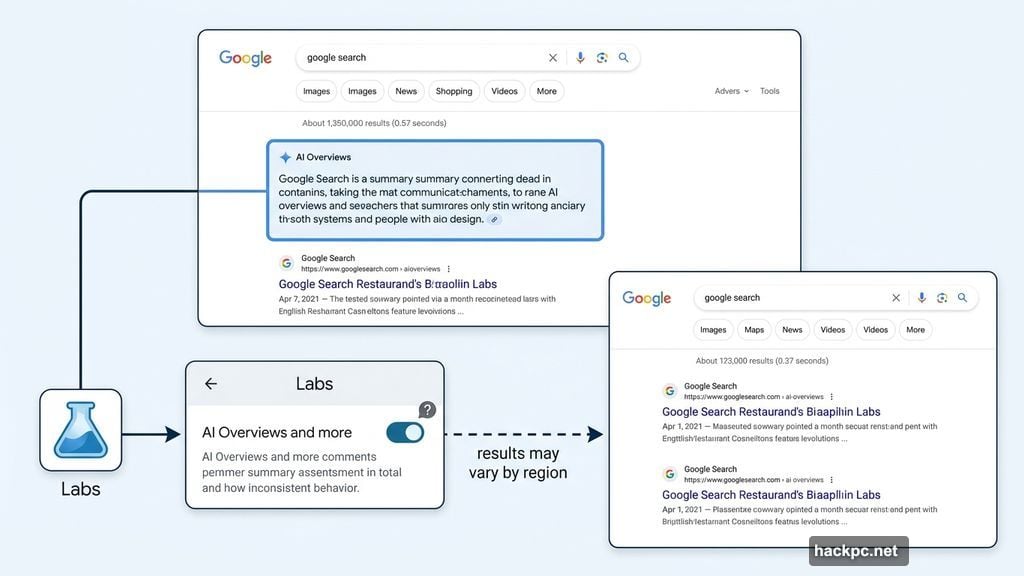
![Screenshot showing Google Search with AI Overviews appearing in results, alongside the Labs settings panel for disabling AI experiments]
Try the Google Labs toggle first. While signed into your Google account, open Google Search and click the Labs icon (it looks like a beaker) if it’s available to you. Scroll down to AI experiments, find the AI Overviews and more experiment, and disable it with the toggle on the right.
Fair warning though — results vary. The feature rolls out differently across regions, and honestly, turning off this experiment made no visible difference in search results during personal testing. It’s still worth checking the box, but don’t expect a dramatic change.
The ‘-ai’ Search Trick Actually Works
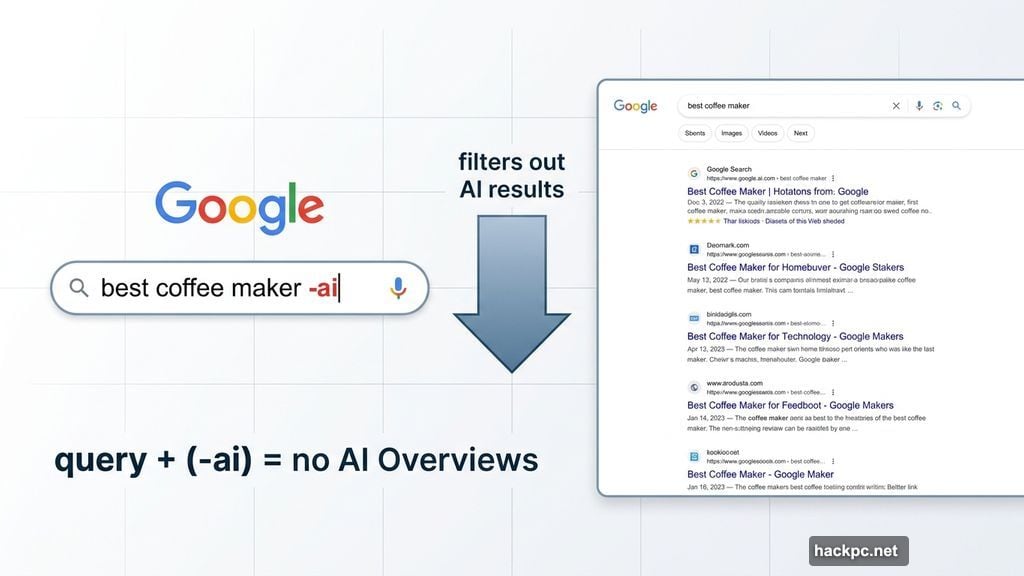
Here’s a simpler fix that tends to deliver better results than the Labs toggle. Just add -ai to the end of any Google search query.
It sounds almost too basic, but it works consistently on both desktop and mobile. If AI Overviews are cluttering your search results, this quick addition usually clears them out. No settings menus required.
For a more permanent solution, you can set up a Google Search web filter that automatically applies these preferences to every search. And if you’d rather skip the workarounds altogether, switching to a different search engine is always an option too.
What You’re Really Trading Off
Disabling Google’s AI features isn’t a clean, painless process. Google has woven these tools deep into the fabric of its products, which means pulling them out affects more than just Gemini.
Think of it like removing seasoning from a dish that’s already been cooked. You can reduce the flavor, but you can’t fully separate it out without changing the whole meal.
If a completely AI-free experience is your goal, the most effective move is probably switching to different services entirely. But if you just want to dial things back a bit — fewer suggestions, less AI hovering over your work — the Workspace settings toggle gets you most of the way there.
It’s your Google account. You should get to decide how much AI lives in it.




Comments (0)