

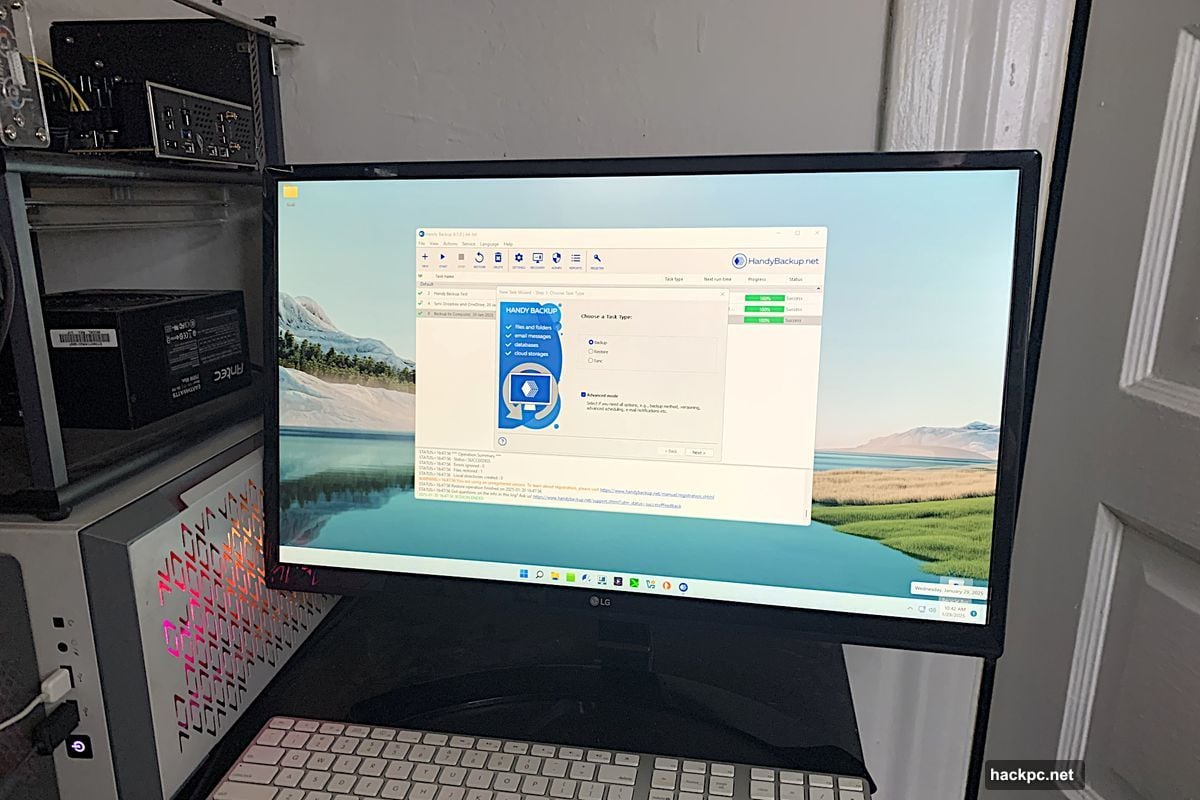
Handy Backup 8.5 Professional packs serious power. File backup, disk imaging, cloud sync—it handles everything most users need. The interface looks clean and modern.
But here’s the catch. Several glitches mar an otherwise excellent experience. Some features simply didn’t work during testing. Others required workarounds that shouldn’t be necessary in professional software priced at $89.
Let’s break down what works brilliantly and what drove me nuts.
What Handy Backup Does Well
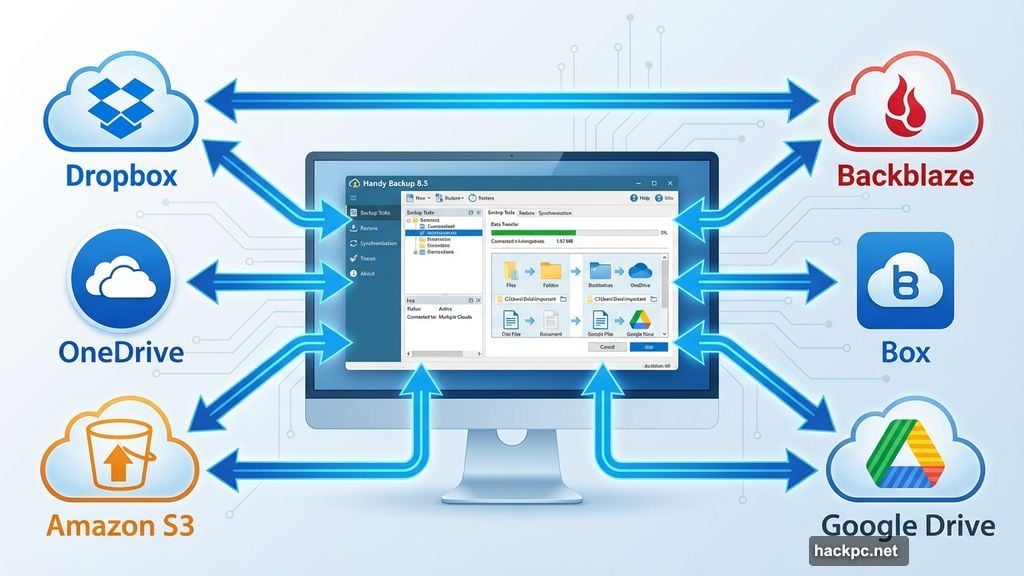
The core backup functions shine. File backups run lightning-fast. Plus, the program supports an impressive range of cloud storage services—both as source and destination.
That last point matters more than you might think. Most backup software only lets you send files to cloud storage. Handy Backup goes further. You can sync folders between different cloud services directly. For instance, I moved files from Dropbox to OneDrive without touching my local drive.
The program supports Amazon S3, OneDrive for Business, Backblaze, Box, and many others. It also handles network locations, WebDAV, and various FTP protocols. That’s comprehensive coverage for business users.
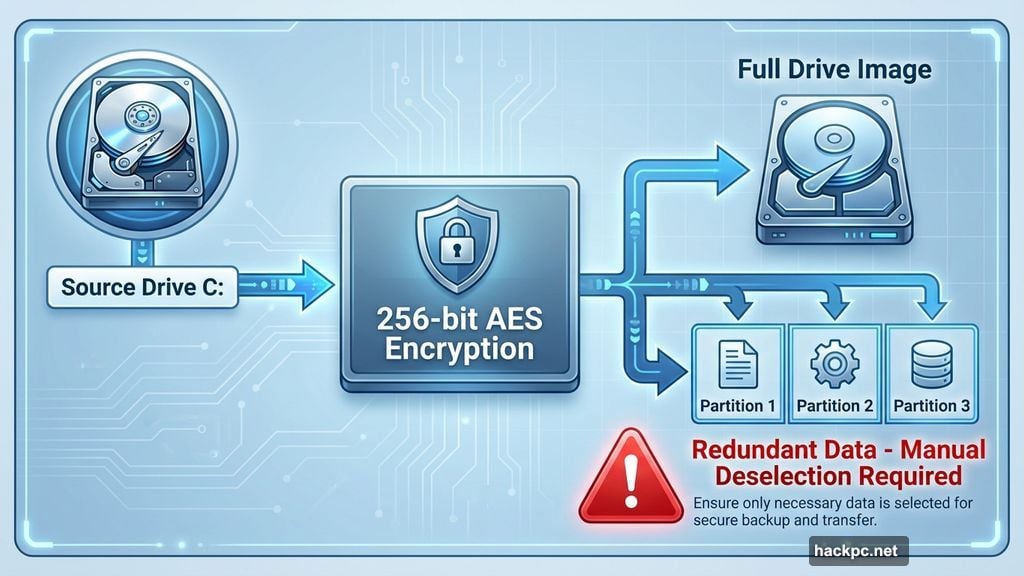
Security features check the right boxes too. Handy Backup offers 256-bit AES encryption—the same standard banks use. Scheduling options get granular down to hourly intervals. You can even set commands to run before or after backup jobs.
The Interface Needs Better Guidance
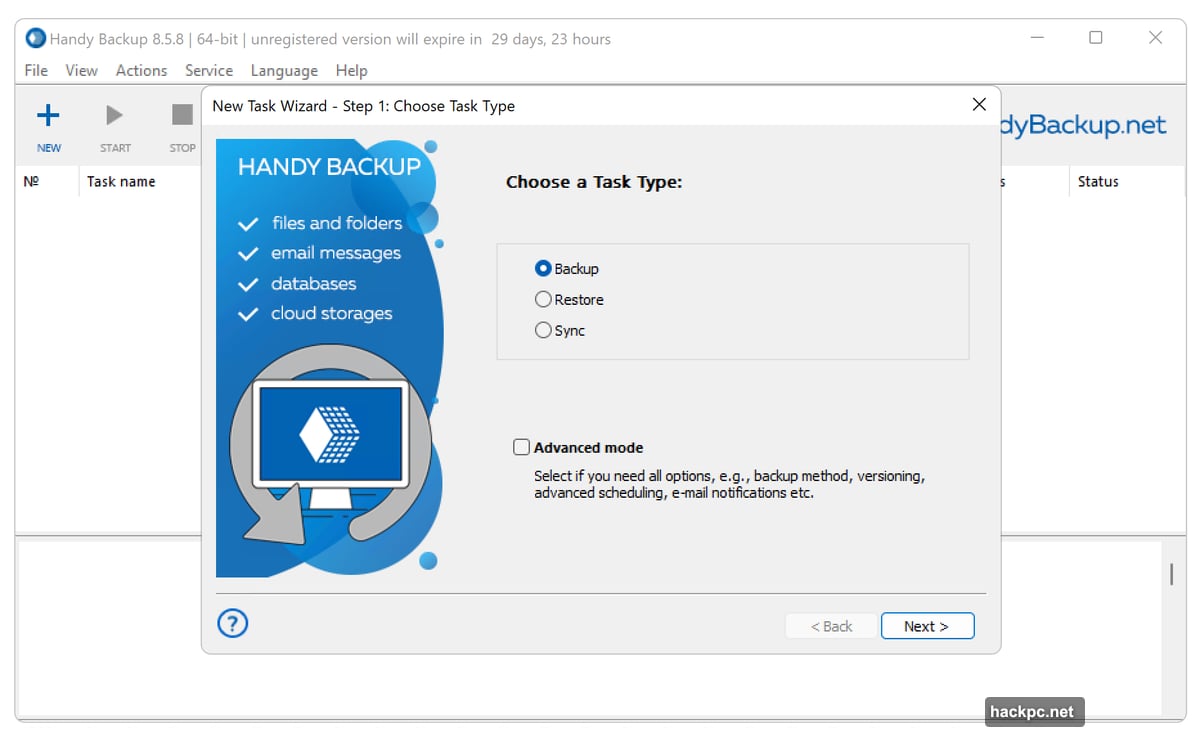
Here’s where things get tricky. Handy Backup organizes everything around “plugins” for different job types. That’s fine in theory. But it creates confusion in practice.
Take disk imaging as an example. Instead of selecting “Create Disk Image” from a job type menu, you choose “Disk Clone” from the source selections. It works, but feels backwards.
Worse, selecting a drive by default creates images of both the drive AND its individual partitions. So one selection backs up the same data twice—tripling backup time and storage requirements. You must manually deselect redundant entries. The program should handle this automatically.
Moreover, disk imaging functions only work when you run Handy Backup as administrator. Fair enough—low-level disk access requires elevated permissions. But the program forces you to reboot in admin mode each time rather than setting this permanently. Why make users jump through hoops?
Major Features That Simply Failed
The System Recovery plugin didn’t work at all. It spun endlessly in a loop without completing. Novosoft apparently knows about this issue and recommends using Disk Clone instead for system recovery tasks.
My advice? If something doesn’t work, remove it from the software. Don’t ship broken features and make users discover them through trial and error.
Then there’s Google Drive support. The program refused to connect despite successful login. I tested multiple cloud services—they all worked except Google Drive. That’s particularly frustrating since Google Drive ranks among the most popular cloud storage options worldwide.
The workaround? Install Google Drive’s desktop client and back up the local folder instead. That defeats the purpose of direct cloud integration.
Performance Varies Wildly
File backups absolutely fly. Small jobs completed in under a minute. That matches or beats any backup software I’ve tested.
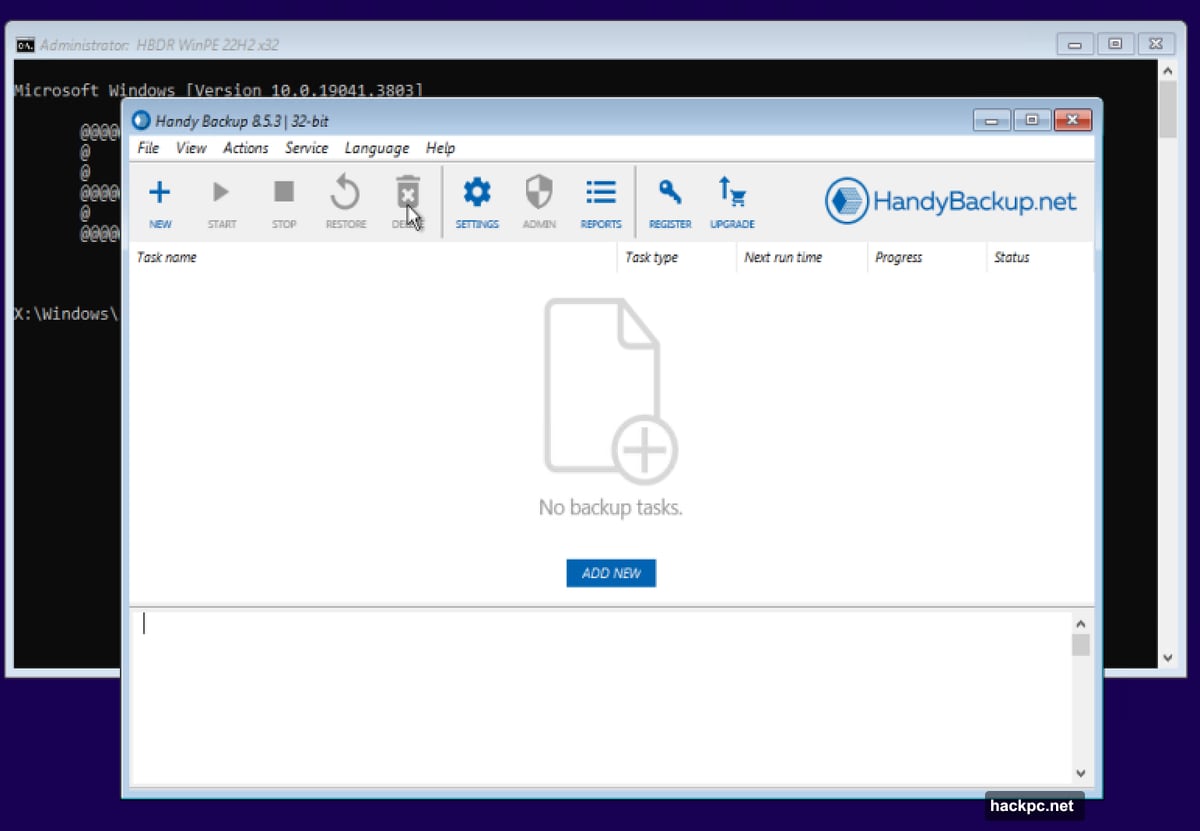
Disk imaging tells a different story. One simple 10GB image took three minutes—excellent speed. But the program first displayed a wildly inaccurate estimate, claiming it would copy 1.82TB of data from a 1TB drive. The math literally didn’t work.
Another imaging operation involving multiple partitions dragged on for 34 minutes. Again, this happened because Handy Backup selected redundant backup targets by default. After deselecting duplicates, the job finished in three minutes.
Canceling operations proved frustratingly slow. The program often ignored stop commands for 20-30 seconds. That wastes time when you realize a backup job needs different settings.
Disaster Recovery Requires Extra Steps
Handy Backup includes disaster recovery capability—theoretically. Actually creating a recovery disc involves multiple manual steps.
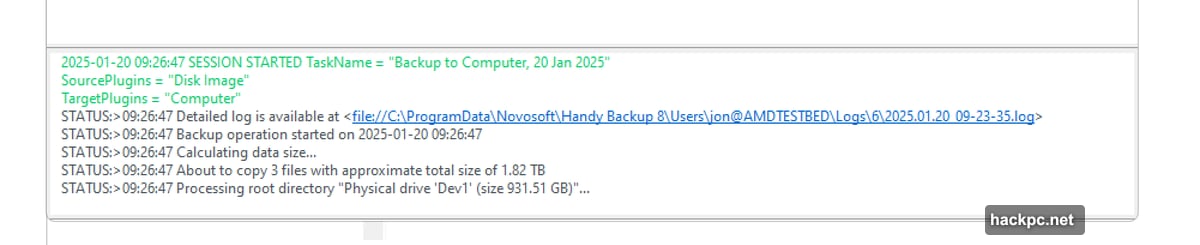
First, you visit the company website to download an ISO file. Then you need third-party software like Rufus to create a bootable USB drive. The recovery disc itself worked fine once I created it. But this should be a one-click process built into the program.
Professional backup software should simplify disaster recovery preparation, not complicate it.
Pricing Feels Steep Given the Issues
The Standard version costs $39 but lacks disk imaging. The Professional version reviewed here runs $89. Small Business edition jumps to $249, adding database backup support. Server edition reaches $487 with Linux and remote management features.
That pricing puts Handy Backup squarely against established competitors. R-Drive Image, Acronis True Image, and EaseUS Todo Backup all cost similar amounts. Several offer more polished experiences with fewer bugs.
For $89, I expect software that works completely out of the box. Handy Backup requires too many workarounds and offers too many non-functional features to justify that price point comfortably.
Security and Encryption Work Properly
At least the security implementation proves solid. Handy Backup uses industry-standard 256-bit AES encryption. Backup archives remain protected even if storage devices get stolen or compromised.
The program also supports network security protocols correctly. FTPS and SFTP connections worked flawlessly during testing. Authentication methods functioned as expected across all tested services except Google Drive.
Still, security means nothing if backup jobs fail or require constant babysitting. Reliability matters more than features.
Who Should Consider Handy Backup
Users comfortable troubleshooting technical issues might appreciate Handy Backup’s capabilities once they learn its quirks. The cloud sync functionality particularly stands out as genuinely useful.
IT professionals managing multiple backup destinations could benefit from the extensive service support. Just be prepared to test thoroughly before deploying in production environments.
However, home users seeking simple, reliable backup software should probably look elsewhere. The learning curve and workarounds add unnecessary complexity for basic backup needs.
Better Options Exist at This Price
Handy Backup delivers impressive performance when everything works correctly. But those conditional words—”when” and “correctly”—matter tremendously.
Professional software shouldn’t ship with known broken features. It shouldn’t require users to visit websites for recovery disc creation. And it definitely shouldn’t fail to connect to one of the world’s most popular cloud storage services.
The core technology shows real promise. Clean that up, fix the bugs, simplify the workflow, and Handy Backup could genuinely compete with industry leaders. Until then, it feels like capable software that shipped too early.
Test the 30-day trial before buying. You might love the interface and cloud flexibility enough to overlook the rough edges. Or you might find the frustrations outweigh the benefits. Either way, you’ll know exactly what you’re getting.




Comments (0)