
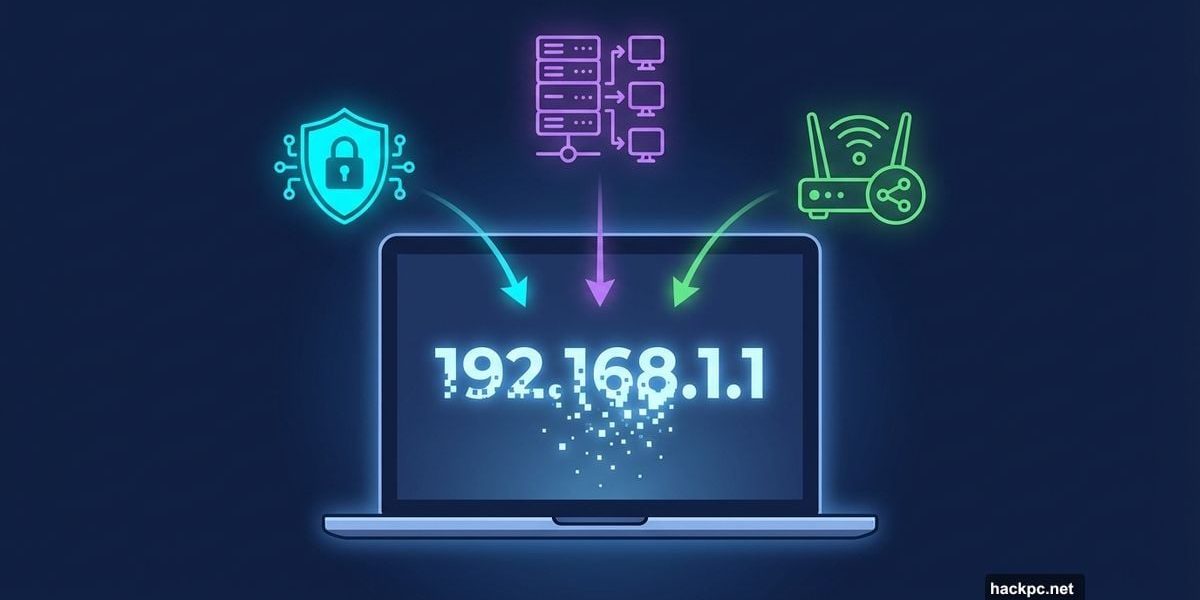
Your IP address follows you everywhere online. Every website you visit sees it. Every app you use logs it. Plus, your internet provider tracks every site you browse through that address.
Want to change it? Most people think it’s complicated. But switching your IP address takes just a few minutes using tools you probably already have.
Let me show you the fastest ways to mask your IP address, from VPNs to simple router tricks.
Public vs Private: Two Different Addresses
Your network actually uses two types of IP addresses. Understanding the difference matters because the method you choose depends on which one you want to change.
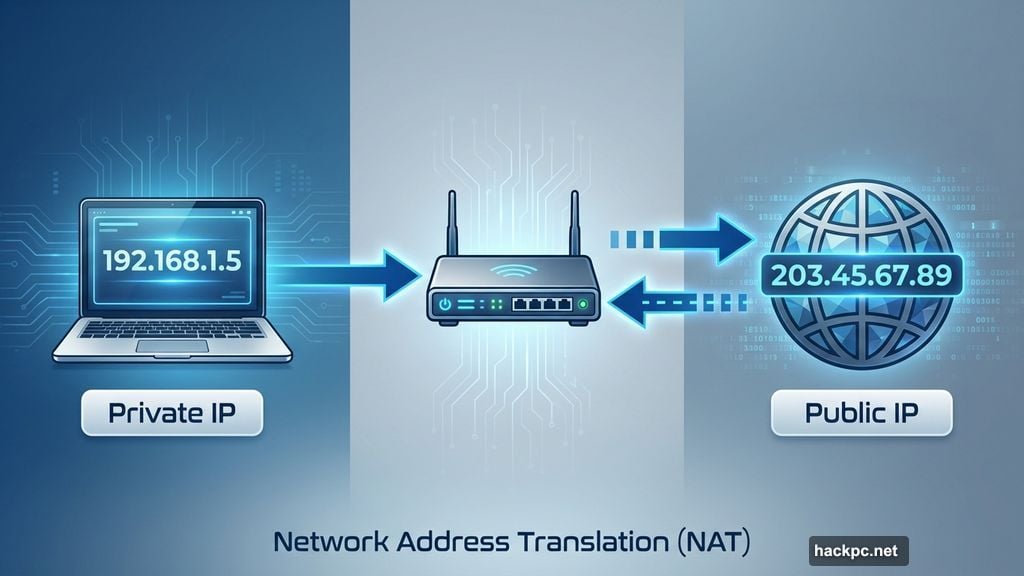
Your public IP address comes from your internet provider. It identifies your entire home network to the outside world. Think of it like your street address – everyone on your network shares the same one.
Private IP addresses work differently. Your router assigns a unique one to each device in your home. Your laptop gets one. Your phone gets another. Your smart TV gets a third. These addresses only matter inside your network.
So changing your public IP affects how the internet sees you. But changing your private IP only affects how your router talks to that specific device.
Why Bother Changing Your IP
Most days you never think about your IP address. But several situations call for switching it up.
Privacy stands out as the biggest reason. Your IP reveals your approximate location and internet provider. Websites build profiles based on this info. Some folks don’t want that tracking.
Streaming services use your IP to restrict content by region. Netflix shows different libraries in different countries. BBC iPlayer blocks everyone outside the UK. A new IP address from the right country unlocks this content.
Internet providers sometimes throttle your connection based on your activity. They spot your IP using lots of bandwidth and slow you down. Fresh IP address means they can’t track your usage as easily.
Network troubleshooting occasionally requires changing your private IP. If one device can’t connect to your router properly, grabbing a new private IP often fixes it.
VPNs Hide Your Public IP Best
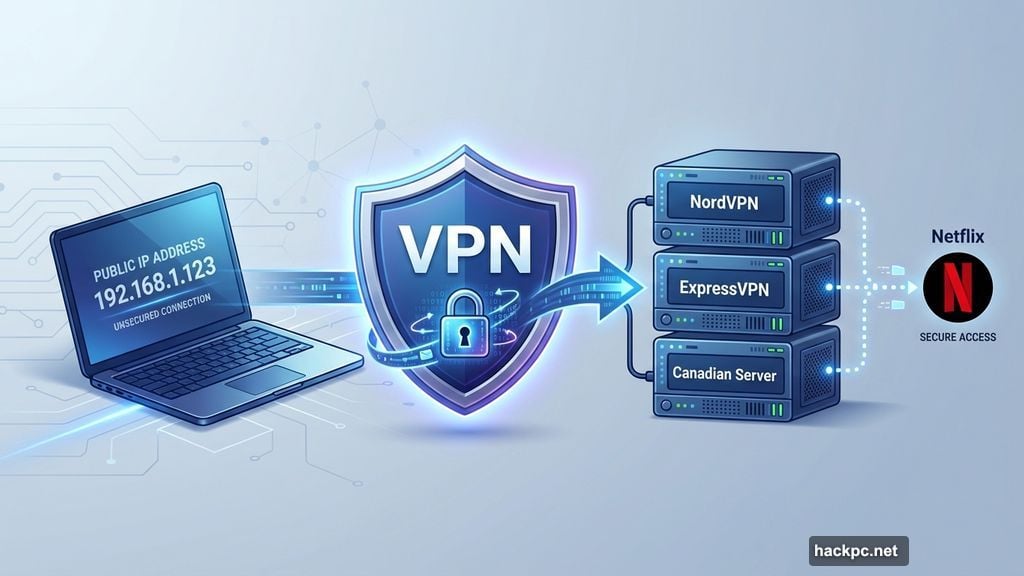
A VPN reroutes your internet through an encrypted server. Websites see the server’s IP address instead of yours. That’s why VPNs work so well for privacy and accessing geo-blocked content.
Here’s what happens when you connect. Your VPN app encrypts all your traffic. Then it sends everything through the VPN company’s server. Finally, that server forwards your requests to websites.
So Netflix thinks you’re in Canada if you connect to a Canadian server. Your internet provider can’t see which sites you visit. Plus, the encryption protects your data on public Wi-Fi.
Setting up a VPN takes just minutes. Sign up for a plan with a provider like NordVPN or ExpressVPN. Download their app. Open it and sign in. Pick a server location. Toggle the VPN on.
Test whether it’s working by checking your IP address before and after. They shouldn’t match if the VPN is running correctly.
One catch though – VPNs don’t change your private IP address. They only mask your public one. Most people never need to change their private IP anyway.
Proxy Servers Work Without Encryption
Proxy servers act like stripped-down VPNs. They hide your public IP address by routing traffic through their servers. But they skip the encryption part.
I used a proxy service called GetFlix years ago. It let me watch Canadian TV shows from the US. Worked fine for streaming. But I switched to a VPN when I wanted better security.
Proxies make sense for basic tasks. Accessing region-locked videos. Bypassing simple website blocks. Light browsing where you want pseudo-anonymity.
But skip proxies for anything sensitive. Banking. Shopping. Work email. Your traffic flows through their servers completely unencrypted. Anyone watching can see everything.
Setting up a proxy depends on your device. Most require entering server details in your network settings. Some proxy services offer apps that simplify this. Sign in, pick a server, connect.
Remember – proxies cost less than VPNs for a reason. You’re getting IP masking without the security benefits.
Router Resets Sometimes Work
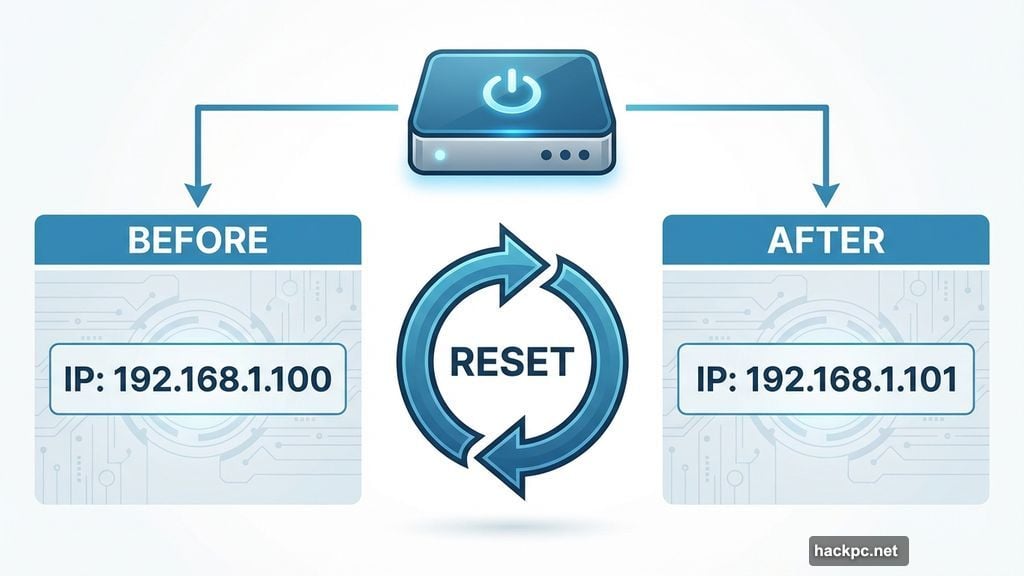
Restarting your router might give you a new IP address. Emphasis on might. This method works inconsistently but costs nothing to try.
First, check your current IP address using a site like WhatIsMyIPAddress. Write it down. Then unplug your router for at least 5 minutes. Some internet providers require longer – even up to 24 hours.
Plug it back in and wait for your connection to return. Check your IP address again. If it changed, success. If not, try leaving it unplugged longer.
This works because internet providers assign most home users dynamic IP addresses. These addresses can change when your router reconnects. But some providers use static addresses that never change automatically.
Router resets affect both your public and private IP addresses. Your router forgets your devices and assigns new private IPs when they reconnect.
One warning – folks with separate routers and modems may need to reset both devices. Just power cycling the router sometimes isn’t enough.
Manual IP Changes Fix Connectivity Issues
Sometimes you need to manually set a new private IP address. Maybe your device can’t connect to your router. Or you’re running a home server and want a static address that never changes.
I host a Plex media server at home. Gave it a static IP address so I can always find it on my network. Makes transferring files way easier than hunting for a changing address.
Most devices let you switch between automatic and manual IP assignment. Automatic is simpler – your router picks an available address. Manual requires knowing which address to use.
Here’s the basic process across platforms. Open your network settings. Find your Wi-Fi connection. Look for IP settings or TCP/IP configuration. Switch from automatic to manual. Enter your desired IP address.
Windows users can also update IPs through the command prompt. Type ipconfig /release to grab a new one automatically. to drop your current address. Then ipconfig /renew
Mac users should click “Renew DHCP Lease” in their TCP/IP settings. That forces your router to assign a fresh IP without manual configuration.
Android and iOS make this easy too. Open Wi-Fi settings. Tap your network. Find IP configuration. Switch to static and enter an address. Or just forget your network and reconnect for a new automatic assignment.
Platform-Specific Steps for Quick Changes
Each operating system handles IP changes slightly differently. But the core process stays similar across platforms.
Windows users have multiple options. The easiest involves the command prompt. Press Windows+R, type “cmd”, and hit enter. Then run ipconfig /release. That grabs a new automatic IP in seconds. followed by ipconfig /renew
For manual assignment, head to Settings > Network & Internet > Wi-Fi. Click your network properties. Find IP assignment and switch to manual. Enter your desired address.
Mac users should open System Settings > Network > Wi-Fi. Click Details next to their network. In the TCP/IP tab, hit “Renew DHCP Lease” for automatic assignment. Or switch to manual configuration and type in an address.
Linux varies by distribution but generally follows a similar path. Open your network connections app. Select your Wi-Fi network. Navigate to IPv4 or IPv6 settings. Change from automatic to manual and enter an address.
Android requires fewer steps. Open Settings > Wi-Fi. Tap the info button beside your network. Either forget the network and reconnect, or change IP settings to static and enter an address manually.
iOS users follow nearly identical steps. Settings > Wi-Fi > Select network > Configure IP. Pick automatic or manual depending on your needs.
Free Options That Actually Work
Changing your IP address doesn’t require spending money. Several methods cost nothing at all.
Restarting your router is completely free. Takes 5 minutes and might give you a new public IP. Worth trying before paying for anything.
Manually updating your IP address through device settings costs zero dollars. Built into every operating system. No subscriptions required.
Some VPN providers offer free tiers with limitations. Proton VPN gives you free access with slower speeds and fewer server locations. Works fine for basic IP masking.
Free proxy servers exist but come with serious risks. Many log your data. Some inject ads. A few run malware. Use extreme caution with free proxies.
The paid options generally work better. But if you just need to quickly change your IP once, free methods handle it.
Legal Stuff Worth Knowing
Changing your IP address is completely legal in the United States. You’re just using different networking tools. Nothing illegal about that.
Your IP address sometimes changes automatically when you reconnect to Wi-Fi. That’s normal network behavior. No laws against it.
However, IP spoofing crosses legal lines. That’s when you fake your IP address to impersonate someone else or bypass security. The Computer Fraud and Abuse Act covers this. Don’t do it.
Using a VPN to access geo-blocked content sits in a gray area. Technically not illegal in most countries. But it might violate streaming services’ terms of service. They could cancel your account if caught.
Always check local laws before changing your IP. Some countries restrict VPN use. Others ban certain privacy tools entirely.
As long as you’re not breaking into systems or stealing identities, changing your IP should be fine legally.
Pick the Right Method for Your Situation
Different scenarios call for different approaches. Match your method to what you’re trying to accomplish.
Need strong privacy? Use a VPN with encryption. Protects your data while hiding your IP. Worth the monthly cost for serious privacy.
Want to stream geo-blocked content occasionally? Try a free VPN tier or basic proxy. Just avoid sensitive activities while connected.
Experiencing network connectivity issues? Manually refresh your private IP address through device settings. Usually fixes router communication problems.
Running a home server? Set a static private IP address so you can always find it on your network.
ISP throttling your connection? VPN prevents them from seeing what you’re doing. Can’t throttle what they can’t identify.
Just curious about changing your IP? Start with a router reset. Easiest free method with no configuration required.
Choose your approach based on why you need a new IP address. Not every situation needs a paid VPN. But some definitely do.



Comments (0)