

Memory fog struck at the worst possible time. You’re staring at your Mac‘s login screen, but your password refuses to materialize from the depths of your brain.
Don’t panic. You’re not locked out forever. Apple built several escape hatches into macOS specifically for this scenario. Plus, you won’t lose your files in the process.
Let me walk you through every method to regain access to your Mac, from the simplest fix to the nuclear option.
Double-Check the Obvious First
Before diving into password recovery, verify you’re not making a simple mistake. I’ve seen this trip up countless people.
Check that Caps Lock isn’t enabled. Your password is case-sensitive. Also, confirm you’re entering your Mac login password, not your Apple ID password. Those are different credentials.
Look at the input menu in your menu bar. That’s the keyboard icon. Make sure you’re using the correct language layout. If you normally type in English but accidentally switched to French, your keys won’t behave as expected.
Finally, click the question mark next to the password field if you set a hint. Sometimes that’s enough to jog your memory.
Use Your Apple ID for the Fast Reset
This method works if you linked your Apple ID during Mac setup. Most people do this automatically, so try this first.
Enter the wrong password three times. You’ll see a message asking if you want to restart and view password recovery options. Click yes and let your Mac reboot.
After restart, sign in with your Apple ID credentials. Select the user account that needs a password reset. Then create a new password and write it down this time.
Some Macs show different options here. You might see a direct “Reset using Apple ID” button. Or if you enabled FileVault encryption, you’ll get the option to use your recovery key.
One warning: If you see “Your account is locked. Try again in [duration],” you’ll need to wait. Once the timer expires, restart your Mac and try again.
Let Another Admin Reset Your Password
Got multiple user accounts on your Mac? Maybe family members share the computer. If so, another admin can reset the forgotten password.

The person who first set up the Mac typically has admin privileges. Log into an admin account and open System Preferences, then click Users & Groups.
You’ll see a list of all user accounts. Check below each username for the account type. If it says “Admin,” that account has reset powers.
Click the lock icon and enter your admin credentials. Select the user account that needs help. Then click Reset Password and follow the prompts.
Remember to write down the new password. Better yet, save it in a password manager this time.
Boot Into Recovery Mode When Nothing Else Works
No linked Apple ID? No other admin account? Recovery Mode is your fallback option.
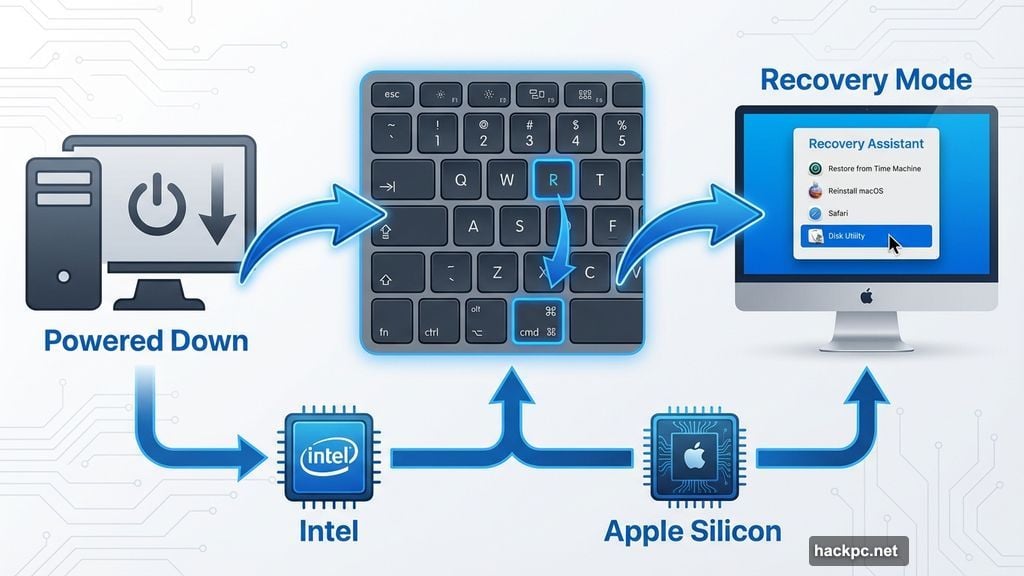
First, completely power down your Mac. Don’t just put it to sleep. From there, the process splits based on your Mac’s processor.
For Intel-based Macs, press and hold Command+R on your keyboard. Then press the power button while continuing to hold Command+R. Keep holding until you see a progress bar under the Apple logo.
For M1, M2, or M3 Macs, press and hold the power button until you see startup options appear. Click the Options button, then select Recovery.
Once you’re in Recovery Mode, click Utilities in the menu bar. Select Terminal from the dropdown. In the Terminal window that appears, type “resetpassword” as one word. Press Return.
Close the Terminal window. The Reset Password tool will launch. Sign in with your Apple ID if prompted. Select the user account that needs a new password and follow the instructions.
FileVault Users Get Extra Options
FileVault encrypts your entire Mac hard drive. If you enabled it, you have two additional recovery paths.
The first option: Wait about a minute on the login screen after entering wrong passwords. You’ll see a message instructing you to press the power button to restart into Recovery Mode. Follow those prompts.
The second option requires your FileVault recovery key. You should have written this down when you first enabled FileVault. Most people skip this step, unfortunately.
If you did save your recovery key, enter it after three failed login attempts. Use uppercase letters and include the hyphens. They’re required for the key to work.
Without the recovery key, you’ll need to use one of the other methods I described above.
The Nuclear Option: Reinstall macOS
If absolutely nothing works, you can reinstall macOS from Recovery Mode. This is the last resort because it’s time-consuming and requires backups.
Boot into Recovery Mode using the steps I outlined earlier. Instead of using Terminal to reset your password, select “Reinstall macOS” from the utilities window.
This preserves your files if you have Time Machine backups. Without backups, you’ll lose everything. So this option only makes sense if you’ve been diligent about backing up your data.
Honestly, one of the other methods will probably work before you need to go this far.
Why You Can’t Just View Your Current Password
People often ask why macOS won’t just show them their forgotten password. The answer is security.
If anyone could view stored passwords without authentication, your Mac would be vulnerable to anyone with physical access. The password reset process at least requires your Apple ID or admin credentials.
You can view passwords you’ve saved for websites and apps, though. On macOS Sequoia, open the Passwords app and sign in with Touch ID or your user password. On earlier versions, find this in System Settings under Passwords.
But your Mac login password remains hidden for good reason.
Lock Down Your Mac to Prevent This Mess
Getting back into your Mac is possible, as you’ve seen. But that means anyone with physical access can also get in using these same methods.
The best defense is being proactive during setup. Store your FileVault recovery key somewhere safe. Use a strong password you’ll actually remember. Consider using a password manager.
Better yet, enable two-factor authentication on your Apple ID. This adds an extra security layer that makes unauthorized access much harder.
Your Mac’s security is only as strong as your password habits. These recovery methods are lifesavers when you forget. But they’re also potential vulnerabilities if you don’t take precautions.
Choose a memorable password. Write it down and store it securely. Your future self will thank you for avoiding this entire headache.




Comments (0)