
Apple quietly brought one of the iPhone’s best accessibility features to Mac this year. Most people missed it.
Magnifier arrived on macOS 26 Tahoe without much fanfare. But after testing it for classroom work and daily tasks, it’s become surprisingly useful. Far more than just a webcam zoom tool.
Let me show you why this matters and how to actually use it.
What Magnifier Actually Does
Magnifier turns your MacBook’s camera into a powerful magnification tool. Think reading distant whiteboards, zooming in on documents, or getting a detailed view of your face for makeup application.
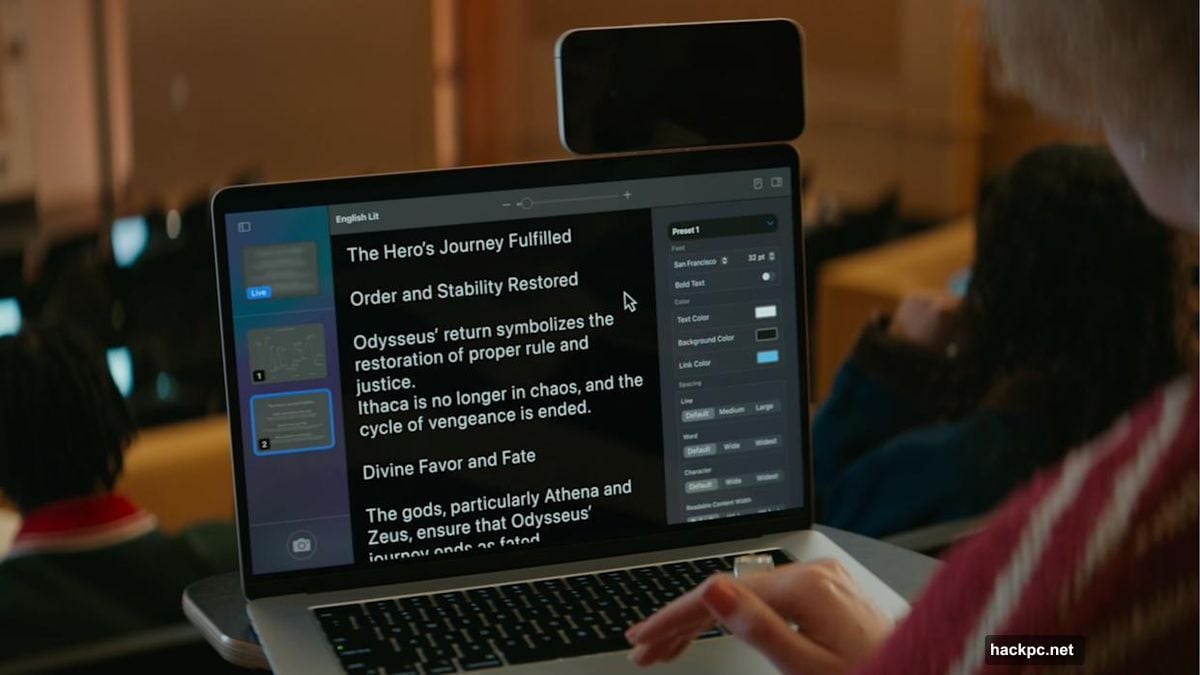
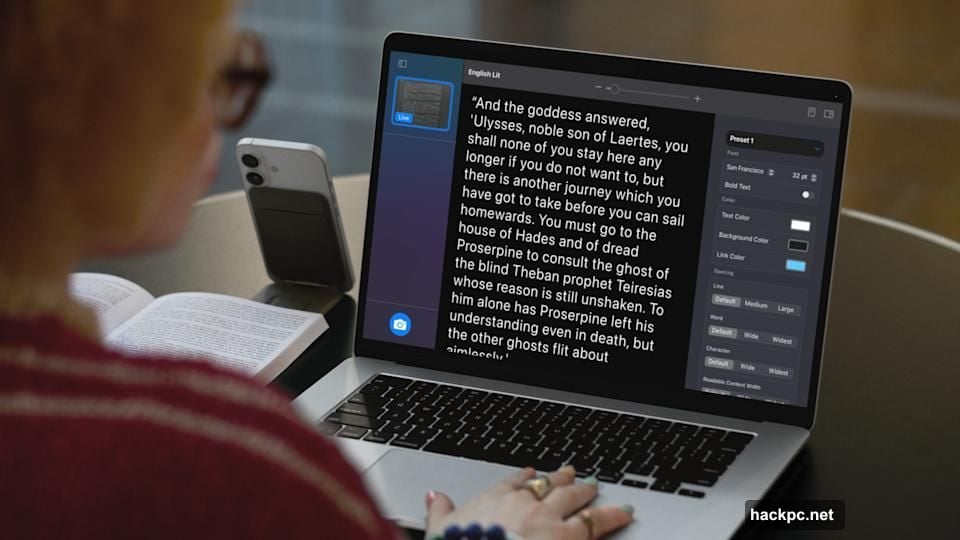
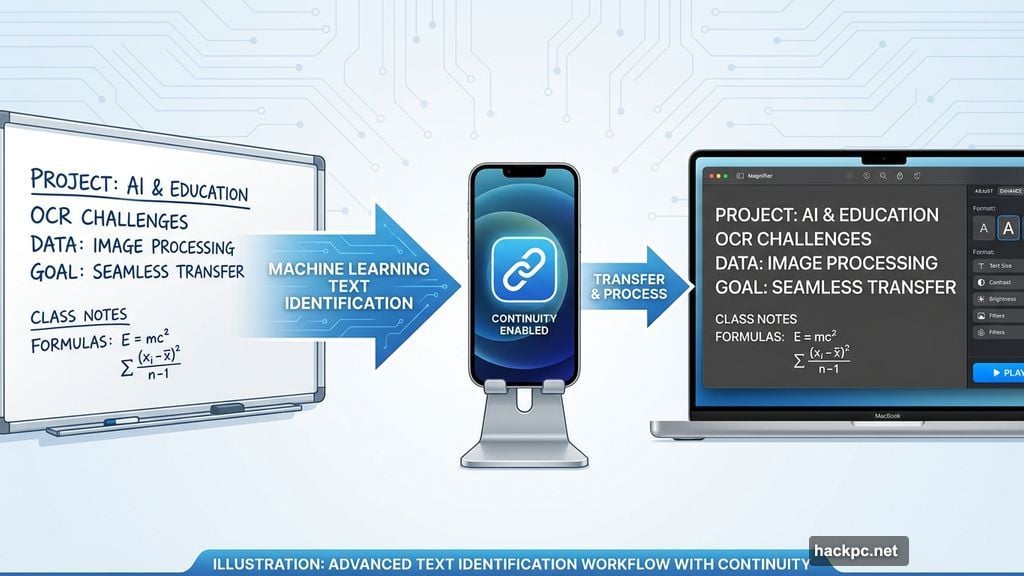
But here’s where it gets interesting. The app uses machine learning to identify and reformat text from whatever your camera sees. That means you can capture text from a whiteboard across the room and have your Mac display it in a readable format with custom fonts and colors.
Plus, the tool works with your built-in webcam, third-party cameras, or even your iPhone through Apple’s Continuity feature. That flexibility makes it genuinely practical for different situations.
Reading Text From Your Desk
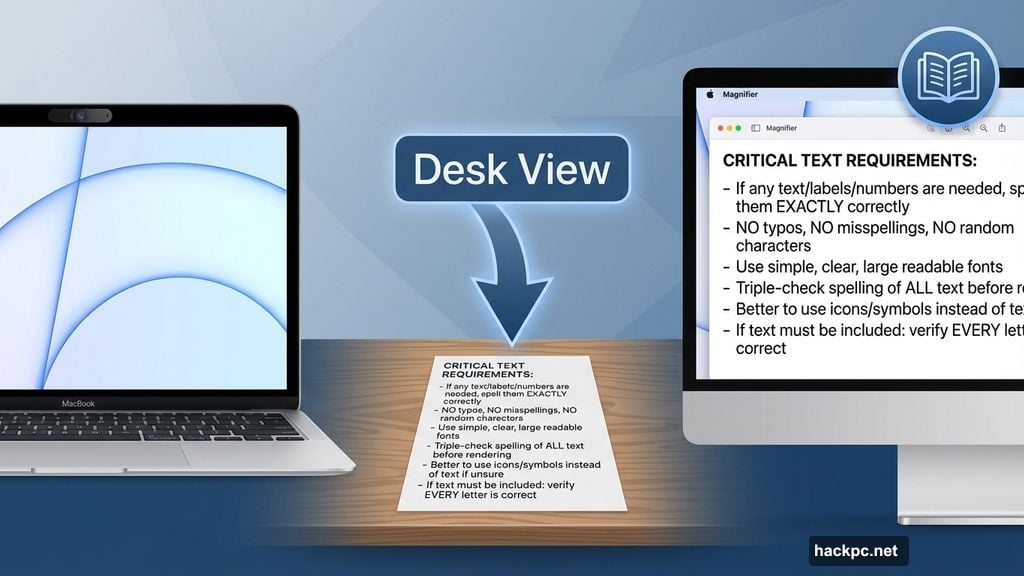
The most impressive feature leverages macOS’s Desk View capability. Position your camera to look down at your desk and Magnifier can identify and format any text it sees.
Here’s how it works:
Open the Magnifier app on your Mac. Click Camera in the menu bar and select your Desk View camera from the dropdown. Then click the Reader icon near the top-right corner (it looks like a simple document illustration).
Now Magnifier identifies text from documents on your desk and displays it in the main window. Click the sidebar menu icon to access formatting options. Apple lets you change text color, font, background, and other customization settings.
Want to hear the text read aloud? Click the Play button in the top-right corner. You can pause playback, skip between lines, or adjust reading speed using the 1x button dropdown menu.
Capturing Distant Text
Classrooms and meeting rooms present a different challenge. But Magnifier handles those scenarios too.
Position a webcam or iPhone camera facing away from you toward whatever text you want to capture. Then swap to that camera via the Camera section in Magnifier’s menu bar.
The app works the same way as Desk View mode. Click the Reader icon and Magnifier identifies and formats the text. You can adjust formatting, listen to playback, or snap a photo to review later.
One catch: third-party webcams can introduce lag. During testing, a Logitech webcam produced noticeably laggy video feed. But both the MacBook’s built-in camera and a connected iPhone worked smoothly.
Zooming In On Yourself
By default, Magnifier uses your MacBook’s built-in webcam. That means you see yourself and whatever’s behind you when you first open the app.
This might seem odd for a magnification tool. But it’s genuinely useful for applying makeup, inserting contacts, or any task requiring a detailed face view.
Here’s how to use it:
Open Magnifier. Select Camera from the top menu bar and choose your preferred camera from the dropdown. Then use the slider at the top center of the window to zoom in.
The main window shows your zoomed live feed. Click the Camera button in the bottom-left corner to snap a photo. All captured photos appear in the left sidebar where you can review them, zoom further, and adjust visual settings like brightness and contrast through the Image menu.
Real-World Performance Notes
After extensive testing, the built-in webcam and iPhone cameras delivered the best experience. Third-party webcams varied wildly in quality.
If your external webcam produces laggy video, switch to the built-in camera. The difference is significant. Apple’s hardware integration really shows here.
The text identification works remarkably well in good lighting. But it struggles with handwritten notes or heavily stylized fonts. Standard printed text gets identified with impressive accuracy though.
System Requirements Matter
Magnifier requires macOS 26 Tahoe. That limits which MacBooks can run it. Check your system compatibility before expecting this feature.
The app works with built-in webcams, third-party cameras, or iPhones via Continuity. But performance varies dramatically between camera types. Stick with Apple’s own hardware when possible.
Why This Actually Helps
Accessibility features often prove useful far beyond their intended audience. Magnifier follows that pattern.
Students in large lecture halls can capture whiteboard content without squinting. Remote workers can zoom in on physical documents during video calls. Anyone applying makeup gets a detailed mirror alternative.
The text identification and reformatting stands out as genuinely innovative. Other screen magnification tools simply enlarge pixels. Magnifier actually processes and restructures text for readability.
That’s the difference between a basic zoom tool and something actually thoughtful. Apple nailed the implementation here even if the marketing didn’t make much noise about it.
Give it a try if your MacBook runs Tahoe. You might find uses you didn’t expect.




Comments (0)