
Meta shoved AI into Facebook, Instagram, and WhatsApp. No off switch exists. But you can mute it completely.
Billions use Meta apps daily. Most either embrace Meta AI or actively avoid it. The problem? You can’t actually disable it on Facebook and Instagram. Even Google lets you turn off AI on most products. Meta doesn’t offer that courtesy.
So here’s your next best option. Muting Meta AI won’t delete it entirely, but it drastically reduces its presence. You’ll stop seeing notifications, chat previews, and unsolicited AI interactions. That’s as close to removal as Meta allows.
Silencing Meta AI on Instagram
Instagram forces Meta AI into your message suggestions. You didn’t ask for it. It just appears there, waiting.
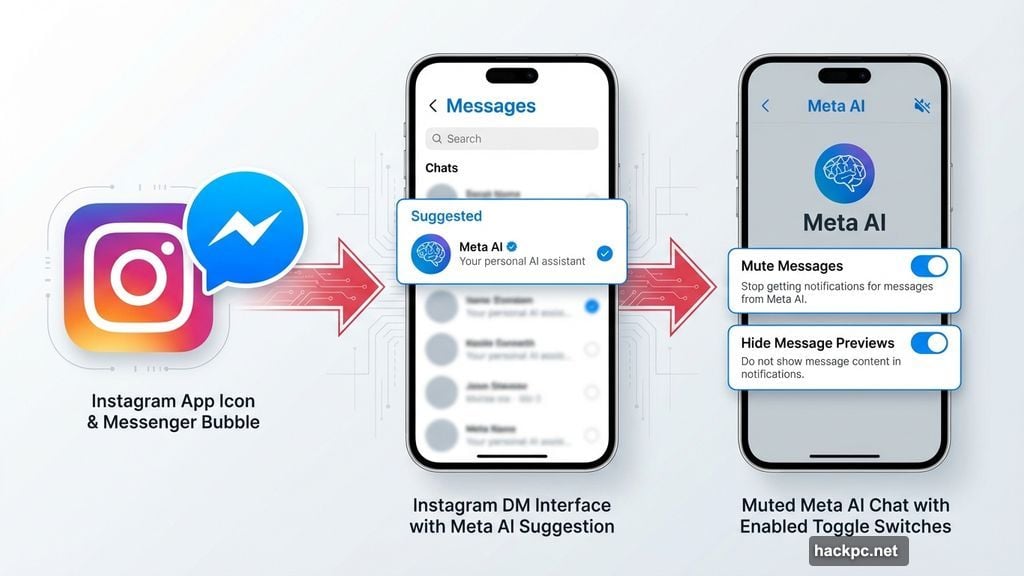
Here’s how to shut it down. Open Instagram and tap the Messenger icon at the top right. Then tap the new message icon to start a conversation.
Meta AI will likely sit in the “suggested” section. If not, search for it manually. Once you find it, open the chat and tap the “i” icon in the top right corner.
Now tap Mute. Toggle on “Mute Messages” and select “until I change it.” For good measure, also enable “Hide Message Previews.” This prevents Meta AI from popping up in your notifications ever again.
Plus, this takes about 30 seconds total. Small effort, big payoff.
Killing AI Comment Summaries on Facebook
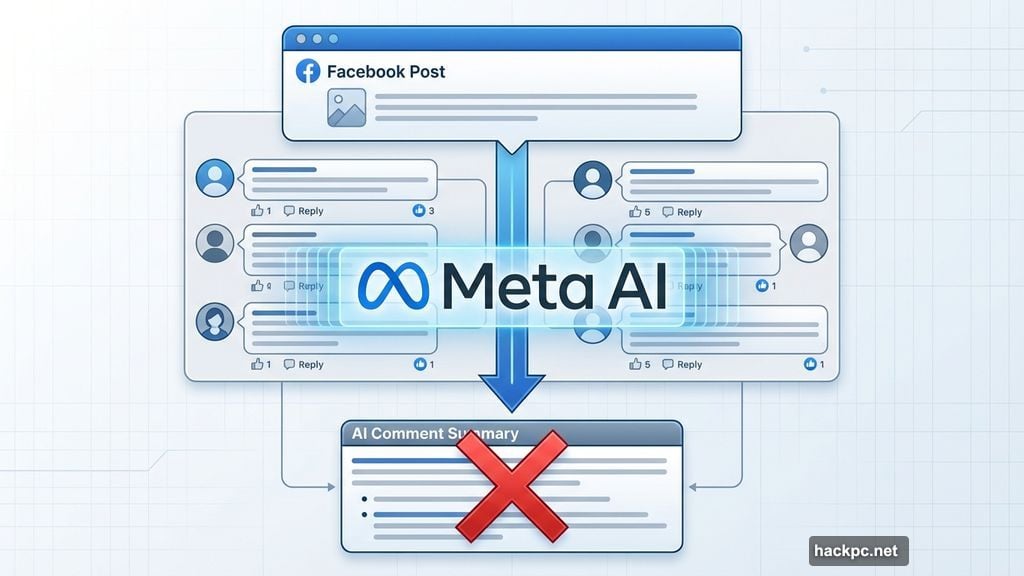
Meta AI doesn’t just lurk in Facebook’s search bar. It also scans comment sections and generates summaries without asking permission. These summaries appear on your posts, giving readers a quick overview instead of actual human responses.
Want that gone? Here’s the process. Click your profile picture on desktop or tap the menu icon on mobile (bottom right corner). Then select “Settings & Privacy” followed by “Settings.”
Scroll down to the “Audience and Visibility” section. Look for “Posts” and tap or click it. You’ll see a toggle labeled “Allow comment summaries on your posts.” Turn that off immediately.
This change applies across both mobile and web automatically. So you only need to do this once, thankfully.
Muting Meta AI in Facebook Messenger
Facebook Messenger treats Meta AI like a real contact. It shows up in your chat list, waiting for engagement.
To mute it, open the Facebook app and tap the Messenger icon. Tap the search bar at the top, then select the blue and purple Meta AI icon. This opens a direct chat with the AI assistant.
Next, tap the “i” icon in the top right corner. Select “Mute” from the menu. Just like Instagram, this prevents notifications and chat previews from appearing.
Remember, changes here sync between mobile and desktop. Do it once, forget about it.
WhatsApp Requires One Extra Step
WhatsApp users face a slightly different process. You can’t mute Meta AI until you’ve started a conversation with it first. Yes, that’s annoying.
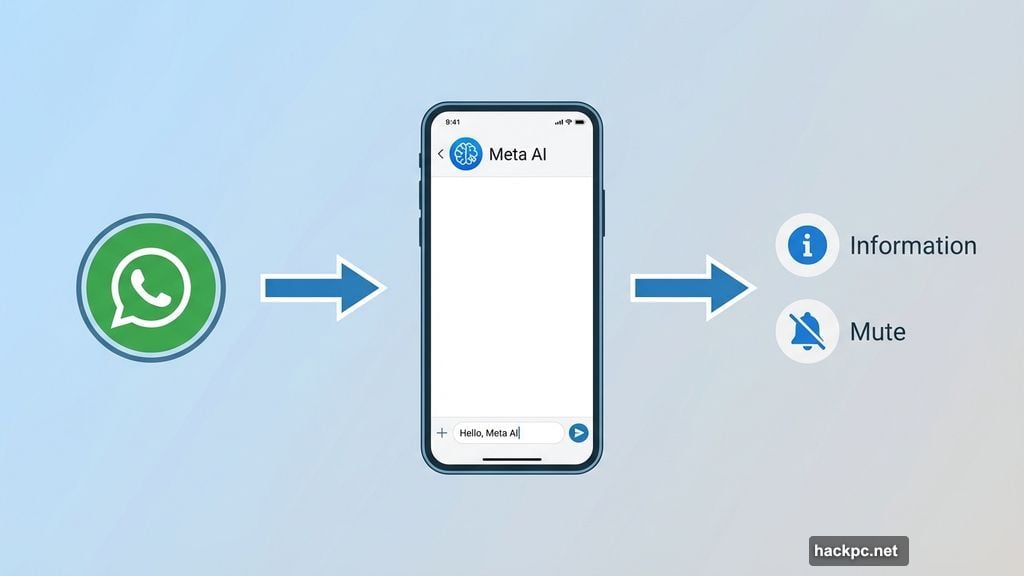
Open WhatsApp and tap the Meta AI icon at the top of your screen. Type literally anything in the chat and send it. Doesn’t matter what you write—just get that first message out.
Then go back to view all your chats. Swipe the Meta AI conversation to the left and tap “More.” Select “Mute” from the options that appear.
Finally, choose “Always” from the popup menu. This ensures Meta AI stays silent permanently unless you manually unmute it later.
Why Meta Won’t Let You Delete It
Meta claims AI enhances user experience. Translation? They’re betting heavily on AI becoming essential to social networking. So they’re forcing exposure hoping users eventually adopt it.
But here’s the reality. Most people don’t want AI interrupting their social media browsing. They want to connect with friends, share photos, and scroll mindlessly. Meta AI adds friction to that experience.
Still, Meta won’t budge on adding a proper disable option. Their strategy relies on constant visibility and engagement. Removing that option would undermine their entire AI integration plan.
So muting is your only defense for now. It’s not perfect, but it works well enough to reclaim some control over your feeds.
One Last Thing
If you change your mind later, unmuting Meta AI is simple. Just reverse the steps above and toggle settings back on. The AI assistant will resume notifications and chat previews immediately.
But honestly? Most people who mute it never look back. The apps work better without constant AI interruptions. That’s worth the minute it takes to silence it properly.




Comments (0)