

Think incognito mode makes you invisible online? Bad news. Your browser hides your history from nosy roommates. But your computer, router, and internet provider see everything.
Most people never check where these records hide. So let’s fix that. I’ll show you exactly where your “private” browsing gets logged on Windows, Mac, Android, and iPhone. Plus, how to actually delete it all.
What Incognito Really Hides (Spoiler: Not Much)
Private browsing stops your browser from saving three things locally. That’s history entries, cookies, and autofill data. Great if you share a laptop. Useless for actual privacy.
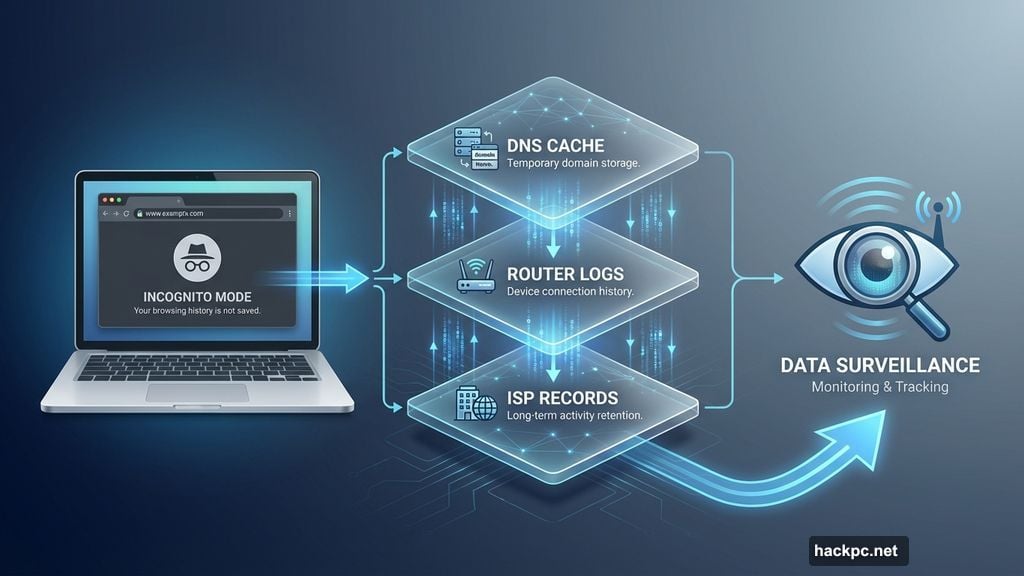
Meanwhile, your system keeps DNS logs of every site you visit. Think of DNS as your computer’s phonebook. It translates “google.com” into IP addresses computers understand. Each lookup gets cached, whether you’re in private mode or not.
Your router logs connections too. So does your internet provider. Plus, any browser extensions you allowed in incognito keep tracking you. Private mode only works on your device. Everyone else still sees where you go.
VPNs Actually Help (Unlike Incognito)
Want real privacy? Combine private browsing with a VPN. Virtual private networks encrypt your traffic and mask your IP address. That stops your provider, router, and most trackers from seeing your activity.

But here’s the catch. Free VPNs often sell your data anyway. Paid services like NordVPN or ExpressVPN cost around $5-12 monthly. They’re worth it if privacy matters to you.
Finding Hidden Traces on Windows
Windows stores DNS entries in system memory. You can view them through Command Prompt. Most people never look here. But it’s easier than you’d think.
First, open the Start menu. Type “cmd” in the search box. Then right-click “Command Prompt” and select “Run as administrator.” Windows needs elevated permissions for DNS access.
Now type ipconfig /displaydns and press Enter. Your screen fills with domain names. These are all the sites your computer contacted recently, including everything from incognito sessions. Each entry shows the website name and when it was cached.
Mac Requires Two Built-In Apps
Macs hide DNS logs deeper than Windows. You need Console and Terminal to extract them. Apple designed this process for developers, not everyday users. But anyone can follow these steps.
Open Console first. Find it under Applications, then Utilities. Select your Mac in the left sidebar. Then type “mdnsresponder” in the search field at the top right. Click the play icon to start monitoring.
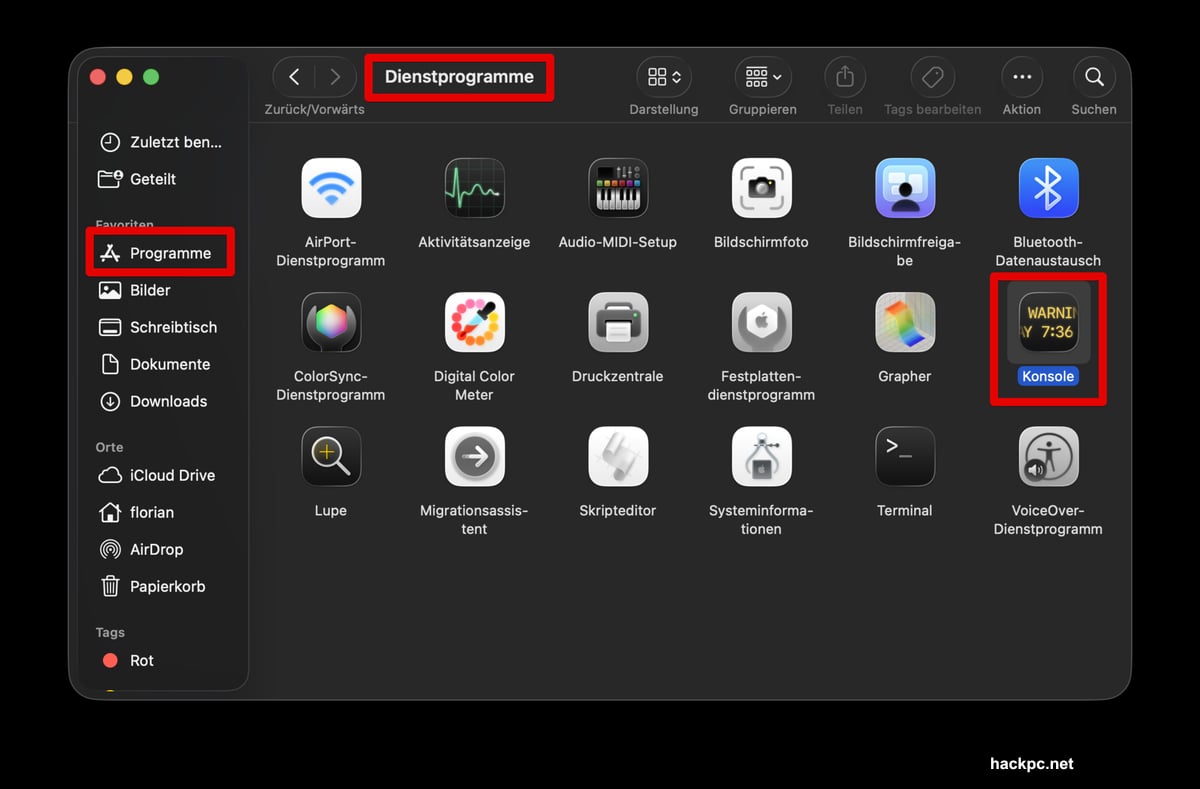
Next, launch Terminal from the same Utilities folder. Type sudo killall -INFO mDNSResponder carefully. Hit Enter. Mac asks for your administrator password. Type it blindly (nothing appears on screen) and press Enter again.
Switch back to Console. Now you see every DNS query, including sites you visited in private mode. The list updates in real time as you browse.
Android and iPhone Block Direct Access
Mobile operating systems don’t expose DNS caches like computers do. Apple and Google locked them down tight. So checking incognito traces requires workarounds.
Third-party monitoring apps like Hoverwatch or AirDroid can track browsing on Android. Parental control tools work for iPhone. But these solutions only log future activity. They can’t show past incognito sessions. Plus, they need extensive device permissions. Use them cautiously.
Deleting Windows DNS Traces Takes One Command
Clearing Windows DNS cache erases all those incognito traces. The process takes five seconds. Open Command Prompt as administrator again (same steps as before).

Type ipconfig /flushdns and press Enter. Windows immediately deletes every cached DNS entry. Your incognito history disappears along with regular browsing records. The system rebuilds its cache as you visit new sites.
Mac Deletion Works Similarly
Mac uses a different command but the same concept. Open Terminal from Utilities again. Type sudo killall -HUP mDNSResponder exactly as shown. Press Enter.
Mac prompts for your administrator password again. Enter it blindly and confirm. The command forces your Mac to dump and rebuild its DNS cache instantly. All previous queries vanish, including incognito sessions.
Chrome Hides a Secret DNS Page
Mobile devices don’t show DNS caches openly. But Chrome includes a hidden diagnostic page that works on both Android and iPhone. This trick bypasses the operating system entirely.
Open Chrome on your phone. Tap the address bar and type chrome://net-internals/#dns carefully. This internal Chrome page normally helps developers debug connection issues. But anyone can use it.
Look for the button labeled “Clear host cache.” Tap it once. Chrome instantly deletes all cached DNS queries. Your incognito traces disappear immediately. This works regardless of your phone’s operating system.

Other Mobile Browsers Need Different Tactics
Firefox, Brave, Edge, and Safari don’t include Chrome’s hidden DNS page. So you need alternative methods. Two simple options work for any browser.
First option: Restart your phone completely. Both Android and iOS clear DNS caches during reboot. It’s the nuclear option. Everything closes and reopens. But it guarantees a clean slate.
Second option: Toggle airplane mode. Swipe down to access quick settings. Turn on airplane mode. Wait 10-15 seconds. Turn it off again. This shorter process also dumps the DNS cache without restarting everything else.
Router Logs Don’t Disappear Automatically
Even after clearing device caches, your router keeps its own logs. Most home routers record every site your network visits. These logs persist until you manually delete them or the router runs out of storage.
Access your router’s admin panel through a web browser. The address is usually 192.168.1.1 or 192.168.0.1. Check the label on your router if those don’t work. You’ll need the admin password (often printed on the router too).
Look for sections labeled “Logs,” “System Log,” or “Event Log.” The exact location varies by manufacturer. Find the option to clear or delete logs. Some routers let you disable logging entirely. That prevents future tracking at the network level.
Your ISP Sees Everything Anyway
Here’s the uncomfortable truth. Clearing local caches doesn’t touch your internet provider’s records. They log every DNS request from your network. Federal law sometimes requires them to keep these records for months or years.
Only a VPN prevents ISP tracking. It routes your traffic through encrypted tunnels to VPN servers. Your provider sees you connected to the VPN. But not which sites you visit through it. That’s why privacy advocates recommend VPNs for sensitive browsing, not incognito mode.
Browser Extensions Can Bypass Incognito
Some browser extensions run in private mode if you explicitly allow them. Password managers and ad blockers commonly get this permission. But tracking extensions can abuse it too.
Check which extensions have incognito access. In Chrome, type chrome://extensions in the address bar. Look for the “Allow in Incognito” toggle under each extension. Disable it for anything you don’t absolutely need. Firefox and Edge have similar settings pages.
Clear Everything in One Go
Want to delete all traces at once? Combine these methods in sequence. First, clear browser data through settings. That removes any remnants incognito missed. Then flush your system’s DNS cache using the commands above. Finally, clear your router logs through its admin panel.
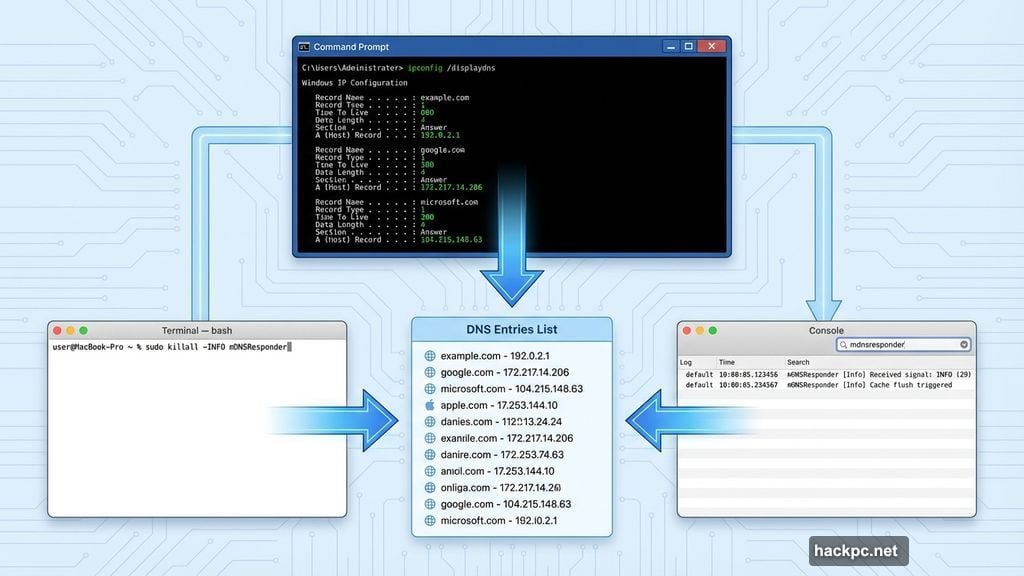
This three-step process eliminates local traces completely. Your ISP still has records unless you used a VPN. But anyone with physical or network access to your devices finds nothing. That’s the best you can achieve without additional privacy tools.
When Incognito Actually Helps
Private browsing serves one purpose well. It prevents other users of your device from seeing what you did. Your teenager can’t check your birthday shopping. Your coworker can’t view sites you visited on a shared work laptop. That’s useful in its limited scope.
But incognito never promised anonymity from ISPs, employers, or network administrators. Browser makers clearly state this in warning screens when you open private windows. Most people just click past without reading. Then they’re surprised when their boss questions their browsing habits.
Real Privacy Requires Real Tools
Incognito mode combines well with other privacy measures. Use it alongside a reputable VPN. Add a DNS-over-HTTPS provider like Cloudflare’s 1.1.1.1 or Google’s 8.8.8.8. These encrypt DNS queries so your ISP can’t see domain names, only that you’re using encrypted DNS.
Consider privacy-focused browsers like Brave or Firefox with strict tracking protection. They block many trackers by default. Configure search engines like DuckDuckGo that don’t store search histories. Each layer adds protection.
But remember the tradeoff. Stronger privacy often means slower performance and occasional website compatibility issues. You choose how much convenience to sacrifice for privacy. Just make that choice consciously, not by assuming incognito mode does more than it actually does.




Comments (0)