
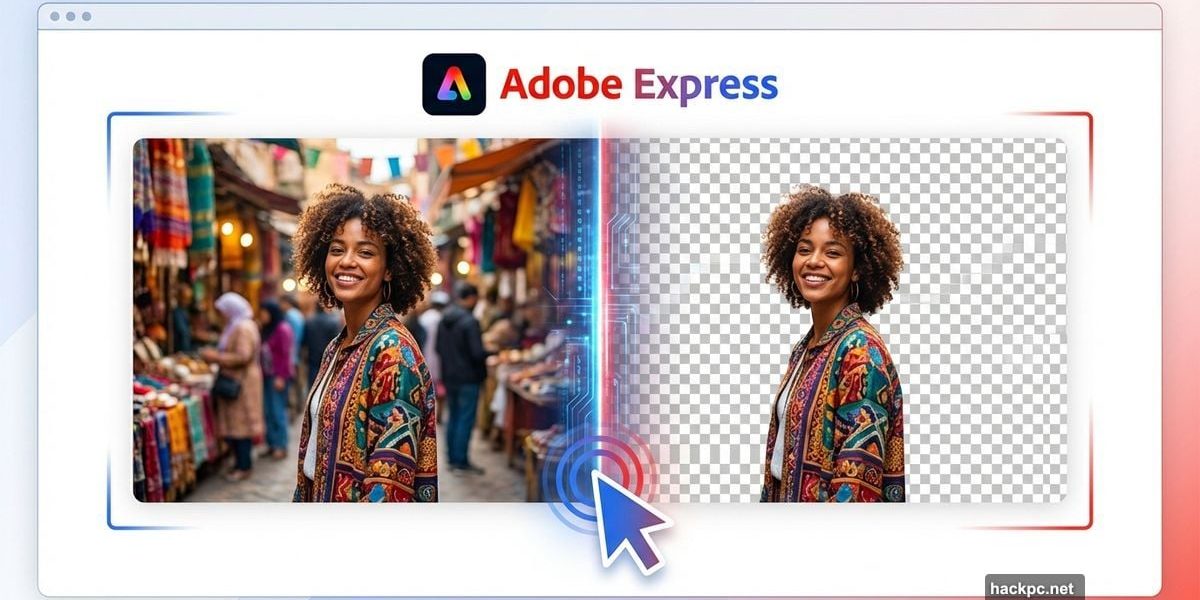
Need to cut someone out of a cluttered background? Want your product photos to look professional without spending hours in Photoshop? Adobe Express gives you a dead-simple way to remove backgrounds using AI.
The tool works in your browser or mobile app. Plus, you can use it for free without entering payment details. Let’s walk through exactly how it works and what to watch out for.
What You’ll Need to Get Started
First, create a free Adobe account if you don’t have one. Then access Adobe Express through your web browser or download the iOS or Android app.
The free plan includes background removal along with basic editing tools. You also get a limited pool of AI credits each month. That’s usually enough to experiment with several images before deciding if you need more advanced features.
So you won’t hit a paywall immediately. But heavy users might bump into credit limits eventually.
How the Background Removal Actually Works
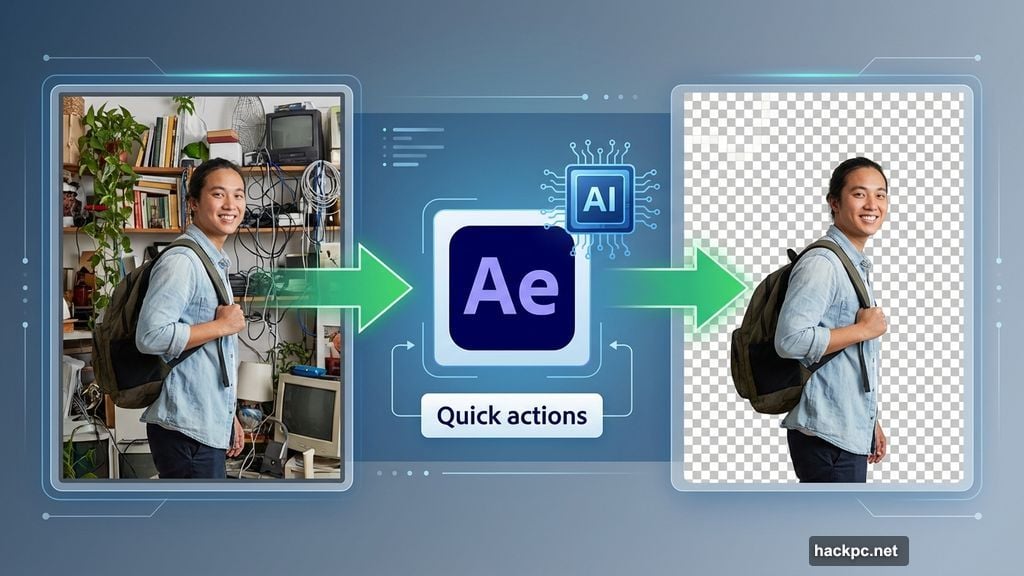
The process takes just a few clicks once you’re set up. Open Adobe Express and look for the “Quick actions” panel on the home screen. You’ll find “Remove background” listed there.
Alternatively, create a new project first. Add your image to the canvas, select it, then choose the background removal option from the editing toolbar.
On mobile, the flow is nearly identical. Create a project, add a photo from your camera roll, tap the image, then look for the removal control in the toolbar.
Now upload your JPEG or PNG. Drag and drop works, or browse your local or cloud storage. The AI typically processes your image within seconds.
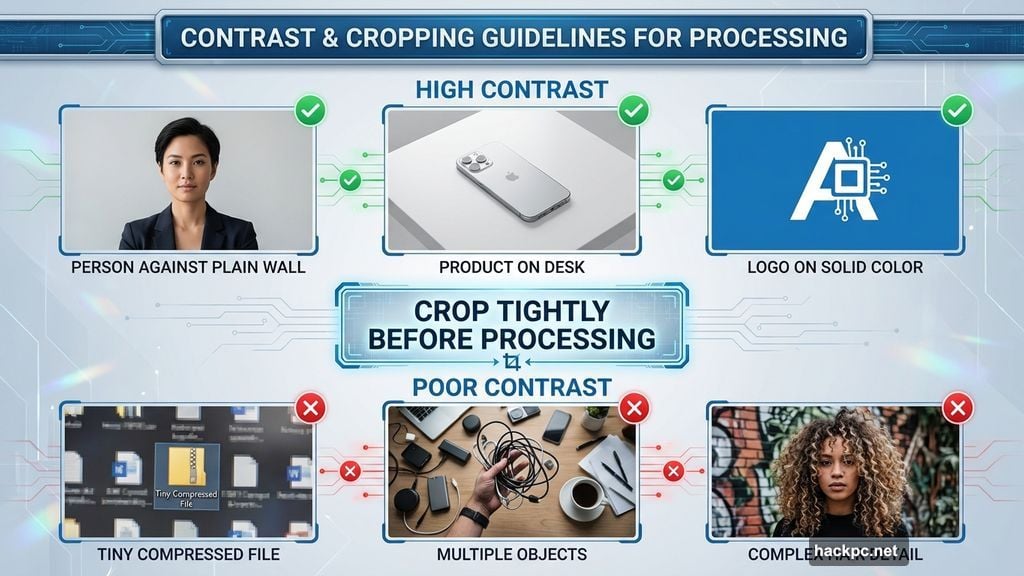
In testing, the tool works best with clear subjects. Think a person against a plain wall, a product on a desk, or a logo on solid color. The more contrast between subject and background, the cleaner your result.
If the first attempt looks messy, don’t fight it. Instead, crop your original image so the subject stands out more clearly. Then run the removal tool again. That usually works better than trying to fix a bad mask.
Once you’re happy with the cutout, download it as a PNG with transparent background.
Pro Tips for Better Results
Starting with the right kind of image makes a huge difference. Use high-resolution photos where possible. Avoid tiny, heavily compressed files if you can.
Make sure your subject has decent contrast against the background. Also, crop tightly before running the tool. That forces Adobe Express to focus on the person or product rather than guessing between multiple objects.
After removal, consider adding subtle drop shadows or outlines. That prevents your subject from looking pasted on.
For complex subjects like hair or glass, you might need multiple attempts. Sometimes adjusting the original photo’s brightness or contrast helps the AI see edges more clearly.
What the Free Version Can’t Do
Adobe Express makes background removal accessible, but the free plan has limits. Background removal draws from the same AI credit pool as other generative features. Heavy users will exhaust credits quickly.
Quality varies depending on your image. The tool handles straightforward subjects well. But it struggles with fine hair, transparent glass, motion blur, or busy low-contrast backgrounds.
For occasional use, the free version works fine. For higher volumes or precise control, you’ll need a paid Express plan or full Creative Cloud subscription.
Batch processing isn’t available either. You’ll work on one image at a time, which gets tedious for large projects.
When Free Actually Means Free
Adobe Express lets you use background removal without payment details. You just need to stay within your monthly AI credit allowance.
That’s genuinely useful for occasional projects. Small business owners cleaning up product photos, students working on presentations, or social media managers touching up content can all benefit without spending money.
Just monitor your credit usage if you’re working on multiple images. The counter appears in your account dashboard.
Frequently Asked Questions
Does Express compress my images when exporting?
Yes, some compression happens during export. Always check the downloaded file quality before using it in important projects.
Can I use cutouts in commercial work?
Generally yes, but verify Adobe’s current license terms. Rules change, and you don’t want licensing issues later.
Does it work on logos and graphics?
Usually, especially with simple, high-contrast designs. Complex graphics with gradients or transparency might need extra cleanup.
Can I process multiple images at once?
No. Adobe Express focuses on one design or template at a time. Batch processing isn’t available in the free version.
Do I need other Adobe apps installed?
Not at all. Everything runs in your browser or the Express mobile app. No Photoshop, Illustrator, or other Creative Cloud apps required.
Adobe Express fills a genuine gap for people who need quick background removal without learning complex software. The AI does solid work on straightforward images, and the free tier provides real value.
Just remember its limitations. For professional work requiring pixel-perfect masks or batch processing, you’ll eventually need more powerful tools. But for everyday cleanup? This gets the job done.



Comments (0)