
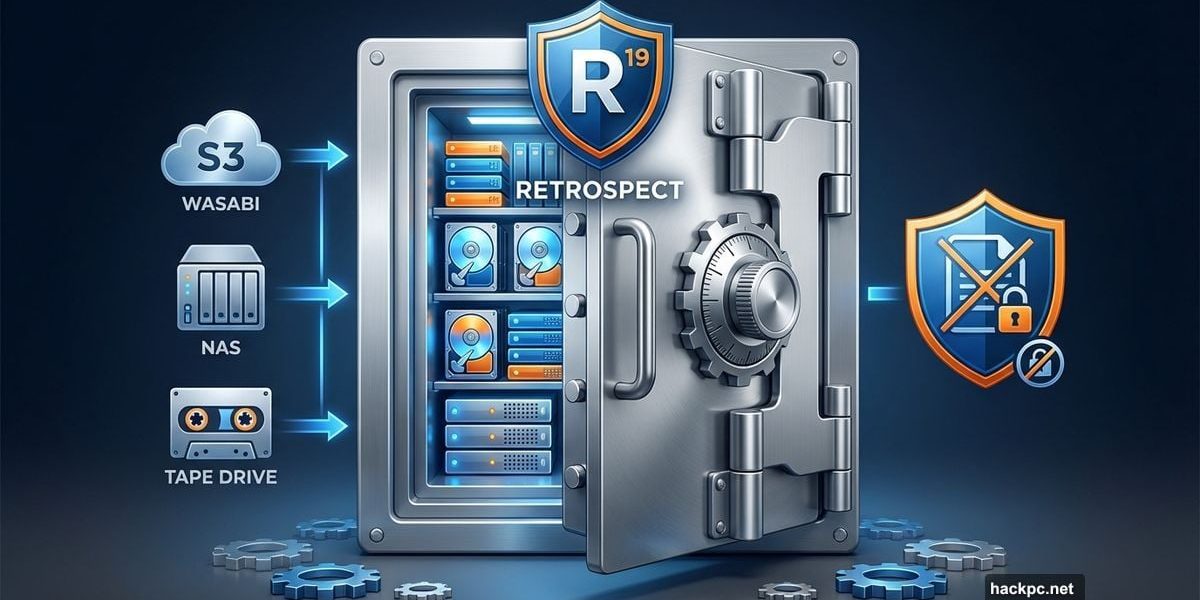
Most backup programs hold your hand through everything. Retrospect 19 Desktop doesn’t. Instead, it assumes you know what you’re doing and gives you the tools to do it your way.
That approach won’t work for everyone. But if you need granular control over backups, support for legacy hardware, or enterprise-level features without enterprise pricing, Retrospect deserves attention.
Three Decades of Backup Experience Shows
Retrospect has been around since the ’90s. Back then, it ran art departments using tape drives. Now it backs up to cloud storage, NAS boxes, and everything in between.
The longevity matters. Programs that survive three decades tend to be reliable and capable. Retrospect proves this point. It handles modern cloud services while still supporting tape libraries and optical discs if you need them.
Plus, the company keeps evolving. Version 19 adds cloud storage support and improved ransomware protection. These aren’t flashy features, but they’re practical ones that users actually need.
Cloud Storage Finally Arrives
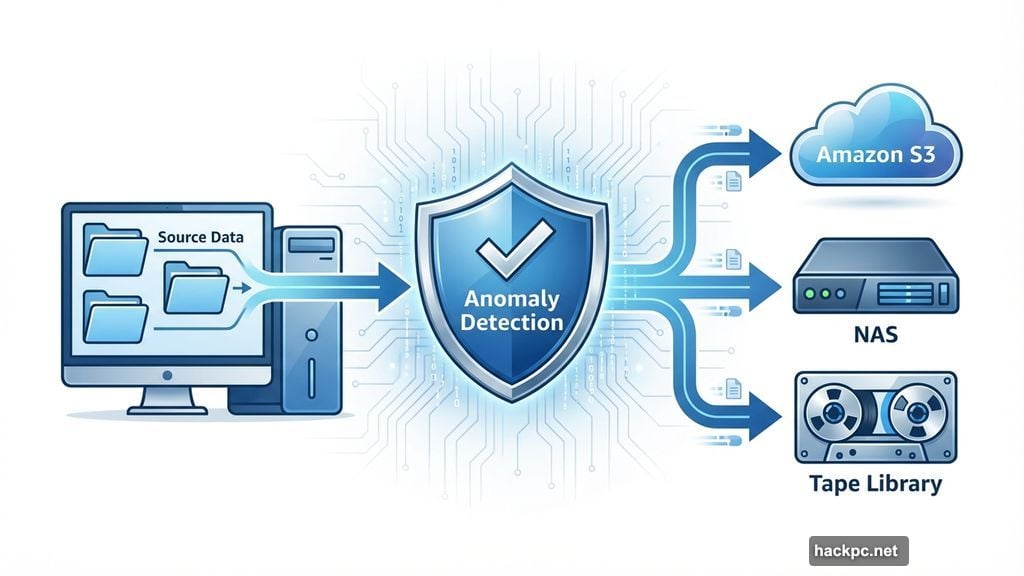
Retrospect 19’s biggest addition is cloud storage support. You can now back up to Amazon S3, Wasabi, Dropbox, Google Cloud, Azure, and Retrospect’s own branded service.
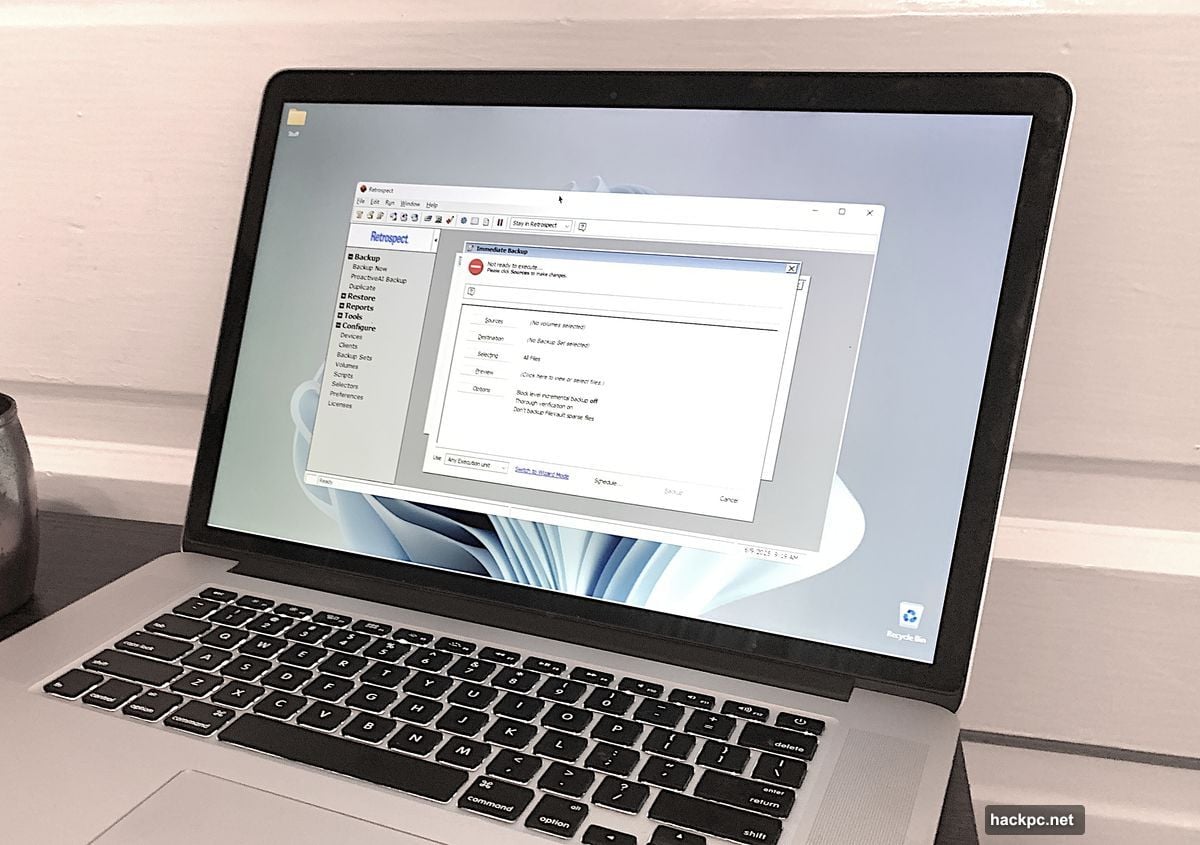
Missing from that list? OneDrive and Google Drive. That’s frustrating since these are popular consumer services. However, the supported options cover most business and power user needs.
Retrospect’s own cloud storage runs through Wasabi. Pricing starts at $21 monthly for 1TB, $92 for 5TB, and $174 for 10TB. That’s expensive. In fact, direct Wasabi pricing is $7 per TB monthly.
So while the integration is convenient, you’ll save money connecting directly to third-party services. Retrospect supports that option, though setup requires API keys and technical knowledge.
Ransomware Protection That Actually Makes Sense
Retrospect takes a different approach to ransomware than most backup software. It doesn’t try to stop attacks in real-time. Instead, it protects your backups from being overwritten with encrypted files.
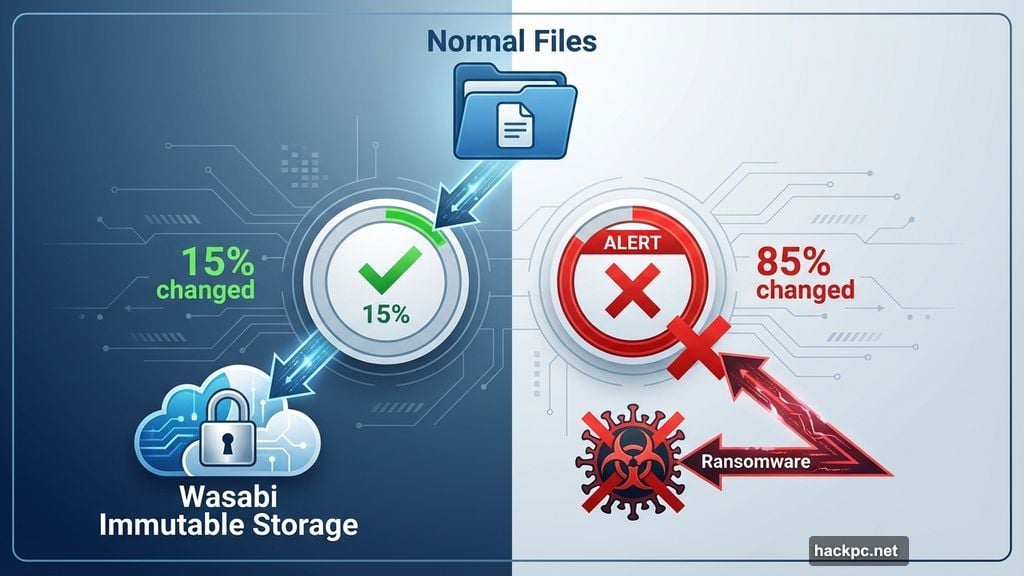
Here’s how it works. Before each backup starts, Retrospect checks how much data changed since the last run. If the percentage of new or altered files exceeds your threshold, it stops and alerts you. This prevents ransomware-encrypted files from replacing good backups.
The company calls this anomaly detection. It’s less resource-intensive than real-time monitoring. But it only works if you back up regularly. Daily backups give you the best protection.
Moreover, Retrospect now supports immutable cloud storage. Services like Wasabi and Backblaze B2 won’t let anyone delete or change files for a set period. Even attackers with your credentials can’t touch immutable backups.

There’s also a new comparison tool. It shows exactly what changed between backups. You can see if files got encrypted, deleted, or renamed in suspicious patterns. This gives you early warning before a full-blown ransomware disaster.
Features That Enterprise Software Provides
Retrospect packs capabilities you won’t find in consumer backup programs. Block-level backups only copy changed portions of files. Deduplication prevents backing up identical files multiple times. Both save storage space and bandwidth.
The scheduling system is incredibly detailed. You can set complex rules about when backups run, what triggers them, and what happens before or after. Pre- and post-backup scripts let you run maintenance tasks automatically.
File selection criteria are equally powerful. Retrospect includes preset filters for common file types. But you can create custom rules that include or exclude files based on size, date, location, attributes, or content.
Four execution units let you run multiple backup jobs simultaneously. Most programs limit you to one or two concurrent operations. With Retrospect, you can fire off four separate backups at once without performance degradation.
Disaster recovery features help restore Windows to different hardware. Though honestly, Windows 11 handles this better than older versions. I recently moved a Windows installation from AMD to Intel hardware with minimal fuss.
Legacy Support Nobody Else Offers
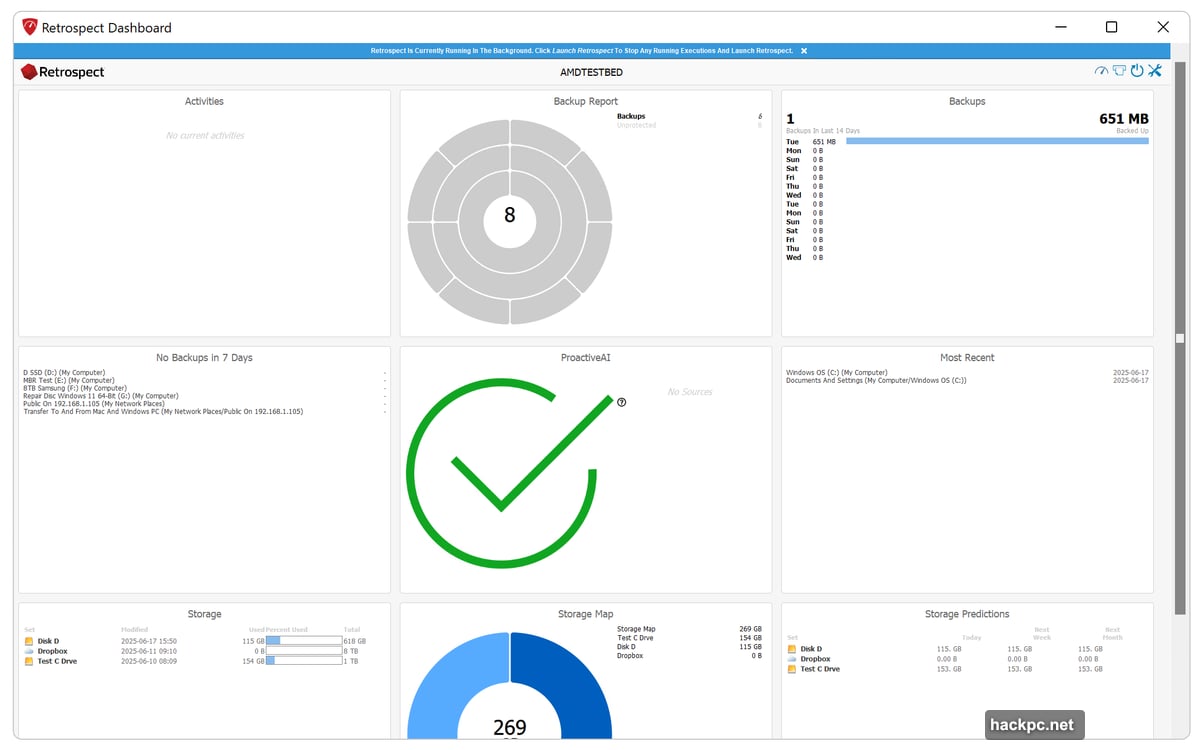
Retrospect backs up to and from more storage types than any competitor. Hard drives, SSDs, NAS boxes, network locations, optical discs, tape drives, and cloud services all work.
Tape support matters for businesses with existing tape infrastructure. Replacing that hardware costs serious money. Retrospect lets you keep using it until replacement makes financial sense.
The program also supports backup media rotation. You can define sets of drives or tapes and swap them according to a schedule. Seven drives, one for each day of the week, gives you a week of restore points.
Catalogs speed up restores from slow media. Retrospect stores indexes of backup contents separately from the actual data. This makes finding files on tape much faster than scanning the entire backup.
However, you need to back up these catalogs too. Losing a catalog means rebuilding it from the backup itself. That works, but it’s slow and annoying.
The Learning Curve Is Real
Retrospect functions differently than most backup software. Data sources are “Volumes.” Destinations are “Backup Sets.” Filters are “Selectors.” Jobs become “Scripts” when you schedule them.
This terminology makes sense once you learn it. But it’s not intuitive. Expect to spend time reading documentation before everything clicks.
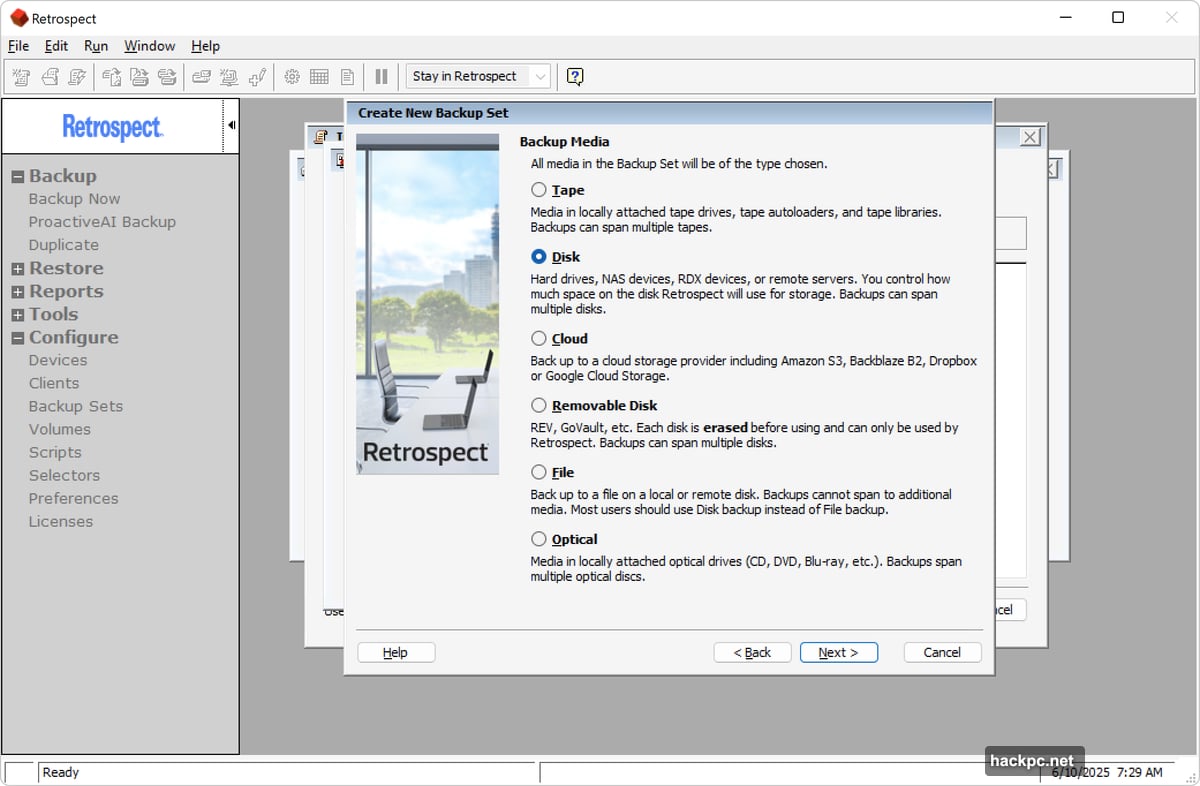
Adding network locations as backup sources confused me. First you add a “My Network” container. Then you double-click it and choose a protocol. Then you can browse or type the network path. Three steps for what should be one.
Cloud destinations require signing in for every backup job. Most programs save your credentials for reuse. Retrospect doesn’t. So setting up multiple cloud backups means logging in repeatedly.
I also hit a bug where network browsing returned errors. The workaround is typing the full network path manually. Tech support knew about this issue but hadn’t fixed it yet.
On the other hand, once you set everything up, Retrospect runs smoothly. I executed dozens of backups targeting USB SSDs, NVMe drives, and network locations. Zero failures. Zero corrupted files. Just reliable backups every time.
Performance Matches Enterprise Expectations
Backup speed was excellent. Retrospect pushed data to a 10Gbps USB SSD as fast as my system could feed it. Network backups maxed out my gigabit connection. Four simultaneous jobs ran without slowdowns.
Restores were equally fast. Small file restores took seconds. Recovering hundreds of gigabytes from cloud storage obviously took longer, but Retrospect maintained steady transfer rates throughout.
The anomaly detection worked as advertised. I renamed and altered various percentages of test files. Retrospect correctly flagged suspicious changes and stopped before overwriting existing backups.
Block-level backups and deduplication delivered real storage savings. Modified databases and virtual machine files only backed up changed blocks. Duplicate files across multiple sources stored once instead of repeatedly.
Pricing Requires Math
Retrospect Desktop costs $169 for a perpetual license covering one computer plus five network clients. Annual support and maintenance are included for the first year.
That’s expensive upfront compared to subscription programs. But perpetual licenses retain full functionality forever. You only pay again for major upgrades. Over several years, this becomes cheaper than subscriptions.
The Premium version adds dissimilar hardware support for $209. Honestly, Windows 11 handles hardware changes well enough that this feature is less critical than it used to be.
Cloud storage pricing needs improvement. Retrospect charges significantly more than going direct to providers. Shop around and connect your own accounts instead of using Retrospect’s branded service.
Who Should Choose Retrospect
Retrospect makes sense for specific users and scenarios. Power users who need granular control will appreciate the flexibility. Businesses with legacy tape infrastructure can keep using existing hardware. Anyone backing up complex environments with specific requirements will find the tools they need.
On the other hand, average home users should look elsewhere. Programs like Aomei Backupper or EaseUS Todo Backup offer simpler interfaces and cheaper pricing for basic needs.
Retrospect also suits paranoid types (like me) who want multiple backup destinations and rotating media. The program handles complex backup strategies without complaint.
The perpetual licensing model is another reason to choose Retrospect. If you’re tired of subscription backup software that stops working when you stop paying, Retrospect lets you buy once and use forever.
The Verdict
Retrospect 19 Desktop is backup software for people who know exactly what they need. It doesn’t simplify or hide complexity. Instead, it provides powerful tools and assumes you know how to use them.
That approach won’t appeal to everyone. The learning curve is steep. The interface shows its age. Some features require technical knowledge that average users lack.
But for the right audience, Retrospect delivers. It’s reliable, fast, and extraordinarily versatile. Plus, it supports storage types and backup strategies that no competitor matches.
If you need that level of control and don’t mind the initial time investment, Retrospect 19 Desktop will serve you well. Just understand what you’re getting into before you commit.



Comments (0)