
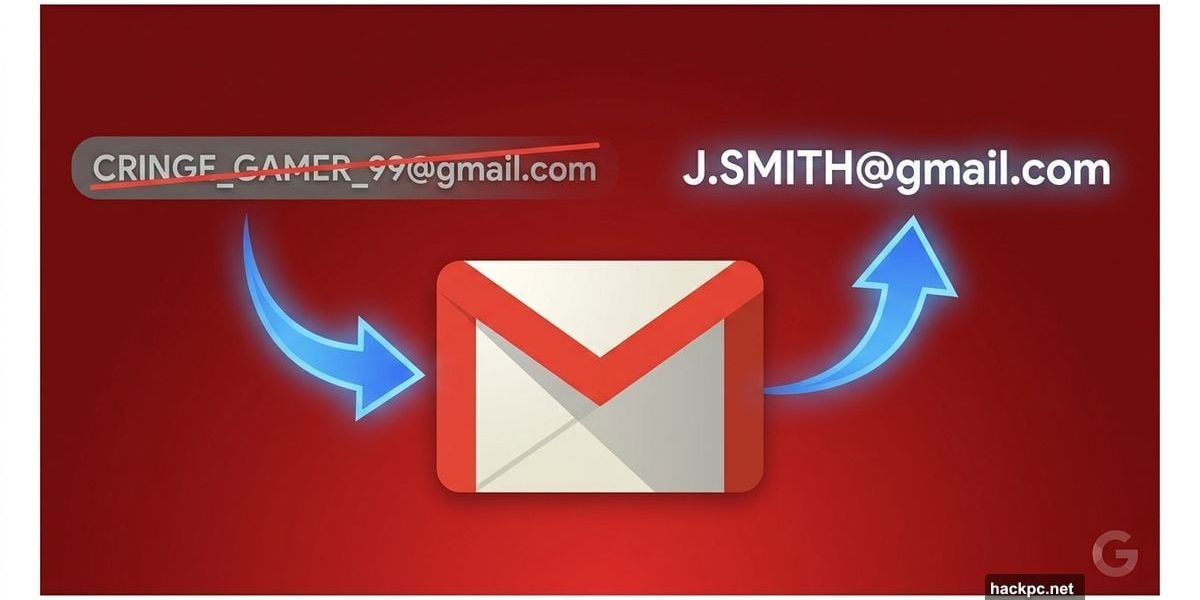
We’ve all been there. You’re filling out a job application or sending a professional email, and then you have to type it out: [email protected]. Or maybe it’s your childhood nickname followed by a string of random numbers your 12-year-old self thought was clever.
Good news. Google just rolled out a feature that lets you change your Gmail username, and it’s about time. Here’s everything you need to know before you make the switch.
Google Account Username Changes Are Finally Here
The feature is exactly what it sounds like. You can now update the part of your Gmail address that comes before @gmail.com. So coolgamer2007 can finally become something you’d actually want a future employer to see.
Google is rolling this out gradually to US users, so you might have access right now. Or you might need to wait a little longer. Either way, it’s coming.
The best part? You don’t lose anything when you change it.
Your Old Emails and Data Stay Safe
This is probably the first thing people worry about. Will changing your username mess up years of saved emails, Google Drive files, and photos?
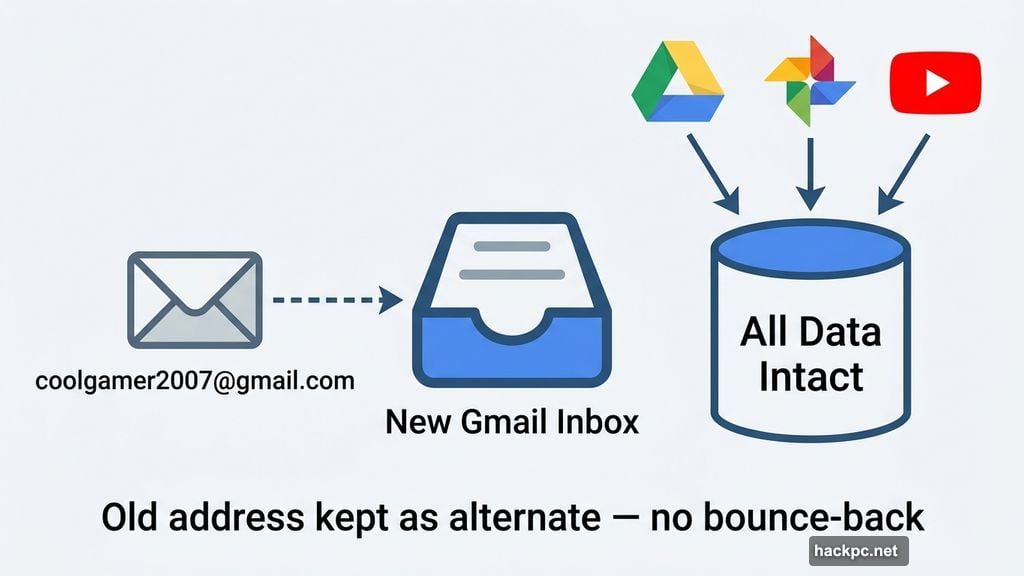
Short answer: no. Google automatically adds your old address as an alternate, so any emails sent to your previous username still land in your inbox. Nobody gets a bounce-back, and you don’t miss anything important.
Plus, all your data stays completely intact. Photos, Drive files, messages — everything carries over without interruption. You can also keep using your new address to sign into Gmail, YouTube, Google Maps, Google Play, and Google Drive just like before.
Chromebook Users: Read This First
Before you rush to change your username, there’s one catch worth knowing about. Chromebook users face a slightly trickier situation.
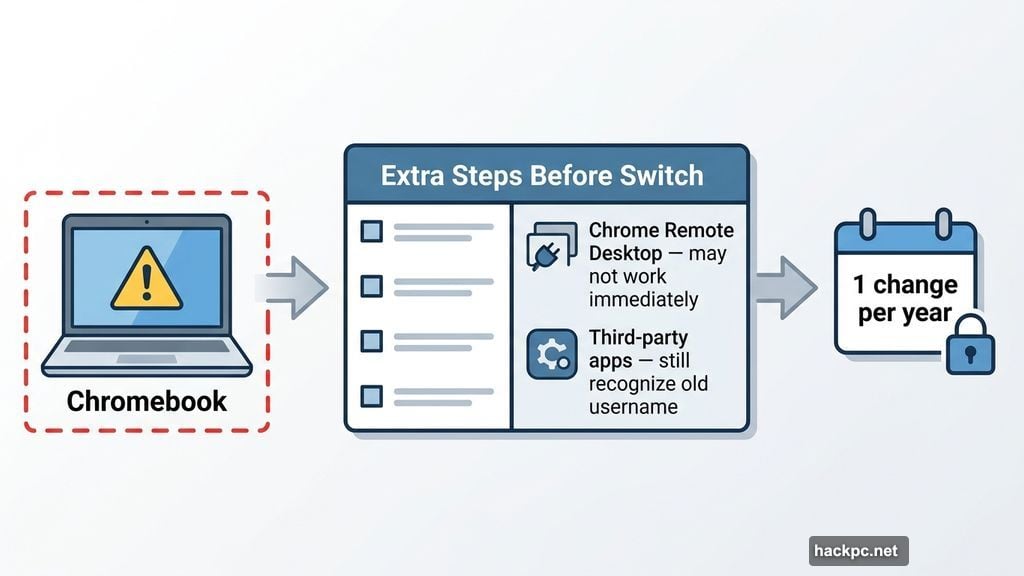
Since your Gmail address is directly tied to your Chromebook sign-in, a few things won’t update automatically. Third-party apps that use your Google Account for login will still only recognize the old username for a while. Chrome Remote Desktop connections may also not work immediately with the new address.
So if you’re on a Chromebook, Google recommends taking some specific extra steps before making the switch. It’s not a dealbreaker, just something to plan around.
How to Change Your Gmail Username Right Now
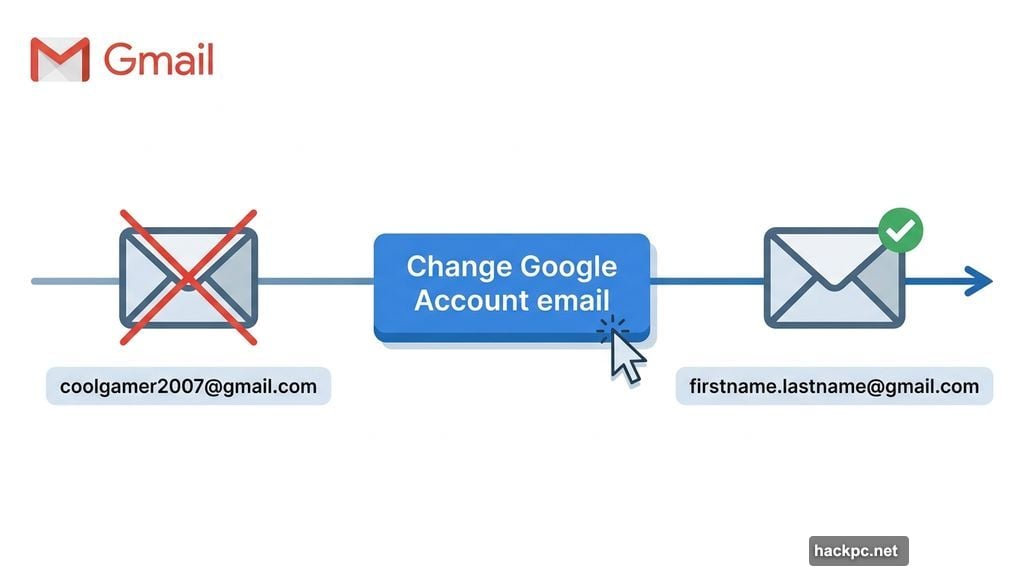
The process is pretty straightforward. Start by opening your Google Account settings and heading to the Personal Info tab. From there, find the Email button and work through the menu options until you spot the bright blue “Change Google Account email” button.
Click that, pick your new username, and you’re done. Just take a moment before you commit, because Google only lets you change your username once per year. Choose wisely.
If you follow all the steps and see a message saying the option isn’t available yet, don’t stress. That just means the rollout hasn’t reached your account quite yet. Check back in a few days.
One Year at a Time
The once-per-year limit is worth taking seriously. You don’t want to swap coolgamer2007 for something you’ll regret just as quickly.
Think about what you actually want your email address to say about you. First name, last name, maybe a dot between them — simple tends to age well. Avoid anything tied to a current trend, a relationship, or a hobby you might outgrow.
This is a genuinely useful update, and one that’s been a long time coming. Plenty of people have been stuck managing two separate Google Accounts just to have a professional-looking email address. Now you don’t have to do that anymore.
Your Gmail address can finally grow up with you. That feels like a win worth celebrating.



Comments (0)