
Windows 11 forces features most users never asked for. Copilot pops up uninvited. OneDrive syncs files you didn’t authorize. The Start menu recommends apps you’ll never install.
Microsoft stopped supporting Windows 10 in late 2024. So millions migrated to Windows 11, only to discover it ships with aggressive defaults. But you can reclaim control with a few strategic tweaks.
Here’s how to strip out the most irritating parts of Windows 11.
Copilot Keeps Interrupting Your Workflow
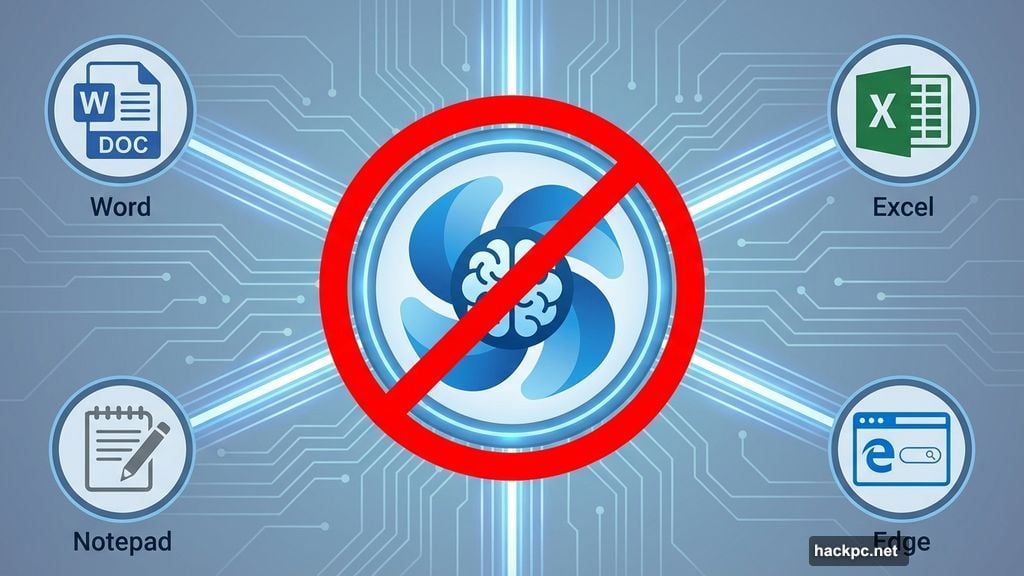
Microsoft embedded its AI assistant everywhere. Word documents, Excel spreadsheets, Notepad, Edge browser. The company desperately wants you using Copilot.
But many users find the constant AI suggestions distracting. Plus, Copilot consumes system resources even when you’re ignoring it.
Getting rid of it takes seconds. Click the Start menu or search bar at the bottom of your screen. Type “Copilot” but don’t hit Enter. Instead, right-click the app when it appears. Select Uninstall from the menu.
Done. No more AI interruptions.
OneDrive Creates More Problems Than It Solves
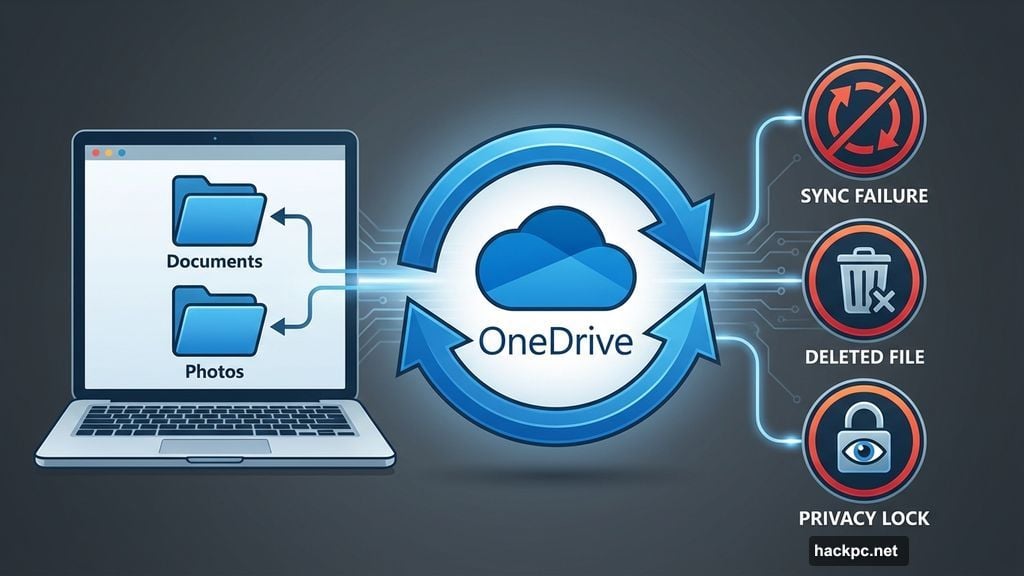
OneDrive promises seamless cloud storage. In reality, users report frequent syncing failures, mysterious file deletions, and concerning privacy implications.
Microsoft has direct access to everything you store on OneDrive. That bothers privacy-conscious users. Moreover, the service occasionally fails to sync properly, leaving important files stuck on one device.
To remove OneDrive completely, search for it from the Start menu. When the app appears in results, right-click it. Select Uninstall.
Critical warning: Back up all important files before uninstalling OneDrive. Otherwise, you risk losing documents, photos, and other data stored exclusively in the cloud. Transfer everything to local storage or another backup solution first.
Start Menu Recommendations Nobody Asked For
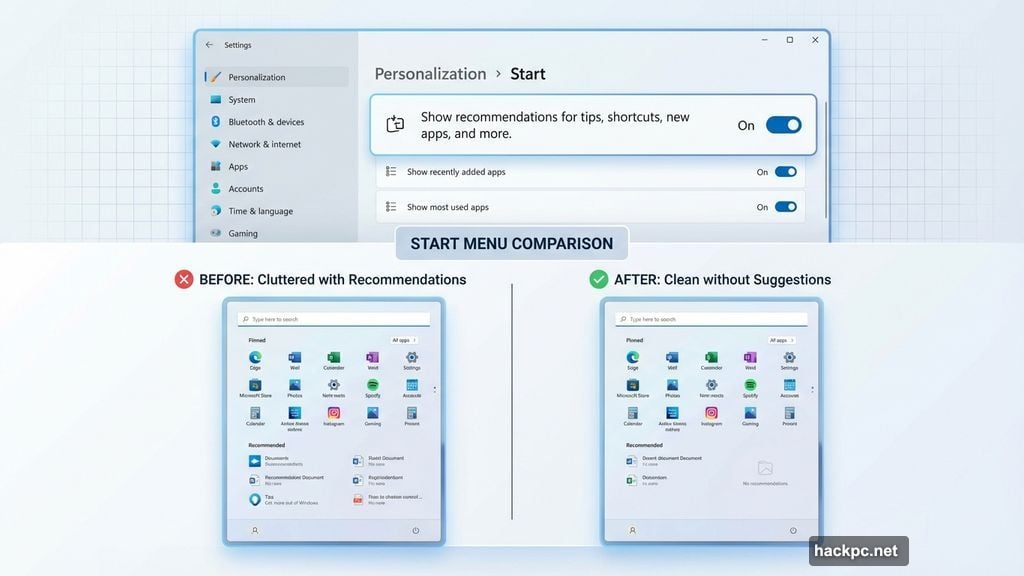
Windows 11 constantly suggests apps, shortcuts, and “helpful” tips in the Start menu. Most of these recommendations are useless or promote Microsoft services.
Turning them off requires navigating Settings. Click Start, then Settings. Select Personalization from the left sidebar. Click Start in the menu.
Find the toggle labeled “Show recommendations for tips, shortcuts, new apps, and more.” Switch it to Off.
Your Start menu just got cleaner.
Start Menu Ships With Junk Apps
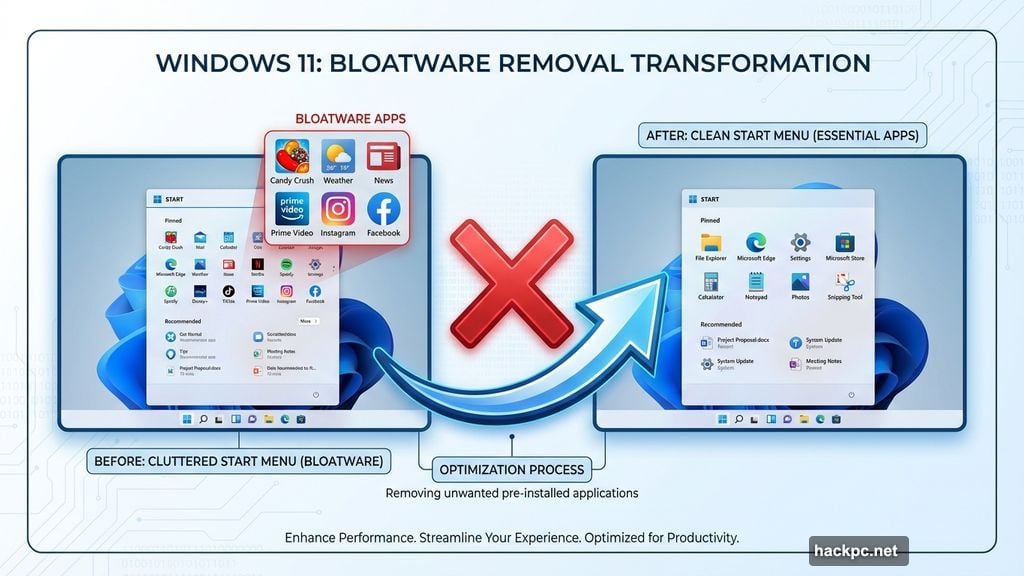
Microsoft preloads the Start menu with apps you’ll probably never use. Candy Crush, Weather, News, and other bloatware clutter the interface.
Removing them individually is tedious but effective. Click the Start menu icon. Look at the Pinned apps section. Right-click any app you don’t want. Select “Unpin from Start.”
Repeat for every unwanted app.
Once you’ve cleared the junk, add apps you actually use. Click Start again, then click “All apps” at the top right. Scroll through your installed apps. Right-click any app you want quick access to. Select “Pin to Start.”
Now your Start menu contains only useful shortcuts.
Taskbar Contains Wrong Apps
The taskbar should hold your most-used apps. Instead, it probably contains Microsoft’s choices, not yours.
Fixing this works similarly to the Start menu. Click Start, then “All apps.” Find an app you want in your taskbar. Right-click it, select More, then “Pin to taskbar.”
To remove apps from the taskbar, right-click them directly on the bar. Select Unpin from taskbar.
Build a taskbar that actually serves your workflow instead of Microsoft’s agenda.
Edge Browser Shows Intrusive Feed
Open Edge and you’re bombarded with news tiles, sponsored content, and algorithmic recommendations. Microsoft’s AI tracks your browsing to personalize this feed.
But maybe you don’t want any of it.
Click the plus sign at the top of Edge to open a new tab. Click the Settings gear icon in the top-right corner. Scroll down until you find “Show widgets” and “Show feed.”
Toggle both to Off.
The next time you open a new tab, you’ll see a clean page with a nature photograph. No distractions.
Notification Overload From Every App
Websites constantly request notification permissions. Click the wrong button once and you’re stuck with alerts you never wanted.
Windows 11 lets you manage all notifications in one place. Type “Notifications” in the bottom search bar. Click the Notifications settings menu when it appears.
At the top, you can toggle notifications off completely. That’s the nuclear option.
For more precision, scroll down to see every app and website sending you notifications. Toggle each one individually. Facebook, Teams, random news sites—turn off anything you don’t actively need.
Your focus just improved dramatically.
Startup Apps Slow Your Boot Time
Windows automatically launches certain apps when you log in. Some are essential, like Windows Defender. Others are pointless, like Teams or OneDrive if you don’t use them.
Every startup app consumes resources and slows your boot time.
To disable unnecessary startup apps, search for “Task Manager” in the Start menu. Click “Startup apps” in the left column.
You’ll see every app that launches at startup plus its system impact—high, low, or not measured. Apps with high impact significantly slow your boot time.
Right-click any app you don’t need at startup. Select Disable.
Be careful not to disable critical system apps or your antivirus software. But feel free to kill Teams, OneDrive, or other Microsoft services you don’t actively use.
Your PC will boot faster and run smoother.
Microsoft Designed Windows 11 for Itself, Not You
These aggressive defaults serve Microsoft’s business goals. The company wants you using Edge, Copilot, OneDrive, and other Microsoft services.
But your computer should work for you, not for Microsoft’s revenue targets.
Every feature discussed here can be disabled without breaking Windows. You’re not removing system files or critical components. You’re just stripping away the bloatware Microsoft pre-installed.
Take 15 minutes to customize Windows 11. Disable the features you don’t use. Remove the apps that waste your time. Reclaim your taskbar and Start menu.
Your PC will feel faster, cleaner, and more responsive. Plus, you’ll stop getting interrupted by features you never wanted in the first place.




Comments (0)