
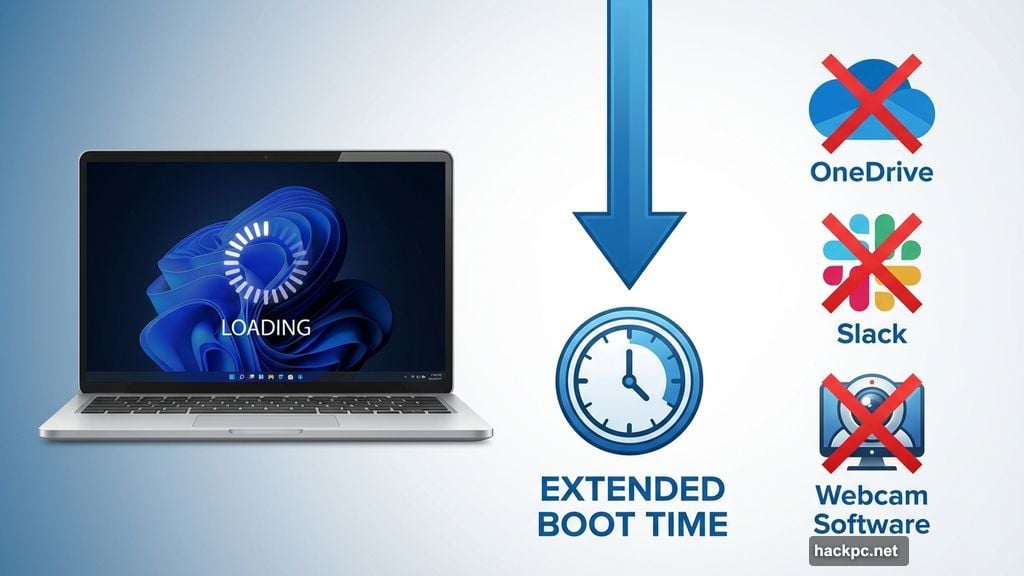
Your Windows 11 laptop takes forever to start. You sit there watching the spinning circle, tempted to grab your phone instead.
The culprit? Too many apps launching automatically when you sign in. Each one drags down your boot time and eats system resources even after startup completes.
Plus, you probably don’t use half of them. Let’s fix this problem in under five minutes.
Why Startup Apps Slow Everything Down
Every app that launches during startup consumes memory and CPU cycles. More apps mean longer wait times before Windows becomes responsive.
Some startup apps make sense. Your antivirus needs to run immediately to protect your system. But does your gaming overlay need to launch every single time? Probably not.
Microsoft OneDrive, Slack, webcam software, backup tools—they all compete for resources during boot. The result? A sluggish machine that frustrates you before you even start working.
Fortunately, Windows 11 gives you three simple ways to take control. Each method works perfectly. So pick whichever feels most comfortable.
Task Manager Shows the Real Impact
Task Manager reveals exactly which apps slow down your startup. Plus, it shows you the performance cost of each one.
Right-click the Start icon at the bottom left of your screen. Then click Task Manager from the menu that appears. You can also just search for “Task Manager” in the search bar.
Click the hamburger menu (three stacked lines) at the top left of the window. Select “Startup apps” from the menu.
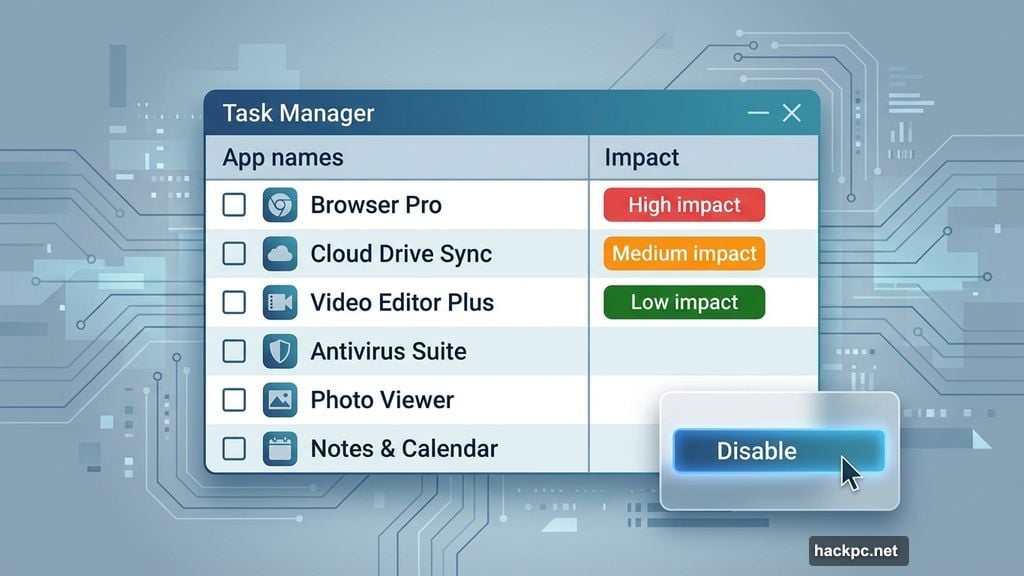
Now you’ll see every app that launches during boot. But here’s the powerful part—look at the “Startup impact” column on the right.
Windows labels each app as high, medium, low, none, or not measured. High impact apps use more than one second of CPU time or consume over 3 megabytes of disk during startup. Those are your prime targets for disabling.
Right-click any app in the list. Choose “Disable” to prevent it from launching automatically. The app still works fine when you need it. It just won’t slow down your startup anymore.
Settings App Makes It Visual
The Settings app offers a simpler, more visual approach. Great if you prefer toggles over right-click menus.
Right-click the Start icon again. Select “Settings” from the menu, or search for it in the search bar.
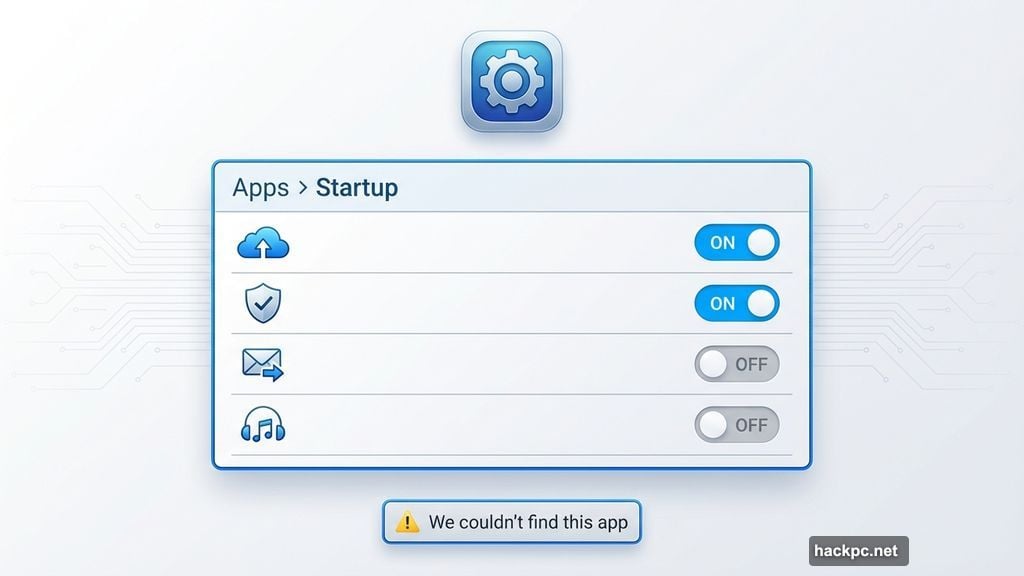
Click “Apps” in the left sidebar. Then click “Startup” in the main panel.
You’ll see the same startup apps with simple toggle switches. Flip any toggle to the off position to disable that app at startup. The interface shows whether each app is currently enabled or disabled at a glance.
Sometimes you’ll see “We couldn’t find this app” instead of an app name. This happens when an app lives on a removable drive, a network location, or when the path no longer exists. Often it’s just leftover junk from uninstalled software.
Click the icon next to the toggle to investigate further. But honestly? If Windows can’t find it, you probably don’t need it running at startup anyway.
File Explorer Catches Hidden Startup Items
Some apps don’t show up in Task Manager or Settings. They hide in Windows startup folders instead.
Right-click the Start icon and select “Run.” Type shell:appsfolder and hit Enter. A File Explorer window opens showing all installed applications.
Keep that window open. Right-click Start again and select “Run” once more. This time type shell:startup and hit Enter. or shell:common startup
A second File Explorer window appears. This one shows apps that automatically start when you sign in.
Want to add a startup app? Drag it from the first window to the second one. Want to remove one? Delete it from the second window.
This method gives you absolute control over startup behavior. But it requires more technical confidence than the other two approaches.
Which Apps Should Stay Enabled
Security software must remain enabled. Windows Defender, Norton, McAfee—whatever protects your system needs to run from the moment you sign in.
Core system components should stay enabled too. Drivers for critical hardware, Windows services, and essential utilities need to launch automatically.
But chat apps? Gaming overlays? Cloud sync tools you rarely use? Kill them without hesitation.
Not sure about a specific app? Right-click it and select “Search online” to research what it does. Generally, disabling a startup app causes zero harm. You can always re-enable it if something breaks.
In fact, that’s the smart way to test. Disable questionable apps one by one. If everything still works fine, you made the right call.
Third-Party Tools Go Deeper
Microsoft’s Autoruns utility shows you everything that launches during startup. And I mean everything—browser extensions, scheduled tasks, drivers, services, the works.
Other tools like Startup Delayer, Starter, StartupLite, and WhatInStartup offer similar visibility. These programs help you optimize startup behavior at a granular level.
But most people don’t need that much control. The three built-in Windows methods handle typical startup bloat just fine.
Use third-party startup managers only if you’re comfortable with advanced system configuration. Otherwise, stick with Task Manager or Settings.
This Works on Older Windows Too
These same methods work on Windows 10 and earlier versions. Microsoft hasn’t changed the core approach to managing startup apps.
Of course, Microsoft really wants you to upgrade to Windows 11. But if you’re still running Windows 10, you can speed up your startup using identical techniques.
The interface might look slightly different. But the functionality remains essentially the same across Windows versions.
Your Startup Should Be Snappy
A fast boot time makes your entire computing experience better. You start working immediately instead of waiting for your machine to become responsive.
Most people run 10-15 unnecessary startup apps. Disabling them cuts boot time dramatically. Plus, your system runs smoother after startup because fewer background processes compete for resources.
Take five minutes today. Open Task Manager or Settings. Ruthlessly disable every startup app you don’t absolutely need.
Your future self will thank you every single time you turn on your computer.




Comments (0)