
Passwords failed us. They get stolen in breaches, phished through fake emails, and cracked by bots running millions of guesses per second.
But there’s a better way to log in now. Passkeys eliminate those risks entirely. Plus, they’re already built into your phone, laptop and browser. You just need to turn them on.
Here’s how to upgrade the accounts that actually matter before cyber criminals find your next weak password.
Passkeys Work Like Your House Keys
Think about your front door. You need a physical key that matches the lock. No one can copy it remotely. Even if someone sees you use it, they can’t duplicate it from memory.
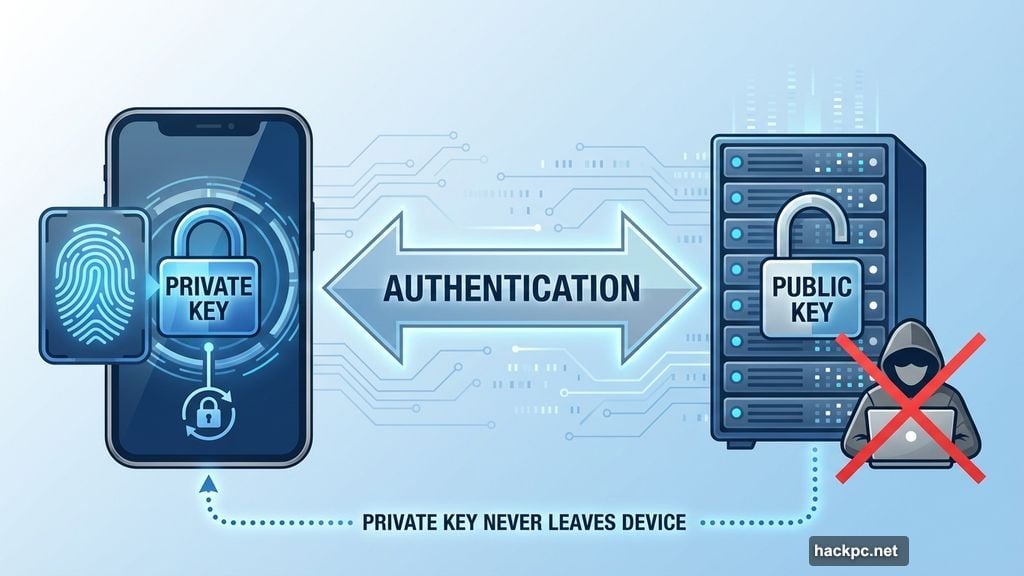
Passkeys work the same way, but digitally. Your device stores a private key that never leaves your phone or laptop. The service you’re logging into stores a matching public key. When you sign in, your device proves it has the right private key without ever sending it anywhere.
So if hackers breach the service, they only get public keys. Those can’t unlock anything. Your private key stays safe on your device, locked behind your fingerprint, face scan or PIN.
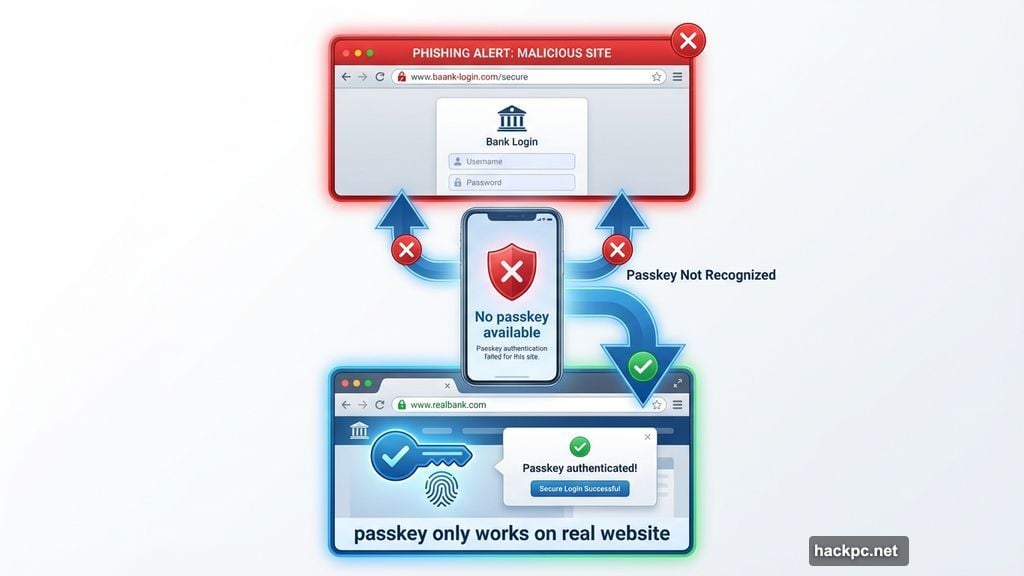
That’s why passkeys stop phishing attempts cold. The private key only works on the real website or app. If you land on a fake login page, your device won’t recognize it. The passkey simply won’t appear as an option.
Stop Protecting Your Money With Passwords
Bank accounts need passkeys first. These logins move cash, approve transfers, and connect to accounts you can’t afford to lose.
Many financial institutions already support passkeys. They just don’t advertise it loudly. Look in your banking app’s security settings for options labeled “passkey,” “device-based sign-in,” or “FIDO security key.”
When you find the option, tap it. Your phone will prompt you to scan your face or fingerprint. That’s it. You’re done. Next time you log in, no password required.
However, not every bank offers this yet. I use Navy Federal Credit Union, which only provides local biometric sign-in. That’s different because it doesn’t use cryptographic keys. It just checks your fingerprint against what’s stored on your device.
Real passkeys are stronger. They use a key pair that works across devices and syncs securely through password managers like 1Password or system-level services like Apple’s Passwords app.
Lock Down Email Before Someone Else Does
Your main email unlocks everything. Whoever controls it can reset passwords, approve purchases, and hijack half your digital life without breaking a sweat.
Google makes passkeys the default now for personal accounts. Open your Google Account settings, tap Security, then select “Passkeys and security keys.” Follow the prompts to add your device.
Microsoft is pushing the same direction. The company is phasing out password storage in Authenticator and steering users toward stronger sign-ins. Go to your Microsoft Account security page, select “Security,” then “Manage how I sign in.” You’ll see the passkey option there.
Apple handles passkeys automatically now. When you visit a site that supports them, iOS or macOS will offer to create one. Your private key gets stored in the Passwords app and syncs across your Apple devices using end-to-end encryption.
Meanwhile, your priority should be the email accounts tied to banking, tax filing and shopping. Once those are locked down with passkeys, the rest of your accounts become much harder for anyone to hijack.
Cloud Storage Holds More Secrets Than You Think
Google Drive, OneDrive and iCloud store sensitive files you probably forgot about. Tax returns, scanned IDs, contracts, medical records. All of it becomes leverage if someone breaks in.
Fortunately, these services rely on your main account settings. If you already enabled passkeys for Google or Microsoft, Drive and OneDrive are covered. Same goes for iCloud and your Apple account.
But remember that passkeys are only as strong as the device protecting them. Turn on device encryption. Set a screen lock. Don’t leave your laptop or phone sitting unlocked in public places.
One weak device can undermine the whole system.
Password Managers Need Passkeys Too
Your password manager holds the keys to everything else. If someone cracks that vault, they get every login you’ve saved.
Most modern password managers now let you lock the vault itself with a passkey. 1Password and Bitwarden both support this. So does Google Password Manager and Apple’s Passwords app.
Locking your vault with a passkey is one of the smartest upgrades you can make. It means attackers can’t get into the manager, so they can’t get into anything stored inside it either.
Plus, password managers are starting to play nice with each other. The FIDO Alliance is building credential exchange standards that let you move passkeys between services without starting from scratch. That means less lock-in and more control over where your credentials live.
While you’re in the vault, clean up the dead accounts. Delete entries for services you don’t use anymore. Close accounts that still can’t handle modern authentication. Every abandoned login is another loose end waiting to be pulled.
Shopping Apps Are Low-Hanging Fruit for Hackers
Amazon, eBay and the big retail apps all store payment cards, home addresses and order history. Ride share and food delivery apps track your location history, pickup spots and payment methods.
These accounts get hit constantly because they’re valuable and often weakly protected. Many users still rely on simple passwords or SMS codes that can be intercepted.
eBay reports higher login success rates and lower phishing risk after expanding passkey support. Uber has been steering users the same way. When companies handling millions of sign-ins daily say it works, it’s worth paying attention.
Check the five apps you use most on your phone. Open each one, tap into security settings, and enable passkeys if the option exists. It’s a quick pass through the accounts you depend on daily, and it closes off a lot of easy entry points.
What People Get Wrong About Passkeys
A lot of anxiety around passkeys comes from myths that don’t match reality.
One claim is that passkeys live in the cloud in plain text. They don’t. Syncing uses end-to-end encryption. Your private key never leaves your device in a readable form. Apple, Google and Microsoft can’t see it. What gets stored on their servers can’t be used to log into anything.
Another worry is being trapped in one ecosystem. But the industry is moving the opposite direction. FIDO is building credential exchange standards. Third-party managers like 1Password and Bitwarden already support cross-platform passkey storage. The walls are coming down, not going up.
There’s also the idea that losing your phone means losing all your accounts. It doesn’t. Passkeys require your biometric data or device PIN to work. So they’re useless to anyone who picks up your phone. Recovery falls back to the same methods you already use for your Apple, Google or Microsoft account. Recovery codes, a second device or a trusted contact get you back in without starting over.
Finally, some people think passkeys only make sense for pure cloud setups or single vendors. In reality, they’re running in mixed environments across cloud and on-premises systems. Microsoft and national security agencies treat them as phishing-resistant. This is production-level tech, not a pilot program.
Switch to Passkeys This Weekend
You don’t need a tech overhaul or a week off work. You can lock down the accounts that actually matter in a single weekend.
Start by listing your priority accounts. Bank and investing accounts come first. Then your primary email and your Apple, Google or Microsoft accounts. Next, cloud storage and your password manager. Finally, shopping, subscription, ride share and delivery apps.
Set aside one focused hour. Open each service and go straight to the security or sign-in settings page. Look for “passkey,” “security key” or “device-based sign-in.” Register your phone or computer when prompted. Add a second device if the service allows it.
Keep one non-passkey recovery method active while you settle in. Use recovery codes, a second email or a trusted device. Check that you can still get into the account if one device disappears.
Once passkeys are enabled, remove SMS-based two-factor authentication. Delete any leftover sign-in methods. Clean up accounts you no longer need.
Run through this checklist once, and you’ll have most high-risk accounts sitting behind stronger authentication. That sets a stable foundation for the rest.
Passwords are dead weight. They get stolen, guessed and phished. Passkeys fix all three problems without making you memorize anything new. Your device handles the hard part. You just unlock it the way you always do.


Comments (0)