
Don’t buy a new Roku just yet. That spinning buffer circle ruining your holiday streaming? It’s fixable right now without spending a dime.
Family gatherings this time of year mean more streaming. But when your Roku starts freezing mid-episode, the frustration builds fast. Plus, that constant buffering makes everyone reach for their phones instead of watching together.
Here’s the thing. Most people assume their Roku died and immediately start shopping for replacements. But slowing devices rarely need replacement. They just need a quick tune-up that takes less time than brewing coffee.
Why Your Roku Slows Down During Holidays
Streaming devices accumulate digital clutter over time. Cache files pile up from every app you open. Those dozen channels you downloaded once and forgot? They’re still running background processes.
Meanwhile, holiday traffic spikes hit streaming services hard. Networks get congested. So your already-cluttered Roku struggles even more to load content smoothly.
The combination creates that awful buffering experience. But the solution is simpler than you think.
Clear Cache Without Losing Anything
Roku TVs hide their cache-clearing function. Unlike smartphones with obvious “clear cache” buttons, Roku requires specific steps. However, this method keeps all your apps and settings intact.
Here’s how it works:
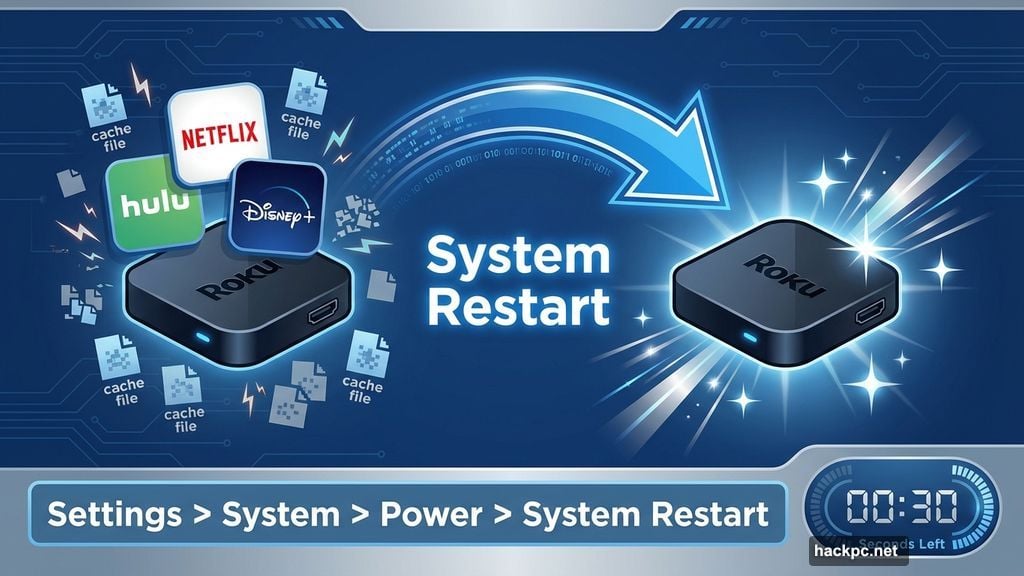
Navigate to Settings from your home menu. Find System in the settings list. Scroll down and select Power. Choose System Restart and confirm.
Your TV will turn off briefly. The restart process clears temporary cache files automatically. Plus, it shuts down any stuck background processes eating resources.
The whole thing takes about 30 seconds. Your Roku TV powers back on with a clean slate but keeps all your installed channels and preferences.
The Secret Remote Button Sequence
Sometimes the settings menu won’t help. Maybe your Roku froze so badly you can’t navigate menus. That’s when the hidden remote function saves the day.
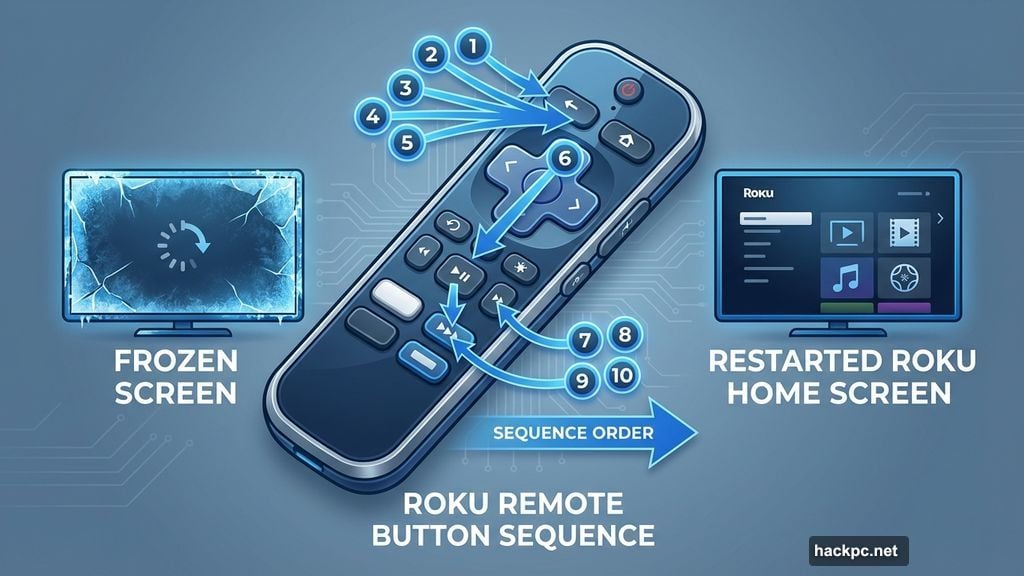
Start from the Home screen. Make sure the highlight sits over the Home option on the left side. Then follow this exact button sequence on your remote:
Press Home five times. Press Up arrow once. Press Rewind twice. Press Fast Forward twice.
Your Roku automatically restarts. This hard reset clears cache and stops frozen processes. Moreover, it works even when your device seems completely unresponsive.
Most Roku owners never learn this trick exists. But it’s built into every Roku remote for emergency situations exactly like this.
Delete Apps You Never Watch
Streaming services multiply fast. You download Netflix, then Hulu, then Disney Plus, then that niche service for one show. Before long, you’ve got 20 channels installed.
Each app consumes memory and processing power. Even apps you haven’t opened in months run background updates. So your Roku works harder managing apps than actually streaming content.
Time for spring cleaning:
Highlight any app you don’t use regularly. Press the asterisk button on your remote. Select Remove Channel from the popup menu.
Remember that removing apps deletes saved logins and preferences. You’ll need to sign in again if you reinstall later. But the performance boost usually makes it worthwhile.
Industry data shows most households actively use only 3-4 streaming services. Yet the average Roku has 12+ channels installed. That’s a lot of wasted resources.
When Apps Keep Freezing
Individual apps sometimes cause problems independent of your Roku’s overall performance. The app might have a corrupted file or bad update. In these cases, reinstalling fixes the issue.
Here’s the process:
Highlight the problematic app without opening it. Hit the asterisk button. Choose Remove Channel. Then go to the Roku Channel Store and reinstall the app.
Yes, you’ll lose your login and settings for that specific app. But you’ll get a fresh installation without corrupted data. This particularly helps when one service works fine while others buffer constantly.
Factory Reset Is Your Nuclear Option
Still experiencing problems after trying everything? A complete factory reset might be necessary. This wipes your Roku entirely, returning it to out-of-box condition.
Warning: This deletes everything. All apps, logins, and settings disappear. You’ll spend 15-20 minutes setting everything up again afterward.
Only do this if you’ve exhausted other options:
Open Settings from the main menu. Select System. Go to Advanced System Settings at the bottom. Choose Factory Reset and enter the confirmation code shown on screen.
Your Roku will restart and display the initial setup screens. From there, you rebuild your channel list and preferences from scratch.
Factory resets solve deep software issues that simple restarts can’t touch. However, they’re overkill for most common slowdowns.
Check Your Network Too
Sometimes your Roku isn’t the problem. Holiday visitors mean more devices competing for WiFi bandwidth. Aunt Karen streaming TikTok while your cousin games online and you’re trying to watch a movie creates network congestion.
Run a quick network speed test. Roku devices need at least 3 Mbps for standard definition and 5+ Mbps for HD content. If your speeds drop below these thresholds during peak usage, streaming suffers regardless of your device condition.
Consider pausing other downloads during movie time. Or better yet, connect your Roku via ethernet cable if possible. Wired connections eliminate WiFi interference entirely.
Prevention Beats Emergency Fixes
Monthly maintenance keeps your Roku running smoothly long-term. Restart your device once a month even when it’s working fine. Delete unused channels as soon as you realize you’re not watching them.
Also, keep your Roku’s software updated. The device usually updates automatically, but you can manually check in Settings > System > System Update.
These small habits prevent the massive slowdowns that make people think their devices died. Plus, they take minimal effort compared to troubleshooting major problems later.
Your Roku doesn’t need replacement. It just needs five minutes of attention. Try these fixes before spending money on new hardware. Most streaming slowdowns come from simple software issues that clear up instantly with the right steps.
Those holiday gatherings deserve smooth streaming. Get your Roku back to full speed and actually enjoy watching together this season.



Comments (0)