
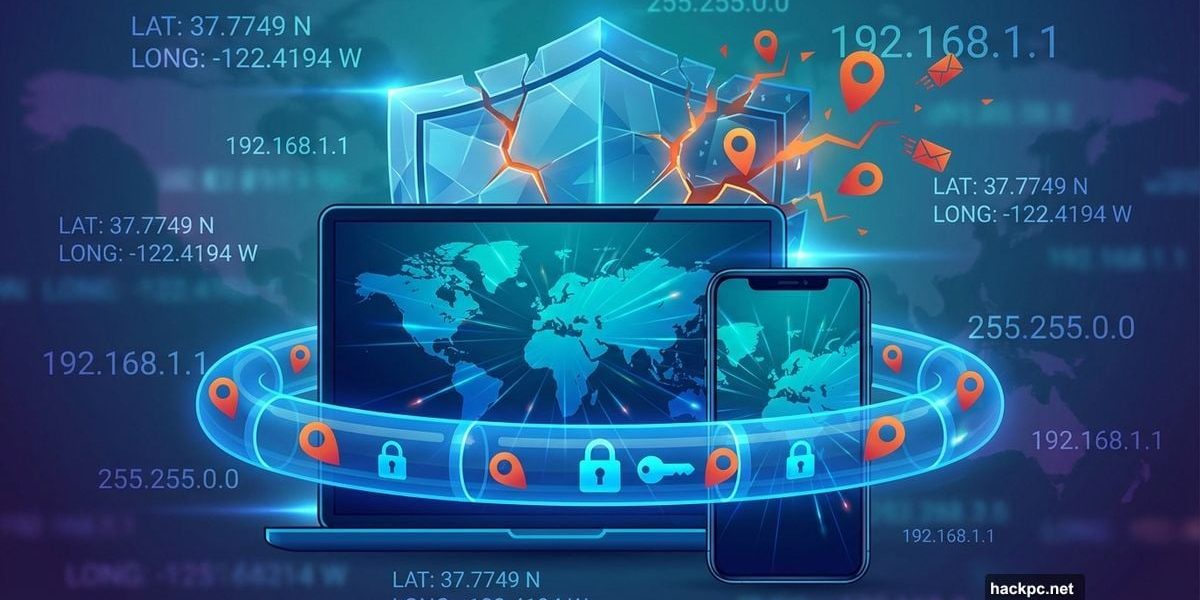
VPN apps promise digital invisibility. But most people mess up one crucial step.
You download a VPN, connect to a server in Tokyo, and assume you’re browsing as if you’re actually there. Yet websites still show your hometown weather. Netflix still serves your local library. Something’s clearly broken.
Let’s fix that. Plus, I’ll show you why location masking matters beyond just streaming foreign shows.
Every Device Broadcasts Where You Live
Your laptop, phone, and even smart home gadgets all get assigned IP addresses when they connect online. Think of it like giving your name at a coffee shop. Except instead of coffee, you’re getting websites, videos, and targeted ads.
The problem? That IP address reveals your physical location down to your ZIP code.
Service providers use this for helpful things like local weather reports. But they also restrict what you can access based on geography. That affects everything from Netflix catalogs to government censorship. Moreover, hackers can exploit your IP to launch attacks or even SWAT your address.
A VPN fixes this by routing your traffic through a middleman server first. Instead of your real IP address, everyone sees the VPN server’s location. So you’re physically in Houston, but websites think you’re browsing from Amsterdam.
The catch? You need to set it up correctly. Otherwise, your real location still leaks through.
How to Actually Change Your Location on Desktop
Most quality VPNs make this straightforward. But there are still ways to mess it up.
First, pick a reputable VPN provider. I recommend Proton VPN for most people. ExpressVPN and Surfshark work great too. Look for fast speeds, strong encryption, and a proven track record. Sketchy free VPNs often sell your data instead of protecting it.
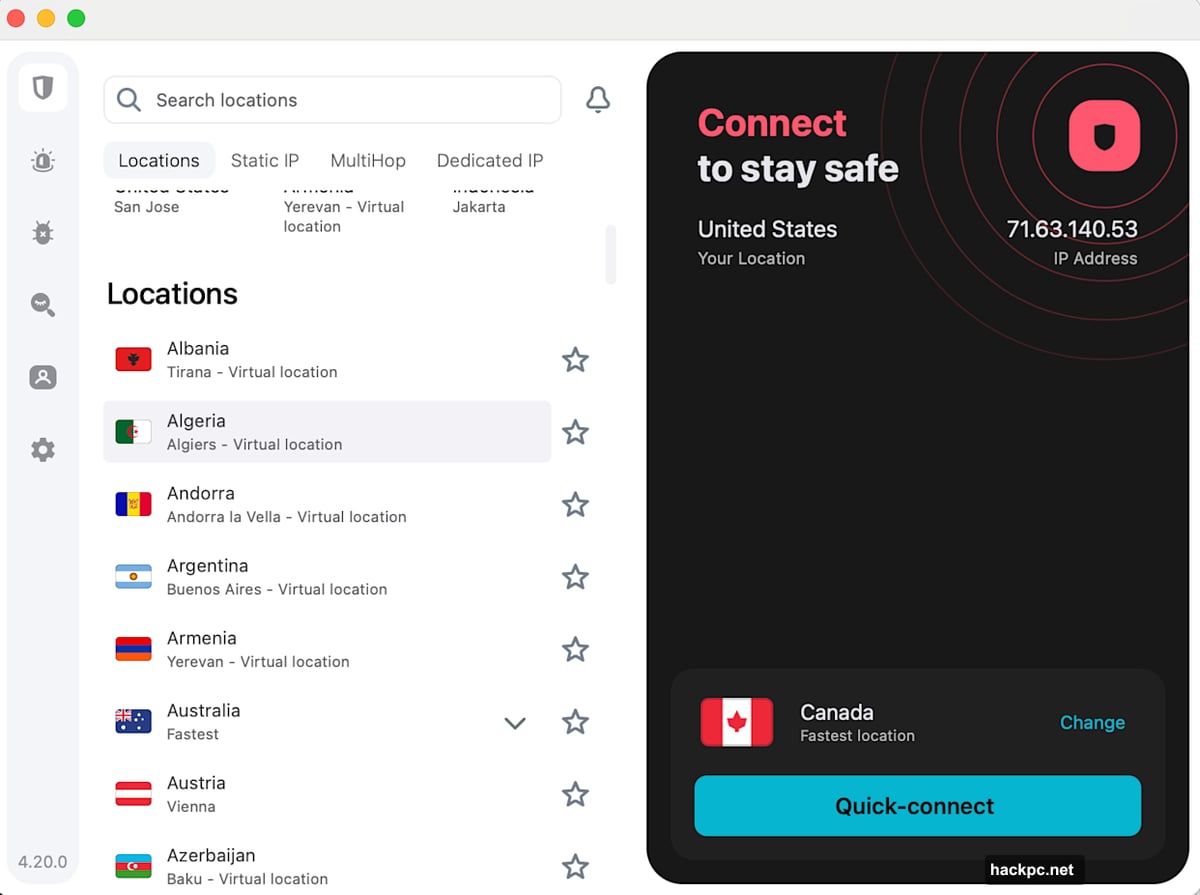
Next, create an account and download the desktop app directly from the VPN’s website. Don’t rely on third-party download sites. Even the Mac App Store sometimes has outdated versions.
Install the app and follow the setup prompts. If it asks for permissions, grant them. The VPN needs system access to route your traffic properly.
Now open the app and explore the interface. Find the connect button, the location picker, and the settings menu. Most VPNs organize these clearly, but take a minute to get familiar.
Connect to a server in your target location. If you’re bypassing censorship, pick any nearby free country. If you want specific content, choose that exact country. For example, UK servers for BBC iPlayer, or US servers for Hulu.
Check if it worked by visiting WhatIsMyIPAddress. The site should show your VPN’s location, not your real one. If not, skip ahead to my troubleshooting section.
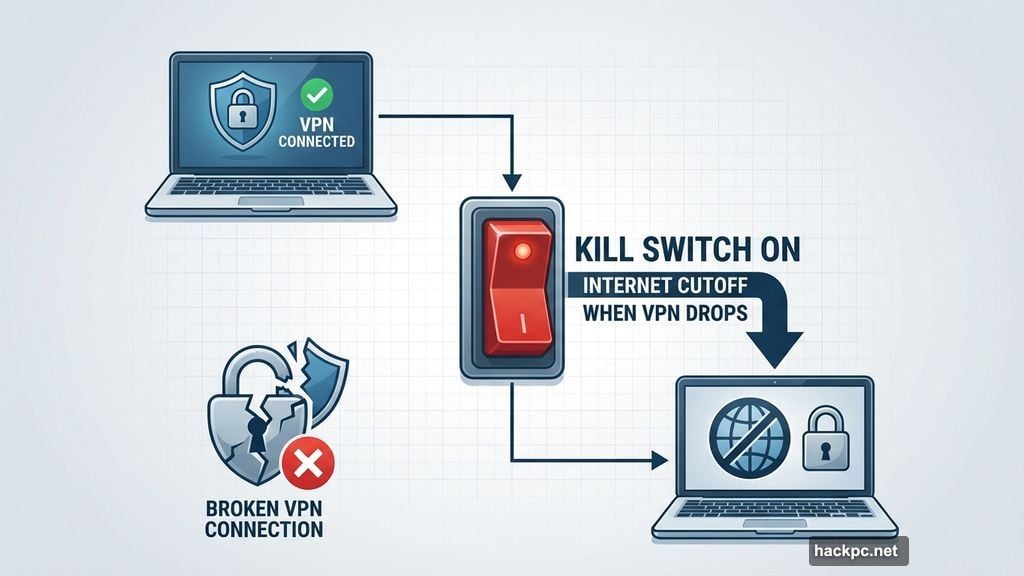
Finally, activate the kill switch if your VPN has one. This cuts your internet if the VPN drops, preventing accidental location leaks. VPN connections do fail occasionally, and a kill switch keeps you protected during those brief moments.
Mobile Location Changes Work Similarly
Changing your virtual location on iPhone or Android follows the same basic steps. Just a few platform-specific quirks to watch for.
Start by choosing a mobile-friendly VPN. Proton VPN, ExpressVPN, and Surfshark all have excellent mobile apps. Check app store ratings carefully though. Some fake VPNs use similar names to trick users.
Download from the Apple App Store or Google Play Store exclusively. Never sideload VPN apps from sketchy websites. That’s how malware spreads.
Open the app and follow the setup flow. Many VPNs offer free trials on mobile, so test before paying. Take time to explore the interface. Mobile apps pack features into tabs, so swipe around and find the location picker.
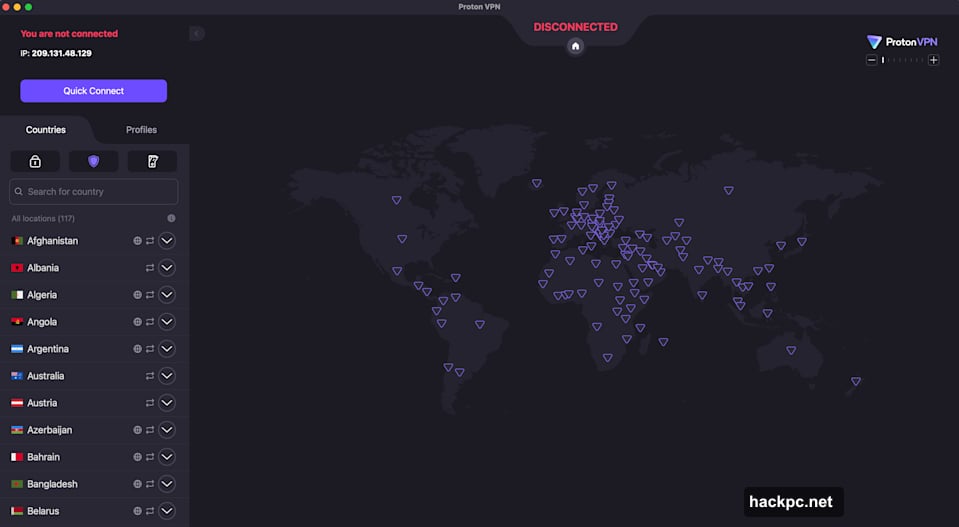
Connect to your desired server location. Make absolutely sure the VPN is active before browsing. Most apps show a clear connected status, but it’s easy to forget to check.
Browse normally through your phone’s browser or apps. When you’re done, disconnect to return to your real location.
One critical warning for mobile users: paid VPNs or free versions backed by premium subscriptions are safest. Entirely free VPNs often harvest your data or have shady connections. The privacy you think you’re getting doesn’t exist.
Why Bother Changing Your Virtual Location
Masking your IP address is one of the most powerful privacy steps you can take online. Even if you’re not traveling or bypassing censorship.
Countless web services track you without consent. Much of that tracking starts by building profiles around your IP address. Third-party cookies get attention, but IP-based tracking happens behind the scenes constantly.
Hackers can exploit your IP too. They can narrow down your location to within your ZIP code. That’s not precise enough to find your exact house, but it makes targeted attacks much easier. Hackers use IP addresses to launch DDoS attacks, create fake social media accounts in your name, or even call in SWAT teams to your address.
Beyond security, location masking unlocks practical benefits. When traveling abroad, connect to a server back home to access your bank account or local streaming services normally. Banks especially get nervous about foreign logins.
At home, virtually relocate to see foreign streaming libraries. You can shop deals available only in other currencies. Plus, you can download apps banned in your country or bypass nationwide censorship. Just understand your local laws first. Some places merely frown on VPN use, while others criminalize it.
Your GPS Location Still Gives You Away
Here’s the critical mistake most people make. A VPN only changes your IP address. It does not change your GPS location.
Phones and tablets broadcast GPS data by default. They also ping cell towers, which reveals your position. Web browsers have similar location features that bypass your VPN entirely.

Websites can request your GPS through HTML5 geolocation. You have to grant permission, but those popups are easy to click through without thinking. Suddenly, you’re streaming through a UK VPN server while your browser tells the website you’re really in Texas.
Some VPNs like Surfshark and Windscribe include GPS spoofing features. But those aren’t standard. When changing your location via VPN, always disable location services separately. Deny any browser permissions requesting your position.
You can also run a dedicated GPS spoofing app alongside your VPN. That adds another layer of protection against location leaks.
When Your VPN Fails to Hide Your Location
Sometimes everything seems connected properly, but websites still see your real IP address. Or you get the same content library despite switching countries.
Start by checking your actual IP address. Search “what is my IP” or use WhatIsMyIPAddress. If it matches your home location, your VPN is leaking.
Note that it doesn’t have to match your VPN’s stated location exactly. Many VPNs use virtual server locations where physical data centers aren’t practical. Windscribe, for example, doesn’t have actual servers in Antarctica.
Try these fixes in order if you find leaks.
First, disconnect and reconnect to the same location. This connects you to a different server in that region. Test your IP again. Often, the problem was isolated to one bad server.
Second, try a completely different location if your needs are flexible. If you needed a specific country, skip this step.
Third, switch VPN protocols. If you’re using WireGuard, try OpenVPN or IKEv2 instead. Different protocols handle connections differently.
Fourth, verify location services are disabled on your device. Clear your browser cache and cookies too. Old saved data can give away your real location.
Fifth, test for DNS leaks. Your VPN might accidentally send your IP to public DNS servers. IPleak.org catches this problem easily.
Sixth, try a different VPN entirely. Use a free service like Proton or Windscribe temporarily. If leaks persist, the problem might originate from your network, not the VPN.
Finally, contact your original VPN’s support team. Send screenshots showing the VPN connected alongside proof of the leak. Good VPN companies take this seriously and will investigate.
The VPNs That Actually Work
I’ve tested dozens of VPNs for location changing reliability. Here’s what I recommend.
Proton VPN performed perfectly in my tests. I used 15 servers across five countries to access Netflix. Every single time, I saw the full content library for that destination country. No leaks, no errors.
Surfshark came close behind, passing 14 out of 15 tests. It only stumbled once in Japan. A quick disconnect and reconnect fixed it immediately.
ExpressVPN delivered equally strong results. Only one server in the UK required a retry. Otherwise, flawless location masking.
NordVPN worked perfectly everywhere except Nigeria. Even there, it didn’t leak my real IP. The problem only affected Netflix, not my actual location visibility.
All four options handle location changes reliably. The differences come down to price, interface preferences, and extra features.
VPN location masking works when done right. But it requires understanding both IP addresses and GPS data. Master both, and you’ll browse with genuine anonymity.


Comments (0)