
Adobe Photoshop is loaded with AI features right now. And honestly? That can feel overwhelming.
“AI-powered” has become one of those phrases that means everything and nothing at once. Sometimes it delivers genuinely useful results. Other times it’s just a flashy label on something that barely works. So the real question isn’t whether Photoshop has AI tools. It’s which ones are worth your time and which ones you can safely ignore.
After testing these features hands-on, here’s what I found.
Before You Start: One Quick Requirement
Adobe requires you to agree to its AI terms of service before using any of these features. The policy covers prohibited uses, including illegal and abusive content. It takes about 30 seconds to accept and you only do it once.
Once that’s done, you can access Photoshop’s AI tools across desktop, web, and mobile. That flexibility is genuinely useful if you switch between devices.
How Generative Image Creation Works in Photoshop
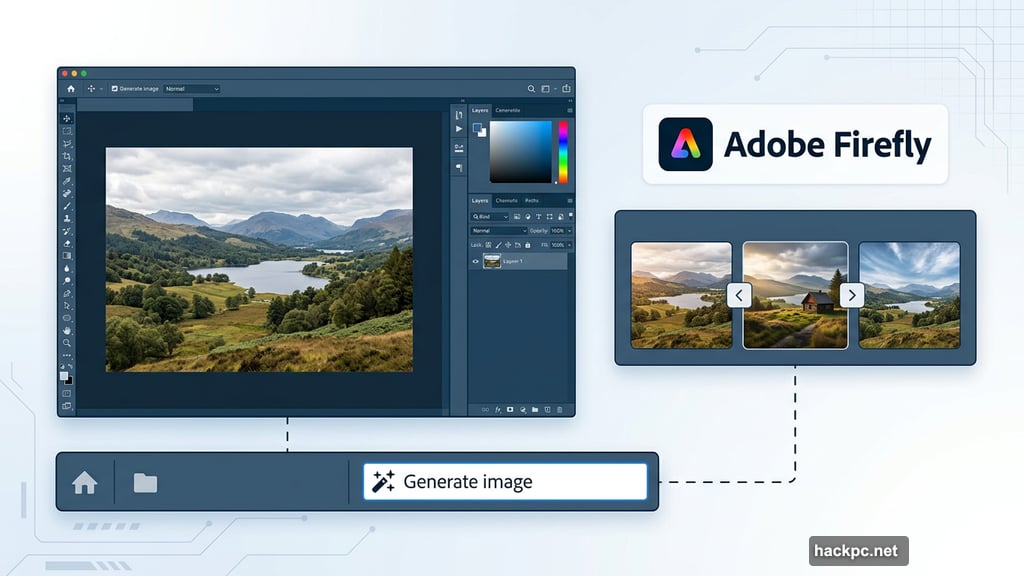
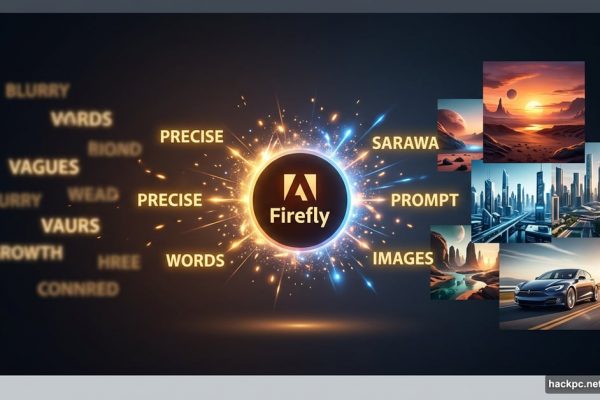
Adobe’s AI image model is called Firefly. It runs as a standalone app but also lives inside Photoshop, so you don’t need to leave your project to use it.
Here’s how to find it. Open your project, then look for the Generate image option in the contextual taskbar at the bottom of your screen. You can also navigate to Edit, then click Generate image. There’s also a shortcut icon on the left toolbar that looks like an image with an arrow and sparkle.
From there, enter your prompt, choose a style, and optionally upload reference images. Hit Generate and Photoshop gives you several variations to browse through using the arrow controls in the taskbar.
A few tips that make a real difference here. Add detail to your prompts and put the most important elements first. If the first round of results misses the mark, start fresh with a new prompt rather than endlessly tweaking. That approach saves time and tends to produce better results.
Generative Fill: The Most Useful AI Tool in Photoshop
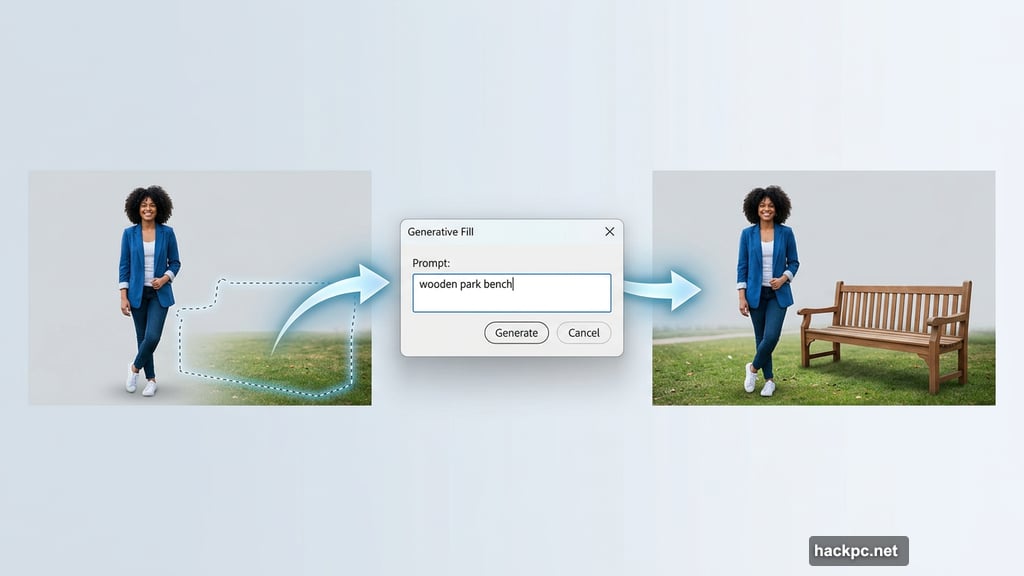
Generative fill is essentially a miniaturized AI image generator built right into your canvas. It lets you select any specific region of your project, type a text prompt, and Photoshop creates content to fill that space.
To use it, go to Edit, then Generative Fill. Select the spot brush tool, mark the area where you want something added, type your prompt, and click Generate.
This tool works best when you give it clear, specific instructions. Vague prompts produce vague results. But when you describe exactly what you want, the output integrates surprisingly well with the surrounding image.
Generative Expand: Great for Resizing and Extending Photos
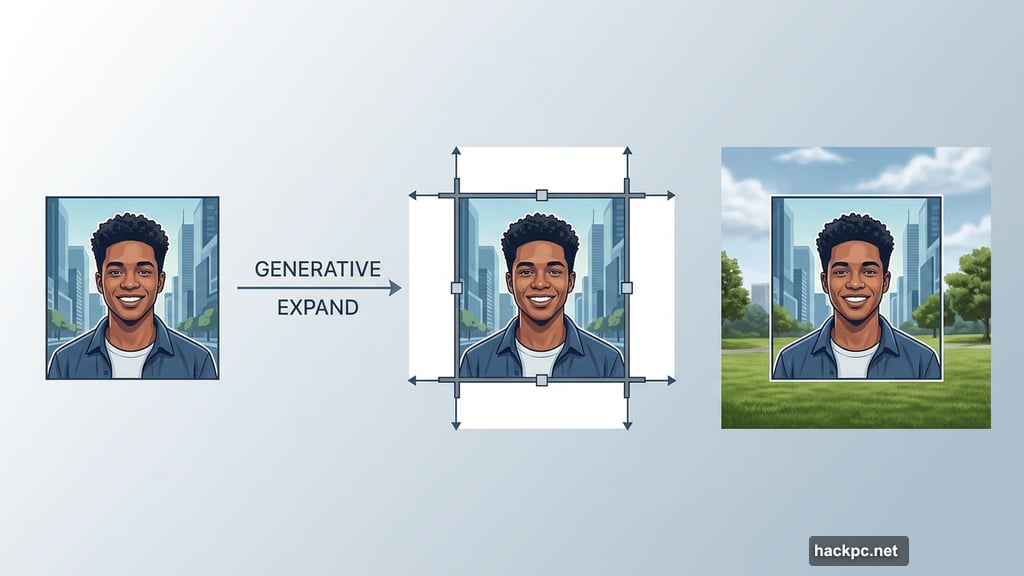
Sometimes a photo needs more breathing room. Generative expand creates new sections of your image that blend seamlessly with the original, or lets you add entirely new scenery around your subject.
Select the crop tool, pull the canvas out to whatever dimensions you want, and optionally type a prompt describing what you’d like in the extended area. Then click Generate.
In testing, this tool performed really well for resizing photos. Adding extra sky, extending a landscape, or giving a portrait more background space all worked cleanly. The AI matched lighting and texture better than expected.
Generative Remove: An AI Eraser That Actually Works
Got a photobomber ruining your shot? Generative remove isolates and deletes specific elements without leaving weird blank patches behind.
There are two ways to do it. First option: select the unwanted object using the object select tool, click Generative Fill, and type “remove” as your prompt. Second option: use the Remove tool directly, which you’ll find under the Spot Healing tool menu. Just highlight what you want gone.
This was one of the standout performers. Removing objects without disrupting the rest of the image is genuinely tricky to do manually. The AI handles it cleanly in most situations.
Sky Replacement: Works Best on the Right Photos
Sky replacement is a fun tool for landscape photography. Navigate to Edit, then Sky Replacement, and choose from preset options including sunsets, blue skies, and a “spectacular” category with more dramatic options. After picking a preset, you can manually adjust brightness and other elements.
Here’s the honest take though. This tool works well on some photos and not others. Clean shots with clear horizon lines produced nice results. More complex images with trees, buildings, or irregular skylines were hit or miss.
It’s worth trying if you shoot landscapes. Just don’t expect it to save every photo.
Generate Background: Useful for Product Photography
This tool works best when your subject is the clear focal point and you want to swap out the background entirely. Upload your shot, click Remove Background in the contextual taskbar, and then click Generate Background.
The results vary by background type. Solid colors and patterns looked polished and professional. Generated city scenes looked a bit artificial and flat. For product photography, e-commerce shots, or portrait work, this can save significant editing time when it lands right.
Neural Filters and Other Tools Worth Knowing
Beyond the headline features, Photoshop also includes neural filters for detailed photo editing work. These tools adjust things like skin smoothing, color transfer between images, and stylistic effects. They sit in a different category from generative AI but still use machine learning under the hood.
The curvature pen tool is another addition worth mentioning for designers. It helps create smoother, more consistent arcs and curves compared to the standard pen tool. Not AI in the flashy sense, but genuinely helpful for design work.
Adobe has also signaled that more AI-powered editing tools are coming to Photoshop throughout the year, so this suite will keep expanding.
The Honest Assessment
Photoshop’s AI suite impressed me more than I expected. That said, it’s not magic and it’s not for everyone.
Experienced Photoshop users who already know the software inside and out may find these tools redundant. If you’ve spent years mastering manual selection, cloning, and masking techniques, the AI shortcuts might feel unnecessary or even limiting.
But if you’re a beginner, a casual user, or someone who wants to speed up specific parts of your workflow, several of these tools deliver real value. Generative remove and generative expand were the most consistently reliable in testing. Generative fill works well when you write good prompts. Sky replacement and generate background are more situational.
The key is knowing what each tool is designed to do. Use them in the right context and they save meaningful time. Use them outside their strengths and results get unpredictable quickly.
Try them on a project or two before committing to them as part of your regular workflow. Some will become go-to features. Others you might use once and forget about. That’s okay. That’s honestly true of most tools, AI or otherwise.


Comments (0)