
Most people approach AI image generation like ordering from a menu. They type something vague, hope for the best, and then wonder why the result looks nothing like what they imagined. With Adobe Firefly, that approach wastes time and leads to frustrating results.
The good news? A few simple changes to how you write prompts can make a huge difference. And in 2026, with Firefly sitting inside a broader Adobe generative workflow, getting your prompts right matters more than ever.
Here’s what actually works.
Stop Giving Instructions. Describe the Picture Instead.
This is the single biggest shift you can make. Words like “create,” “make,” or “generate” don’t help Firefly produce better images. They’re instructions to a person, not useful input for an image model.
Instead, picture the finished image in your head before you type anything. What’s in it? Where is it set? How is it lit? What angle are you looking from?
For a product shot, describe the product, where it sits, and the lighting. For an illustration, name the subject, the setting, and the visual style. Short and specific beats long and vague every single time.
Firefly’s text-to-image tools are built around direct, visual descriptions. So the more clearly you paint the picture with words, the closer the output will match what you had in mind.
Build Every Prompt Around Four Essentials
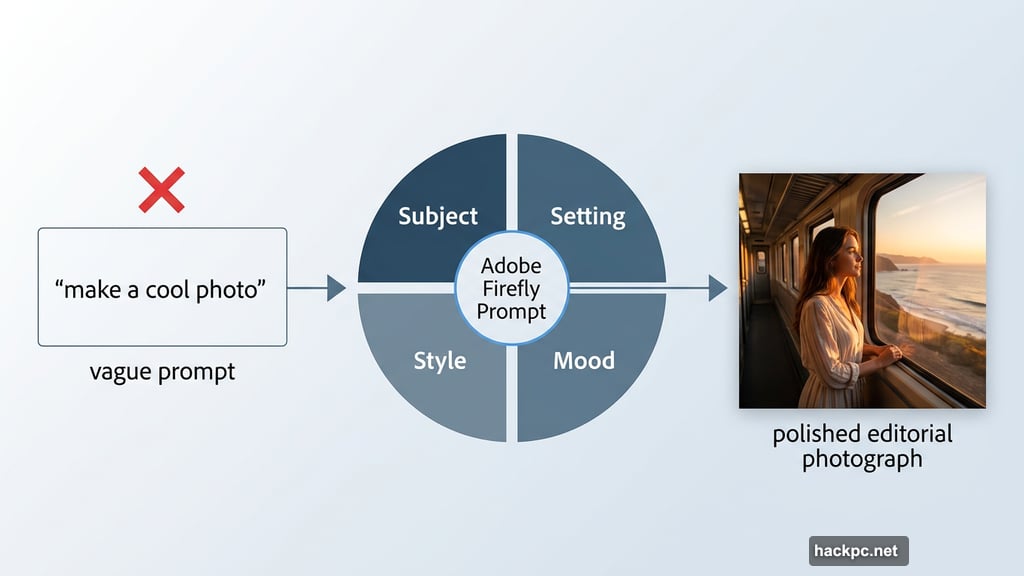
Before you start typing, break your prompt into four parts: subject, setting, style, and mood. Think of it as a mini creative brief that takes about ten seconds to plan.
Consider a travel image. “Woman on a coastal train at sunset” gives you subject and setting. But add “editorial photo” for style and “warm, reflective mood” for atmosphere, and suddenly the prompt becomes far more focused. The result will feel intentional rather than accidental.
This structure also makes fixing weak results much easier. If the image looks broadly right but the atmosphere feels cold or flat, you know exactly what to adjust. Just change the mood descriptor and regenerate.
Use Firefly’s Built-In Controls Before Rewriting the Prompt
Here’s a trap many people fall into. They keep rewriting the same prompt over and over, adding more words, hoping something clicks. But Firefly gives you a whole set of controls that can fix the problem faster than any text tweak.
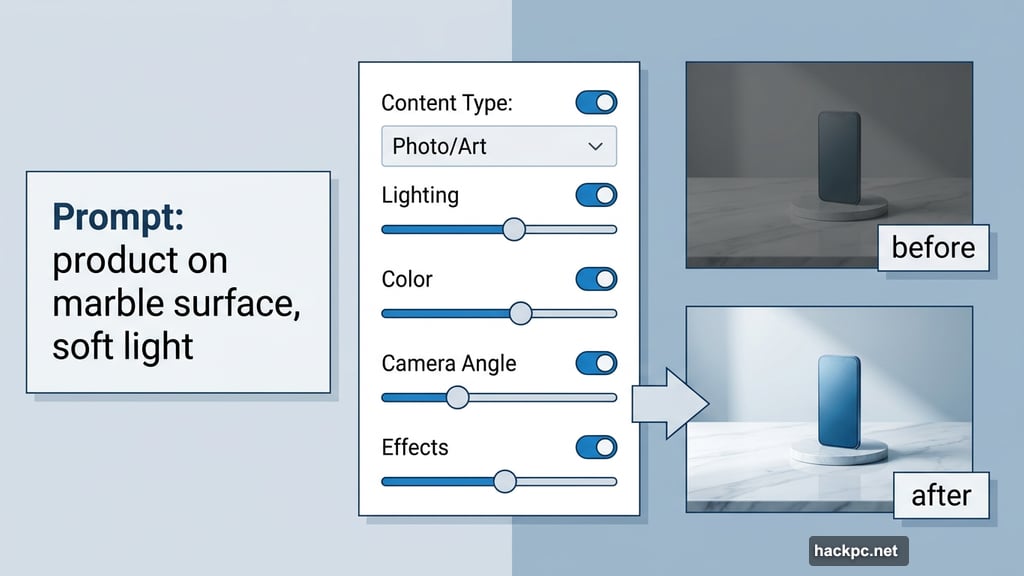
Content type, lighting, colour, effects, and camera angle are all adjustable without touching your prompt at all. Image too flat? Adjust the lighting setting. Framing feels off? Change the camera angle. The overall finish doesn’t match your vision? Switch between Art and Photo in the content type selector.
A short, clean prompt paired with the right settings almost always beats a long, sprawling prompt trying to pack every detail into one sentence.
Style References Make Output More Predictable
If you already know the visual look you want, uploading a style reference image can steer Firefly more reliably than trying to describe every detail in text. This is especially useful when you need a set of images that feel visually consistent.
A single campaign graphic is easy enough to improvise. But when you need five or six assets that all feel like they belong together, consistency gets much harder to maintain through text alone. A style reference anchors the broader look, so you can focus your prompt on the subject and scene rather than endlessly describing lighting, color palette, and finish.
Composition References Solve Layout Problems
Sometimes the issue isn’t how the image looks. It’s where everything sits. If you need the subject in a specific spot, or you need breathing room around key elements for text overlay, a composition reference gives Firefly a clearer structural starting point than any prompt can.
Upload a source image and Firefly uses its outline and depth as a guide for the new result. A strength slider lets you decide how closely the output should follow the original structure. For hero images or product shots where exact positioning matters, this is far more reliable than repeatedly nudging a prompt and hoping the framing lands where you need it.
Photoshop now supports the same approach through Generate Image, including reference images for composition. So it’s easier than ever to carry a layout concept from early exploration all the way through to final edits without rebuilding it from scratch.
Firefly Composition and Style Reference Controls
Know When to Stop Prompting and Start Editing
At some point, rewriting the prompt stops being the fastest route forward. Once you have the subject and general look roughly where you want them, switching into editing mode is usually quicker than chasing a perfect one-shot result.
Photoshop’s Generate Image feature is built for exactly this kind of handover. You can use a reference image to guide style or composition while exploring variations, all without losing the direction you’ve already established in your prompt. That combination of a solid starting prompt plus targeted edits in Photoshop is typically faster and more satisfying than trying to get everything perfect in a single text request.
Prompting is the beginning of the process, not the whole thing. The best results usually come from knowing when to stop typing and start shaping.




Comments (0)