
Google gives you 15GB of free storage. That sounds like a lot until it isn’t.
Between photos, Gmail attachments, and shared documents, that space disappears faster than you’d expect. And when Google starts nudging you toward a paid Google One plan, it’s easy to assume you’re out of options. But you’re not.
Here are four practical ways to claw back storage without spending a cent.
Sort by File Size First
This is the single most effective trick in the bunch. Instead of hunting through hundreds of files hoping to find something worth deleting, you can sort everything by size and go straight for the space hogs.
Head to Google Drive on your desktop, click Storage in the left menu, then click Storage used to sort files from largest to smallest. One or two videos sitting at the top of that list might be eating gigabytes on their own. Delete those, and you’ve instantly done more work than deleting 50 small documents ever would.
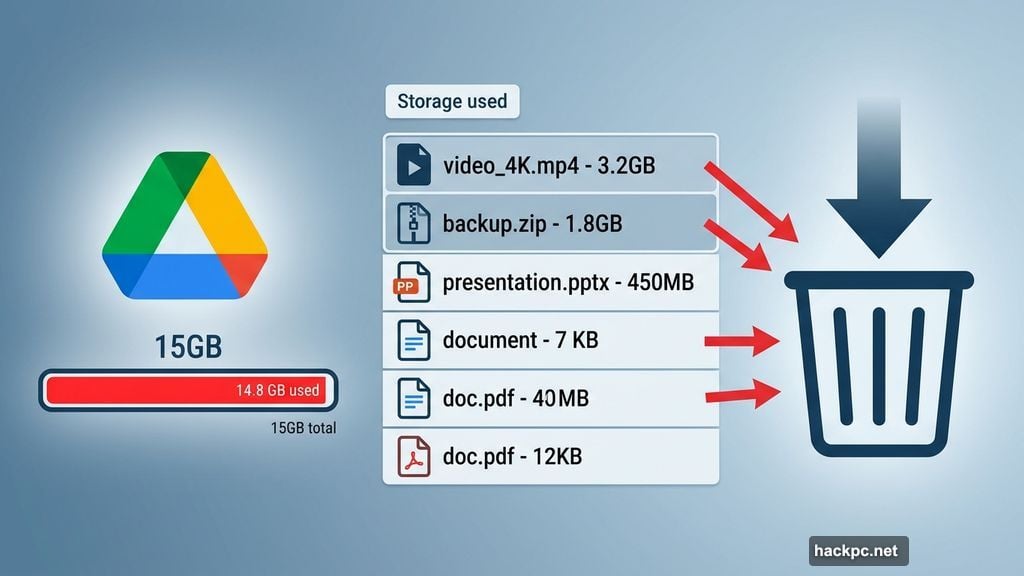
On mobile, open the Drive app, tap Files, then tap Name near the top and switch it to Storage used. Same result.
Gmail works similarly. Type has:attachment larger:10MB into the Gmail search bar and hit enter. That search pulls up every email with a big attachment, sorted by size. Check the boxes next to the worst offenders, send them to trash, then go empty the trash folder to make it count. Just moving files to trash doesn’t free up space until you actually empty it.
Don’t Ignore Your Spam Folder
This one’s easy to forget. Spam builds up quietly in the background, and it all counts toward your storage limit.
In Gmail on desktop, click Spam in the left sidebar (you might need to click More to find it), then hit Delete all spam messages now. On mobile, tap the hamburger menu in the top corner, find Spam, and tap to empty it.
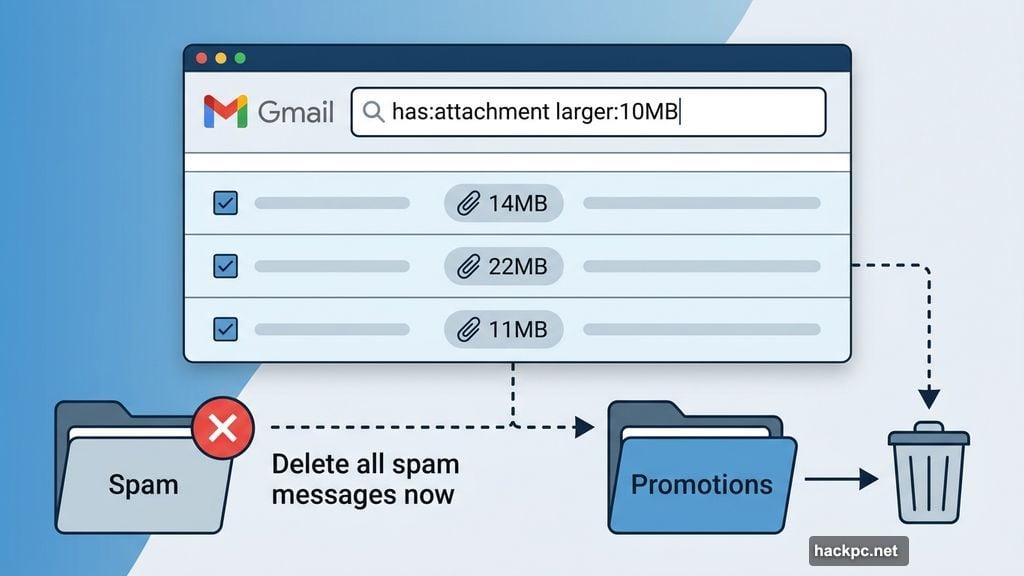
While you’re there, check your Promotions and Social tabs too. Those inboxes fill up with newsletters and sale emails nobody reads. Clearing them takes two minutes and can recover a surprising chunk of storage.
Clean Up Old Photos and Videos in Google Photos
Google Photos pulls from the same 15GB pool. And photos — especially anything shot in high resolution — are some of the biggest space users in the whole Google ecosystem.
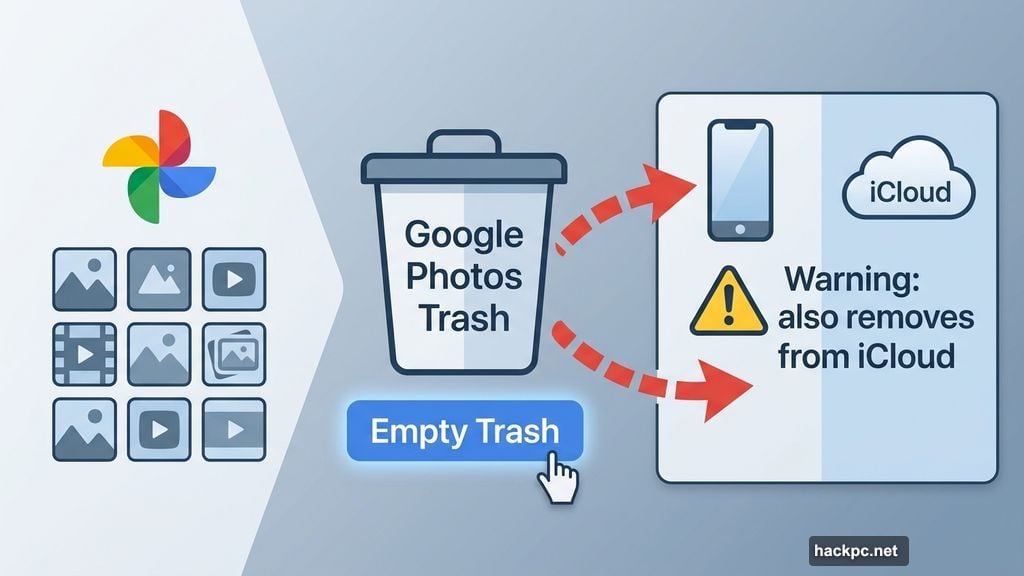
There’s no size-sort feature in Google Photos the way there is in Drive or Gmail, so you’ll need to scroll through and delete things manually. Click the checkmark on photos you want to remove, hit the trash icon, then go to Trash in the sidebar and select Empty trash. On mobile, the process is similar — just tap into individual photos or videos and use the trash icon.
If you’re an iPhone user with iCloud and Google Photos both active, watch out. Deleting a photo from Google Photos can also remove it from your iPhone’s local storage and iCloud. Google will show you a warning before this happens, but it’s worth knowing in advance so you don’t accidentally delete something you wanted to keep.
One bonus worth knowing: Google lets you compress photos and videos to a smaller file size. You lose some quality, but you gain back meaningful storage. Check Google Support for the specifics on how that compression works.
Download Everything Before You Delete It
If your Drive is almost full and you genuinely can’t part with anything, there’s still a way through. Download your files to your computer first, then delete them from Google’s servers.
In Google Drive or Google Photos on desktop, select the files you want, click the three-dot menu in the top-right corner, and choose Download. Once they’re safely saved to your hard drive (or an external drive if you need more room), go ahead and delete them from your account and empty the trash.
Gmail is a bit more tedious here. You can only download emails one at a time — open an email, click the three-dot menu, hit Download, and it saves as an .eml file. It’s slow, but it works if you have emails you need to preserve without keeping them in the cloud.
The main thing to remember throughout all of this: emptying the trash is the step most people skip. Files sitting in trash still count against your storage. Nothing changes until that trash is actually gone.
A quick afternoon of digital spring cleaning can stretch your free 15GB much further than you’d expect — and keep that Google One upgrade prompt from showing up for a while longer.




Comments (0)