
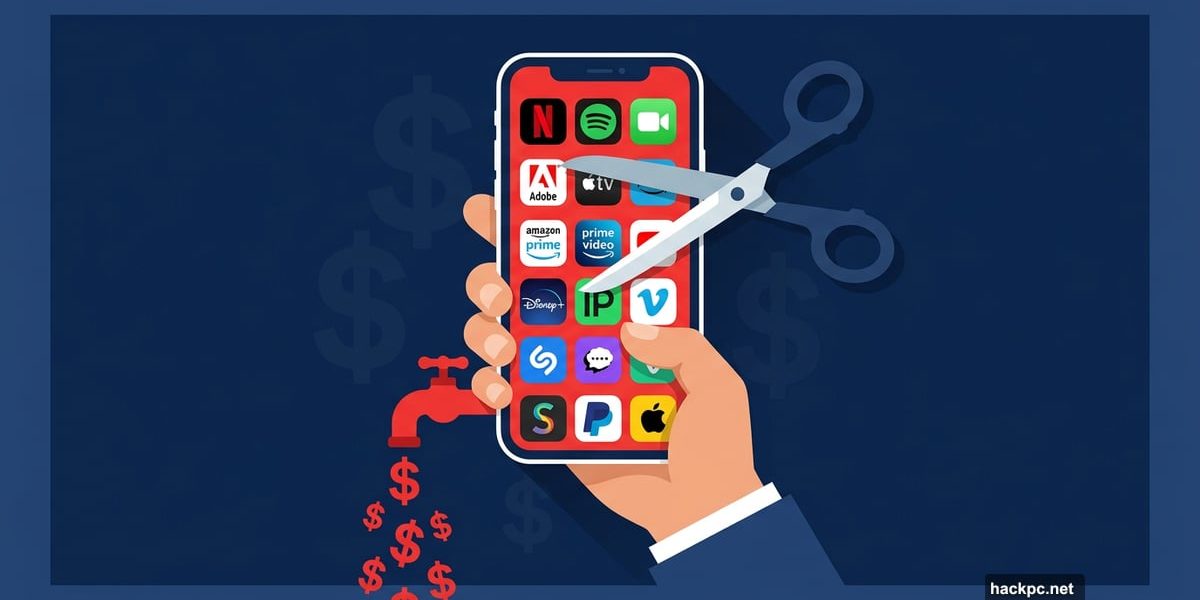
Subscriptions have quietly taken over our budgets. What used to be a short list — Netflix, a phone plan, maybe a magazine — has ballooned into dozens of monthly charges covering everything from AI chatbots to hot sauce delivery boxes.
The tricky part? Signing up takes 30 seconds. Canceling can take 30 minutes. That’s not an accident. The FTC actually tried to pass a rule forcing companies to make cancellation as easy as signup, but that rule never made it into law. So the burden stays with you.
Here’s the good news. A little detective work and a few targeted steps can clear the clutter fast. Every time I go through this process, I find something surprising that I completely forgot about.
Track Down Every Hidden Charge First
Before you can cancel anything, you need to know what you’re actually paying for. This part surprises most people.
Start with your bank and credit card statements. Pull up every transaction from the past full month and scroll through the list. Every monthly subscription will show up at least once in that window. It takes a bit of time, but it’s the most thorough method available.
Annual subscriptions are trickier. Those only hit your account once a year, so a single month of statements won’t catch them. Instead, search your email inbox for confirmation messages. Use the subject line filter to look for “welcome” or “thank you,” and search the body for words like “annual,” “membership,” or “subscribing.” Most services send a welcome email when you first sign up, so this approach can surface forgotten subscriptions going back years.
To make it easier, here’s a quick rundown of common subscriptions people often forget they’re paying for:
Entertainment: Netflix, Disney+, Amazon Prime Video, YouTube Premium, Peacock, Pandora Premium, Crunchyroll, Twitch
Gaming: PlayStation Plus, Xbox Game Pass, Nintendo Switch Online
Work and Productivity: Adobe Creative Cloud, Microsoft 365, LinkedIn Premium, Evernote
Dating Apps: Tinder, Bumble, Hinge, Grindr, Raya
Food and Delivery: HelloFresh, Blue Apron, DoorDash DashPass, Uber One, monthly snack and coffee boxes
Sound familiar? Chances are at least a couple of those ring a bell for the wrong reasons.
![A split-screen showing a cluttered list of subscription app icons on a smartphone screen next to a simplified, organized list of kept subscriptions]
Canceling Subscriptions Through Apple and Google
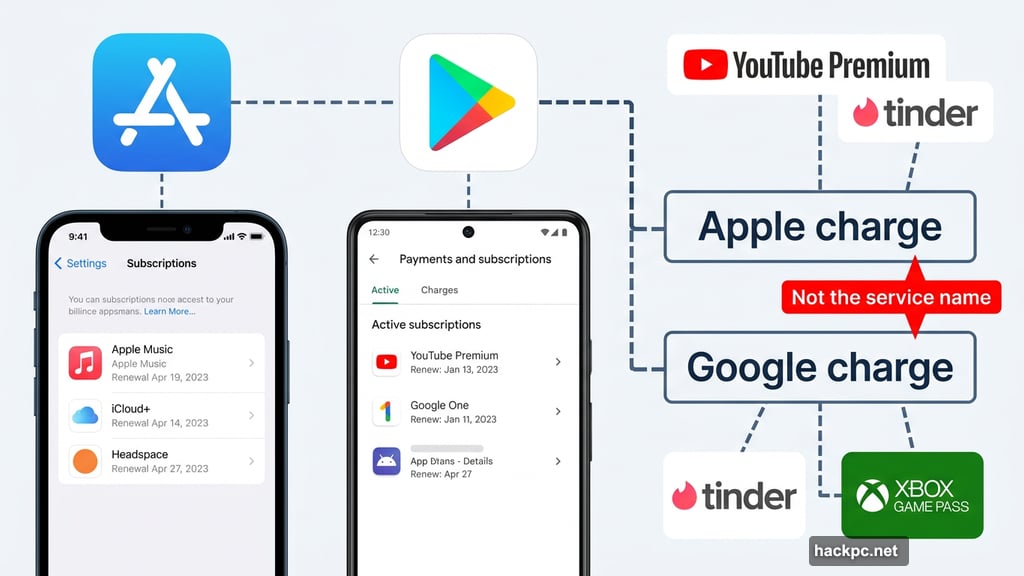
Here’s something that catches people off guard. If you signed up for a subscription through the App Store or Google Play, the charge shows up as a payment to Apple or Google — not to the actual service. That makes it harder to spot in your bank statements.
The good news is that both platforms let you manage everything from one place.
To cancel through Apple’s App Store:
- Open the Settings app on your iPhone or iPad
- Tap your profile box at the top
- Tap Subscriptions to see all active and inactive subscriptions
- Tap the one you want to end and follow the prompts
To cancel through Google Play:
- Open the Google Play app
- Tap your profile circle in the upper right corner
- Tap Payments and Subscriptions, then tap Subscriptions
- Find what you want to cancel and follow through
This is worth checking even if you don’t remember signing up through an app store. Many people forget which platform they originally used.
Canceling Amazon Prime
Amazon raised Prime’s price in 2022 to $15 per month or $139 per year. Starting in 2024, ad-free streaming through Prime Video costs an extra $3 monthly on top of that. So if you’re mainly using Prime for free shipping and find yourself ordering less, it might be time to reconsider.
Through the Amazon app:
- Tap the person icon at the bottom of the screen
- Tap Your Account at the top
- Scroll to Memberships and Subscriptions
- Tap Manage Membership from the dropdown
- Select Update, Cancel and More, then tap End Membership
Through a web browser:
- Sign in to Amazon
- Hover over Accounts and Lists near the search bar
- Click Memberships and Subscriptions under Your Account
- Click Cancel Subscription
One helpful detail: Amazon lets you set a reminder three days before your next renewal if you’re not ready to cancel immediately. That’s a genuinely useful option if you’re on the fence.
Canceling Paramount Plus
Paramount Plus runs $9 per month for the ad-supported tier or $14 monthly for the ad-free version with Showtime included. If you’ve finished what you came for and don’t see anything new worth watching, here’s how to cancel directly through the website.
Just remember: if you signed up through Amazon Prime Video or the App Store, you’ll need to cancel through that platform instead.
- Log in to your Paramount Plus account on a web browser
- Click your username in the upper right corner
- Click Account and scroll down to Cancel Subscription
- Click Cancel Subscription again to confirm
Canceling Apple TV+
Apple TV+ costs $13 per month and requires an Apple ID. The cancellation process depends on the device you originally used to sign up.
On an iPhone or iPad:
- Open Settings and tap your profile at the top
- Tap Subscriptions
- Tap Apple TV+ or Apple One, depending on how you signed up
- Select the subscription and click Cancel Subscription
On a Mac:
- Open the App Store and click your name at the bottom left
- Click Account Settings at the top
- Scroll to the Manage section and click Manage next to Subscriptions
- Click Edit next to the subscription, then Cancel Subscription
On a PC:
- Go to tv.apple.com and sign in
- Click the account icon at the top
- Go to Settings, scroll to Subscriptions, and click Manage
- Choose Cancel Subscription
Canceling Audible
Audible costs $15 per month and offers one audiobook credit per month. If you built up a backlog you’ll never get through, canceling and keeping the titles you’ve already downloaded is a reasonable move.
Through Amazon:
- Sign in to Amazon and hover over Accounts and Lists
- Click Memberships and Subscriptions
- Click the Audible Settings button next to your membership
- Scroll to Membership Options and Help, then click Cancel Membership
Directly through Audible’s website:
- Sign in to Audible
- Hover over your name and select Account Details
- Click Cancel Membership in the membership details box
- Answer the reason for canceling and follow the prompts
Canceling Spotify Premium
Spotify’s prices have gone up steadily, and if you’re okay with ads, dropping back to the free tier is easy. One important note: canceling through the app means deleting your account entirely, which wipes your playlists. To keep your music library and just switch to free, use a web browser instead.
- Go to Spotify’s website and log in
- Click your profile image or the gear icon in the upper right and select Account
- Find the Your Plan box and click it, or scroll to Manage Your Plan
- Click Cancel Subscription
Canceling YouTube TV
YouTube TV launched at $35 per month and has climbed steadily ever since. As of December 2024, it costs $83 per month. That’s creeping close to traditional cable pricing, which defeats part of the purpose. Unlike cable, though, there’s no contract — so walking away is genuinely easy.
On an Android device:
- Open the YouTube TV app and tap your profile circle
- Tap Settings, then Membership
- Under your membership details, tap Manage
- Click Cancel Membership and follow the prompts
Through a web browser:
- Go to YouTubeTV.com and log in
- Click your profile circle, then Settings, then Membership
- Click Manage next to Base Plan
- Click Cancel Membership
Apps That Help You Track and Cancel
Several finance apps now specialize in subscription management. They vary in how much access they need and what they can do automatically.
Rocket Money is one of the more full-featured options. It connects to your bank account and surfaces recurring charges automatically. The premium tier costs between $3 and $12 per month on a sliding scale and includes automated cancellation. The free tier still shows your subscriptions, which is useful on its own.
In practice, Rocket Money found an upcoming magazine renewal and a web hosting fee I’d completely forgotten about — canceling both would save nearly $200 over a year. That said, it missed my Apple One payment and a streaming service billed through my TV. It’s helpful but not perfect.
The automated cancellation feature works by submitting the request on your behalf. When tested with Paramount Plus, the confirmation came back the same evening. It’s not instant, but it removes the friction of doing it yourself.
Bobby (iOS) and Tilla (Android) take a different approach. They don’t connect to your bank at all. Instead, you manually enter your subscriptions, and the apps remind you about upcoming renewals. Bobby costs a flat $4 to unlock full features, and Tilla runs $2. Both are more private than bank-connected apps, but they only work as well as your commitment to keeping them updated.
Honestly, if you’re disciplined enough to manually maintain a subscription tracker, a simple spreadsheet or your phone’s built-in reminders app works just as well. The paid apps are nicer to look at, but the functionality is similar.
Worth noting: all bank-connected apps require you to share your financial data, and some share that data with third parties for marketing purposes. Read the privacy policy before linking anything sensitive.
Cleaning up your subscriptions takes maybe an hour the first time through. After that, a quick monthly scan keeps things under control. The money you save goes back into your pocket — not into some forgotten coding game your kid stopped playing nine months ago.




Comments (0)