
Your Roku freezes during movie night. The spinning circle taunts you. Family’s waiting. So naturally, you start browsing for replacements.
Stop right there. That $50-100 you’re about to spend? Completely unnecessary in most cases. A quick 5-minute fix usually solves the problem without spending a dime.
Before declaring your streaming device dead, try these ridiculously simple solutions. Most people never bother with basic troubleshooting. But these steps genuinely work.
Why Your Roku Suddenly Got Sluggish
Streaming devices accumulate digital clutter over time. Cached data piles up from apps. Background processes multiply. Your Roku eventually drowns in its own temporary files.
Plus, you probably installed channels months ago that you never actually watch. Each unused app consumes memory and processing power. Those dozen forgotten channels? They’re quietly dragging down performance.
The good news? None of this requires technical expertise to fix. You just need five minutes and your remote control.
The Fastest Cache-Clearing Method
Roku TVs hide their cache-clearing function behind system menus. But once you know where to look, the process takes seconds.
Start by navigating to Settings from your home screen. Scroll all the way to the end of the menu list.
Next, select System and look for the Power option. Inside Power settings, you’ll find System Restart. Click it and confirm your choice.
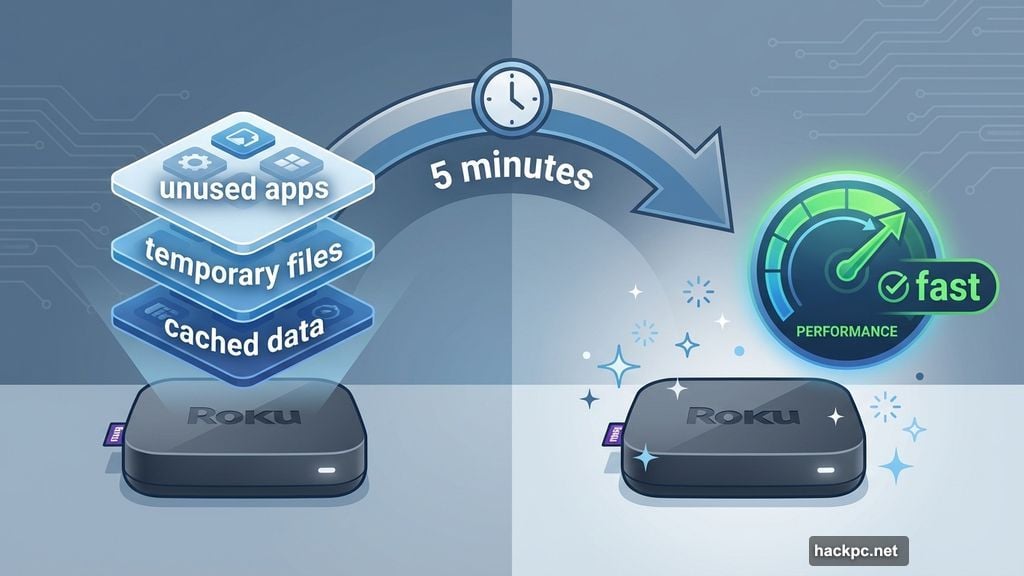
Your Roku TV will turn off completely. This clears the cache without factory resetting your device. No settings get lost. No apps disappear. Everything stays configured exactly how you like it.
The TV restarts automatically in about 30 seconds. Most performance issues vanish immediately after this simple reboot.
The Secret Remote Combination Reset
Sometimes the menu-based restart doesn’t solve everything. That’s when the hidden remote function comes in handy.
This method works even when your Roku becomes completely unresponsive. It’s basically a forced restart built into the remote itself.
Go to your Home menu first. Make sure the highlight sits over the Home option on the left side.
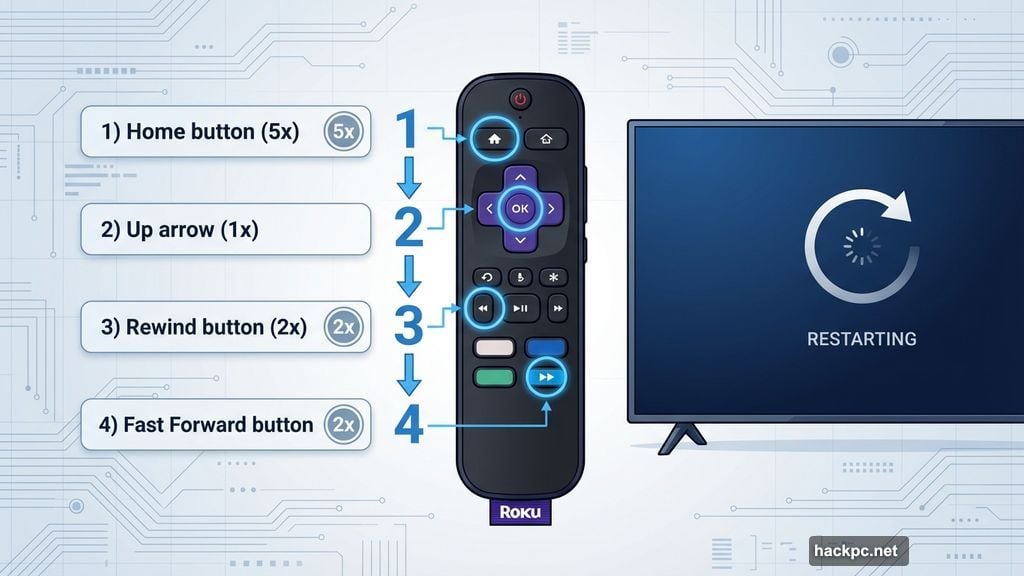
Now execute this specific button sequence on your remote:
- Press Home five times
- Press Up arrow once
- Press Rewind twice
- Press Fast Forward twice
Your Roku immediately begins restarting. This deeper reset often fixes issues that survive a standard restart. It’s like the emergency shutdown button hidden in plain sight.
When One App Ruins Everything
Sometimes a single misbehaving app causes all your problems. Netflix, YouTube, or any streaming channel can develop glitches that slow your entire system.
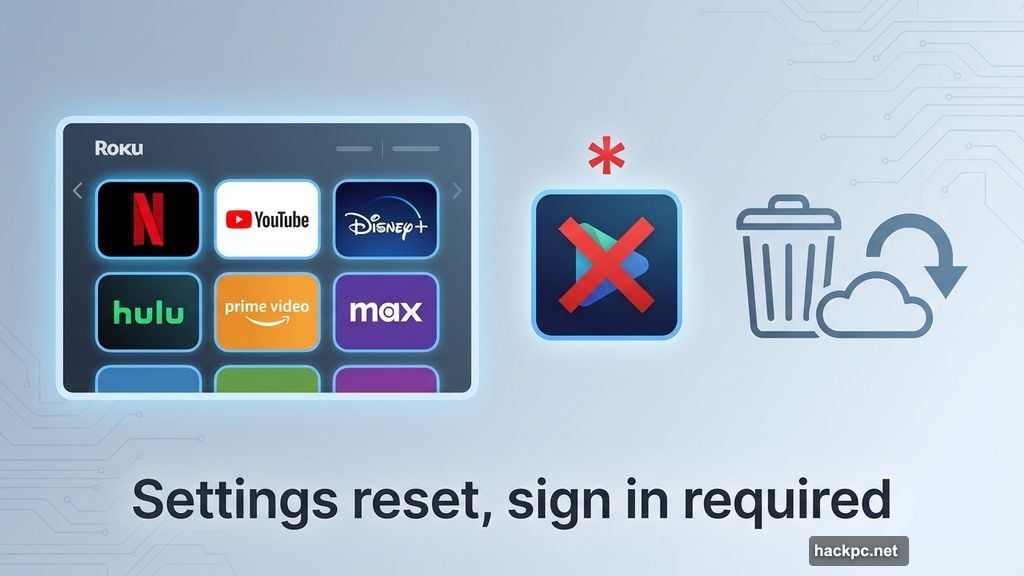
Reinstalling the problematic app usually fixes it. But fair warning: uninstalling removes all users and settings from that channel. You’ll need to sign in again afterward.
Here’s the process. Highlight the suspect app on your home screen without opening it. Press the asterisk button on your remote.
A popup menu appears. Select Remove Channel and confirm. Wait a few seconds for complete removal.
Then reinstall the app fresh from the Roku Channel Store. Sign back in with your credentials. The clean installation typically eliminates whatever glitch was causing slowdowns.
The Nuclear Option: Factory Reset
Still experiencing lag after trying everything else? Factory reset becomes your last resort.
This wipes your Roku completely clean. Every app disappears. All sign-ins vanish. Settings return to default. Your device becomes brand new again.
Only use this method when nothing else works. It’s effective but requires setting everything up from scratch afterward.
Navigate to Settings, then System, then Advanced System Settings. At the bottom, you’ll find Factory Reset. The system asks for a confirmation code displayed on screen.
Enter that code carefully. Your Roku begins the complete reset process. Plan for 15-20 minutes to reconfigure everything afterward.
Before You Factory Reset: Try This First
Most people skip straight to factory reset out of frustration. Don’t make that mistake. The simpler fixes solve 90% of Roku performance issues.
Try the standard restart first. Takes 30 seconds. If that doesn’t work, use the remote combination reset. Give each method a fair shot before escalating to more drastic measures.
Factory reset should genuinely be your last resort. It works perfectly. But you’ll spend way more time setting everything back up than you would testing the easier solutions first.
The Real Reason This Matters Now
Holiday streaming puts extra demands on your Roku. Family gatherings mean more people watching. Kids streaming cartoons while adults browse shows. Multiple apps running throughout the day.
That increased usage amplifies existing performance problems. A Roku that stuttered occasionally during summer becomes unwatchable during December.
But here’s the thing. Your device probably isn’t dying. It’s just overwhelmed by accumulated digital junk. Clear that out and performance rebounds immediately.
Save your money. Save the hassle of shopping and setup. Five minutes of maintenance beats hours of research and configuration for a replacement device.
Your Roku likely has years of life left. Give it the quick refresh it desperately needs.




Comments (0)