
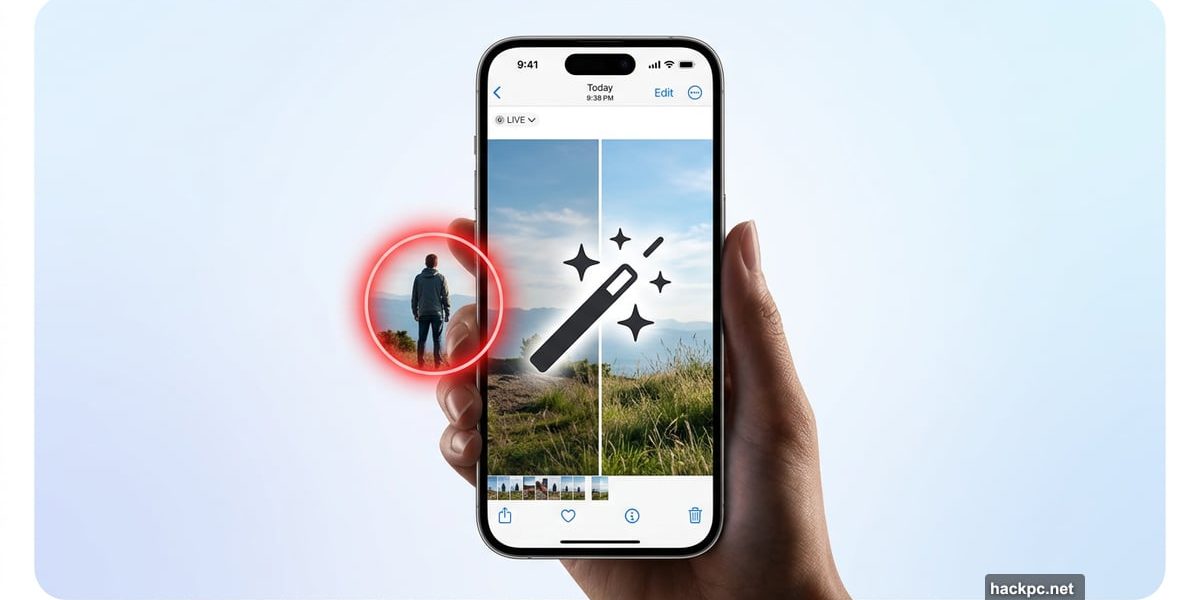
We’ve all been there. You snap the perfect shot, only to spot a stranger lurking in the background or a pile of litter stealing the spotlight. Fixing that used to mean firing up expensive software and spending an hour fiddling with clone stamps. Now, Apple’s Clean Up tool handles the same job in seconds.
Built into the Photos app and powered by Apple Intelligence, Clean Up uses generative AI to analyze your image and fill in deleted areas with realistic-looking content. Sometimes the results are seamless. Other times, well, they’re hilariously bad. After testing the tool across many different photos, here’s what you need to know to get the best results.
![Hero image showing Apple Photos app interface with Clean Up tool removing a background person from a scenic photo on an iPhone]
What Makes Clean Up Different From Basic Retouching
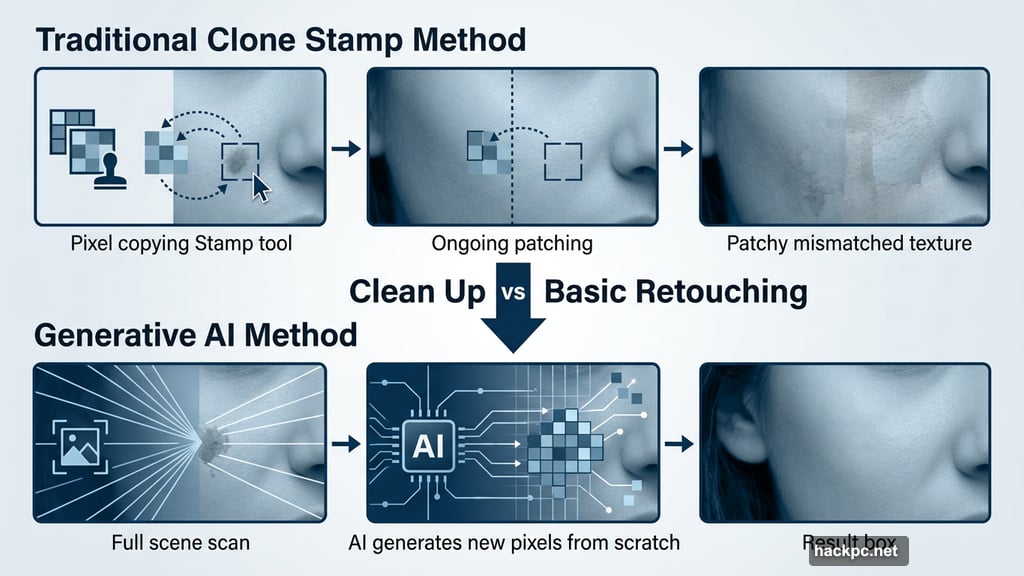
Most photo editing apps repair images by copying nearby pixels and stamping them over the area you want to fix. It works fine for small blemishes or dust spots, but falls apart fast with anything complex.
Clean Up takes a completely different approach. Instead of copying pixels, it uses generative AI to actually create new image content from scratch. It studies the entire scene first, then builds replacement pixels based on what it thinks belongs in that space.
So if you remove a dog standing in front of a tree, the AI doesn’t just grab nearby bark textures and paste them over. It considers the tree’s lighting, the depth of foliage behind the dog, and the overall scene composition before generating the replacement. The result often looks far more natural than traditional retouching.
That said, this is still generative AI. Results vary wildly depending on the complexity of what you’re removing. Keep your expectations flexible.
Which Devices Support Clean Up
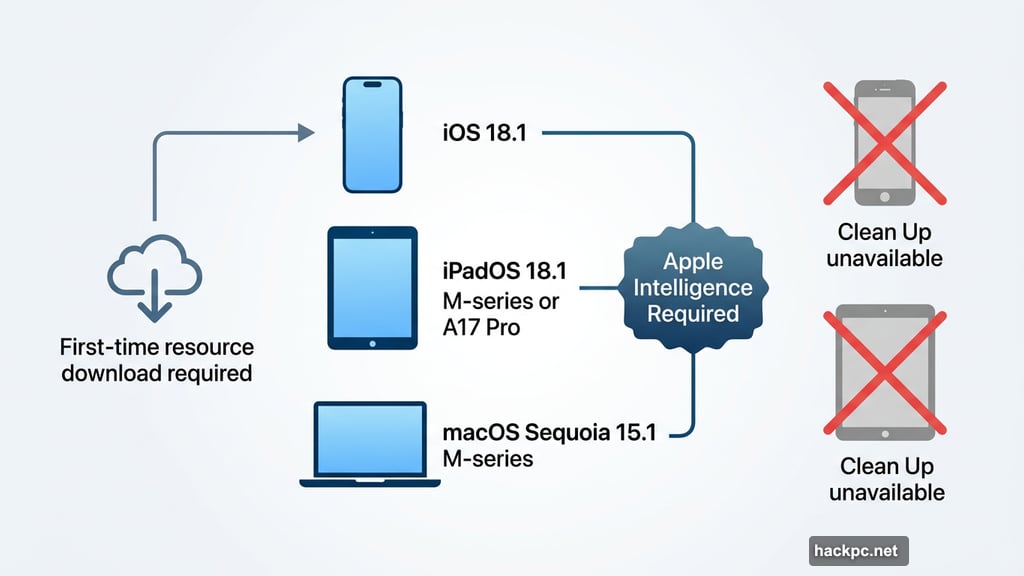
Clean Up is a feature of Apple Intelligence, so it only runs on compatible hardware. You’ll need one of the following:
- iPhone running iOS 18.1 or later
- iPad with an M-series processor, or iPad mini with A17 Pro chip, running iPadOS 18.1 or later
- Mac with an M-series processor running macOS Sequoia 15.1 or later
If you’re on an older device, Clean Up won’t appear in your Photos editing options. The Mac version of Photos did include a basic Retouch tool before Clean Up arrived, but Clean Up replaces it on compatible machines.
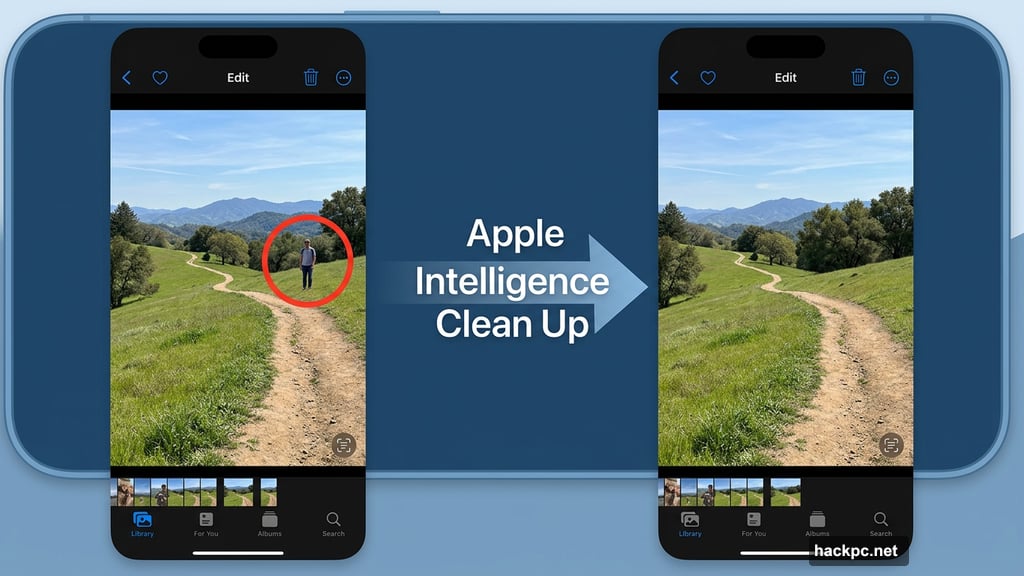
How to Use the Clean Up Tool Step by Step
The process is surprisingly simple. Clean Up works in two modes: it can automatically suggest things worth removing, or you can manually circle whatever’s bothering you.
Here’s how to get started:
- Open the photo you want to edit and tap the Edit button. On Mac, click Edit or press the Return key.
- Tap Clean Up. If this is your first time using it, Photos will download the necessary resources. That takes a minute or two depending on your connection speed.
- Photos analyzes the image automatically. Any items it thinks you’d want removed will shimmer with a translucent highlight. Tap a suggested item to remove it, or draw a circle around anything that isn’t glowing.
- Check the results. Sometimes the first pass leaves behind stray shadows or partial remnants. Draw over those leftover areas to clean them up further. Tap Undo if you’re unhappy with a specific fix.
- When you’re done, tap Done. Changed your mind entirely? Tap the More (…) button and choose Revert to Original to start fresh.
One pro tip worth mentioning: always include shadows and reflections in your selection. When you drag around an object, extend your circle to cover any shadow it casts. Clean Up often detects these automatically, but catching them in your initial selection saves an extra pass.
![Screenshot showing the Clean Up tool interface on iPhone with suggested removal highlights and the manual drawing selection mode]
The Hidden Safety Filter Feature
Here’s something most people don’t realize Clean Up can do. Beyond removing objects, it can also obscure someone’s identity in a photo.
Draw a rough circle around a person’s face, and instead of trying to remove them entirely, Photos applies a blocky mosaic pattern over their features. You don’t need to trace carefully or fill in the whole face. A general swipe across the area does the job.
It’s a clever privacy feature that comes in handy if you want to share a candid shot without exposing someone’s identity. Not the most common use case, but genuinely useful when you need it.
Where Clean Up Performs Best
After extensive testing, certain types of edits consistently turn out well. Focus your efforts here for the cleanest results.
Small background distractions work almost every time. Litter on the ground, dust on clothing, stray threads, minor smudges. The AI handles these confidently.
Repeating background textures like grass, gravel, tree leaves in the distance, or stone walls give the AI plenty of material to work with. The replacements blend in naturally.
Lens flare from light bouncing between camera elements disappears cleanly, as long as the flare isn’t enormous.
Background people or vehicles that don’t take up much of the frame remove well, especially when they’re partially obscured or blurry from depth of field.
Sparse or plain backgrounds give the AI less to get confused about. Solid sky, simple walls, and minimal-detail areas all respond well to Clean Up.
Where Clean Up Struggles
Knowing the tool’s limits saves you a lot of frustration. Some removals simply don’t go well.
Very large areas cause problems quickly. Photos will either warn you to select a smaller area or attempt the removal and produce a muddled mess of pixels. The AI struggles to convincingly fill in big spaces.
Busy scenes with recognizable structures trip the algorithm up. Tree leaves work great from a distance, but removing a prominent foreground leaf from a detailed pile of foliage creates obvious artifacts. Similarly, removing people from landmark backgrounds with strong geometric lines tends to look bad.
Complex foreground subjects with clear edges and distinct shapes are hard for the AI to replace convincingly. The more distinctive the object, the higher the chance the replacement looks off.
How Clean Up Compares to Competitors
Apple’s tool is convenient and well-integrated into the Photos workflow, but it does have some notable limitations compared to alternatives like Adobe Lightroom.
When you don’t like a Clean Up result, your only options are to undo or revert the entire edit. If you undo and try again, you get the exact same result as before. There’s no way to regenerate a different version of the fix.
Lightroom handles this much better. It offers three different removal options for each edit, and you can generate a fresh set if none of them work for you. That flexibility makes a real difference when the first attempt doesn’t look right.
It’s also worth noting that Clean Up is technically still in beta, even though it’s available to any compatible device owner who opts into the Apple Intelligence beta program. Some inconsistencies in output quality reflect that work-in-progress status.
Getting the Most From Clean Up
Clean Up is a genuinely impressive tool for casual photo cleanup, especially for quick fixes you’d previously have needed a computer and dedicated software to handle. Tourists wandering into your vacation shots, power lines cutting across a landscape, distracting clutter on a table — all of these become one-tap fixes most of the time.
Just set realistic expectations for the tough cases. Large removals and complex backgrounds will test the AI’s limits, and sometimes the results will make you laugh rather than impress you. For those situations, dedicated editing apps like Lightroom still have the edge.
For everything else? A few taps in Photos is all you need.




Comments (0)