
Navigating an unfamiliar city is stressful enough without scrambling through three different apps just to find lunch. But Google Maps has quietly grown into something much more than a directions tool.
Over the past couple of years, I’ve leaned on it heavily while traveling, and the difference it makes is real. From offline navigation in the Scottish countryside to dodging tourist crowds in London, these features have saved me more than a few frantic moments. Here’s what actually works.
The Indoor Directory Nobody Uses
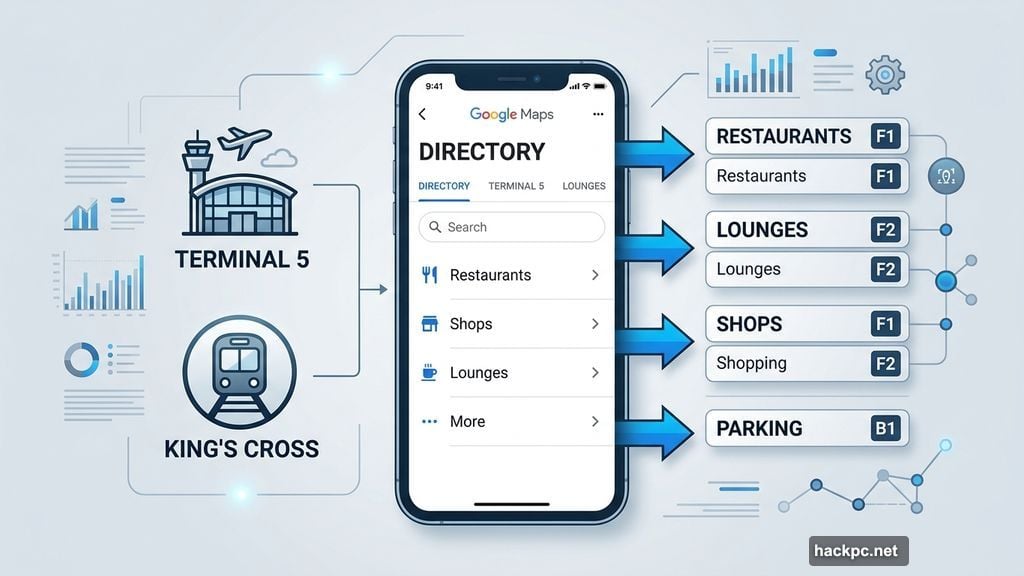
Big transit hubs are genuinely overwhelming. London’s King’s Cross station sees about 67,078 people daily, which makes finding a coffee shop feel like solving a puzzle under pressure.
Google Maps has a Directory tab built specifically for airports, malls, and train stations. Tap it and you’ll see a full list of restaurants, shops, lounges, and parking areas, complete with floor locations and hours.
I used it to track down a Greggs for a sausage roll before leaving London. Small win, but the kind of thing that makes travel feel less chaotic.
Check Crowd Levels Before You Leave the Hotel
If packed restaurants and busy streets drain your energy, this feature pays for itself on day one.
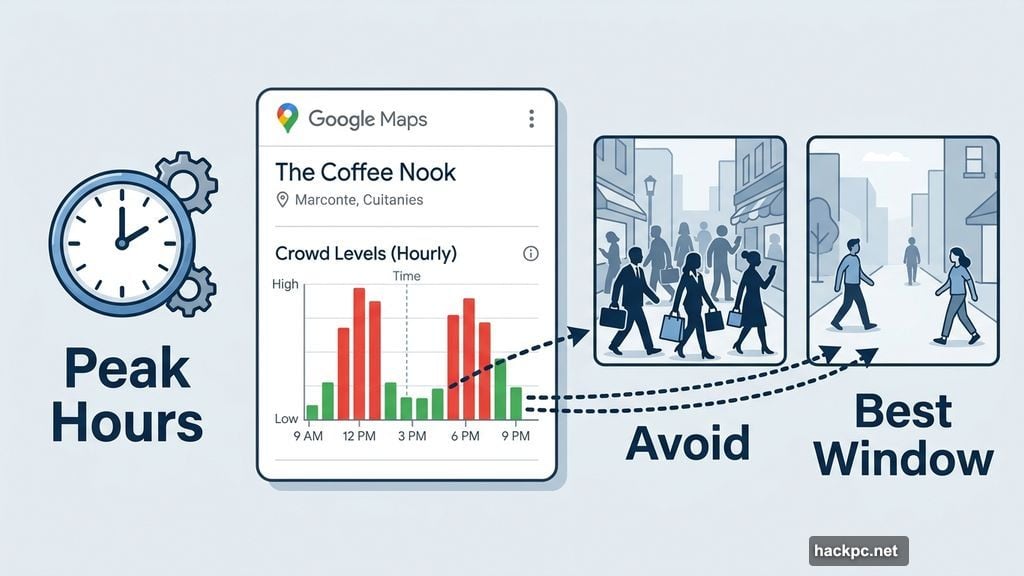
Search for a specific place and scroll down to find a chart showing busy and non-busy times. You can also tap a “Busy Area” label on the map to see broader neighborhood crowd patterns, not just individual spots.
It won’t tell you exactly how crowded something is in real time, but it gives you a solid read on the best windows to visit. I’ve used it to dodge peak hours at popular spots more times than I can count.
Book a Table Without Making a Phone Call
Some travelers plan every meal weeks in advance. Others, like me on certain trips, prefer to wander and decide when hunger hits.
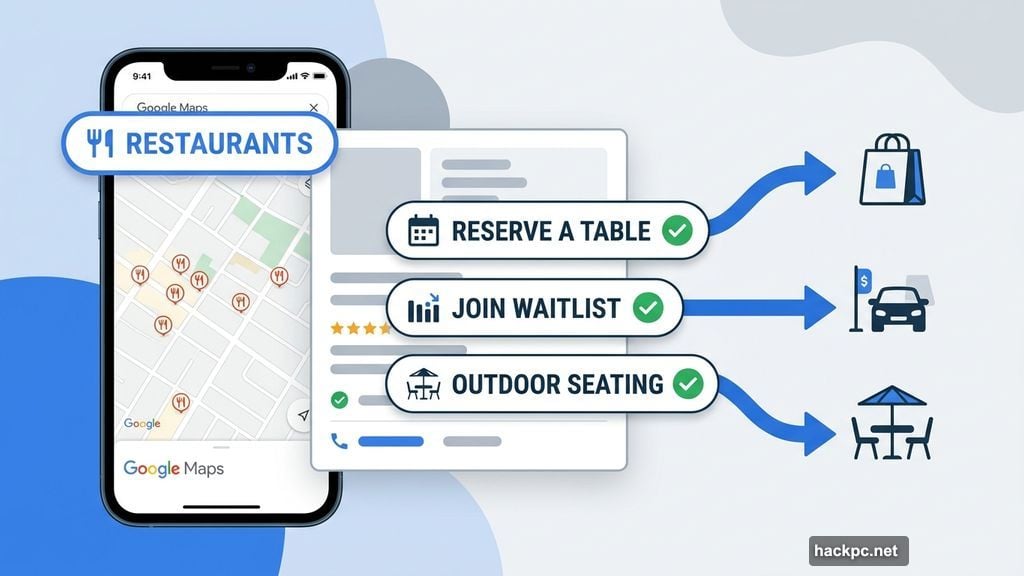
Open Google Maps, tap the Restaurants button at the top, and browse whatever’s nearby. Many listings let you reserve a table or join a waitlist directly through the app, no phone call required.
Plus, if a restaurant isn’t taking dine-in reservations, it might still show delivery, curbside pickup, or outdoor seating options. Worth checking before you write a place off entirely.
Download Maps Before You Lose Signal
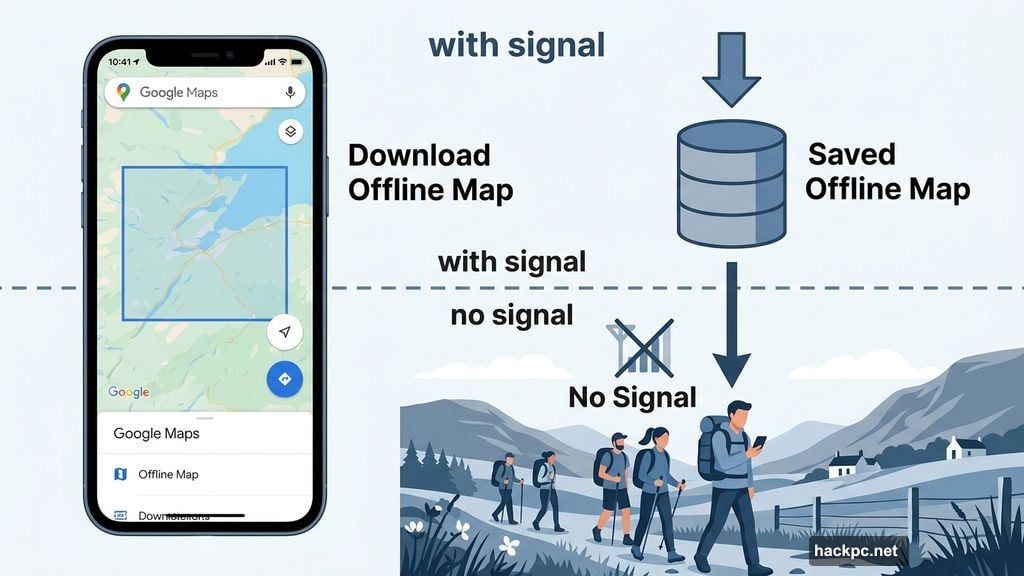
Remote hiking trails and rural countryside areas have one thing in common: no signal. Last May, my family hiked through the Scottish countryside, and cellular service disappeared about ten minutes in.
Before you head somewhere remote, search for your destination in Google Maps. Open the menu in the location window, swipe to the More tab, and tap Download offline map. Confirm the area and download it.
Once saved, Maps will switch to that offline version automatically if you lose your signal. Real-time traffic won’t work, but turn-by-turn navigation still does. For hiking or rural driving, that’s what actually matters.
Share Your Location So Reuniting Is Easy
Traveling with someone who has different interests is great until you try to find each other again.
My sister and I often split up mid-day. She hits her limit in museums fast; I could spend half a day in one. The reunion part used to involve vague descriptions like “I’m near the fountain” and a lot of frustrated wandering.
Location sharing through Google Maps fixes that cleanly. Tap your profile icon, select Location sharing, choose a contact, and set how long you want to share. They can do the same in return. You’ll each see a live marker on the map, so meeting back up takes seconds instead of minutes of frustrated phone calls.
Build a Shareable Travel List
Screenshots of travel recommendations pile up fast. I’d end up with dozens of saved Instagram posts and Pinterest pins, then spend ages figuring out which spots were actually close to each other.
Google Maps lets you build a custom list directly in the app. Go to the You tab, tap New list, give it a name, and start saving places as you find them on the map. Every saved spot appears as a pin, so you can instantly see which restaurants are walking distance from your hotel or which attractions cluster together.
You can also share the list with travel companions and let them add spots too. For group trips, this alone cuts down on a lot of back-and-forth planning.
Let Gemini Suggest What to Do Next
Sometimes you’re standing in a new city with a free afternoon and zero ideas. That’s exactly where Gemini earns its place.
Since Google updated Maps in fall 2024, you can ask Gemini directly for recommendations inside the app. Ask for things to do on a rainy day, the best spot for a family dinner, or hidden gems near your current location. Gemini pulls from Google reviews and displays suggestions as pins on the map, so you can browse options visually.
It won’t replace your own research for a big trip, but for spontaneous decisions mid-travel, it’s genuinely useful.
The Screenshot Organizer That Saves Your Planning
Here’s a bonus feature that’s easy to miss. Google Maps introduced a Gemini-powered tool that scans screenshots on your phone for place names and locations.
Once activated, it identifies any travel-related screenshots you’ve saved, displays those locations on the map, and gives you the option to save or share them in a list. So all those Instagram screenshots of restaurants and museums you’ve been collecting? The app can pull them into a usable format automatically.
For anyone who does heavy visual research before a trip, this cuts out a big chunk of the manual work.
Travel will always have its unpredictable moments. But Google Maps has gotten good enough that the logistics side of a trip, the navigation, the crowds, the reservations, the reuniting with your travel partner after an art museum, can mostly stay under control. Start with whichever features match your biggest travel headaches and build from there.




Comments (0)