
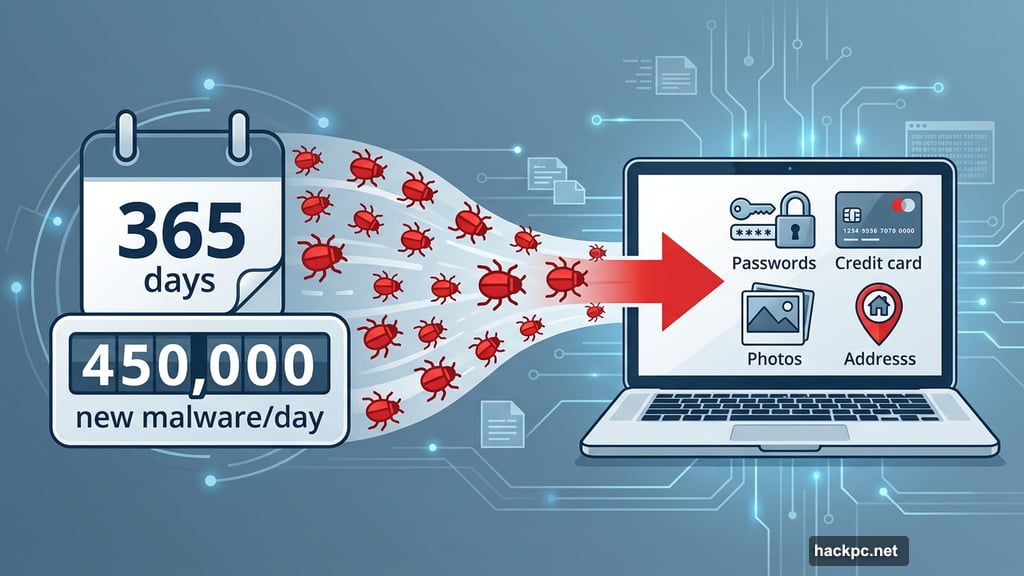
Your computer holds your whole life. Passwords, credit cards, addresses, photos — all sitting there, waiting to be stolen.
And the threat is bigger than most people realize. According to CNET’s latest antivirus survey, 54% of laptop owners ran into potential malware in the past 12 months alone. Plus, roughly 450,000 new malicious programs get created every day. That’s not a typo. Every. Single. Day.
So let’s talk about what you can actually do to protect yourself — no computer science degree required.
Keep Your Software Updated (Seriously, Don’t Skip This)
Think of software updates like locking your front door. You wouldn’t leave it wide open, right?
Microsoft and Apple both push regular security patches to fix newly discovered vulnerabilities. These updates close the holes that malware sneaks through. So when your computer nags you to install an update, don’t keep clicking “remind me later.”
You don’t need to drop everything instantly. But waiting a full week is too long. The same rule applies to your apps, especially your web browser, which gets updated constantly for good reason.
One quick tip before any update: back up your important files first. Updates usually go smoothly, but occasionally they don’t. A backup means you’re covered either way.
Built-In Antivirus Protection You Already Have
Here’s something most people don’t know. Both Windows and MacOS already include solid antivirus tools, completely free.
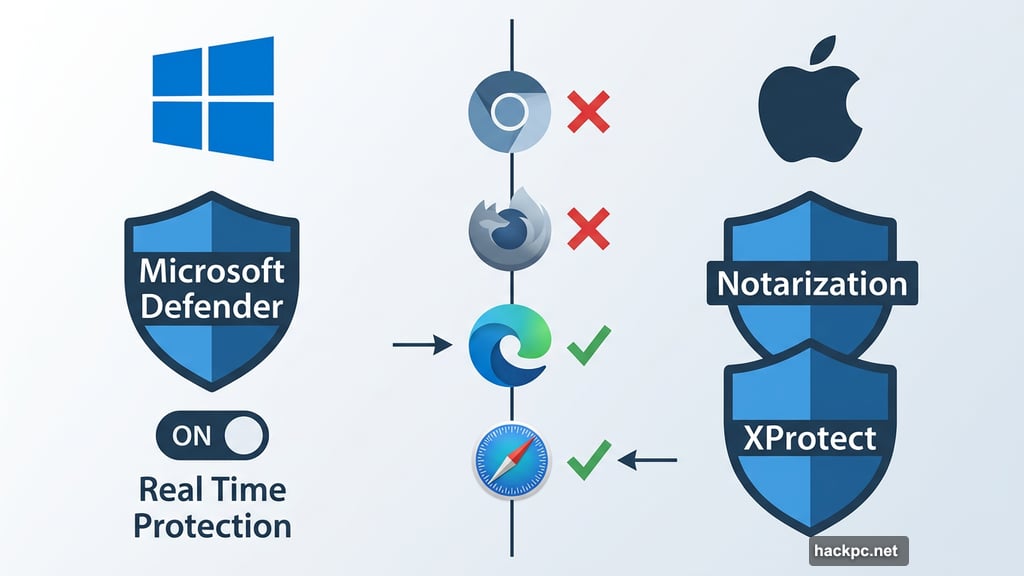
Windows comes with Microsoft Defender. It scans downloads for malware, runs automated scans in the background, and lets you kick off a manual scan anytime you feel like it. On MacOS, Apple uses two layers of protection called Notarization and XProtect. Together, they block malware from the App Store, stop suspicious downloads, and can even clean up infections that slip through.
Both should be enabled by default, but it’s worth double-checking. On Windows, head to Windows Security, then Virus and Threat Protection Settings, and confirm that Real Time Protection is toggled on. On Mac, go to System Settings, then General, then Software Update, and make sure security updates install automatically.
When Third-Party Antivirus Software Makes Sense
Built-in tools handle the basics well. But there are a few situations where paying for third-party antivirus software is worth it.
For example, Microsoft Defender and XProtect browser protections only cover Edge and Safari respectively. If you use Chrome or Firefox, you’re left without browser-level scanning unless you add a third-party tool. Also, scheduling scans on demand is surprisingly complicated with built-in tools, especially on Mac where XProtect doesn’t offer that option at all.
For most people, Bitdefender is the easiest recommendation. It runs deep scans quickly without slowing your computer down, and its premium packages include scam detection, dark web monitoring, and a digital footprint tool. McAfee is another solid option, especially if you need to cover more than five devices, since McAfee protects unlimited devices under one plan. Just know it uses more processing power than Bitdefender. If budget is tight, AVG Antivirus offers a free version that covers the essentials well.
Firewall Protection Works Quietly in the Background
Your firewall acts like a bouncer at the door. It checks incoming data for anything suspicious and blocks it before it reaches your system.
Both Windows and MacOS have firewalls built in, and both should already be active. To check Windows, open Windows Security and click Firewall and Network Protection. Every listed network should show “Firewall is on.” On Mac, go to System Settings, then Network, then Firewall, and verify your settings there.
Most premium antivirus packages also include their own firewall tools. These often offer more customization than the built-in versions. And they typically activate automatically when you install the software.
Don’t Forget About Spyware Protection
Spyware isn’t technically a virus, but it’s just as dangerous. This type of malware quietly collects your personal information and sends it to third parties, who can sell your data or use it in harmful ways.
Your operating system provides some basic spyware protection. But most premium antivirus tools do a much better job. In many cases, spyware protection is baked directly into the antivirus and activates automatically. With some tools like AVG, though, anti-tracking and anti-spyware features are separate programs you need to set up manually. Worth checking which approach your software uses.
Phishing Scams Are Getting Harder to Spot
Phishing is when someone pretends to be a trusted company, like your bank or PayPal, and tricks you into handing over personal information or clicking a malicious link. These scams can also install ransomware or other malware directly onto your computer.
A few habits make a big difference here. First, always check the sender’s email address carefully. Scammers use addresses like “paypal1.com” instead of “paypal.com” — easy to miss at a glance. Second, watch for generic greetings like “Dear Customer” or misspelled names. Real companies usually know who you are.
Before clicking any link in an email, hover your mouse over it to preview the URL. If it doesn’t match the company’s real website, don’t click. And if you receive an invoice or attachment you weren’t expecting, don’t open it. Most email clients show a preview of attached files, so you can usually tell whether something looks legitimate without ever opening it.
When in doubt, contact the company directly through their official website or customer service chat. They’ll confirm whether they actually reached out to you — and they’ll want to know about potential scams targeting their customers.
Both Bitdefender and McAfee include scam protection tools that scan incoming emails for red flags. These tools catch a lot of obvious threats. But scammers adapt constantly, so your own judgment is still your best defense.
Download Files Only From Sources You Trust
Good antivirus software often catches malicious downloads before they cause harm. But the safest approach is never attempting to download them in the first place.
Always download software directly from the official website of whoever made it. Check that the URL matches exactly. Also look for “HTTPS://” at the start of the address — that means the connection is encrypted, making it much harder for attackers to intercept your data.
If you’re unsure about a website, search for reviews or type the company name plus the word “malware” into Google. That often surfaces warnings from people who’ve had bad experiences. And always take pop-up warnings from your antivirus seriously. If it flags something as suspicious, trust it.
Managing Who Uses Your Computer
All the security tools in the world won’t help if someone else downloads a virus onto your machine. That’s why security experts generally recommend keeping your device to yourself — and using a strong password so no one can access it without your permission.
Of course, shared computers happen. Maybe you have a family setup, or occasionally need to hand your laptop to someone. In those cases, create separate user accounts for anyone who regularly uses your computer. Both Windows and MacOS let you restrict what those accounts can do — blocking app installations, for instance, or requiring your password for any major changes.
Keeping Kids Safe Online Protects Your Computer Too
Kids are especially vulnerable to online threats. And if they’re using your device, that vulnerability becomes your problem too.
Parental control tools like Microsoft Family Safety and Mac Parental Controls let you filter out unsafe websites, set screen time limits, and block specific apps entirely. Norton’s antivirus package goes even further with more granular controls if you need them.
Beyond the tools, though, education matters most. Talk to your kids about how viruses work and why they’re dangerous. Show them how to spot suspicious links and emails. Walk through resources like Be Internet Awesome together — it’s designed specifically to teach kids about online safety in an approachable way.
Also, stay involved without hovering. Ask what websites your kids visit, who they talk to online, and what they’ve been doing. The goal is creating an environment where they feel comfortable telling you if something goes wrong — like accidentally clicking a bad link — rather than hiding it out of fear.
Back Up Your Data. No Excuses.
Even if you do everything right, something can still go wrong. New viruses evolve every day, and no security system is perfect. That’s why a solid backup strategy is non-negotiable.
The best approach combines two methods: a cloud storage service for easy, automatic syncing, and an external hard drive for a physical copy you fully control. Use both. And update those backups at least once a week if you’re regularly working on important files.
Protecting your computer is really about building good habits. Update regularly. Keep your antivirus active. Think twice before clicking anything. And make sure your important stuff is always backed up somewhere safe. Do those things consistently, and you’re already ahead of most people.




Comments (0)