

If you’ve ever opened Spotify just to listen to music and found yourself staring at a looping video clip you didn’t ask for, good news is on the way.
Spotify announced Thursday that users on every plan — including the free tier — will soon be able to turn off videos entirely. That means no more Canvas looping visuals during songs, and no more video playback for podcasts either. The update starts rolling out globally this month.
Audio-First Listening Makes a Comeback
Canvas has been part of Spotify for a while now. It’s those short, looping video clips that play in the background while a song runs. Some people love the visual touch. Others just want to hear their music without the distraction.
So Spotify is finally giving listeners a real choice. Premium, Basic, and free plan users can all opt out through the settings menu. The company describes it as choosing to “maintain an audio-first experience or layer in a richer, video-enhanced one.” That’s a fancy way of saying: you get to decide.
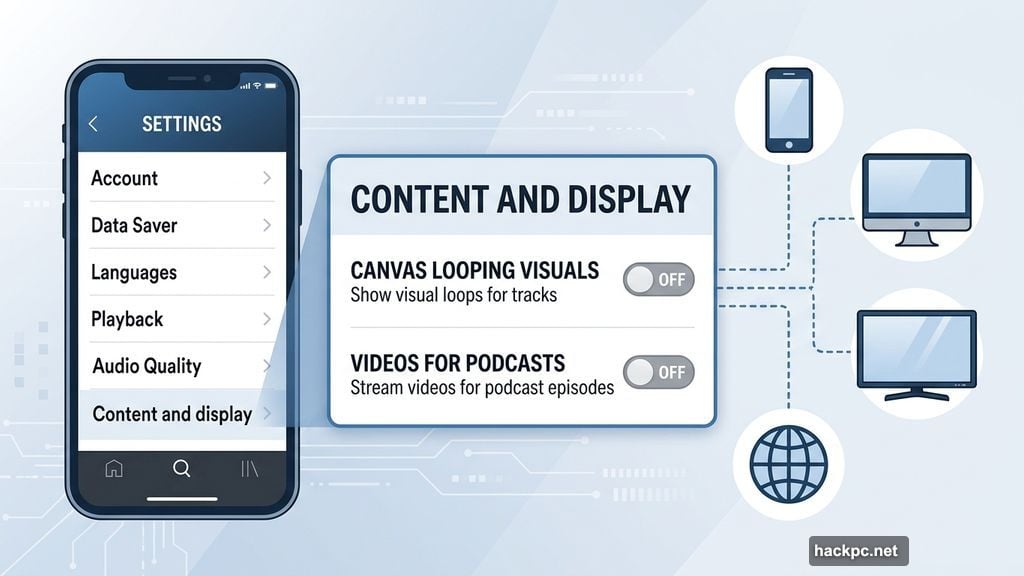
The settings change applies across every platform, too. Mobile, desktop, TV, and web all follow the same preference once you toggle it.
Family Plan Managers Get Extra Controls
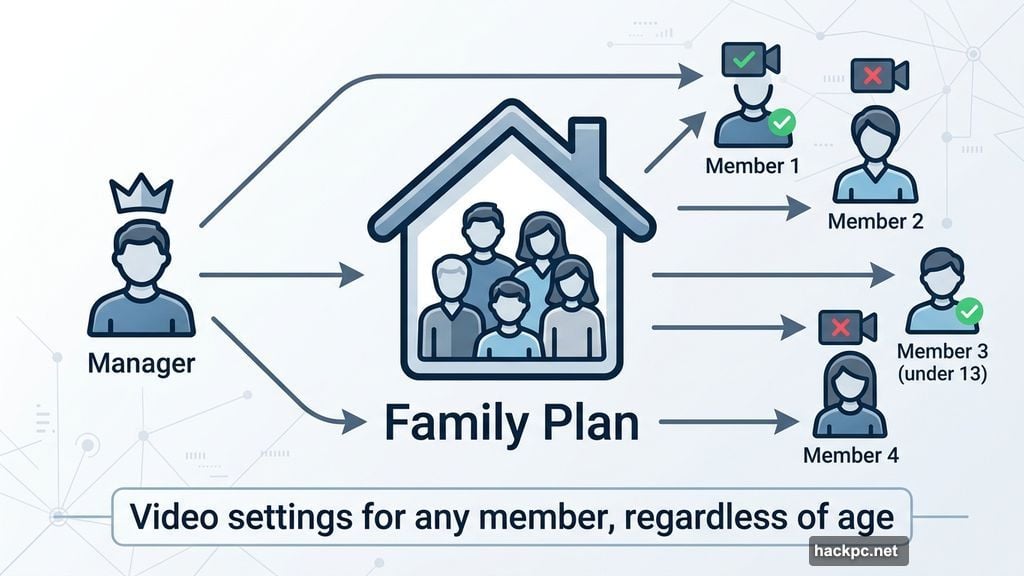
There’s also a separate update rolling out specifically for family plan managers, and this one starts Thursday.
Previously, managers could only disable videos for accounts belonging to listeners under 13. Now they can adjust video settings for any member of the family plan, regardless of age. That’s a useful addition for households where some members prefer a pure audio experience.
One Catch Worth Knowing
Here’s the thing: turning off videos doesn’t mean a completely video-free experience. Spotify confirmed that video ads and Canvas-like visuals on some audio ads will still appear even after you opt out.
So the change is specifically about content videos — not advertising. If you’re on the free plan, ads remain part of the deal, and some of those ads still include visual elements.
How to Turn Off Videos on Spotify
The rollout hasn’t hit every account yet — it wasn’t showing up for some users as of this writing — but here’s the process Spotify says will work once it arrives for you:
- Open Settings on Spotify
- Find Content and display
- Toggle Canvas looping visuals or videos for music and podcasts on or off
Your preference saves across all your devices automatically.
Why This Update Makes Sense Right Now
Spotify raised its prices earlier this year, bumping the Premium Individual plan to $13 per month. When you’re paying more for a service, having more control over your experience feels like a reasonable expectation.
The platform has also been pushing new features lately, including Taste Profile and Promoted Playlists. Adding video controls fits that same pattern of giving users more ways to personalize how they interact with the app.
For anyone who uses Spotify purely as a music and podcast player, this is a welcome shift. Video features work well for some listeners, but the app’s core identity has always been audio. Now it’s a bit easier to keep it that way.




Comments (0)